
How-to
Move and remove apps on the Samsung TV home screen
Put the apps you use first, hide the ones you don't, and keep the home row short. A few minutes now saves scrolling every evening.
Quick answer
To reorder apps, open Apps, scroll to the end of the list, choose List Edit, then select an app and Move. To remove a tile from the home row without deleting the app, highlight it and use its options (press and hold Select on many models) to Remove. To delete an app completely, open Apps, select Settings and choose Delete — pre-installed apps can only be removed from the home row.
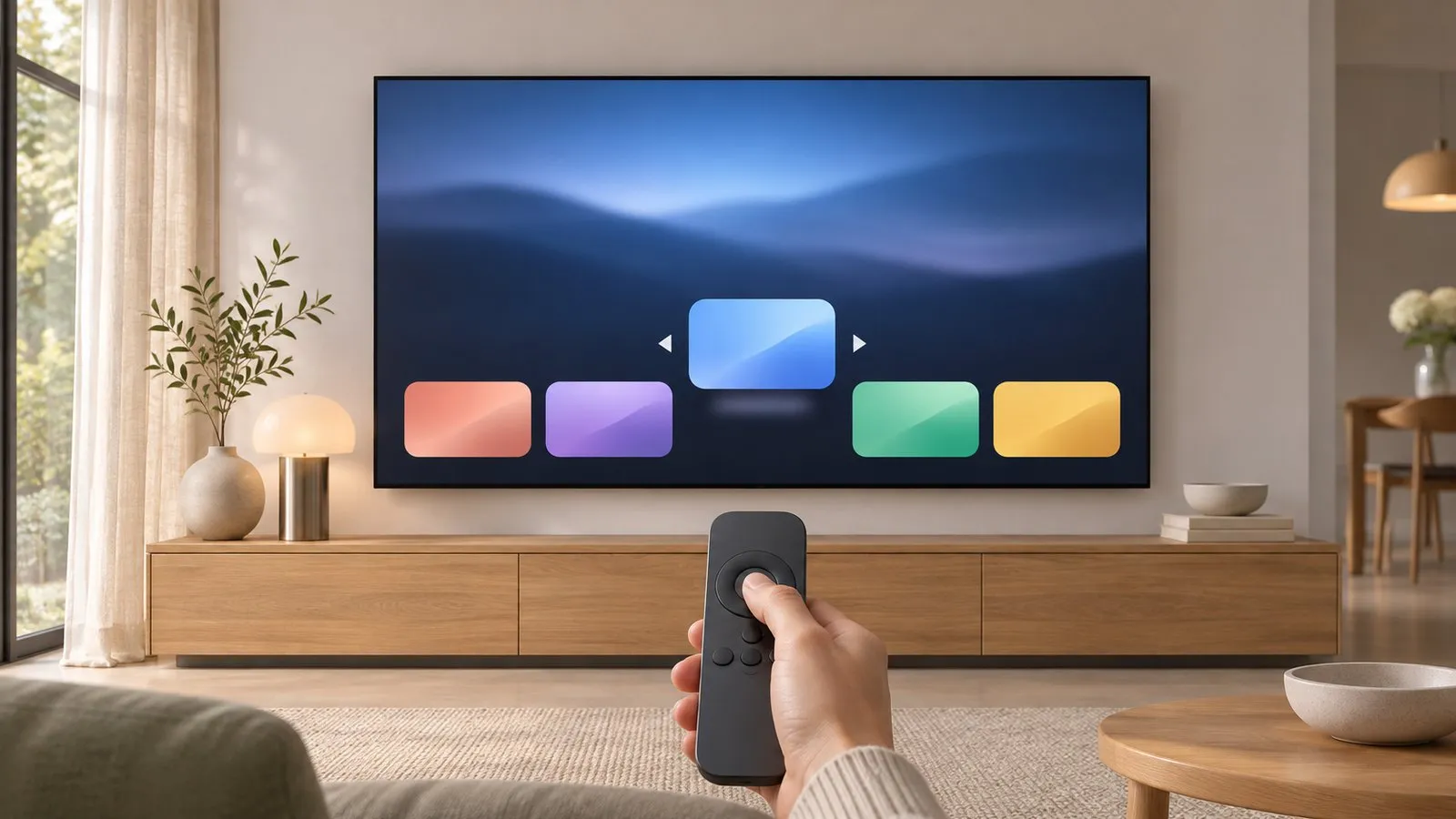
Move apps
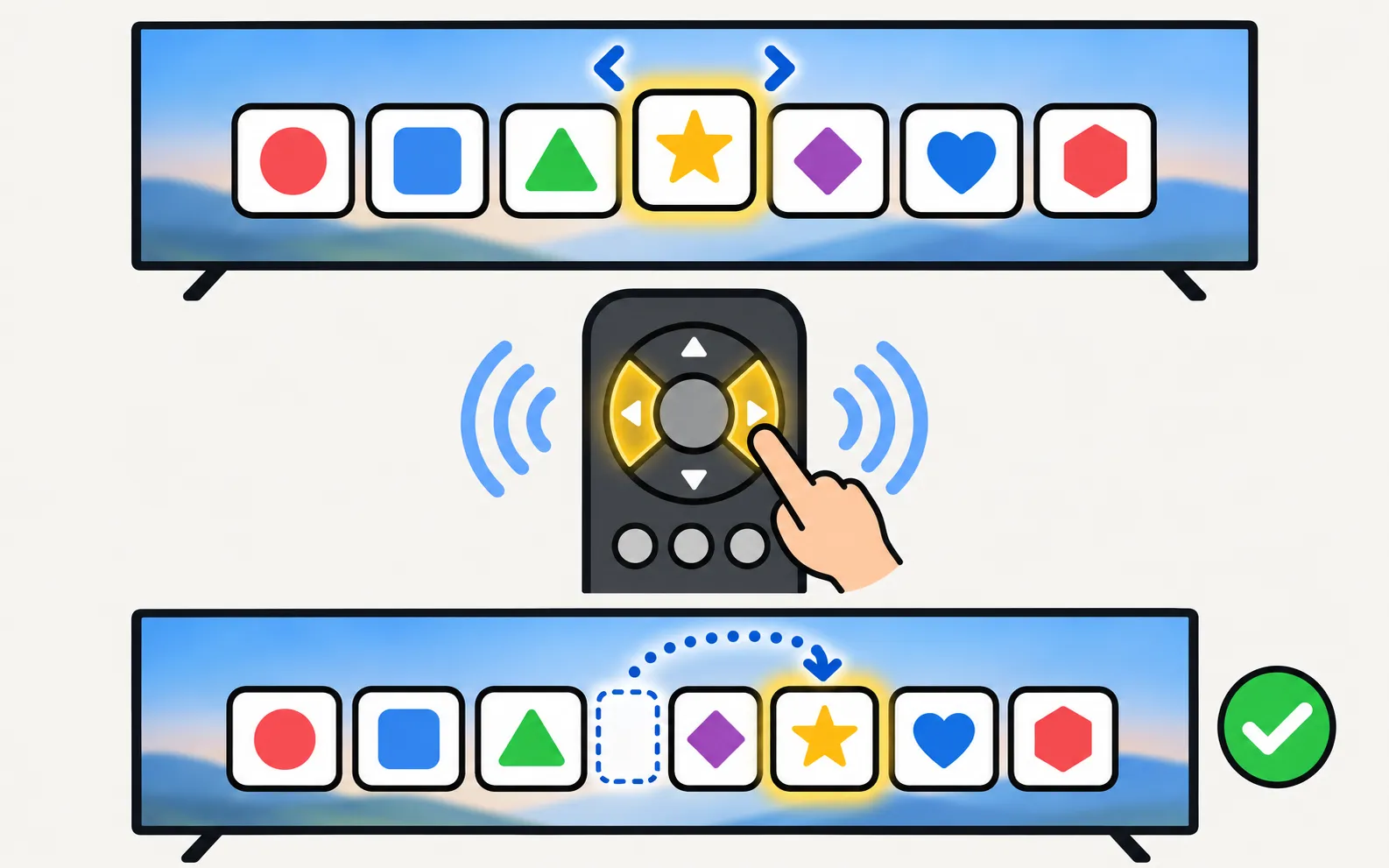
Samsung’s guide for 2022 and newer TVs:
-
Open the Apps list
Press Home and go to Apps. -
Choose List Edit
Scroll to the end of the apps list and select List Edit. -
Select Move
In the Options menu, choose Move, then use the arrows to place the app and confirm.
On older models, highlight a tile on the home row, press and hold Select (or press the down arrow) to open its options and choose Move.
Remove a tile without deleting the app
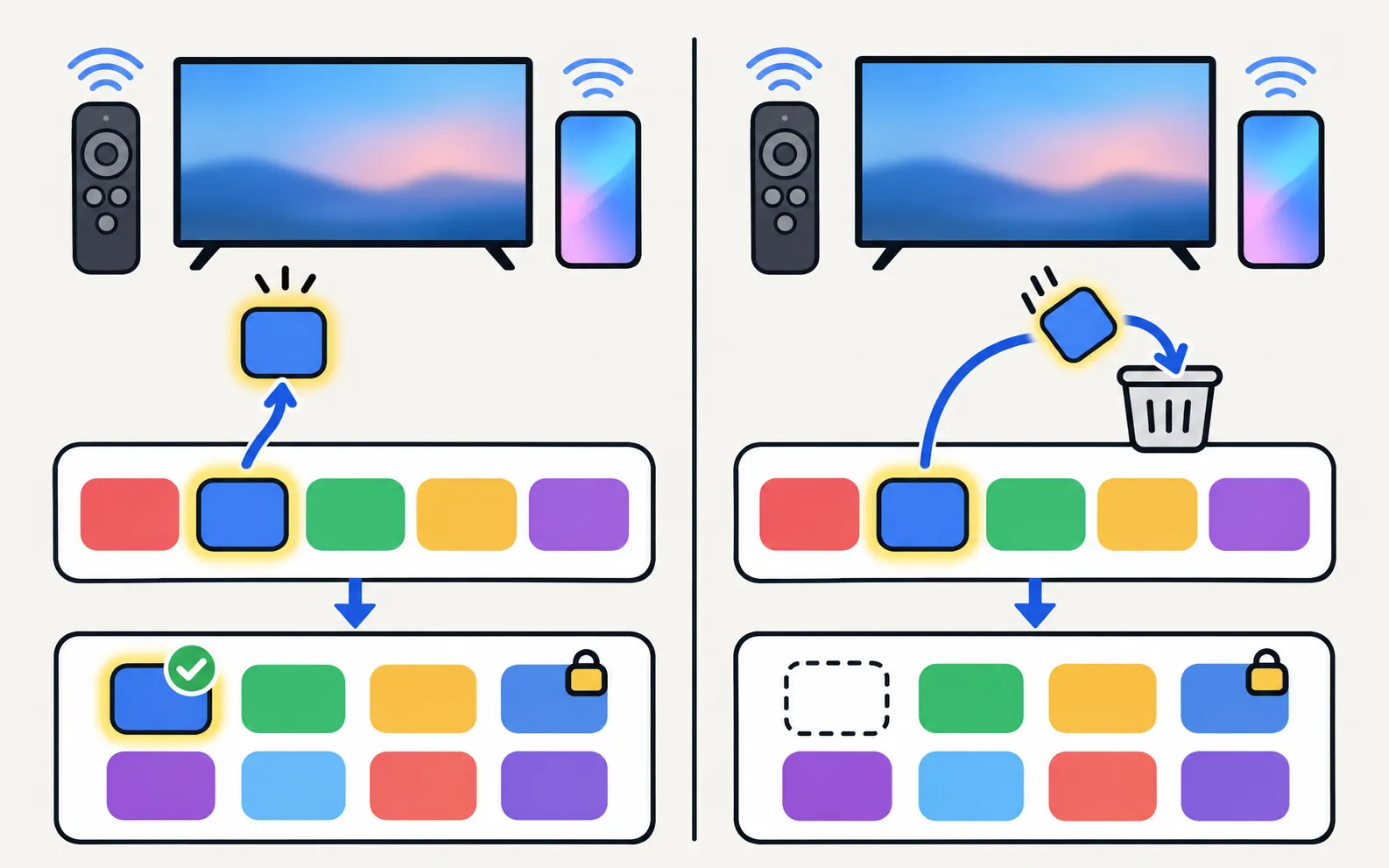
Highlight the tile on the home row, open its options and choose Remove. The app stays installed and remains in Apps.
Delete an app completely
Open Apps, select Settings, choose the app and select Delete. Samsung notes that pre-installed apps can’t be deleted, so Delete may be greyed out for them. More: install, update and delete apps.
Lock apps
In the same Apps settings, select Lock to protect an app with the TV’s PIN (Samsung’s default is 0000). For children, see parental controls.
Less clutter, fewer ads
The home screen also carries recommendations and promotions. What you can turn off: turn off ads on a Samsung TV.
Frequently asked questions
Can I delete Netflix, Prime Video or other pre-installed apps?
Samsung says pre-installed apps can't be deleted. You can usually remove their tile from the home row.
Why do new apps keep appearing on my home screen?
Updates and promotions can add tiles or recommendations. Remove the tile, and see the guide to reducing ads and promotions.
Can I hide the TV Plus or recommendation rows?
Some promotional rows can be reduced in settings; see the ads and privacy guides.
Sources
- [2022] How to install apps and manage downloaded apps on your Samsung TV — Samsung UK · Samsung · checked November 11, 2026
Related guides
How-to
Install and delete apps
How to download apps on a Samsung Smart TV, keep them updated, delete or reinstall them, and what to do when Delete is greyed out — with Samsung's own steps.
How-to
Turn off ads
Cut ads on a Samsung Smart TV: turn off interest-based ads and viewing data, stop TV Plus and apps auto-starting, tidy the home row — and what can't be removed.
Topic
Apps
Samsung TV apps explained: install and delete apps, fix apps that won't load, find streaming, live and free TV apps, IPTV and Plex — and why APKs won't install.
How-to
Parental controls
Set up parental controls on a Samsung TV: Programme Rating Lock, App Lock and Channel Lock with paths for 2016–2026 models, the PIN, and what locks can't block.