
How-to
How to download, update and delete apps on a Samsung TV
Everything you need to manage apps on a Samsung Smart TV: installing from Apps, updating, deleting, locking and freeing space.
Quick answer
Press Home, go to Apps, search for the app and select Install; when it's done, choose Open or Add to Home. To delete an app, open Apps, select the Settings (gear) icon, choose the app and select Delete — pre-installed apps can't be deleted, so Delete may be greyed out (select Reinstall instead). Updates install automatically on most TVs when auto update is on; a software update of the TV also helps.
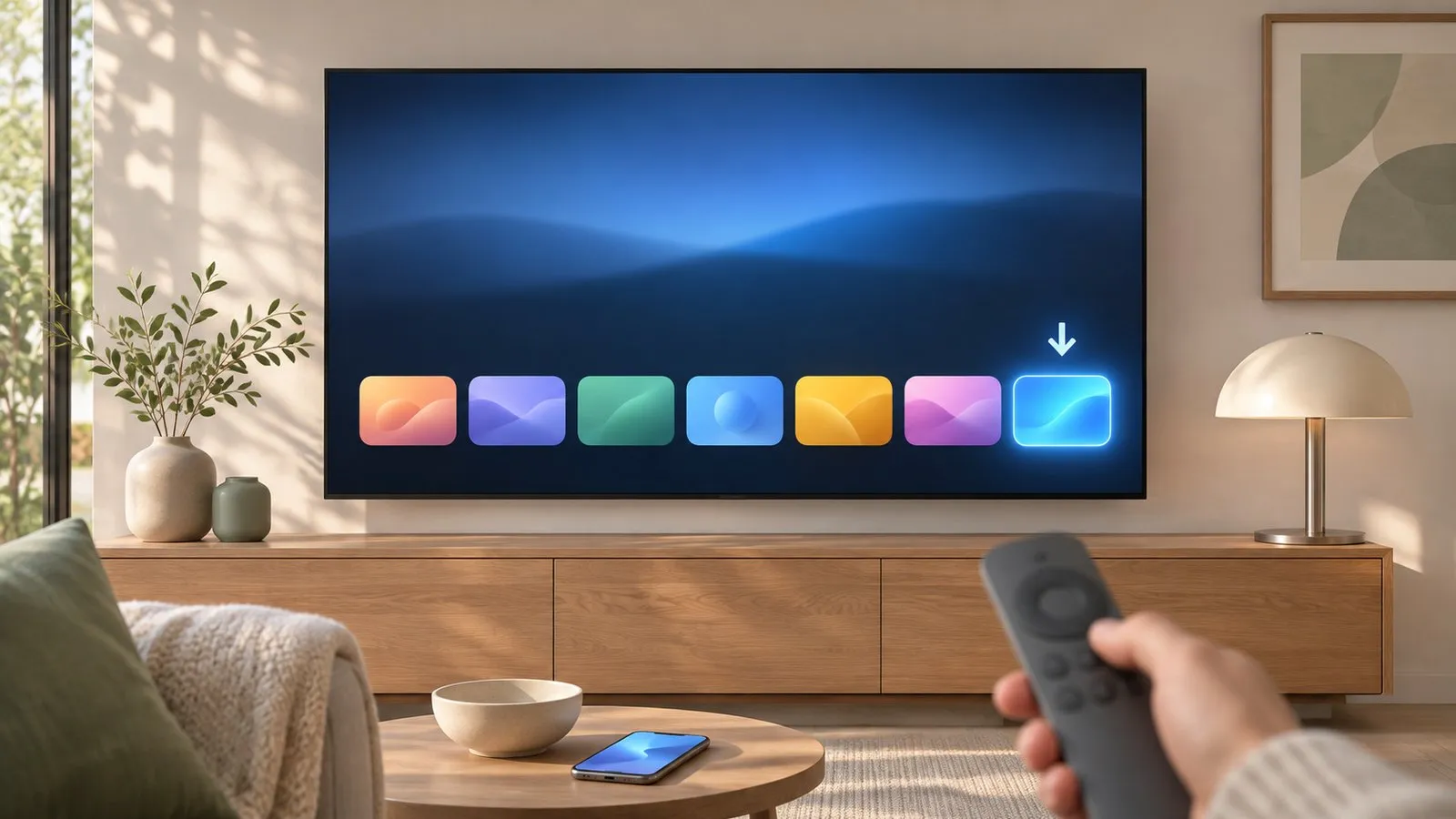
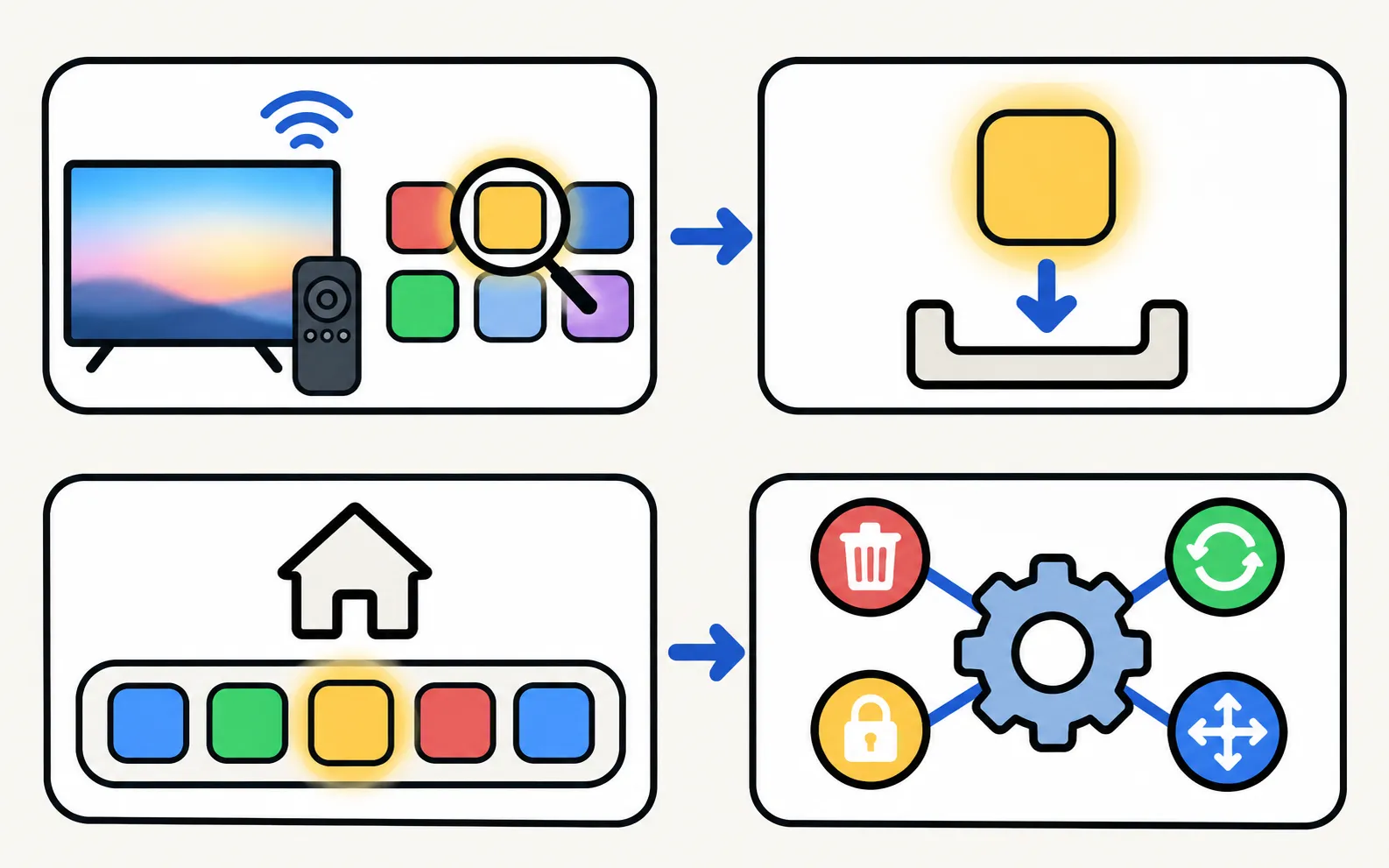
Install an app
-
Open Apps
Press Home on the remote and go to Apps. The first time, you’re asked to accept Samsung’s terms before the app list appears. -
Find the app
Browse the categories or select the search icon and type the name. -
Select Install
When it finishes, choose Open to start it, or Add to Home to pin it to the home screen.
Typing app names with the remote is slow; a USB keyboard or a phone keyboard app makes searching faster (keyboard and mouse on a Samsung TV).
Update apps
- Auto update: most Samsung TVs update apps automatically while connected to the internet. Look for an Auto Update option in the Apps settings if you want to check it.
- Manual: when an update is waiting, the app’s page in Apps shows an update option.
- TV software: some app fixes arrive with the TV’s own software. Samsung’s first steps for misbehaving apps include a software update — see update a Samsung TV.
Delete or reinstall an app
-
Open the Apps settings
Go to Apps and select Settings (the gear icon), where you can manage installed apps. -
Select the app
Highlight the app you want to remove. -
Choose Delete
Confirm, and the app is removed. Deleting signs you out, so keep your login details.
Delete greyed out? Samsung says pre-installed apps can’t be deleted, so Delete may be disabled. Choose Reinstall instead to refresh a misbehaving pre-installed app.
Lock, move and tidy
- Lock: in the Apps settings, select the app and choose Lock or Unlock. You’ll need the TV’s PIN (Samsung’s default is 0000 unless changed) — see Samsung TV PIN.
- Move: at the end of the apps list, choose List Edit, then Move to reorder apps.
- Remove from the home screen without deleting: see organise the home screen.
Not enough storage?
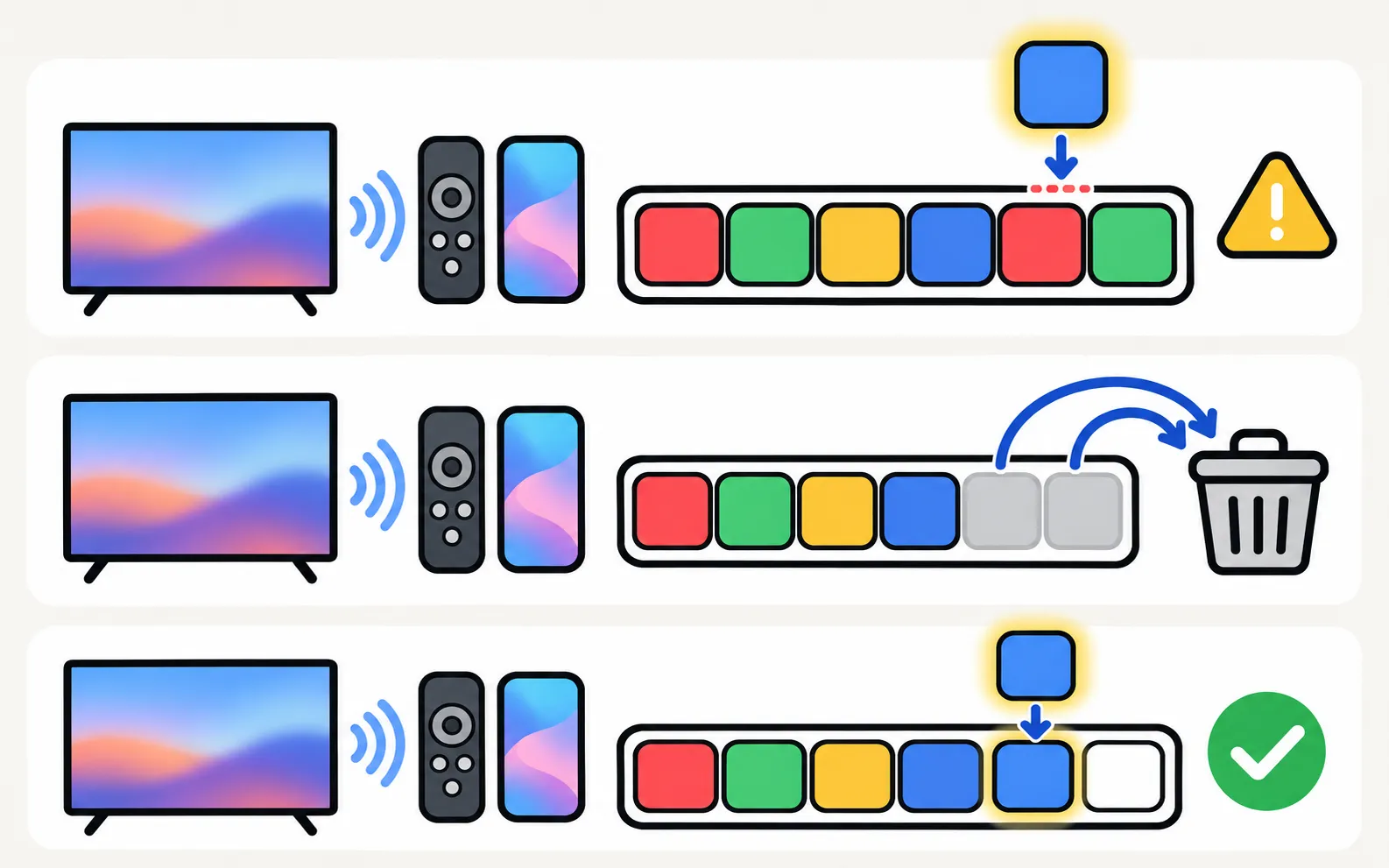
TVs have limited storage. If an install fails for lack of space, delete apps you don’t use. A TV that’s slow or freezing may also benefit from clearing app data — see Samsung TV slow or freezing.
Open TV apps from your phone
Once apps are installed, a phone remote can start them without scrolling through rows of tiles:
When an app won’t install or start
If an app won’t start or install, see apps not working; if it isn’t in the store at all, see app not available on your Samsung TV.
Frequently asked questions
Why can't I delete Netflix or Prime Video from my Samsung TV?
Samsung says pre-installed apps can't be deleted, so the Delete option is disabled for them. You can usually remove them from the home screen instead, or use Reinstall if they misbehave.
Do I need a Samsung account to install apps?
On many Samsung TVs the Apps store asks you to accept Samsung's terms and may ask for a Samsung account sign-in to download. Some apps also need their own account.
Can I install Android apps or APK files?
No. Samsung TVs run Tizen, not Android, so they can't install APKs or Google Play apps. See the guide on APKs and Google Play.
How do I lock an app?
In the Apps settings, select the app and choose Lock. You need the TV's PIN — Samsung's default is 0000 unless you changed it.
Why is an app missing from the store?
Availability depends on your country and your TV's model year. A separate guide explains the options.
Sources
- [2022] How to install apps and manage downloaded apps on your Samsung TV — Samsung UK · Samsung · checked November 11, 2026
- Samsung UK support: TV apps won't open — Samsung UK · Samsung · checked November 10, 2026
Related guides
Troubleshooting
Apps not working
Samsung TV apps won't open, crash or keep loading? Power-cycle, check the internet, update the TV, reinstall the app, then reset Smart Hub — in Samsung's order.
Troubleshooting
App not available
Can't find an app in your Samsung TV's store? Why apps depend on your country and TV year, what you can safely change, and workarounds that actually work.
How-to
Organise the home screen
Tidy a Samsung TV home screen: move app tiles with List Edit, remove shortcuts without deleting the app, lock apps, and delete the apps you never use.
Explainer
APKs and Google Play
No: Samsung Smart TVs run Tizen, not Android, so APK files and Google Play won't install. Why sideloading guides mislead, and safe ways to get Android apps.
Troubleshooting
Slow or freezing
Speed up a slow or freezing Samsung TV: cold boot, clear app cache in Device Care, delete unused apps, update the software and reset Smart Hub as a last step.