
How-to
How to update a Samsung TV: online, by USB and when it fails
Software updates fix bugs, keep apps working and sometimes add features. Here is how to install them — with or without internet.
Quick answer
Open Settings, All Settings, Support, Software Update and select Update Now; turn on Auto Update so future updates install by themselves. Without internet, download your model's firmware from Samsung's support site, unzip it to the top level of an empty FAT32 USB drive, plug it in and choose Update Now. Don't switch the TV off until it restarts by itself.
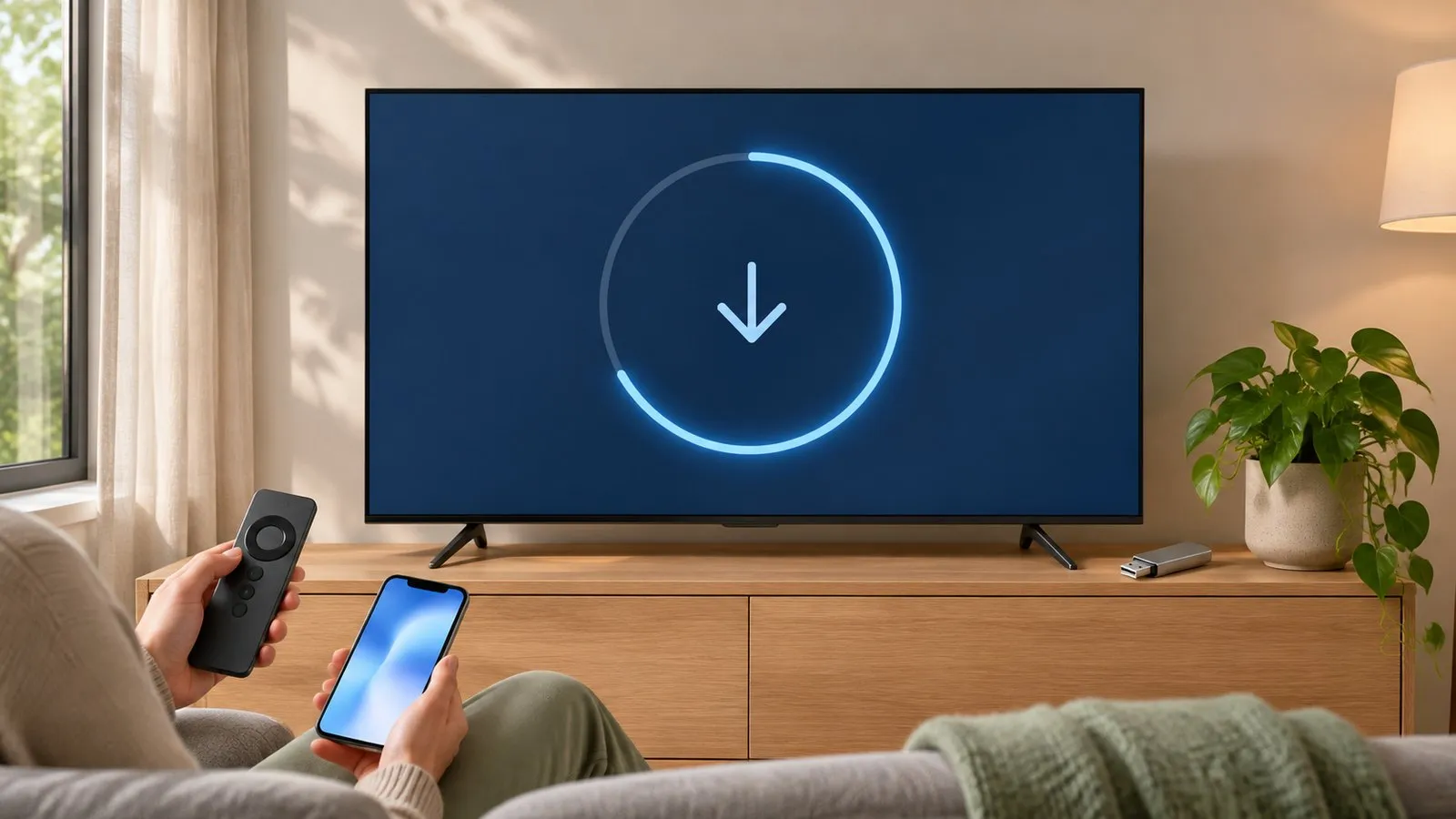
Update over the internet
-
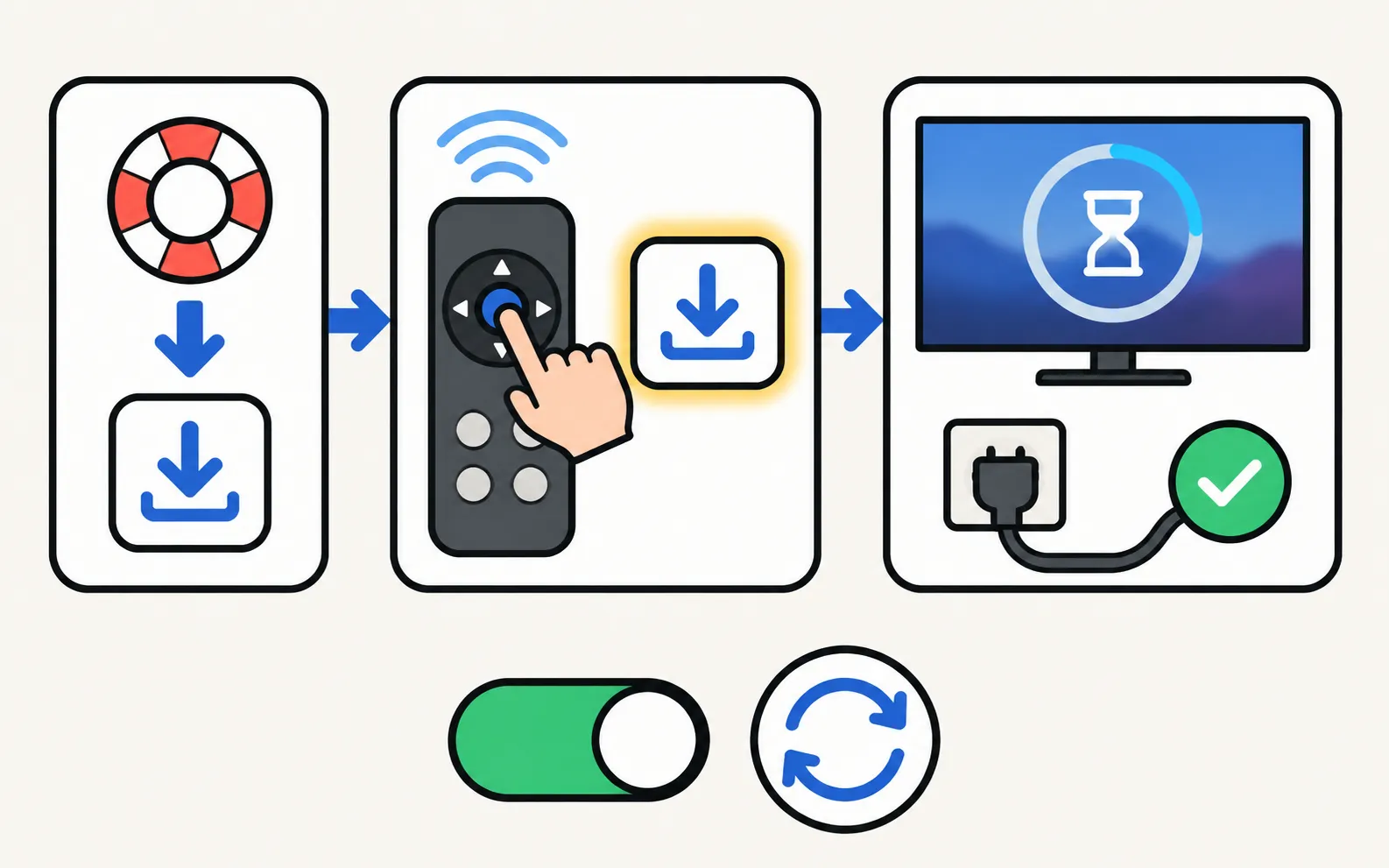
Open Software Update
-
Select Update Now
The TV checks for an update and starts installing if one is available. -
Wait
Updates usually take a few minutes. Don’t turn the TV off; it restarts when finished.
On 2017–2021 menus Support appears directly under Settings; the steps are the same.
Turn on Auto Update
In the same Software Update menu, select Auto Update to switch it on. Samsung’s guides say the TV then installs updates when it’s turned off (in standby), so they don’t interrupt viewing.
Update by USB (no internet)
Use this when the TV can’t get online, or a network update keeps failing.
-
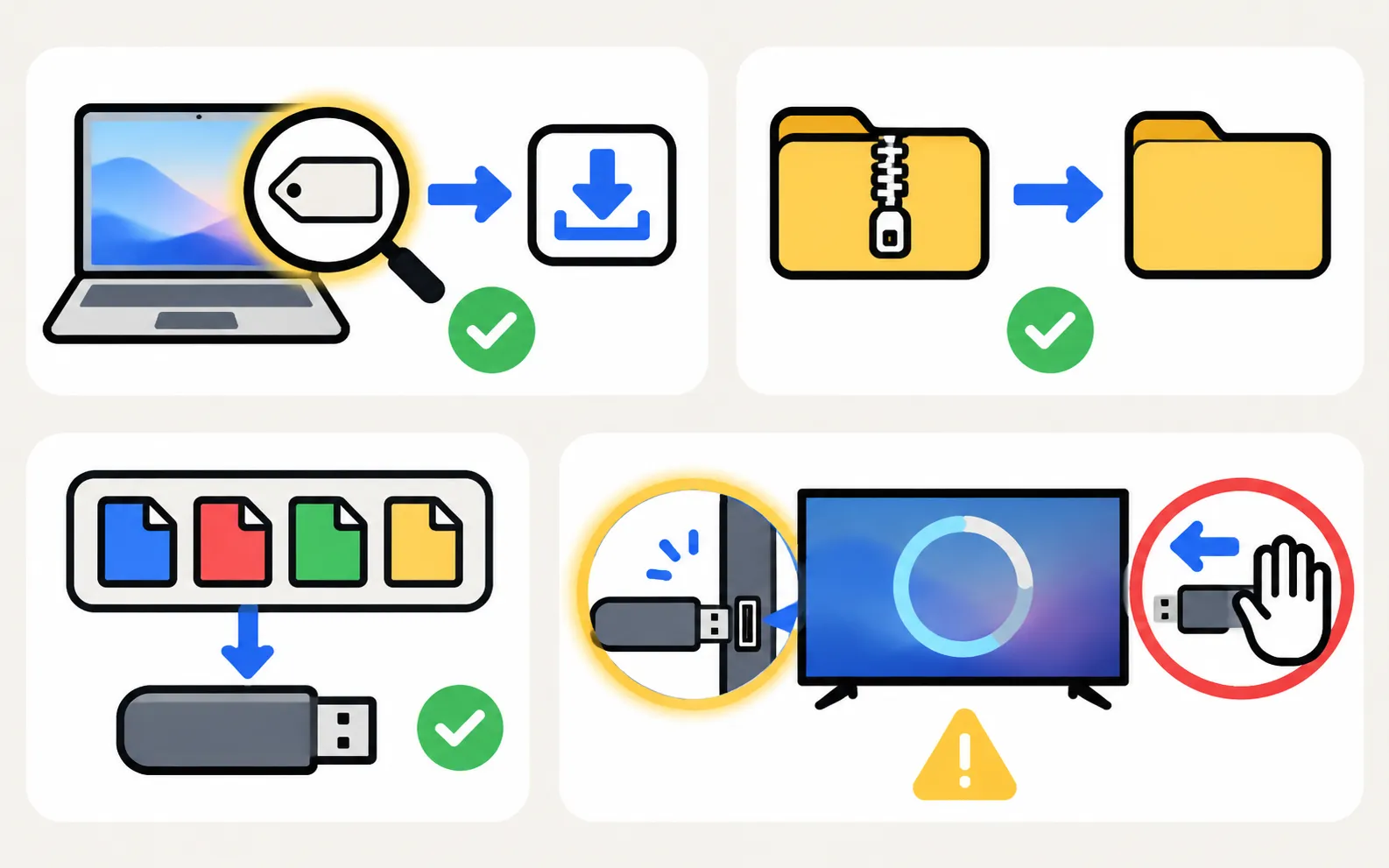
Find your exact model code
On the back label, or in (how to read it). -
Download the firmware
On a computer, open Samsung’s support site for your country, search your model code and download the USB update file from the Manuals & Software (download) section. If several versions are listed, choose the newest. -
Prepare the USB drive
Samsung says the drive must be empty and formatted FAT32. Unzip the download and copy everything to the top level of the drive — if the files sit inside another folder, the TV won’t find them. -
Install
Plug the drive into the TV, open Software Update, select Update Now, then Yes if asked. -
Don't interrupt
The TV restarts automatically when finished. Remove the drive afterwards.
When the update fails or won’t start
| Problem | Fix |
|---|---|
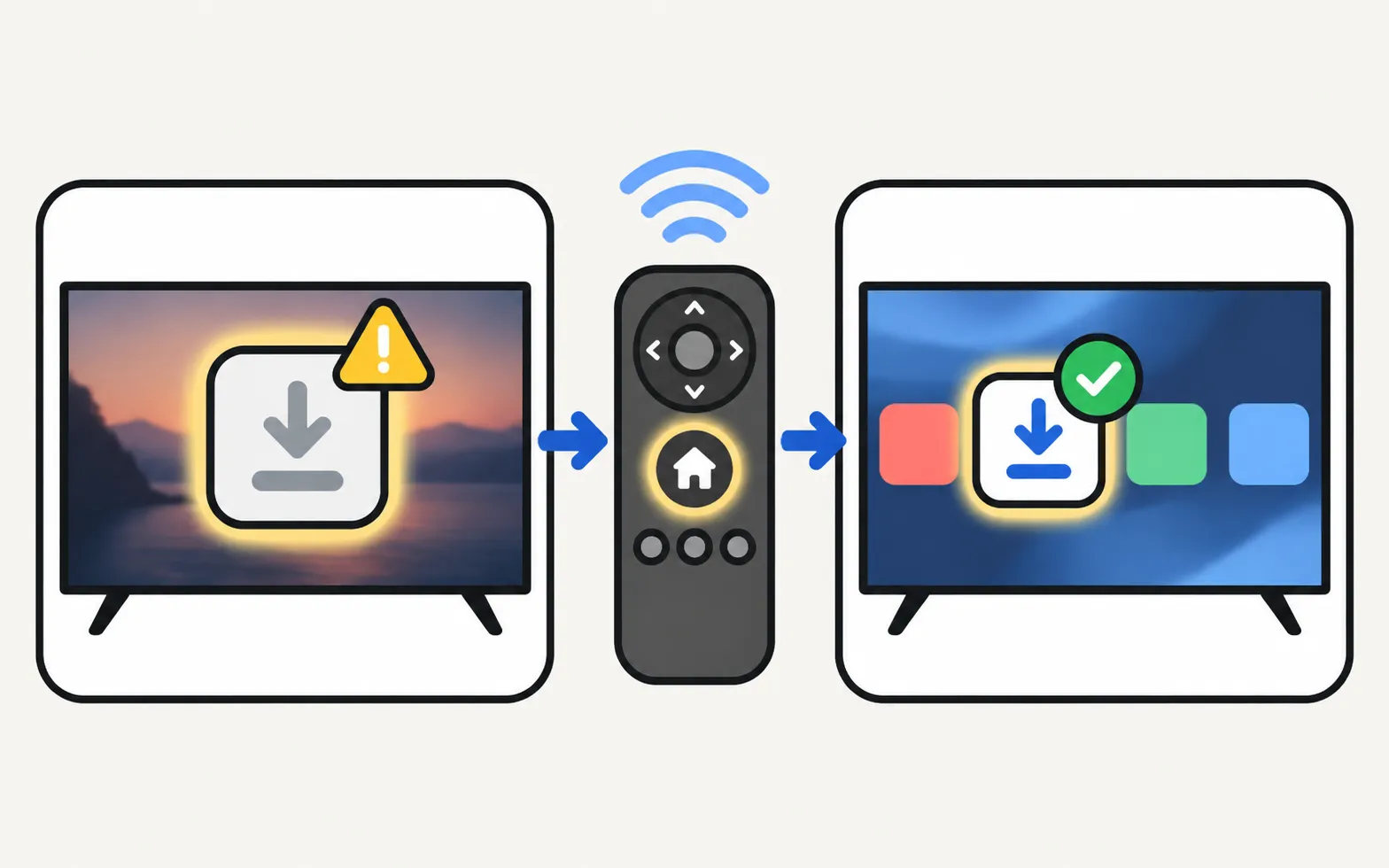
| Software Update is greyed out | Close streaming apps — Samsung says a running app greys it out. Go to the home screen. |
| “No update available” but you expected one | Updates roll out gradually and by region; your TV may already be on the latest version for its model. |
| Download fails | Check the network (won’t connect to Wi-Fi), or use the USB method. |
| USB drive not recognised | Use an empty FAT32 drive, put files at the top level, try another USB port. |
| TV restarts or freezes during the update | Leave it for a while. If it’s clearly stuck for a long time, unplug for 30 seconds and try the USB method. If it won’t start at all, contact Samsung support. |
After updating
- Check your picture and sound settings — Samsung warns they may return to defaults.
- Apps that wouldn’t open before often work again; if not, see apps not working.
- Curious which Tizen version your TV runs and how long Samsung updates each model year? See Tizen versions and OS updates.
If the TV shows an error code during a USB update, look it up in Samsung TV error codes.
Frequently asked questions
Why is Software Update greyed out?
Samsung says it's greyed out when a streaming app is running in the background. Go to the home screen or a TV input and try again.
Will an update erase my settings?
Samsung notes that video and audio settings might be reset to defaults after an update. Apps and sign-ins normally stay.
How long does an update take?
Usually a few minutes. Keep the TV on until it restarts by itself.
My TV says it's up to date, but an app needs a newer version. Why?
Older TVs stop receiving major updates after some years. When a TV no longer gets the software an app needs, a streaming stick is the usual workaround.
Is Auto Update on by default?
Samsung's Singapore guide says Auto Update is enabled when you accept the Smart Hub terms during setup. Check it under Software Update.
Sources
- Update the software on your Samsung smart TV or monitor (ANS00062224) — Samsung US · Samsung · checked November 11, 2026
- How to update the software on your Samsung Smart TV and Smart Monitor — Samsung Singapore · Samsung · checked November 11, 2026
- Samsung US support answer on TV model codes (ANS10006944) — Samsung US · Samsung · checked November 10, 2026
- Samsung TV won't connect to Wi-Fi (TSG10002209) — Samsung US · Samsung · checked November 11, 2026
- Samsung UK support: TV apps won't open — Samsung UK · Samsung · checked November 10, 2026
Related guides
Reference
Tizen versions and updates
Which Tizen version your Samsung TV runs, how to check its software, how long Samsung updates TVs (the 2024 seven-year promise) and what One UI Tizen is.
How-to
Factory reset
Factory reset a Samsung TV: the menu path for each year since 2013, default PIN 0000, what a reset erases, lighter resets first, and how without a remote.
Troubleshooting
Apps not working
Samsung TV apps won't open, crash or keep loading? Power-cycle, check the internet, update the TV, reinstall the app, then reset Smart Hub — in Samsung's order.
Troubleshooting
Won't connect to Wi-Fi
Samsung TV won't connect to Wi-Fi or can't find your network? Check signal and band, run Network Status, reset the network, set DNS, restart the router, update.

Troubleshooting
TV keeps restarting
Samsung TV stuck restarting or rebooting to the logo? Isolate power, HDMI and USB devices, check Anynet+, update or reset safely, and spot a board fault.