
Troubleshooting
TV not showing up on your phone
Phone can't find your Samsung TV? Turn the TV fully on, put both on the same home Wi-Fi, switch off VPN and guest networks, and allow local network access.
Samsung TV Remote

Samsung TV Remote
by Smart App Craft Free · No ads · No account
Most problems come from the network: the phone and the TV must be on the same home Wi-Fi with no VPN or guest network, and the TV must be fully on for the first connection. Power-on needs Power On with Mobile on a 2016+ TV. Mirroring sound needs Android 10+. Protected apps like Netflix show black when mirrored, and the phone keyboard can't type into apps with their own keyboard.
Start with the step-by-step troubleshooter above if the app can’t find your TV. For everything else, find your symptom below — each answer is short, with a link to the full guide.
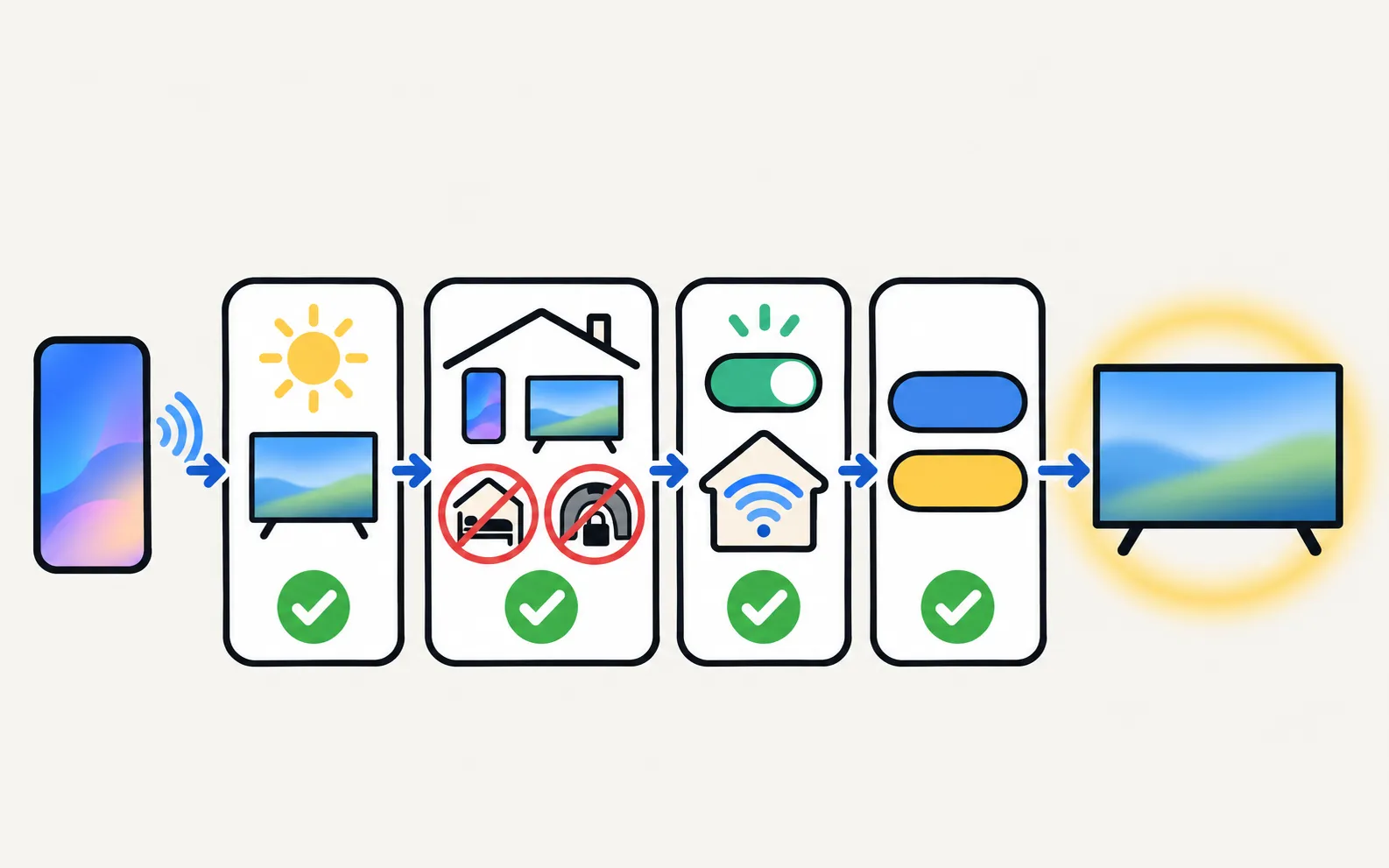
Phone and TV must be on the same home network (not a guest network). The phone uses Wi-Fi; the TV can use Wi-Fi or Ethernet. No internet is needed, and mobile data can't be used.
Guest, public or business Wi-Fi, AP or client isolation, a phone VPN and extenders that create a separate network can block the connection.
On newer Android versions the app must be allowed local network access; without it the app can't connect.
Turn the TV fully on (standby is not enough the first time) and search again. Full guide: Samsung TV not showing up on your phone.
The TV must be fully on for the first connection. Select Allow on the TV, or type the PIN shown on 2014–2015 TVs.
If you once chose Deny, or the prompt never appears, the TV’s Device Connection Manager is blocking the app: fix the Allow prompt.
Set Access Notification to First Time Only in Device Connection Manager. Clearing the app’s data or reinstalling it also makes the TV ask once more, because the TV’s connection token is deleted. Details: Samsung TV keeps asking to allow your phone.
The app shows this for devices that aren’t Samsung TVs, and for some 2014–2015 Samsung TVs:
Remote buttons, touchpad as arrow keys and power off. Casting may work; mirroring often does not. No keyboard, pointer, app launch or power on. Some 2014–2015 TVs with later firmware need a secure pairing the app doesn't support, and the app then shows "This TV is not supported".
Look up your model on the compatibility page.
Type the PIN into the app as soon as it appears on the TV; it is valid only for a short time. If it expires, start the connection again for a new PIN.
Turning the TV on from the phone needs a 2016 or newer TV with Power On with Mobile enabled, and the TV must stay plugged in (standby).
Turn on Power On with Mobile (paths by year) in turn on your Samsung TV with your phone. A TV with a soundbar on HDMI ARC may not wake from a phone.
Mirroring with sound needs Android 10 or newer; on Android 9 mirroring shows the picture only. The audio-recording permission is used only to capture app sound during mirroring; the microphone is never used.
TV volume follows the phone’s media volume, so turn the phone’s media volume up. The phone keeps playing the sound too; lower it or use headphones on the phone if the echo bothers you.
Apps that block screen capture — Netflix, many streaming and banking apps — show black and send no sound when mirrored. That is the app’s protection, not a fault. Open those apps on the TV itself, or start them on the TV with the app’s one-tap buttons. If the TV’s own Netflix app misbehaves, see Netflix not working on a Samsung TV.
Mirroring runs about 1–3 seconds behind the phone and isn't suitable for fast games. Apps that block screen capture (for example Netflix or banking apps) show black. On Android 9 there is no sound, and the phone keeps playing the sound too.
The TV model decides most of the delay. For photos and videos, casting plays the file on the TV at full quality instead: cast photos and videos.
Long or 4K videos can take a while to start or convert, and cloud-only photos may need to download first.
Videos in formats the TV can’t play are converted on the phone first; the app shows the progress.
On 2010–2015 TVs casting may work and mirroring often doesn’t, because both use the TV’s own media player, which is most reliable on 2016 and newer TVs. More fixes: screen mirroring not working.
The phone keyboard doesn't reach apps that draw their own keyboard (for example Netflix on many TVs).
Select the text field on the TV first, then open the keyboard dialog. The phone keyboard needs a 2016 or newer TV. Other ways to type: keyboard and mouse on a Samsung TV.
The pointer only works where the TV app shows a pointer.
Most streaming apps ignore the pointer — use the touchpad or the navigation pad there. The pointer is most useful in the TV’s web browser.
The app tells you when a button isn’t available on your TV. Some keys exist only on certain models or in certain apps.
If the app doesn't work with your model, email smartappcraft@gmail.com with the full model code. Add your router brand and the steps you tried — it helps the developer reproduce the problem.
There is no iPhone version.
The app works only with Samsung Smart TVs — not LG, Sony or other brands.
Features vary by TV model and software version, and TV or phone updates may change them.
If the app doesn't work with your model, email smartappcraft@gmail.com with the full model code.
Troubleshooting
Phone can't find your Samsung TV? Turn the TV fully on, put both on the same home Wi-Fi, switch off VPN and guest networks, and allow local network access.
Troubleshooting
Why your Samsung TV keeps asking to Allow a phone, how to stop it, and how to undo a Deny — with the Device Connection Manager settings by TV year.
How-to
Switch a Samsung TV on from your phone: enable Power On with Mobile (menu paths by year), keep the TV in standby, and fix a TV that won't wake over Wi-Fi.
App
Set up Samsung TV Remote in two minutes: connect to your Samsung Smart TV, use the remote, touchpad and keyboard, turn the TV on, mirror and cast photos.
App
Check your Samsung TV model code against 389 developer-tested models, and see which app features work on each Samsung Smart TV generation from 2010 on.
How-to
Mirror an Android phone to a Samsung TV: Smart View on Galaxy, Cast or Wireless display on other brands, a mirroring app with sound, or a USB-C to HDMI cable.