
How-to
How to screen mirror Android to a Samsung TV, with sound
Galaxy phones have Smart View built in. Pixel, Xiaomi, Motorola and other Android phones need another route — here are all of them, with sound.
Quick answer
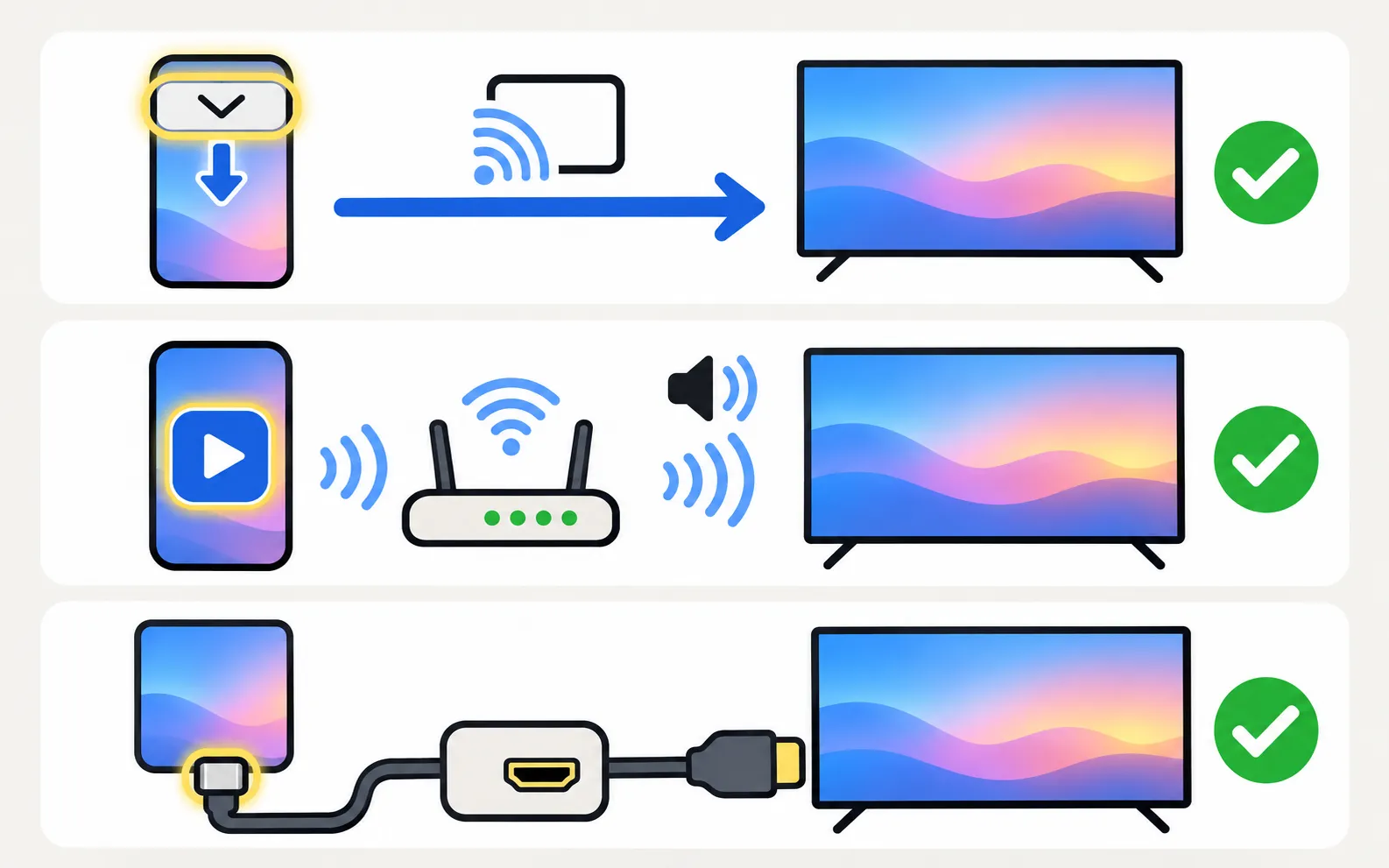
On a Galaxy phone, open Quick Settings, tap Smart View, pick your Samsung TV and select Allow on the TV. On other Android phones, try the phone's own Cast or Wireless display option, or use a mirroring app that supports Samsung TVs; both need the phone and TV on the same Wi-Fi. For sound with app-based mirroring, you need Android 10 or newer. A USB-C to HDMI cable works without Wi-Fi on phones that support video output.
Which method fits your phone?
| Phone | Easiest method | Sound | Notes |
|---|---|---|---|
| Samsung Galaxy | Smart View (Quick Settings) | Yes | Usually the lowest delay |
| Other Android (Pixel, Xiaomi, Motorola, OnePlus…) | Phone’s Cast / Wireless display option, or a mirroring app | Yes on Android 10+ with app-based mirroring | Built-in options vary by brand |
| Any phone with USB-C video output | USB-C to HDMI adapter | Yes | No Wi-Fi needed; not every phone supports it |
Method 1: Smart View on a Galaxy phone
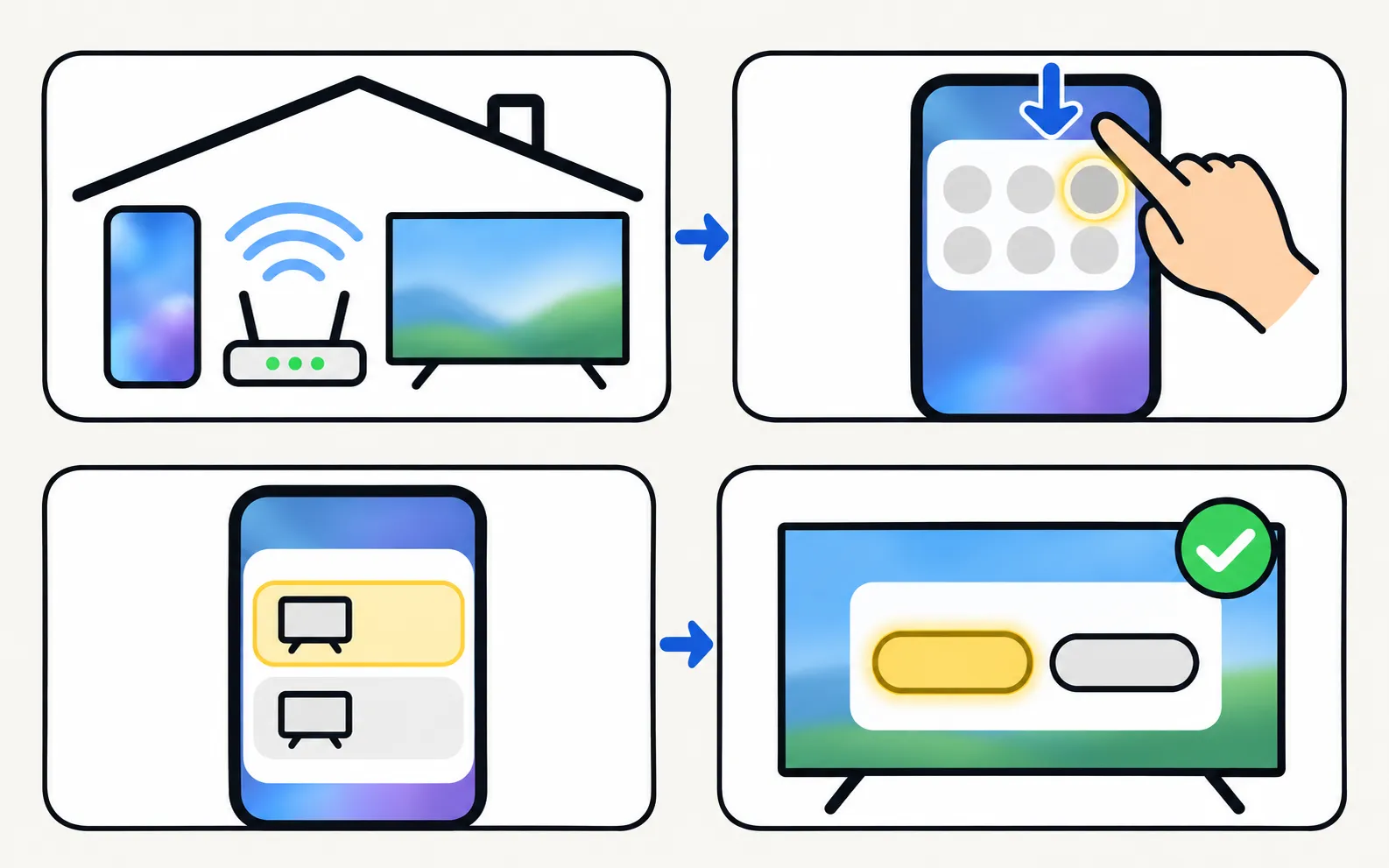
Samsung’s own instructions:
-
Connect both to the same Wi-Fi
Samsung lists the same Wi-Fi network as a requirement. -
Open Quick Settings and tap Smart View
If the button is missing, tap Edit (or the pencil) in Quick Settings and add it. -
Choose your TV
Select it from the list of available devices. -
Select Allow on the TV
The TV asks the first time.
To stop, press Return on the TV remote or disconnect on the phone. If the picture has black bars, Samsung suggests tapping the Smart View icon on the phone and choosing the phone aspect-ratio option.
Smart View on Galaxy phones usually has less delay than app-based mirroring — if you have a Galaxy, it’s the natural first choice.
Method 2: your phone’s own Cast or Wireless display
Many Android brands have a built-in screen-sharing option — called Cast, Screen cast, Wireless display or Smart View depending on the brand. Some use the Miracast standard, which many Samsung TVs accept for screen mirroring; others only look for Google Cast devices. If your Samsung TV doesn’t appear there, that doesn’t mean it can’t mirror — use Method 3. (Whether Samsung TVs support Google Cast is covered in does a Samsung TV have Chromecast.)
Some apps, notably YouTube, have their own cast button that finds a Samsung TV running the same app. That plays the video on the TV itself — technically casting, not mirroring. If the YouTube app on the TV won’t load, see YouTube not working on a Samsung TV.
Method 3: a mirroring app
A mirroring app sends a live video of your screen to the TV over your home network. Look for sound support, a clear statement of delay and limits, and no account requirement.
With Samsung TV Remote
Screen mirroring with sound, using the TV's own media player — nothing is installed on the TV.
-
Connect to your TV in the app
Phone and TV on the same Wi-Fi; allow the phone on the TV the first time. -
Tap the cast icon (Show on TV)
Choose Screen mirroring. -
Confirm on the phone
Android asks you to confirm every mirroring session. -
Allow audio
Sound needs Android 10 or newer and the audio permission.
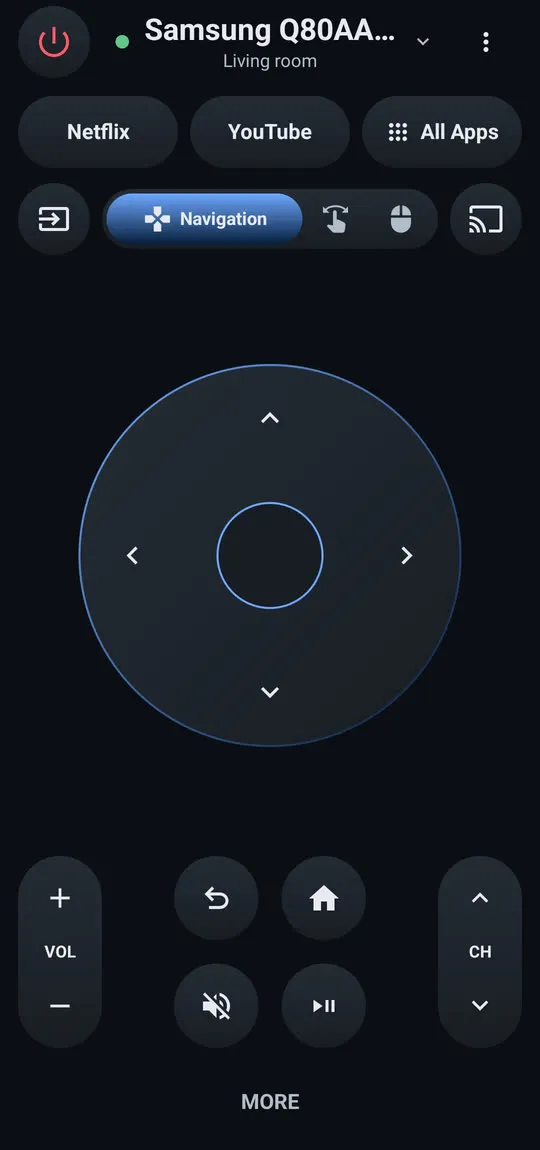
Mirroring with sound needs Android 10 or newer; on Android 9 mirroring shows the picture only. The audio-recording permission is used only to capture app sound during mirroring; the microphone is never used. TV volume follows the phone’s media volume. Stop from the cast icon or the notification.
Setting up the app for the first time: getting started with Samsung TV Remote. Mirroring is most reliable on 2016 and newer TVs — the compatibility page shows what each TV generation supports.
Mirroring needs a 2016 or newer Samsung Smart TV for reliable results; on 2010–2015 TVs it often doesn’t work.
Method 4: USB-C to HDMI cable
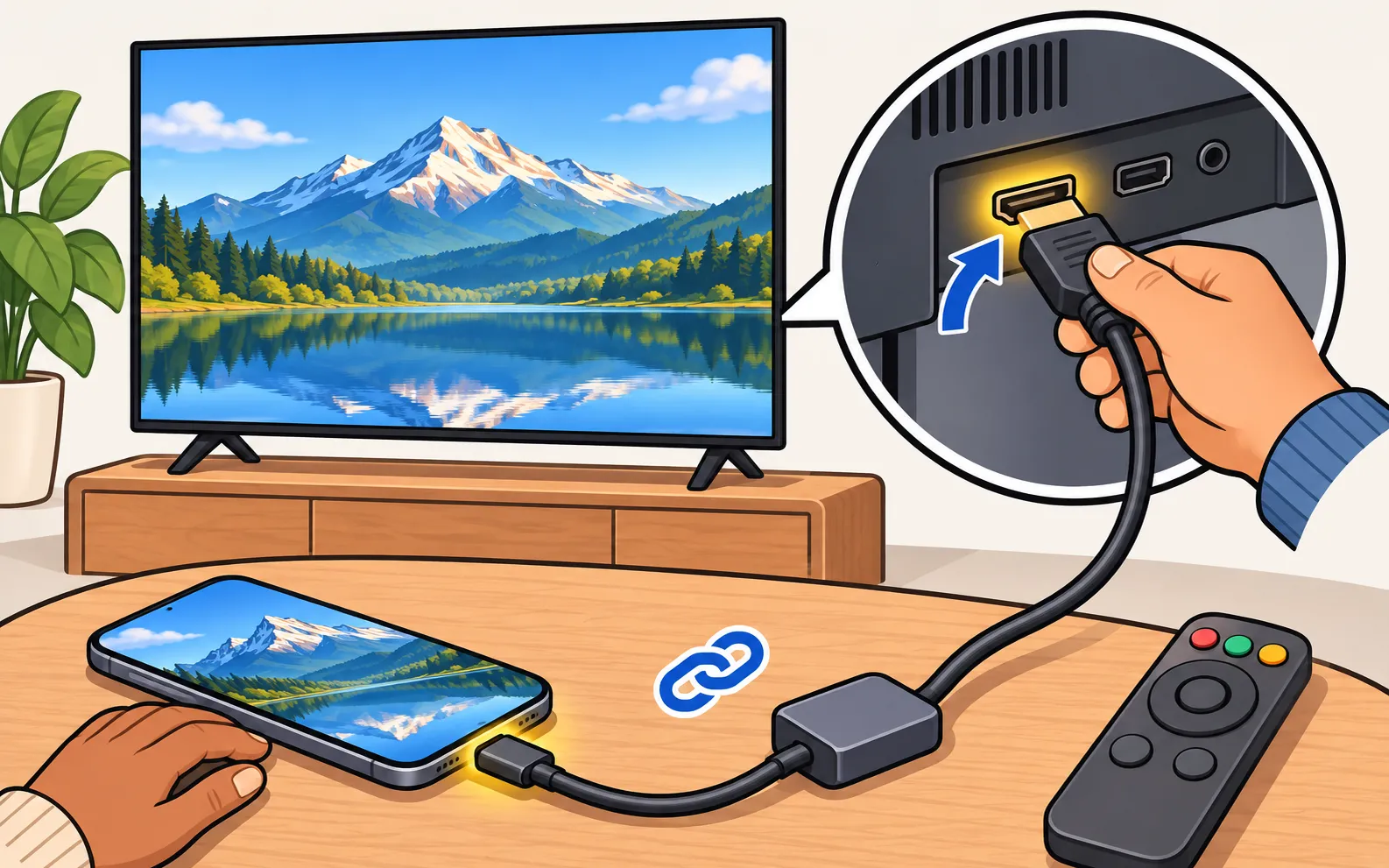
If your phone supports video output over USB-C (many recent Galaxy flagships, some other brands — check your phone’s specifications for “DisplayPort Alt Mode” or “video out”), a USB-C to HDMI adapter gives a lag-free picture with sound and needs no Wi-Fi. Plug it into a free HDMI port and select that input on the TV (change the input).
Getting the best picture
- Turn the phone sideways for videos and presentations; portrait apps show with black bars.
- Use casting for photos and videos: sending the file lets the TV play it at full quality — see cast photos and videos from Android.
- Stay close to the router: mirroring is a constant video stream; weak Wi-Fi shows up as stutter.
- Silence notifications (Do Not Disturb) so private messages don’t pop up on the big screen.
When it doesn’t work
No TV in the list, a connection that drops, black screen or no sound — the fixes are in screen mirroring not working on a Samsung TV. No Wi-Fi at all? See mirror a phone to a Samsung TV without Wi-Fi.
Frequently asked questions
Why is there no sound when I mirror?
With app-based mirroring, sound needs Android 10 or newer and the app's audio permission. Also check the phone's media volume — with many methods, TV volume follows it.
Why does the TV show black when I mirror Netflix?
Apps that protect their content block screen capture, so the TV gets a black picture. Open the app on the TV instead.
Is there a delay?
Yes. Wireless mirroring always runs a little behind the phone; app-based mirroring typically runs 1–3 seconds behind. It's fine for photos, presentations and video, not for fast games.
Can I mirror to an old Samsung TV?
Smart View and Miracast support depend on the TV's model and year. App-based mirroring to 2010–2015 Samsung TVs often doesn't work, because the older TVs' media players are less capable.
Can I mirror without Wi-Fi?
Wirelessly, only with a direct Wi-Fi connection where the phone and TV support it. A USB-C to HDMI adapter is the reliable no-Wi-Fi option, if your phone supports video output over USB-C.
Sources
- How to connect TV and mobile device with Smart View — Samsung UAE · Samsung · checked November 11, 2026
- How to fix Smart View connection and casting issues — Samsung UAE · Samsung · checked November 11, 2026
- Samsung TV Remote product documentation (developer-supplied facts) — Smart App Craft · Developer · checked November 10, 2026
Related guides
Troubleshooting
Mirroring not working
Samsung TV not showing up for screen mirroring, connection drops, black screen or no sound? Fixes for Smart View, AirPlay and mirroring apps, by symptom.

How-to
Cast photos and videos
Show phone photos and videos on a Samsung TV at full quality: cast from an app, use Smart View, a casting app or a USB stick — and fix videos that won't play.
Topic
Mirroring and casting
Show your phone, tablet or computer on a Samsung TV: Android, Galaxy Smart View, iPhone AirPlay, Windows and Mac — and when casting beats mirroring.
Explainer
Chromecast on Samsung TVs
Do Samsung TVs support Google Cast? 2026 models list it, some older ones are getting it by update, others don't. How to check yours and cast without it.
How-to
Mirror without Wi-Fi
No Wi-Fi? Show your phone on a Samsung TV with a USB-C or Lightning to HDMI adapter, a phone hotspot or direct wireless mirroring — what works and what doesn't.
Troubleshooting
TV not showing up on your phone
Phone can't find your Samsung TV? Turn the TV fully on, put both on the same home Wi-Fi, switch off VPN and guest networks, and allow local network access.