
How-to
Change the input (source) on a Samsung TV, with or without the remote
Many Samsung Smart Remotes have no Source button. Here are all the ways to switch to your console, box or laptop.
Quick answer
Press Home on the remote, move left to Connected Devices (or Source) and choose the input, such as HDMI 1. Without a remote, press the TV's control button and select Source from the on-screen menu. With Anynet+ (HDMI-CEC) on, many devices switch the TV to their input automatically when you turn them on. A phone remote app's input button also works on Smart TVs on your Wi-Fi.
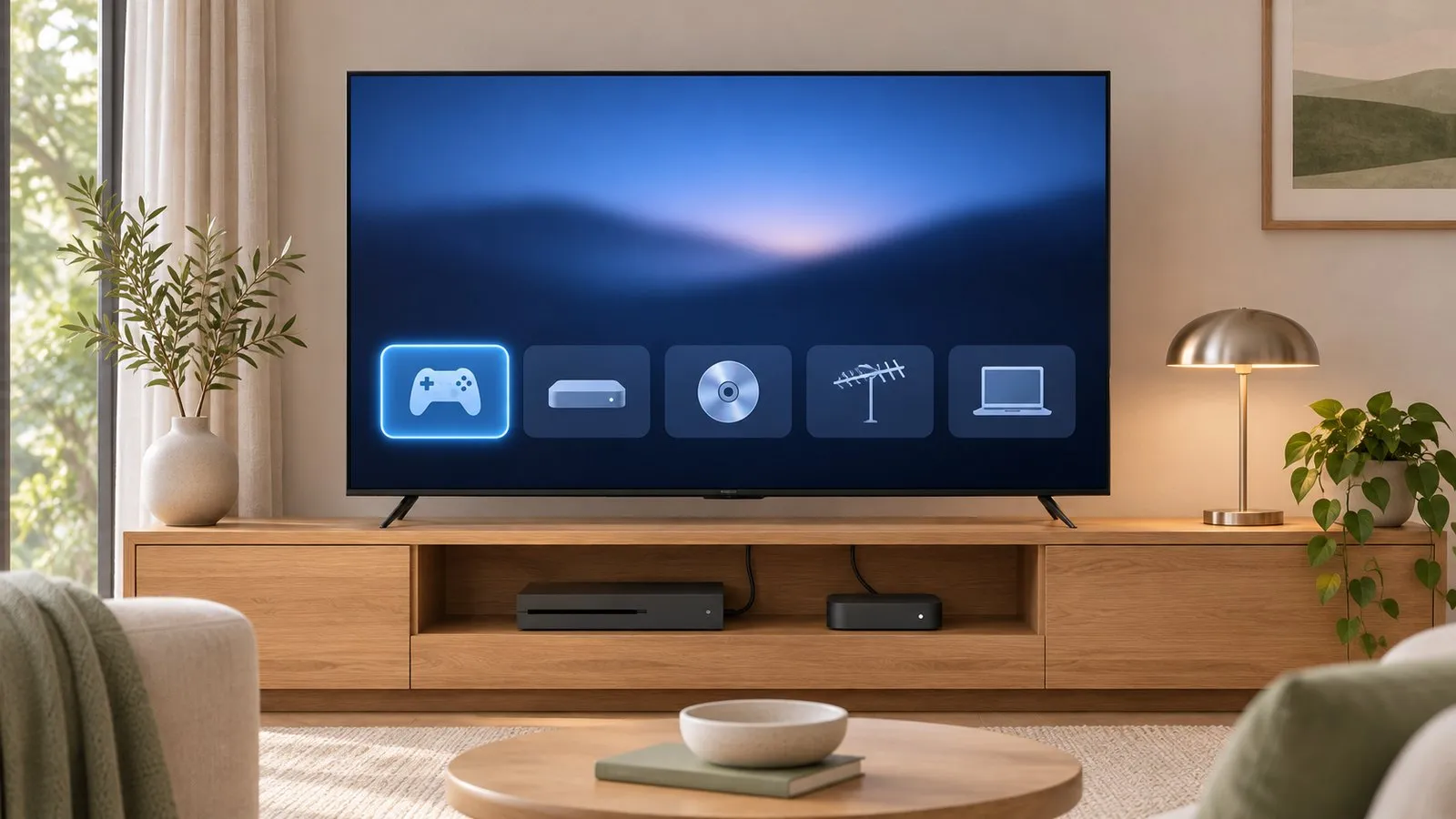
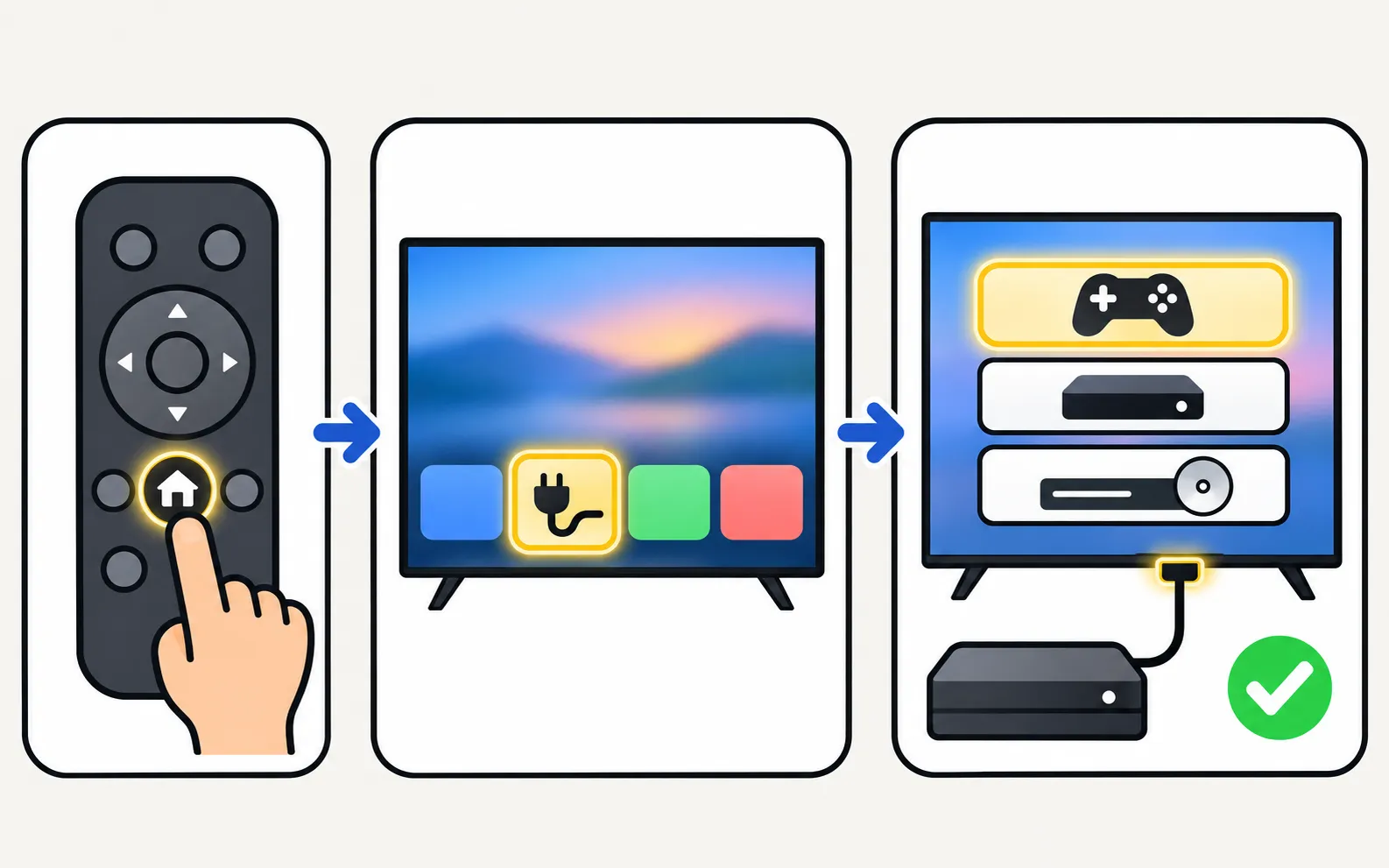
With the TV remote
-
Press Home
The home screen appears. -
Open Connected Devices or Source
Move left to the sources area — Samsung’s guides call it Connected Device / Source list on recent models. -
Pick the input
Select HDMI 1, HDMI 2, TV or another source.
Samsung’s own HDMI troubleshooting starts with this check: make sure the source on the TV matches the port the device is plugged into.
Without the remote
- The TV’s control button: press it to open the control menu and choose Source; short presses move, a long press selects (where the power button is).
- The device’s remote, via Anynet+: with HDMI-CEC on, turning on a console or streaming stick usually switches the TV to it (Anynet+ explained).
- A phone remote: on a Smart TV on your home Wi-Fi.
With Samsung TV Remote
Remote buttons: power, volume, channels, navigation pad with OK, Home, Back, mute, play/pause and input, plus a MORE panel with extra keys.
Needs a Samsung Smart TV connected to your home network. Non-smart TVs are not supported. Phone and TV must be on the same home network (not a guest network). The phone uses Wi-Fi; the TV can use Wi-Fi or Ethernet. No internet is needed, and mobile data can't be used.
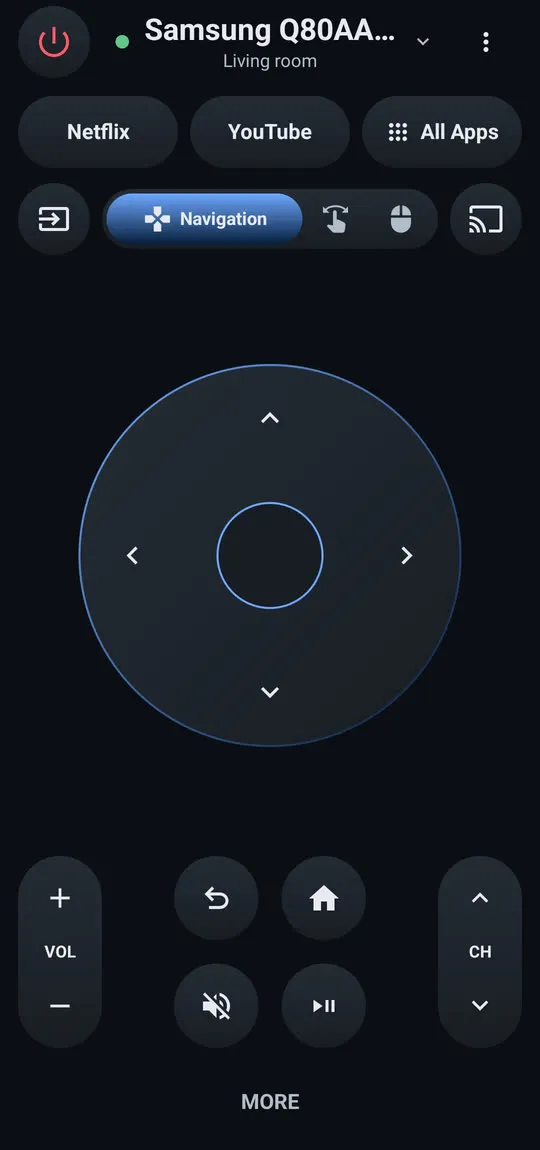
First connection: getting started with Samsung TV Remote. To see whether your exact model is on the developer-tested list, check your model code.
Tips
- Rename inputs so the list shows “Console” or “Sky box” instead of HDMI numbers.
- Remove unused tiles from the source list on models that allow it.
- Unexpected input changes usually come from Anynet+ or a stuck remote button — Samsung’s troubleshooting covers both.
No picture after switching? See HDMI no signal.
Frequently asked questions
Where is the Source button on the Samsung Smart Remote?
Many Smart Remotes don't have one. Use Home, then Connected Devices or Source in the menu.
Can I rename HDMI inputs?
Yes on many models — highlight the input in the Source list and look for Edit or Rename (for example 'PlayStation').
Why does the TV switch input by itself?
Anynet+ (HDMI-CEC) lets devices take over the TV when they turn on. Samsung also lists a stuck remote button or the bezel touch controls as causes of the TV changing source by itself.
The input shows No Signal. What now?
Wake the device, check the cable and port, and follow the HDMI no signal guide.
Sources
- My TV doesn't detect a device connected via HDMI — Samsung UK · Samsung · checked November 11, 2026
- How to control a Samsung TV without a Remote — Samsung UAE · Samsung · checked November 11, 2026
- Samsung UAE support: a TV that keeps powering on and off — Samsung UAE · Samsung · checked November 10, 2026
- Samsung US troubleshooting: remote is not working (TSG10002214) — Samsung US · Samsung · checked November 10, 2026
- Samsung TV Remote product documentation (developer-supplied facts) — Smart App Craft · Developer · checked November 10, 2026
Related guides
Troubleshooting
HDMI no signal
Samsung TV says No Signal or won't detect HDMI? Wake the device, pick the right source, reconnect in Samsung's order, run HDMI Troubleshooting, check 4K 120 Hz.
How-to
Power button location
Can't find the power button on your Samsung TV? Check under the bottom centre, the back lower right and the front edge, and learn its short and long presses.
Guide
Without a remote
No remote? Control a Samsung TV with its own button, your phone, a USB keyboard, another remote via HDMI-CEC or a voice assistant, including volume and input.

Explainer
Anynet+ (HDMI-CEC)
Anynet+ is Samsung's HDMI-CEC: one remote for TV, soundbar and console — and why TVs switch on by themselves. Where to find it by year and when to turn it off.
Guide
Phone as a remote
Control a Samsung TV from your phone: Android remote apps, SmartThings, Samsung's 2025 Mobile Remote, IR-blaster phones and iPhone — what each needs and does.