
Troubleshooting
Samsung TV HDMI 'No signal' or not detected: fixes
'No signal' means the TV is listening on an HDMI port and hearing nothing. The device, the source setting, the cable or a format mismatch is to blame — in roughly that order.
Quick answer
Make sure the device is on and not asleep, then select the matching HDMI input. Unplug all HDMI cables and the power of the TV and device for at least 10 seconds, reconnect the cable to the device first and then to the TV, and try another port and a certified cable. Run HDMI Troubleshooting under Settings, Support, Device Care, Self Diagnosis. For 4K or 120 Hz devices, turn on Input Signal Plus for that port.
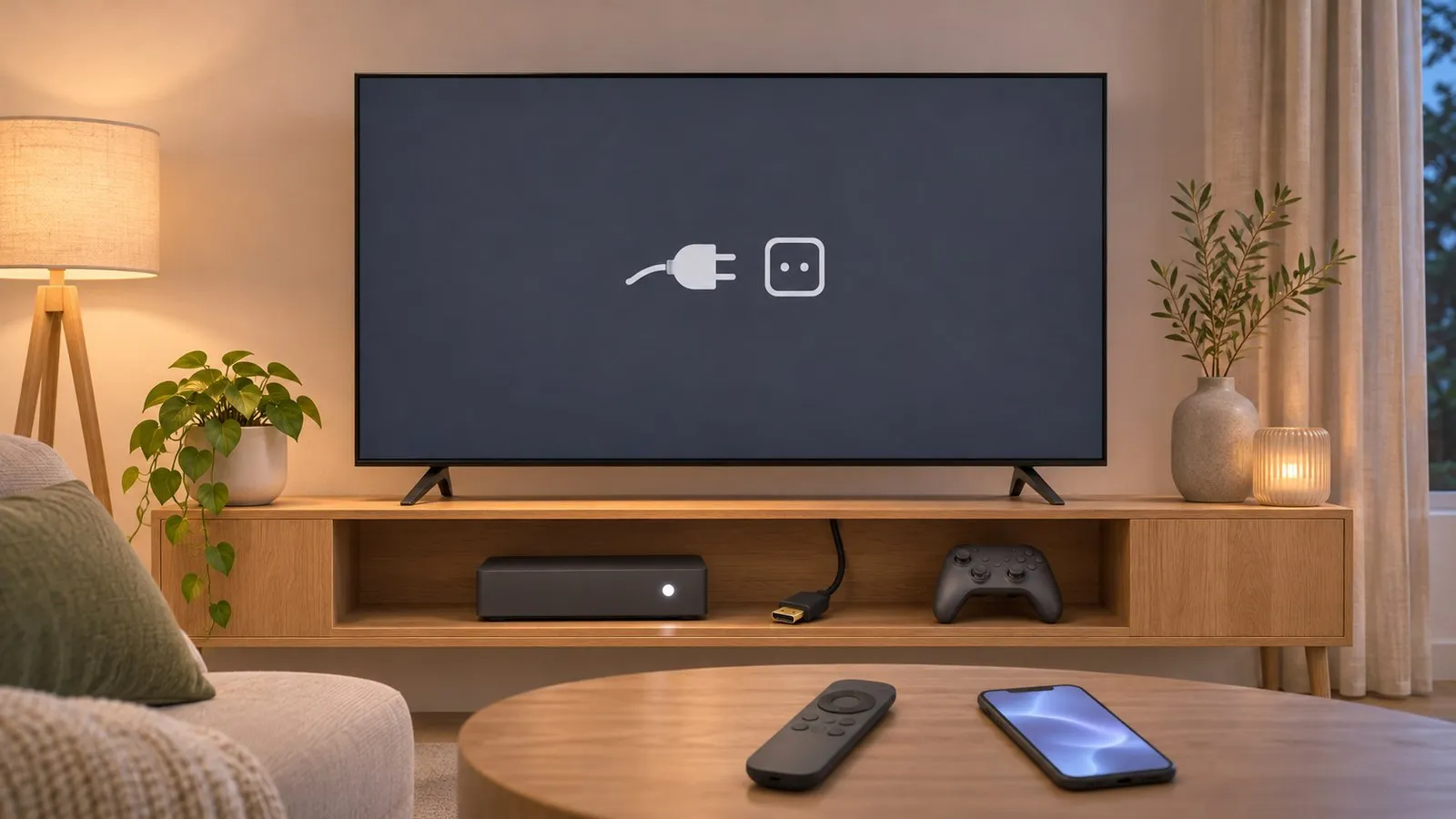
1. Wake the device and pick the right input
- Make sure the console, box or computer is on — and that a laptop isn’t asleep or hibernating, as Samsung’s guide points out.
- Select the input the cable is plugged into: Samsung says to check that the source matches (for example HDMI 1) via Connected Devices and the Source list. Port numbers are printed next to each socket. More in change the input on a Samsung TV.
2. Reconnect in Samsung’s order
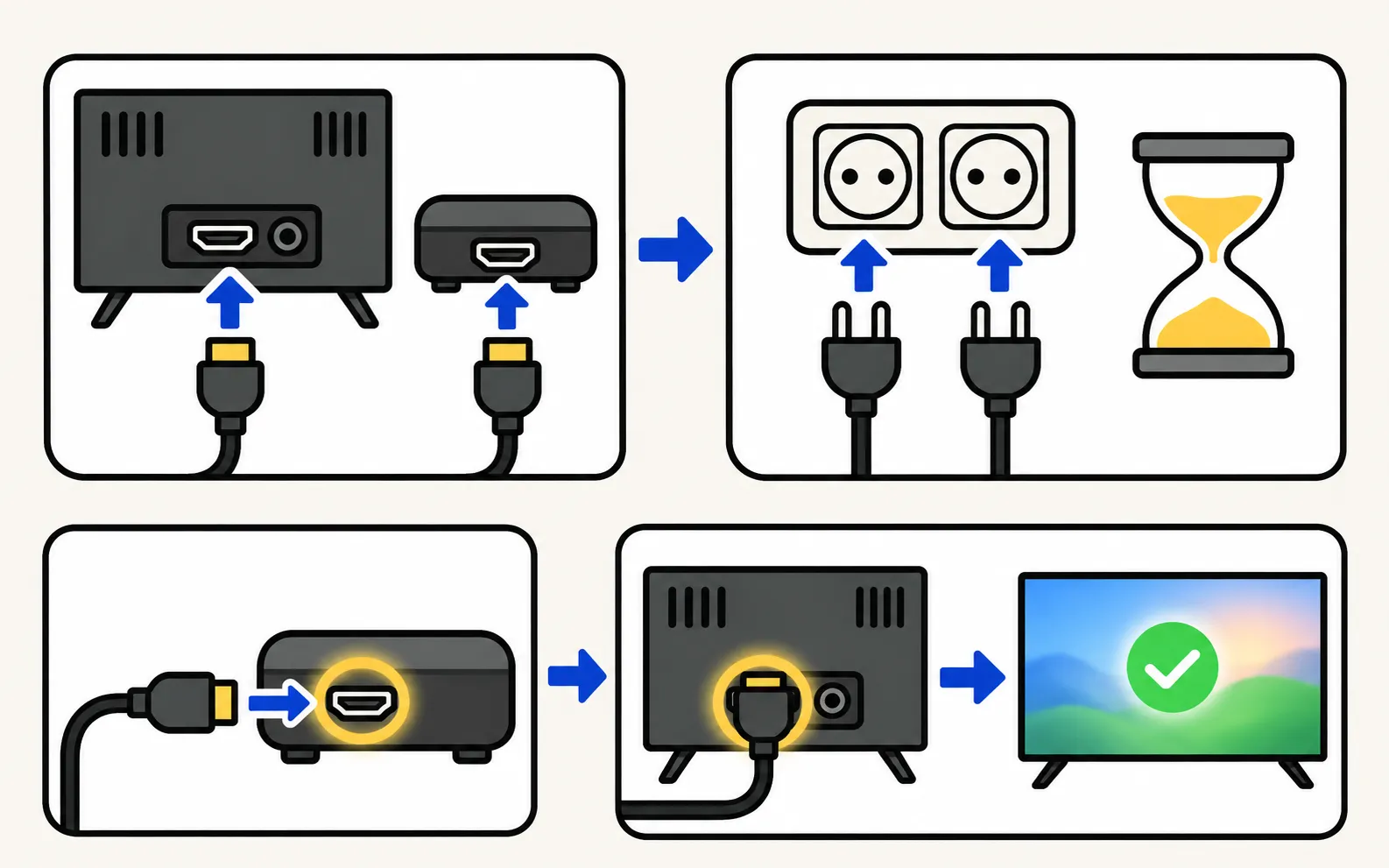
-
Disconnect all HDMI cables
From the TV and from the devices. -
Unplug the power
Unplug the TV and the devices for at least 10 seconds, then plug them back in. -
Connect the device end first
Plug the HDMI cable into the external device, then into the TV. -
Try another port
If the problem persists, use a different HDMI port on the TV.
Samsung recommends a certified HDMI cable compatible with the device. For 4K at 120 Hz, that means an Ultra High Speed HDMI cable.
3. Run HDMI Troubleshooting
It checks the connected HDMI ports in turn. Some models offer an HDMI Cable Test under Signal Information instead (designed for cables under about 2 m). Menus vary by model.
4. Match the signal to the port
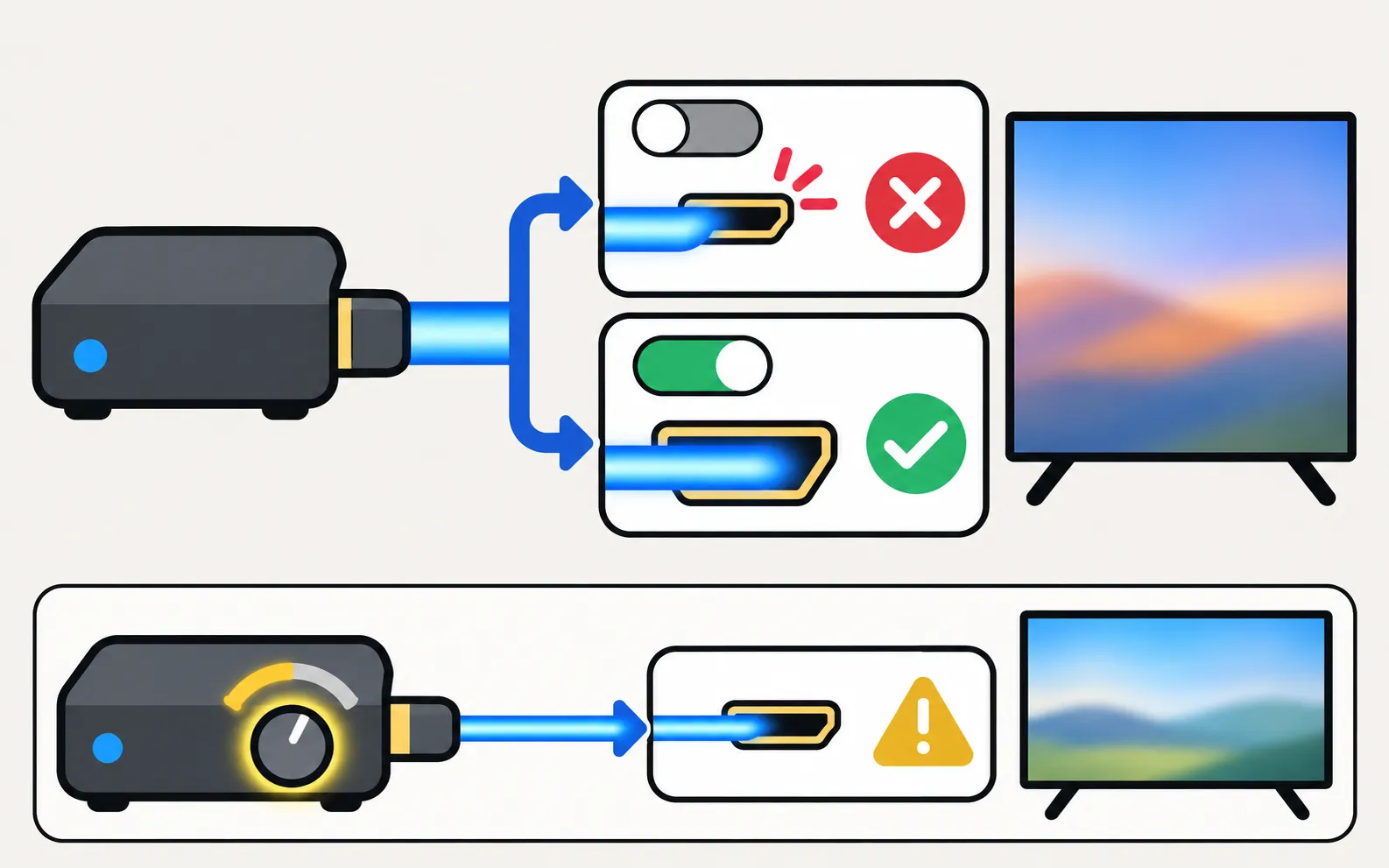
High-bandwidth signals — 4K HDR, 4K 120 Hz, VRR — need the port’s enhanced mode:
- Turn on Input Signal Plus for that port (older models call it HDMI UHD Color). It’s in the TV’s external device or connection settings.
- Check that the port supports what the device sends; not every HDMI port supports 4K 120 Hz on every model.
- If the device has a resolution or “4K 120 Hz” setting, lower it temporarily to see whether a picture appears.
Console-specific settings are in best Samsung TV settings for PS5 and Xbox and Nintendo Switch on a Samsung TV.
5. Update and test with another device
- Update the TV’s software (update a Samsung TV) — Samsung notes updates may contain a fix.
- Connect a different device with the same cable and port:
| Result | Meaning |
|---|---|
| The other device works | The original device is the problem — contact its maker (or your TV provider for cable and satellite boxes) |
| Nothing works on any port | The TV may be at fault — contact Samsung’s service centre |
Special cases
- One Connect box: HDMI ports are on the box. Check the One Connect cable between box and TV — see One Connect box problems.
- Picture appears, then goes black: see Samsung TV black screen.
- Cable or satellite box: set the box’s output resolution to one the TV supports and check the box’s own power and standby mode (connect a cable or satellite box).
- Signal comes and goes when devices switch on or off: an HDMI-CEC handshake can misbehave. Turn Anynet+ off and on again, or power-cycle both devices — what Anynet+ (HDMI-CEC) does.
Other cables, inputs and devices: connect devices to a Samsung TV.
Frequently asked questions
My PS5, Xbox or PC shows no signal only at 4K 120 Hz. Why?
The port may not be set for high-bandwidth signals. Enable Input Signal Plus (HDMI UHD Color on older models) for that HDMI port, use a certified Ultra High Speed cable, and make sure the port supports 4K 120 Hz on your model.
Does the HDMI port matter?
Yes. Only some ports support 4K 120 Hz or eARC, depending on the model. If a port gives no signal, try another one — Samsung recommends this as a standard step.
How do I know whether the TV or the device is faulty?
Samsung's rule: if another device works on the same port and cable, the original device is the problem; if no device works, the TV may need service.
Can Anynet+ cause no signal?
Occasionally a device's HDMI-CEC handshake misbehaves. Turning Anynet+ off and on, or power-cycling both devices, often clears it.
Sources
- My TV doesn't detect a device connected via HDMI — Samsung UK · Samsung · checked November 11, 2026
- Samsung TV has no picture or shows a black screen (TSG10002233) — Samsung US · Samsung · checked November 11, 2026
Related guides
How-to
Change the input
Switch HDMI inputs on a Samsung TV: the Source list on the Home screen, the TV's control button, a phone remote, HDMI-CEC from the device, or renamed inputs.

Troubleshooting
Black screen
Samsung TV on but the screen is black? Check if the menu appears, the input and cable, energy-saving and screen-off settings, then do the torch test.
Explainer
Anynet+ (HDMI-CEC)
Anynet+ is Samsung's HDMI-CEC: one remote for TV, soundbar and console — and why TVs switch on by themselves. Where to find it by year and when to turn it off.

How-to
PS5 and Xbox settings
Set up a PS5 or Xbox Series X|S on a Samsung TV: HDMI port, Game Mode, Input Signal Plus, 4K 120 Hz and VRR on capable models, HDR and audio settings.

Troubleshooting
Nintendo Switch
Samsung TV shows no signal from a Switch 2 or Switch? Nintendo's checks (cable, AC adapter, direct connection, VRR), plus Game Mode and Input Signal Plus.
How-to
One Connect box
What the Samsung One Connect box does, how to connect it, and how to fix no picture, no power or ports not working — including Samsung's test for a faulty box.