
How-to
Samsung One Connect box: setup and problems
On some premium Samsung TVs, all the ports and the power live in a separate box. When something fails, the box and its thin cable are the first suspects.
Quick answer
The One Connect box holds the inputs (and on many models the power) of some Samsung TVs, linked to the screen by one thin One Connect cable. If the TV has no picture or power, check that cable for damage and reseat it firmly at both ends, then unplug the box for a moment and reconnect. Samsung's test: disconnect the box — if a message or picture then appears on the TV, the box needs replacing.
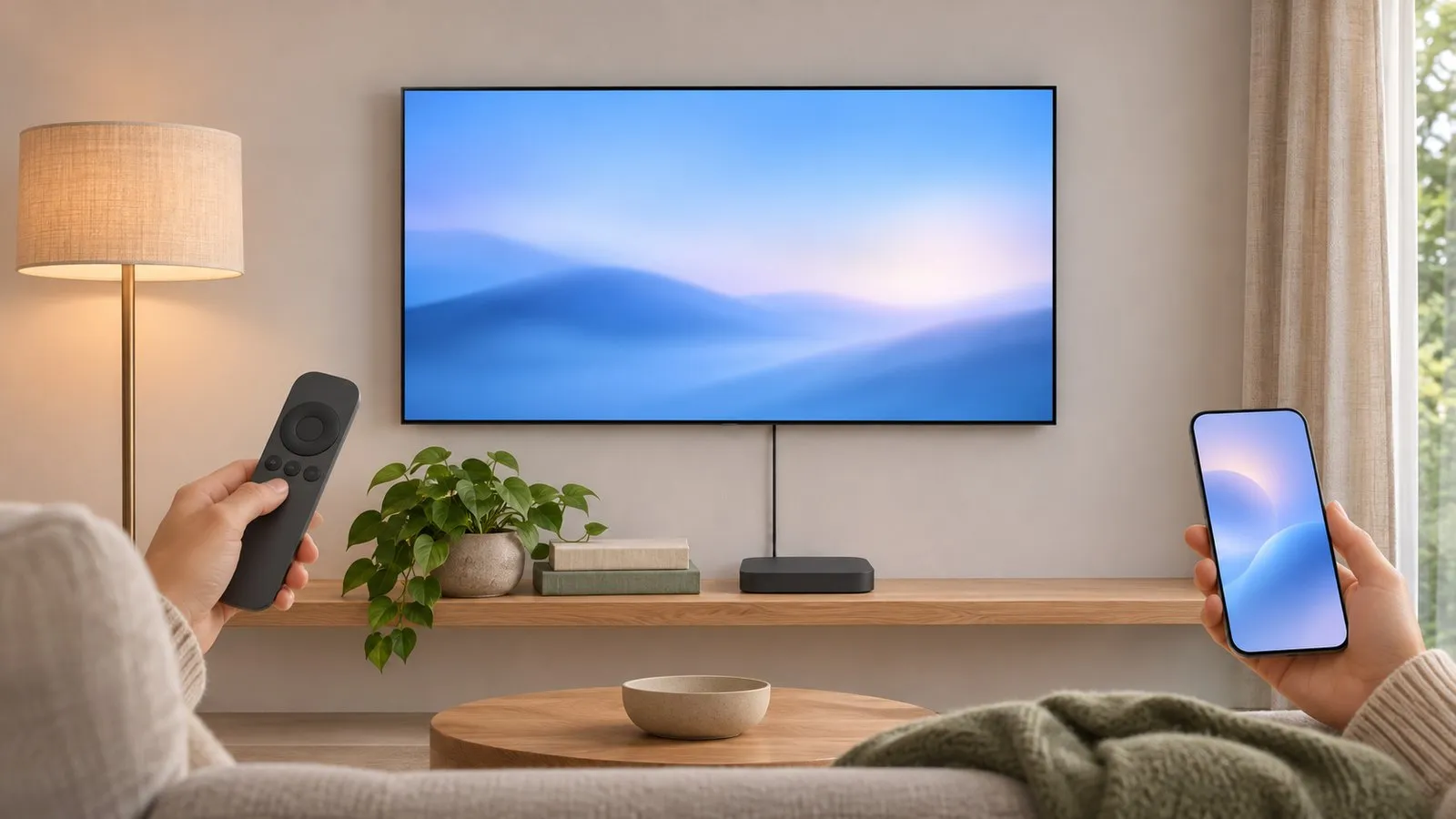
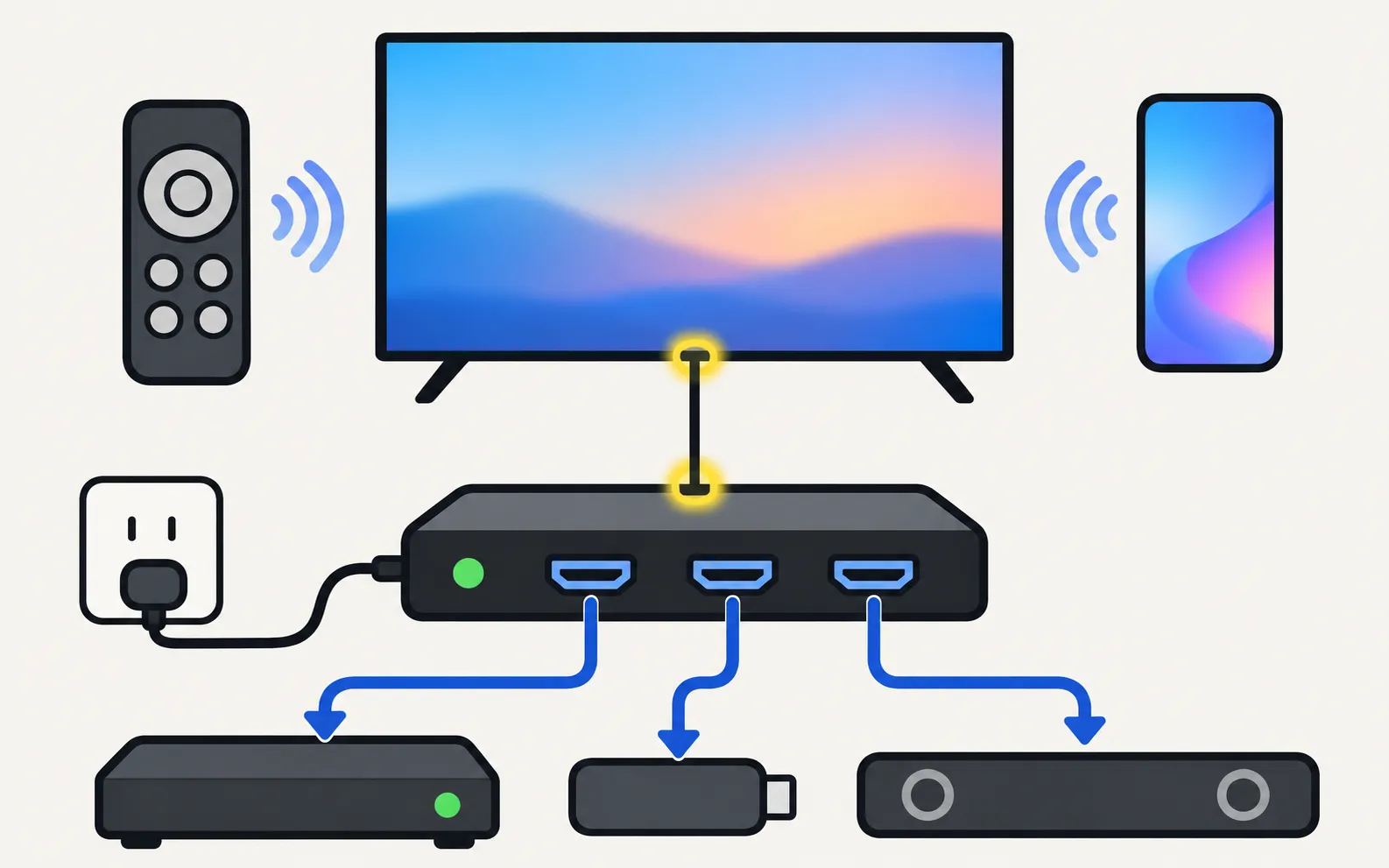
How it’s connected
- TV panel ⇄ One Connect cable ⇄ box. Samsung’s US guide shows how to attach the One Connect cable to the TV and the box.
- All devices — consoles, set-top boxes, soundbar, antenna, LAN — plug into the box.
- Power goes to the box on many models.
No picture, no power or ports not responding
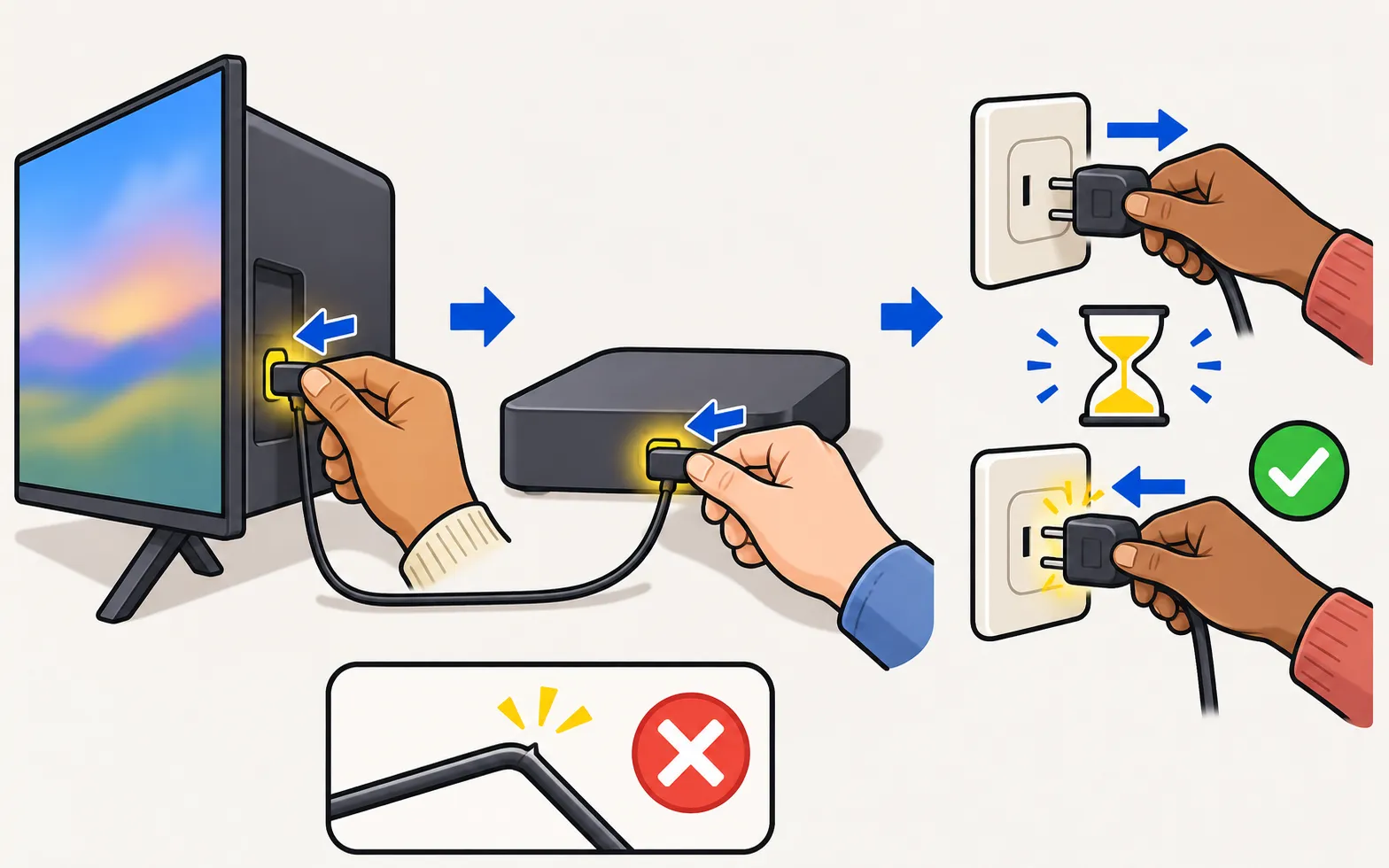
Samsung’s steps for a TV with a One Connect box:
-
Inspect the One Connect cable
Look for kinks, bends or pinches, and replace a damaged cable. -
Reseat both ends
Disconnect and firmly reconnect the cable at the TV and at the box. -
Power-cycle the box
Unplug the box from power and from the One Connect cable, wait a few moments, then reconnect both firmly. -
Isolate the box
Disconnect the box (power cord or One Connect cable). If a message or picture now appears on the TV, Samsung says the box needs replacing. -
Still nothing
If the TV stays blank with a working outlet, Samsung advises requesting service.
Other symptoms linked to the box
- The TV switches on and off: Samsung’s South African guide says a poor connection between TV and box can cause it; an Event Log entry about the “One Invisible connection” points the same way (TV turns on by itself).
- IR remote not reaching devices: Samsung notes the box sends infrared from its front and sides — a device behind or in a different compartment from the box can’t be controlled by the TV’s universal remote feature.
- Black screen, sound OK: follow Samsung TV black screen, including the box isolation test.
Tips for a tidy setup
- Don’t bend the One Connect cable sharply or crush it behind a wall mount.
- Leave the box ventilated; don’t stack devices on it.
- Wall-mounting The Frame or another One Connect TV: see The Frame installation and One Connect.
Frequently asked questions
Can I use the TV without the One Connect box?
On TVs designed for One Connect, the box provides the inputs and often the power, so the TV can't work normally without it.
Can I buy a replacement box or a longer cable?
Samsung's support pages point to Samsung Parts for a replacement box; availability varies by model and country. Owners also report differing answers from support, so confirm with Samsung for your model code.
Where do I plug HDMI devices in?
Into the One Connect box, not the TV panel. Soundbars on ARC also connect to the box's ARC/eARC port.
Where's the TV's control button?
On the TV panel itself, not on the box.
Sources
- How to Fix a No-Picture Issue with Your One Connect Box — Samsung UAE · Samsung · checked November 11, 2026
- How to connect your One Connect Box to your Samsung TV (ANS00062213, archived copy of 18 Dec 2025) — Samsung US · Samsung · checked November 12, 2026
- Samsung TV has no picture or shows a black screen (TSG10002233) — Samsung US · Samsung · checked November 11, 2026
- Samsung TV will not turn on (troubleshooting by standby light, TSG10002218) — Samsung US · Samsung · checked November 11, 2026
- How to troubleshoot the Samsung TV that keeps turning on by itself (Event Log, power-on reason) — Samsung South Africa · Samsung · checked November 11, 2026
- Samsung US troubleshooting: remote is not working (TSG10002214) — Samsung US · Samsung · checked November 10, 2026
Related guides
Troubleshooting
Black screen
Samsung TV on but the screen is black? Check if the menu appears, the input and cable, energy-saving and screen-off settings, then do the torch test.
Troubleshooting
TV won't turn on
Samsung TV won't turn on? Read the standby light first — steady, off or blinking each point to a different cause — then follow the fixes for your case.

How-to
Install and bezels
Mount The Frame flush on the wall: the slim wall mount, routing the One Connect cable, placing the box, attaching magnetic bezels, plus safety tips.
Troubleshooting
HDMI no signal
Samsung TV says No Signal or won't detect HDMI? Wake the device, pick the right source, reconnect in Samsung's order, run HDMI Troubleshooting, check 4K 120 Hz.
Troubleshooting
Standby light blinking
Why the red standby light on a Samsung TV blinks, what Samsung says each state means (steady, off, blinking), how to rule out the outlet and when it's a repair.