
Reference
Samsung TV remote buttons explained (interactive guide)
Samsung's Smart Remote has few buttons, but several do two things depending on how long you press. Tap any button in the guide to see what it does.
Quick answer
On the Samsung Smart Remote, the 123/colour button alternates between the coloured keys and an on-screen number pad, holding Return for a second ends the running app, pressing the VOL key mutes and holding it opens Accessibility Shortcuts, and pressing the CH key opens the Guide. The microphone key runs the voice assistant while held. Exact buttons vary by model.
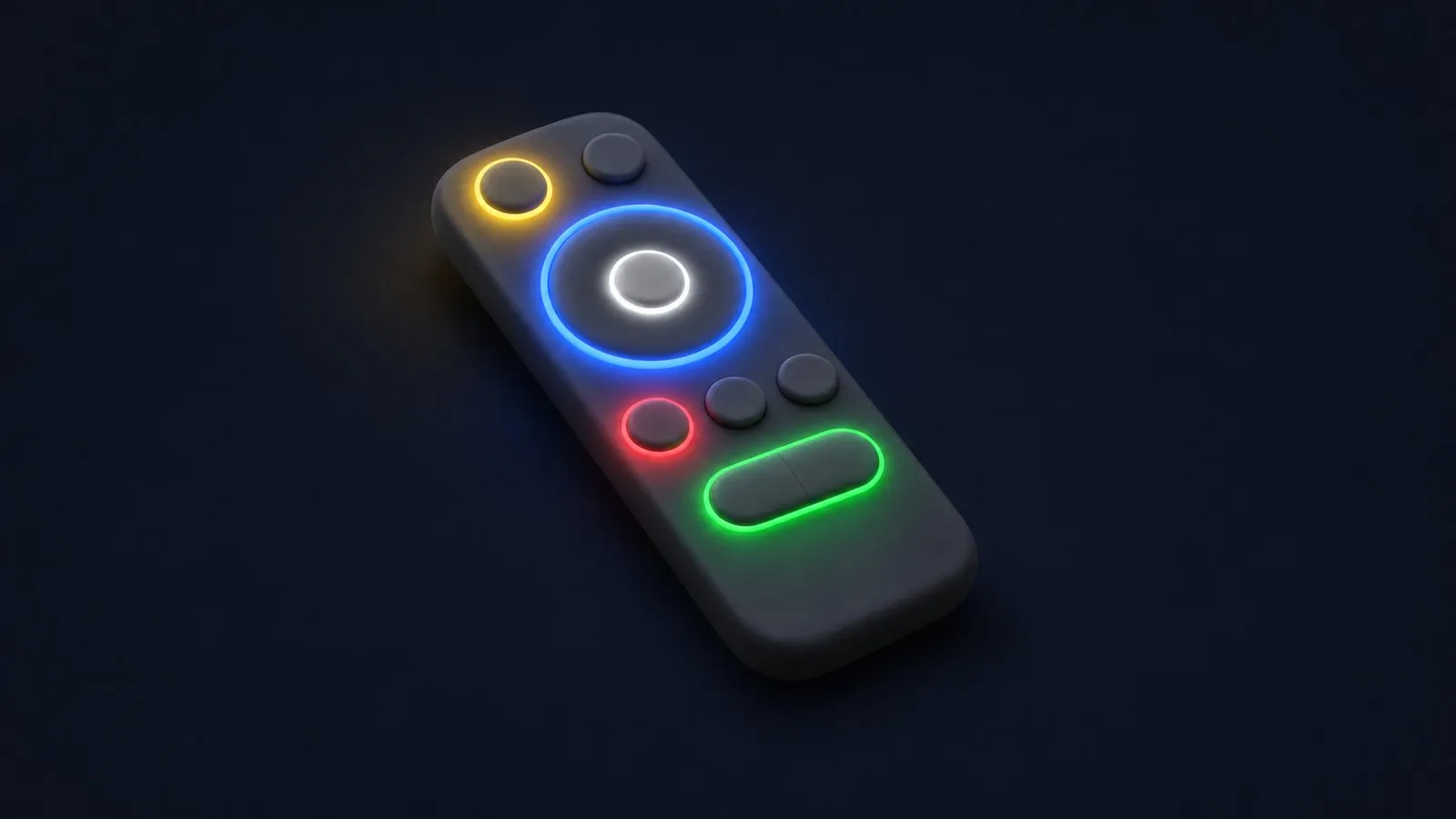
Samsung Smart Remote (simplified illustration)
Slim remote with a round navigation pad, few buttons and no number keys. Button set and positions vary by model and year.
Use the interactive guide above: select a button to see what it does. The drawing is a simplified illustration — Samsung’s remotes differ slightly by model and year, and Samsung’s own manual notes that buttons and functions may differ by model.
Buttons that do two things
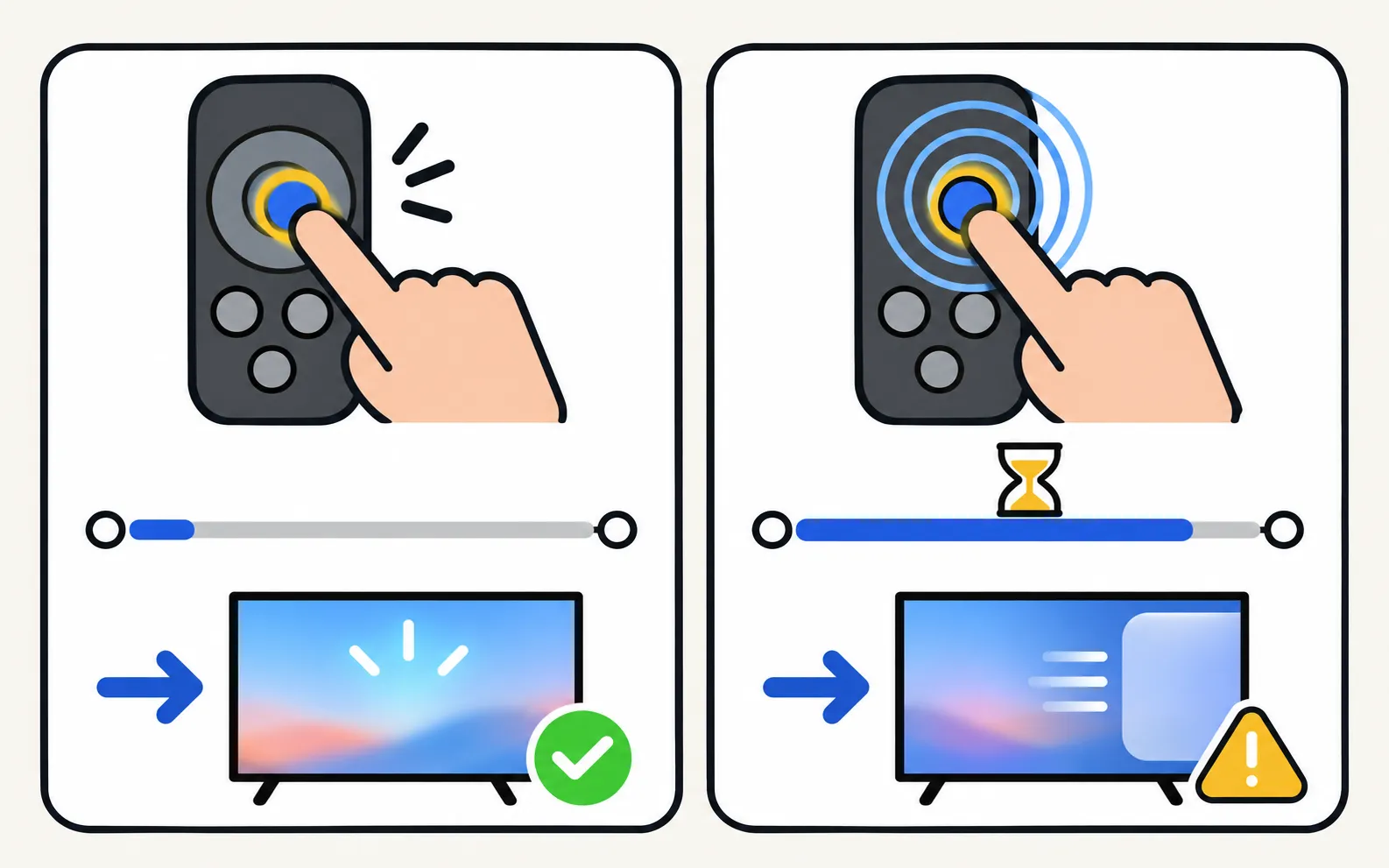
| Button | Short press | Press and hold |
|---|---|---|
| VOL | Up/down changes volume; pressing it in mutes | Holding for a second or more opens Accessibility Shortcuts (where Voice Guide lives) |
| CH | Up/down changes channel; pressing it in opens the Guide | — |
| Return | Previous menu | Holding for a second or more ends the running function (closes the app) |
| Microphone | — | Hold, speak a command, release (on models with a voice assistant) |
| Return + Play/Pause | — | Held together near the TV: pairs the remote |
| Return + Enter (SolarCell) | — | Held about 10 seconds: resets the remote |
The colour and number buttons
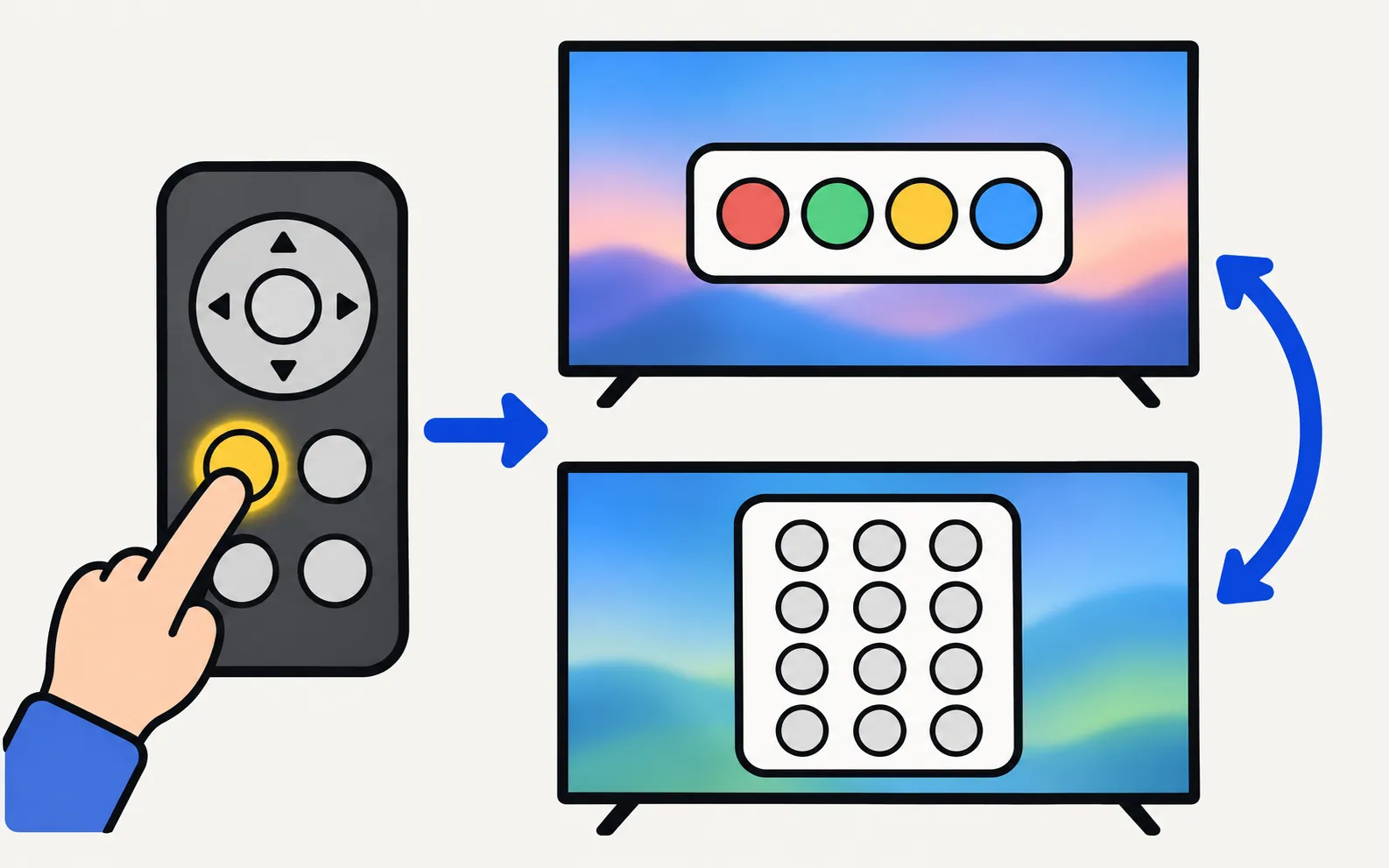
The 123 (Colour/Number) button alternates between a coloured-buttons window (red, green, yellow, blue — used by some apps and broadcast services) and an on-screen number pad for channel numbers or PINs.
Ambient and Art buttons
On models that have it, a dedicated button switches the TV to Ambient Mode (or Art Mode on The Frame). Samsung’s manual notes that pressing it when the TV is fully off turns the TV on in that mode. See The Frame and Art Mode.
Missing buttons
- No Input button: open Home and choose the source from the menu (change the input).
- No number keys: use 123 for the on-screen pad.
- No Netflix or Prime Video key on your remote: shortcut keys vary by region and year.
Your phone has all the buttons too
Remote buttons: power, volume, channels, navigation pad with OK, Home, Back, mute, play/pause and input, plus a MORE panel with extra keys. Three control modes — navigation pad, touchpad and mouse — switched with one tap.
Common mix-ups explained elsewhere: turn off Voice Guide, voice control not working, pair a Smart Remote.
Frequently asked questions
Where are the number buttons on the Samsung Smart Remote?
Press the 123 (Colour/Number) button: each press alternates between the coloured buttons and an on-screen number pad.
How do I mute with the Smart Remote?
Press the VOL key in (rather than moving it up or down).
Why did a menu with accessibility options appear?
Holding the VOL key for a second or more opens the Accessibility Shortcuts menu — often by accident.
Where is the Input/Source button?
Many Smart Remotes have no dedicated source button; choose the input from the Home screen's Source or Connected Devices menu.
Sources
- Samsung TV user manual: About the Buttons on the Samsung Smart Remote (Q9F manual, via ManualsLib) — Samsung (hosted by ManualsLib) · Reference · checked November 11, 2026
- Voice on Samsung TV or projector announces everything I do (TSG10002319) — Samsung US · Samsung · checked November 11, 2026
- Pair your Samsung Smart Remote to your Samsung TV — Samsung Canada · Samsung · checked November 11, 2026
- Samsung US troubleshooting: remote is not working (TSG10002214) — Samsung US · Samsung · checked November 10, 2026
Related guides
Topic
Remote
Everything about Samsung TV remotes: fix a remote that stopped working, pair a Smart Remote, charge a SolarCell remote, learn the buttons, pick a replacement.
How-to
Pair a Smart Remote
Pair or re-pair a Samsung Smart Remote or SolarCell remote: hold Return and Play/Pause near the TV. How to reset it first, and what to do when pairing fails.
How-to
Turn off Voice Guide
Samsung TV reading out every menu and button press? Turn off Voice Guide in seconds with the accessibility shortcut (hold the volume button) or in Settings.
Troubleshooting
Voice control
Set up Bixby or Alexa on a Samsung TV, fix a microphone button that does nothing, and why Google Assistant disappeared from Samsung TVs in 2024.
Troubleshooting
Remote not working
Samsung TV remote not working? Reset it, do the 10-second phone-camera test, change or charge the battery, re-pair a Smart Remote and clear the TV's sensor.