
Troubleshooting
Samsung TV remote not working? Fixes for every remote type
Most dead Samsung remotes come back to life in under five minutes. Find your remote type, run the camera test, and follow the matching fix.
Quick answer
Reset the remote first: take the batteries out and hold Power for 8 seconds (battery remotes), or hold Return and Enter for 10 seconds (SolarCell remotes). Then point it at a phone camera and press Power: no light means a battery or remote fault; a light means the remote works and a Smart Remote needs pairing (hold Return and Play/Pause for 3–5 seconds near the TV) or the TV's sensor is blocked.
On this page9
- Which remote do you have?
- Fix 1: reset the remote
- Fix 2: the 10-second camera test
- Fix 3: batteries and charging
- Fix 4: pair a Smart Remote or SolarCell remote again
- Fix 5: clear the TV’s sensor and restart the TV
- Only some buttons work, or the response is slow
- What the remote’s light is telling you
- Control the TV while the remote is out
Why isn't my Samsung TV remote working?
Reset the remote.
- Remote with batteries: take the batteries out, press and hold the Power button for about 8 seconds, then put the batteries back in.
- Rechargeable or SolarCell remote: press and hold Return (Back) and Enter (the centre of the navigation pad) together for about 10 seconds.
- Try a button such as volume. A Smart Remote may then need to be paired again (next steps).
The remote isn't sending a signal: give it power.
- Put in fresh batteries, the right way round (check the + and − marks).
- SolarCell remote: charge it with a USB-C cable for a while, or leave it with the solar panel in bright light. When the battery is very low the remote locks.
- Repeat the camera test. If there is still no light, the remote itself is faulty.
Pair the Smart Remote with the TV.
- Stand close to the TV (within about 30 cm / 1 ft) and point the remote at the bottom centre or lower right of the TV.
- Press and hold Return (Back) and Play/Pause together for at least 3–5 seconds, until the TV shows that the remote is connected.
- If pairing fails, unplug the TV for 30 seconds, plug it back in and try again.
Check the TV's infrared sensor.
- Make sure nothing blocks the bottom edge of the TV — a soundbar, decorations or a stand cover the sensor surprisingly often.
- Unplug the TV for 30 seconds, then turn it on with its own button and try the remote again.
- Strong sunlight or some lamps aimed at the sensor can drown out an infrared remote. Try with the room darker.
Solved
The remote works again. If it stops often, keep spare batteries (or charge the SolarCell remote now and then).
Next step
If the TV doesn't react to its own button either, the problem is the TV's power, not the remote.
Workaround
A remote with fresh power that shows no light in the camera test needs replacing. Until the new one arrives, the TV's own button or a phone remote can stand in.
Samsung TV Remote — Free · No ads · No account. Phone and TV must be on the same home network (not a guest network). The phone uses Wi-Fi; the TV can use Wi-Fi or Ethernet. No internet is needed, and mobile data can't be used.
Get help
The remote sends a signal but the TV doesn't respond to it. Contact Samsung support for your country, or use a replacement remote; a phone remote works meanwhile on Smart TVs.
Samsung TV Remote — Free · No ads · No account. Phone and TV must be on the same home network (not a guest network). The phone uses Wi-Fi; the TV can use Wi-Fi or Ethernet. No internet is needed, and mobile data can't be used.
Before you order a new remote, give the old one five minutes. The step-by-step troubleshooter above walks you through the checks; the sections below explain each one, with the differences between Samsung’s remote types.
Which remote do you have?
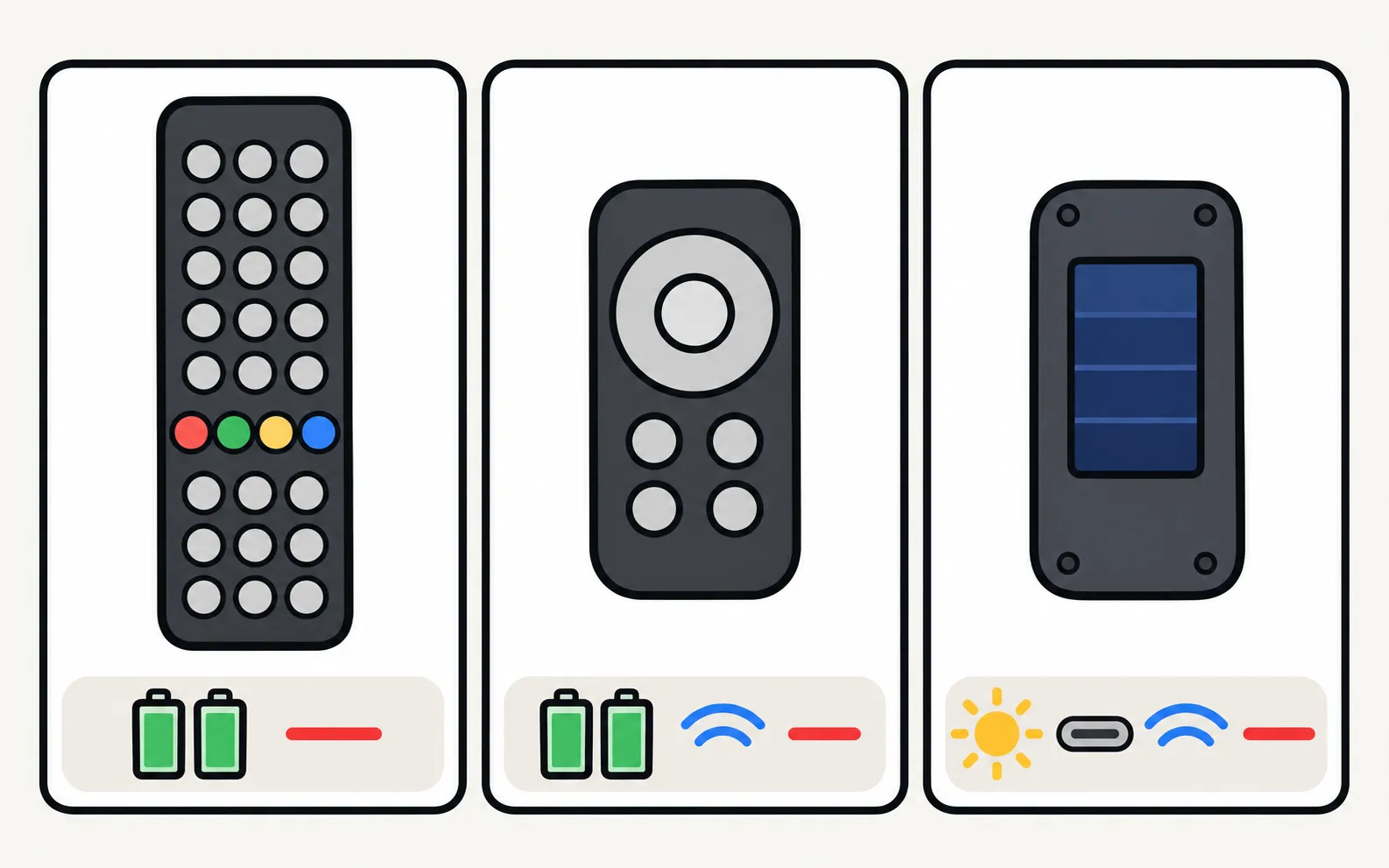
| Remote | How to recognise it | How it talks to the TV |
|---|---|---|
| Standard remote | Long, many buttons, number keys, AA or AAA batteries | Infrared only — must point at the TV |
| Smart Remote | Short, few buttons, round navigation pad, often a microphone key, batteries | Bluetooth for smart features, infrared for basics |
| SolarCell remote | Like the Smart Remote but with a solar panel on the back and a USB-C port; Samsung ships it with many 2021 and newer TVs | Bluetooth and infrared; built-in rechargeable battery |
Knowing the type tells you which fixes apply: standard remotes never need pairing, while Smart and SolarCell remotes do.
Fix 1: reset the remote
A reset clears a remote that has “frozen” — surprisingly common after a battery change or a drop.
-
Battery remote
Take the batteries out. Press and hold the Power button for about 8 seconds. Put the batteries back in. -
SolarCell or rechargeable Smart Remote
Press and hold Return (Back) and Enter (the centre of the navigation pad) together for about 10 seconds. Samsung advises pairing it again afterwards (Fix 4).
Fix 2: the 10-second camera test
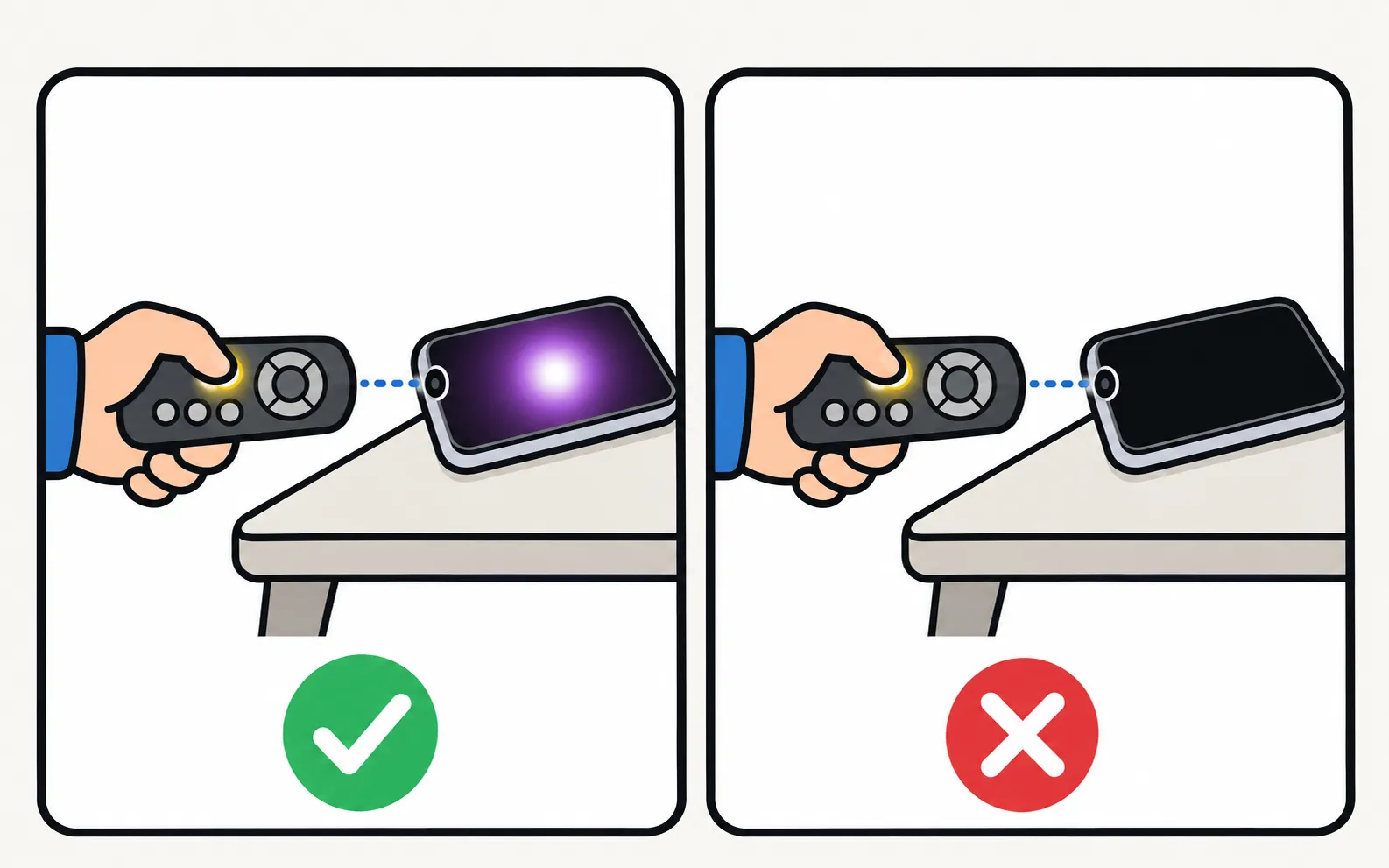
Infrared light is invisible to your eyes but not to a phone camera. This test tells you instantly whether the remote is sending anything.
-
Open the phone's camera
Some phones filter infrared on the main camera; if you see nothing, try the front camera. -
Point the remote's tip at the lens and hold Power
Watch the phone screen. -
Read the result
A flashing light means the remote is sending — the problem is pairing or the TV. No light means no power or a dead remote.
Fix 3: batteries and charging
- Battery remotes: fit fresh batteries of the right type, the right way round. Weak batteries cause short range and missed presses long before the remote dies. More in Samsung TV remote batteries.
- SolarCell remotes: charge with a USB-C cable (not included with the TV) or leave the remote with its solar panel facing bright light. When the battery is very low, Samsung’s guide says the remote locks and its LED flashes for about 3 seconds when you press Power. Full guide: SolarCell remote charging.
If the camera test still shows no light after fresh power, the remote is faulty. See which replacement remote fits your Samsung TV.
Fix 4: pair a Smart Remote or SolarCell remote again
Smart Remotes connect by Bluetooth. If the link drops, only some buttons work — or none.
-
Get close
Stand within about 30 cm (1 ft) of the TV and point the remote at the bottom centre or lower right of the screen, where the sensor is. -
Hold Return and Play/Pause
Press and hold both buttons together. Samsung Canada says at least 3 seconds; Samsung US says at least 5 seconds — hold for 5 to be safe. -
Wait for the message
The TV shows that the remote is connected. -
If it fails
Unplug the TV for 30 seconds, plug it back in and repeat.
Details and the differences between remote generations are in how to pair a Samsung Smart Remote.
Fix 5: clear the TV’s sensor and restart the TV
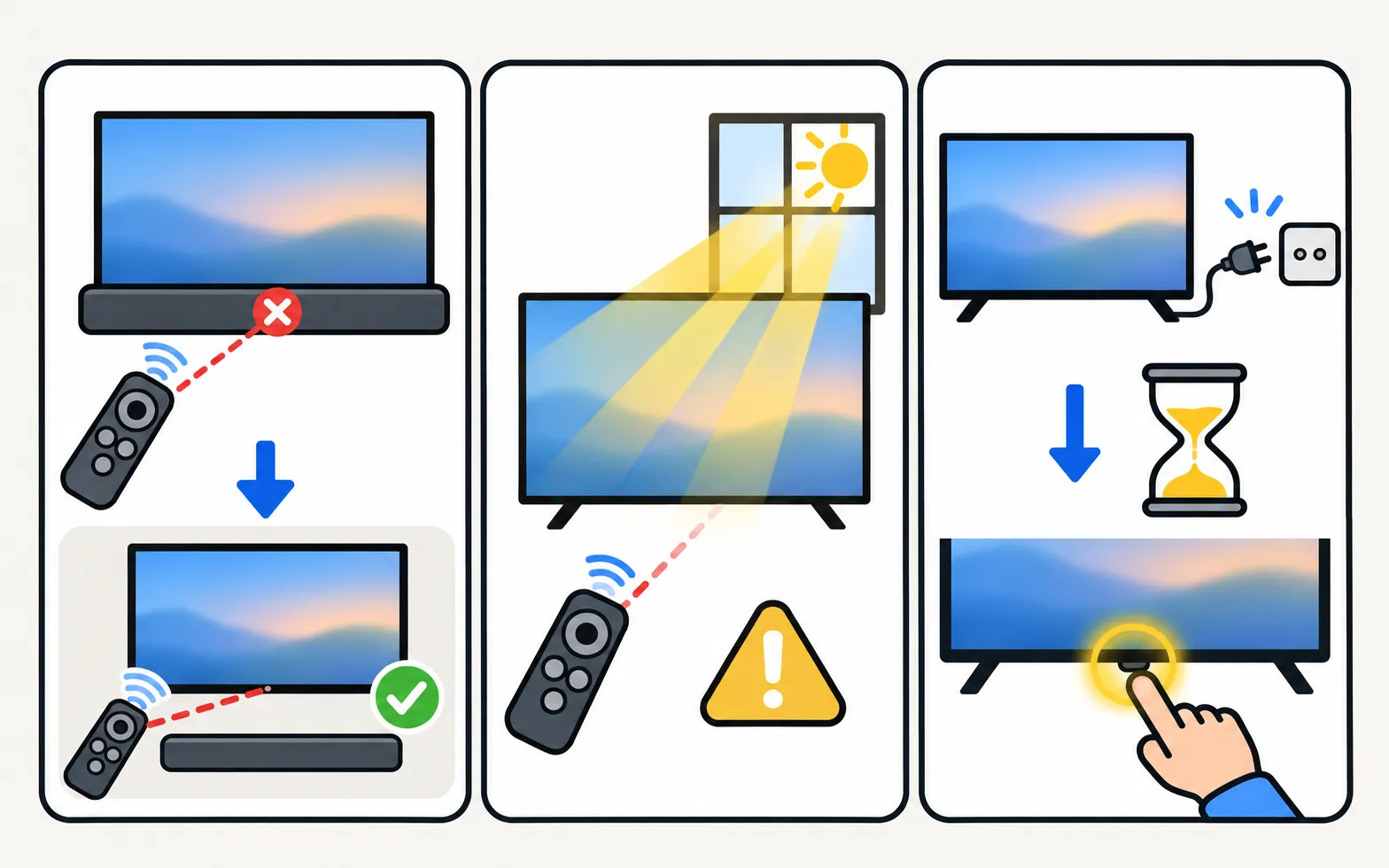
- Look at the bottom edge of the TV: a soundbar, a frame, decorations or a TV stand can cover the sensor.
- Strong sunlight or lamps aimed at the TV can drown out infrared.
- Unplug the TV for 30 seconds (a “cold boot”), then turn it on with its own button. This clears a TV-side fault that a standby restart doesn’t.
Only some buttons work, or the response is slow
- Power and volume work, but the navigation pad, Home or voice don’t: a Smart Remote or SolarCell remote has lost its Bluetooth link and is falling back to infrared for the basics. Pair it again (Fix 4).
- One button never works: test the same function with the TV’s control button or a phone. If that works, the key itself is worn or stuck — see which replacement remote fits your Samsung TV.
- Slow or delayed response: rule out a low battery first (Fix 3). If the TV is sluggish in every menu, whatever you control it with, the TV is the problem: see Samsung TV slow or freezing.
What the remote’s light is telling you
Samsung’s LED guide for Smart Remotes describes these signals:
| What you see when you press a button | Meaning |
|---|---|
| No light | Connected normally by Bluetooth |
| Blinks twice | Bluetooth disconnected — basics may still work over infrared; pair again |
| Stays on for 5 seconds or more | Battery low (10% or less) — charge it |
| Stays on constantly while plugged in | USB charging; turns off when full |
A remote light blinking red has its own guide: Samsung remote red light blinking. Don’t confuse it with the TV’s standby light, which is explained in Samsung TV red standby light blinking.
Control the TV while the remote is out
You don’t have to wait for a replacement:
- The TV’s own button: most Samsung TVs have a control button or joystick under the bottom edge or at the back. See where the power button is.
- Your phone: on a Smart TV that’s already on your home Wi-Fi, a phone remote app does everything the remote does — see every way to use your phone as a Samsung TV remote.
Needs a Samsung Smart TV connected to your home network. Non-smart TVs are not supported. Phone and TV must be on the same home network (not a guest network). The phone uses Wi-Fi; the TV can use Wi-Fi or Ethernet. No internet is needed, and mobile data can't be used.
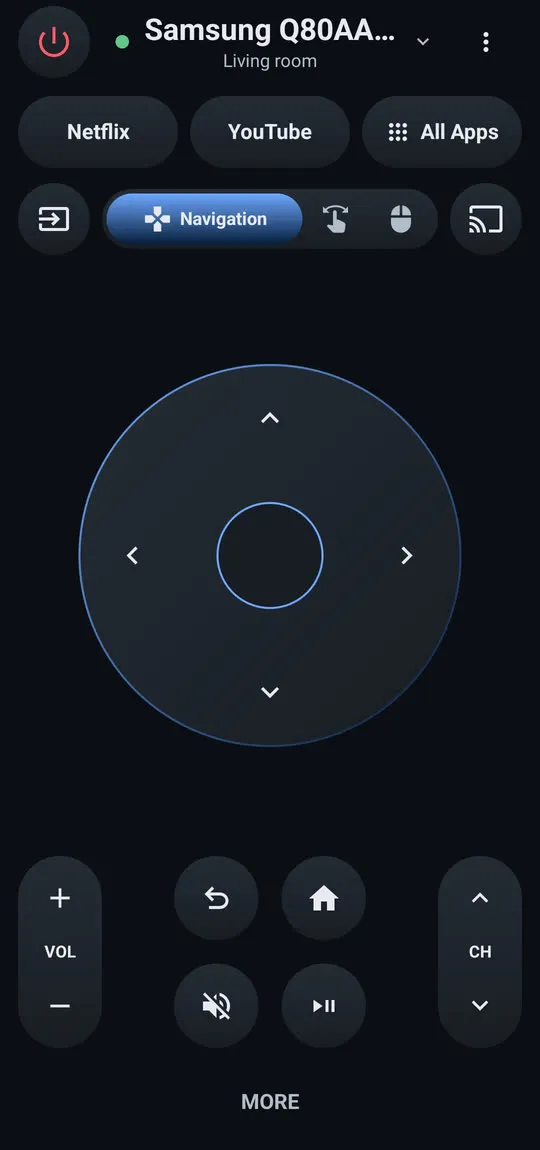
All options are in how to control a Samsung TV without a remote. If you try Samsung TV Remote, getting started covers the first connection and the compatibility page lists the developer-tested models.
Frequently asked questions
Why does only the power and volume work on my Smart Remote?
Power, volume and channel can work over infrared, while smart functions such as the voice button need the remote's Bluetooth link. If only the basic buttons work, pair the remote again by holding Return and Play/Pause for 3–5 seconds near the TV.
The remote works only when I stand right next to the TV. Why?
Weak batteries are the usual cause. Samsung recommends keeping the remote within about 6 m (20 ft) of the TV; anything blocking the sensor at the bottom of the TV also shortens the range.
Can I use my phone instead of the remote?
Yes, if your TV is a Smart TV connected to your home network. A phone remote app, SmartThings or — on select 2025 and newer TVs — Samsung's Mobile Remote QR code can stand in until the remote is fixed.
My TV changes channels or volume by itself. Is it the remote?
Possibly: a stuck button keeps sending a command. Take the batteries out (or put a SolarCell remote in another room) and see if it stops. Samsung also advises wiping the TV's touch controls, which can trigger themselves.
Does a factory reset of the TV fix the remote?
Rarely, and it erases all settings. A TV reset also removes the remote's pairing, so you will have to pair it again afterwards.
Sources
- Samsung US troubleshooting: remote is not working (TSG10002214) — Samsung US · Samsung · checked November 10, 2026
- Pair your Samsung Smart Remote to your Samsung TV — Samsung Canada · Samsung · checked November 11, 2026
- Samsung Smart TV remote control LED guide — Samsung Canada · Samsung · checked November 11, 2026
- How to charge and use the Samsung SolarCell Remote — Samsung UK · Samsung · checked November 11, 2026
- Samsung TV Remote product documentation (developer-supplied facts) — Smart App Craft · Developer · checked November 10, 2026
Related guides
Troubleshooting
Remote light blinking
Samsung remote light blinks twice, stays on or flashes when you press Power? What each pattern means (low battery, lost pairing, charging) and how to fix it.
How-to
Pair a Smart Remote
Pair or re-pair a Samsung Smart Remote or SolarCell remote: hold Return and Play/Pause near the TV. How to reset it first, and what to do when pairing fails.
How-to
SolarCell remote charging
Charge a Samsung SolarCell remote with light or USB-C, check its battery level on the TV, and fix a remote that won't charge, locks up or drains quickly.
How-to
Remote batteries
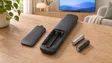
Which batteries a Samsung TV remote takes (AA or AAA by type, none for SolarCell), how to open each battery cover, and what to do if new batteries don't help.
Guide
Without a remote
No remote? Control a Samsung TV with its own button, your phone, a USB keyboard, another remote via HDMI-CEC or a voice assistant, including volume and input.
How-to
Lost remote
Lost the Samsung TV remote? Where to look first, how to keep watching tonight with the TV's button or your phone, and how to get the right replacement.