
How-to
Samsung SolarCell remote: how to charge it, and fixes when it won't
The SolarCell remote has no replaceable batteries — it lives on light and USB-C. Here is how to keep it topped up and what to do when it stops.
Quick answer
Charge a Samsung SolarCell remote by plugging a USB-C cable into the port on its bottom edge (the front light turns off when it's full), or by leaving it with the solar panel on the back facing bright light. Check the level on the TV under Settings, General (or General & Privacy), Power and Energy Saving, Available Remote Battery. If it is completely flat it locks: charge it, then hold Return and Enter for 10 seconds and pair it again.
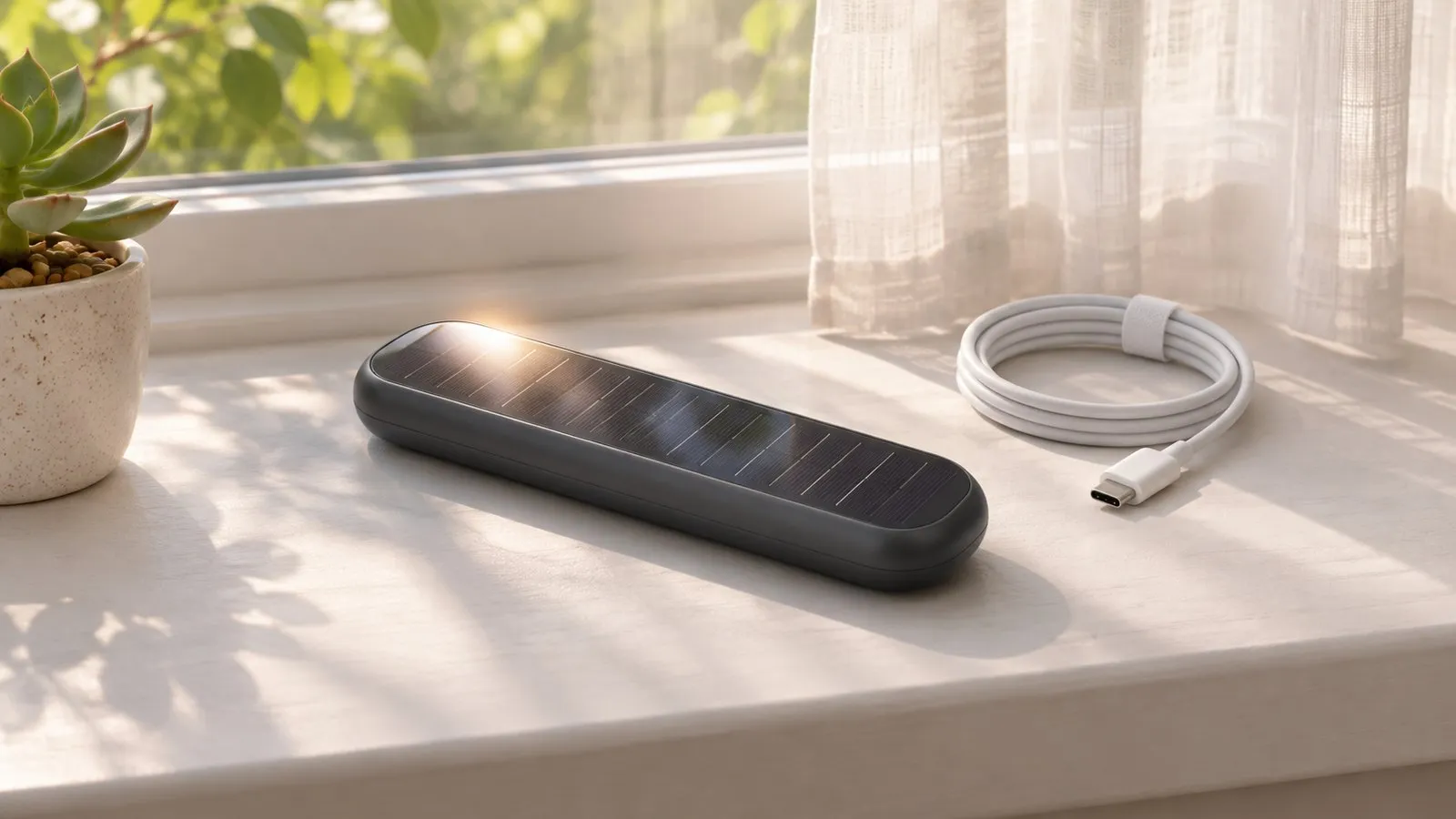
Samsung’s SolarCell remote (introduced with its 2021 TVs) replaced disposable batteries with a built-in battery that charges from light or from a USB-C cable. Most “dead” SolarCell remotes are simply empty.
Two ways to charge it
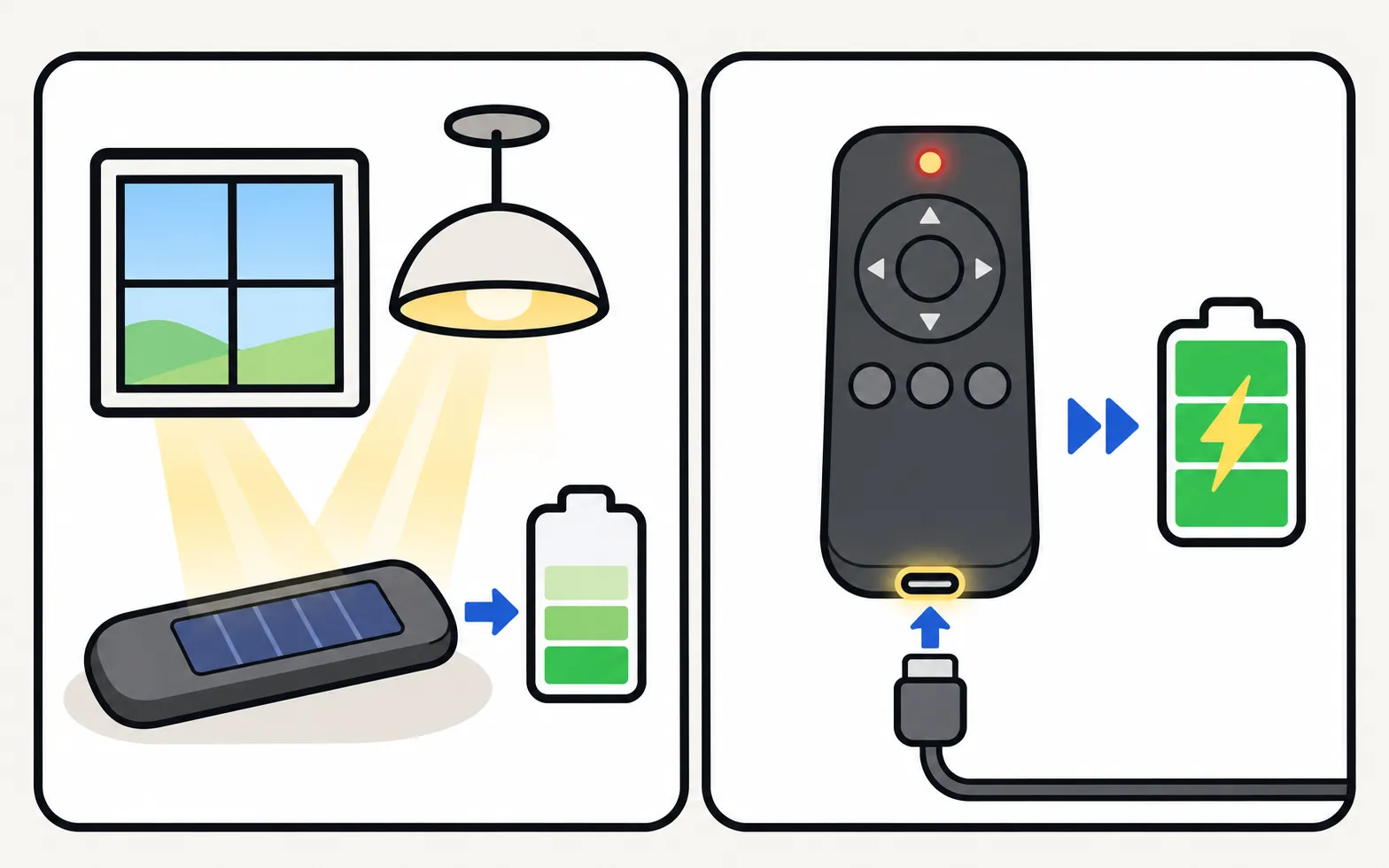
With a USB-C cable (fastest)
-
Plug in
Connect a USB-C cable to the port on the bottom edge of the remote, with a phone charger or a USB port at the other end. The cable and charger aren’t included with the TV. -
Watch the light
The light on the front turns on when charging starts and turns off when charging is complete. -
Leave it alone
Samsung advises not to use the remote while it charges — charging is faster.
With light
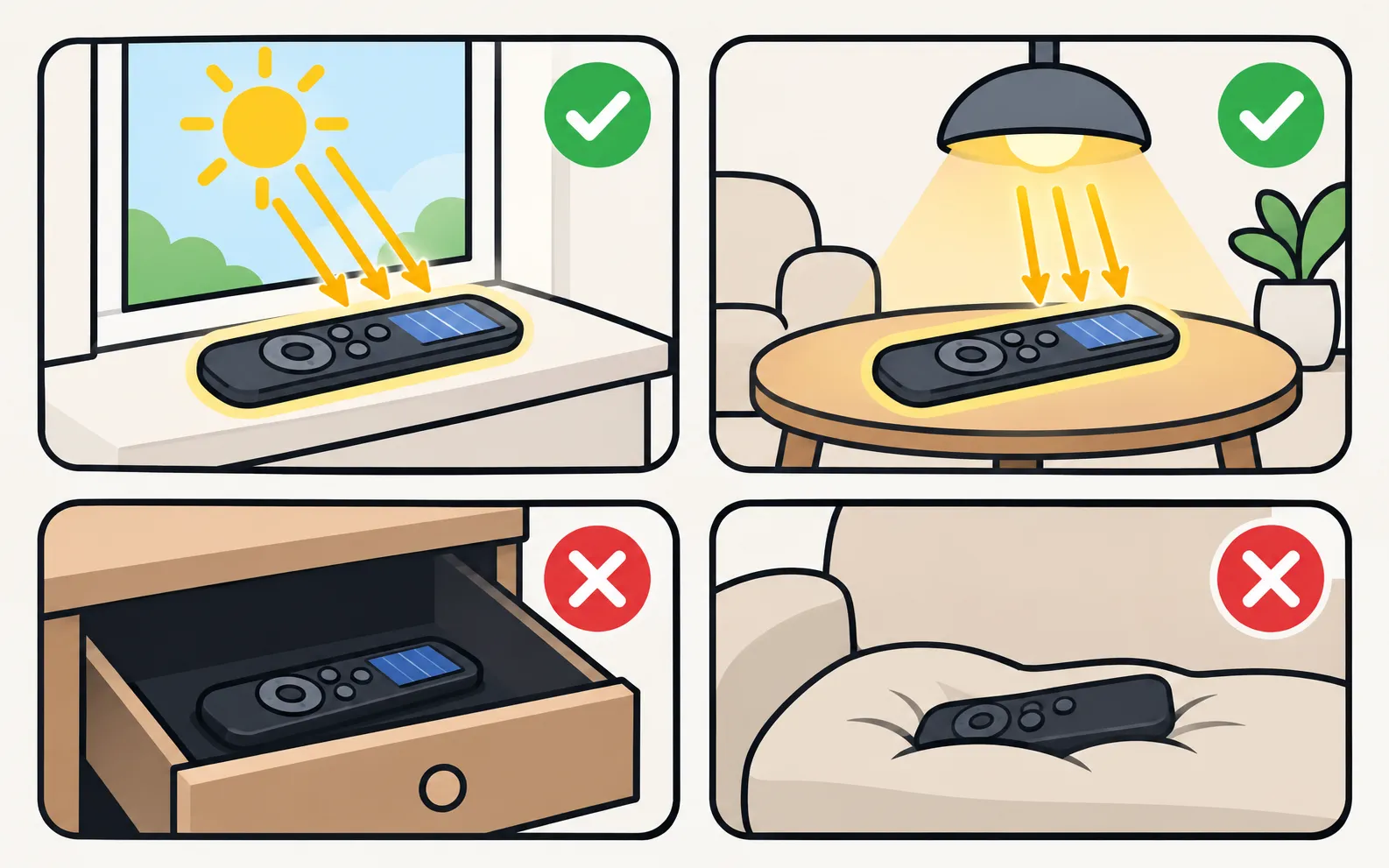
Lay the remote so the solar panel on the back faces the light: near a window, or under a ceiling light. Samsung’s guides note that exposing the remote to light when you’re not using it extends its operating time. Don’t leave it hidden in a drawer or face down on a sofa.
Check the battery level
On recent Samsung TVs:
→ Available Remote Battery
Older menus show it under General instead of General & Privacy (). The option appears only when an eco remote is paired.
The remote also tells you itself: if its light stays on for 5 seconds or more after a button press, the battery is at about 10% or less.
The remote is completely dead or locked
When the battery is too low, the SolarCell remote locks to protect itself, and its light flashes for about 3 seconds when you press Power.
-
Charge by USB-C for a while
Light charging is too slow to revive a fully drained remote quickly. -
Reset it
Press and hold Return and Enter (the centre of the navigation pad) together for about 10 seconds. -
Pair it again
Point it at the bottom of the TV from close range and hold Return and Play/Pause for 3–5 seconds. See pair a Smart Remote.
It charges but drains fast or works badly
- Weak battery symptoms: slow response, missed presses and short range. Charge fully by cable once.
- Distance: Samsung recommends staying within about 6 m (20 ft) of the TV.
- Software: Samsung suggests checking for a TV software update if remote problems persist (update a Samsung TV).
- Still failing after a full charge, reset and pairing: run the camera test in remote not working. A remote with no infrared light after a full charge is faulty — see which replacement remote fits.
While the remote charges
Use the TV’s own control button (all the no-remote options), or your phone as a remote if the TV is a Smart TV on your home network:
Frequently asked questions
Does the SolarCell remote have batteries I can replace?
It has a built-in rechargeable battery that is charged by light or USB-C, not standard AA or AAA batteries. Samsung's user guides don't describe replacing it yourself; if the remote no longer holds a charge, replace the remote.
Can I use any USB-C cable and phone charger?
Samsung says the cable and charger are not included and refers to a standard USB-C mobile charging cable. An ordinary phone charger and USB-C cable are what most owners use.
How long does a full charge last?
Samsung doesn't publish a figure in its support guides, and it depends on use and light. Leaving the remote in daylight or under a ceiling light between uses keeps it topped up.
Does indoor lamp light charge it?
Yes, slowly. Samsung's guides mention placing it under a ceiling light or near a window; direct daylight charges faster.
Which TVs come with a SolarCell remote?
Samsung introduced it with its 2021 TVs and has shipped it with many models since, though not with every series or region. Check your TV's box contents or specifications.
Sources
- How to charge and use the Samsung SolarCell Remote — Samsung UK · Samsung · checked November 11, 2026
- Samsung Smart TV remote control LED guide — Samsung Canada · Samsung · checked November 11, 2026
- Samsung US troubleshooting: remote is not working (TSG10002214) — Samsung US · Samsung · checked November 10, 2026
Related guides
Troubleshooting
Remote light blinking
Samsung remote light blinks twice, stays on or flashes when you press Power? What each pattern means (low battery, lost pairing, charging) and how to fix it.
How-to
Pair a Smart Remote
Pair or re-pair a Samsung Smart Remote or SolarCell remote: hold Return and Play/Pause near the TV. How to reset it first, and what to do when pairing fails.
Troubleshooting
Remote not working
Samsung TV remote not working? Reset it, do the 10-second phone-camera test, change or charge the battery, re-pair a Smart Remote and clear the TV's sensor.
How-to
Remote batteries
Which batteries a Samsung TV remote takes (AA or AAA by type, none for SolarCell), how to open each battery cover, and what to do if new batteries don't help.
Explainer
Replacement remote
Choose a replacement remote for a Samsung TV: original by part number, compatible remotes, Smart Remote vs infrared, universal remotes and what copies lack.