
Black screen
Samsung TV on but the screen is black? Check if the menu appears, the input and cable, energy-saving and screen-off settings, then do the torch test.
Topic
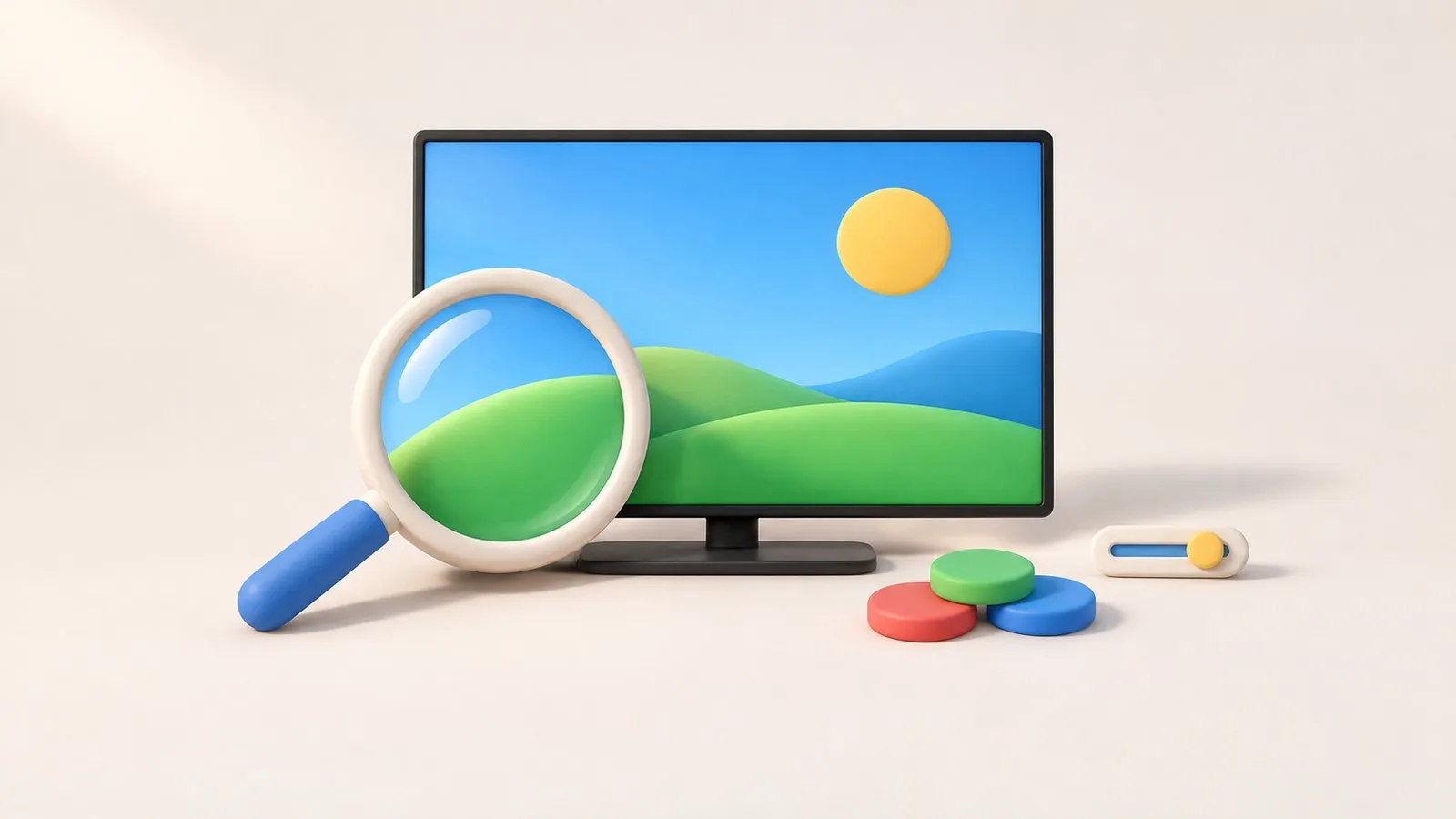
Separate faults from settings. A black screen, lines, dark patches or flicker that appear on every input usually mean hardware; a picture that's too dark, too smooth, oddly coloured or cropped is almost always a setting. For settings, start with the picture mode (Movie or Filmmaker for accuracy, Standard for bright rooms) and turn off energy-saving dimming.
| You see | Usually | Guide |
|---|---|---|
| No picture at all, maybe sound | Source, cable or backlight | Black screen |
| Picture dim or dimming by itself | Energy-saving settings | Picture too dark |
| Straight lines across or down the screen | Panel or connection fault | Lines on the screen |
| Flicker or blinking | Settings, cable or backlight | Screen flickering |
| Green, purple or pink tint, washed-out colours | Settings, HDMI or panel | Colour problems |
| Darker areas or half the screen dark | Backlight or panel | Dark patches |
| Films look like soap operas | Motion smoothing | Motion smoothing |
| Edges cut off or black bars | Picture size | Picture size |
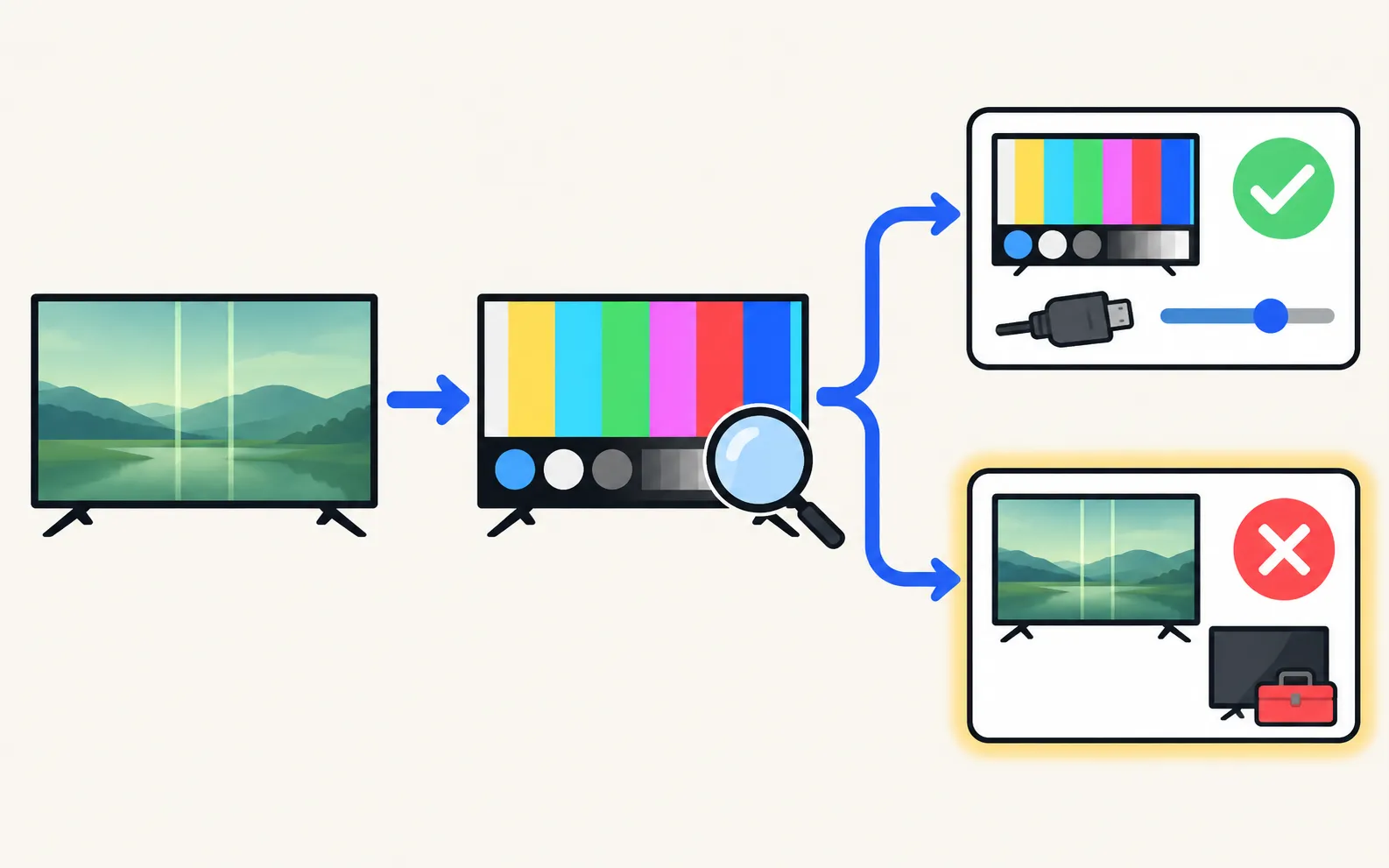
Open the TV’s home screen or a built-in streaming app. If the fault is there too, the TV is the cause. If only one input shows it, check the device and its HDMI cable first — the HDMI cable test in the TV’s self-diagnosis menu helps on models that have it.
Best picture settings for Samsung TVs explains the modes and the few settings worth changing. HDR on Samsung TVs covers HDR10+ and HDR content, and OLED owners should read burn-in prevention.
Samsung TV on but the screen is black? Check if the menu appears, the input and cable, energy-saving and screen-off settings, then do the torch test.
Samsung TV showing a green, purple or pink tint, or washed-out colours? Separate settings, cable and panel faults with the Picture Test, then fix each one.
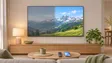
Half the Samsung TV screen darker, dark spots or stuck pixels? Use the Picture Test to tell a source problem from a panel or backlight fault, then fix it.
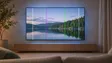
Lines on a Samsung TV screen? Find out in two minutes if it's a cable or a panel fault: see if the lines move, check the TV's own menu and run the Picture Test.
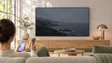
Samsung TV too dark or dimming on its own? Turn off Brightness Optimization, Energy Saving Solution, Motion Lighting, Contrast Enhancer and Adaptive Picture.

Samsung TV flickering? Turn off auto-brightness features and LED Clear Motion, check the HDMI cable and source, run the Picture Test and spot backlight faults.
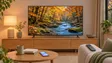
The Samsung TV picture settings that matter: Movie or Filmmaker Mode, motion smoothing, automatic dimming and brightness for your room, and what to leave alone.
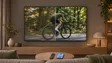
Films look like cheap video on a Samsung TV? Turn off Auto Motion Plus (Picture Clarity) or set Custom with low Judder Reduction, with the menu path for each.
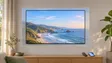
Black bars, stretched faces or cut-off edges on a Samsung TV? Change Picture Size (16:9 Standard, Custom, 4:3), use Fit to Screen, and why some apps block it.
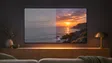
Samsung TVs play HDR10, HDR10+ and HLG but not Dolby Vision. How to get HDR from a console, player or PC with Input Signal Plus and the right picture mode.
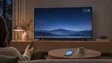
Prevent and treat burn-in on a Samsung OLED TV: what Pixel Shift, Adjust Logo Brightness and Pixel Refresh do, where Panel Care is, and when to get service.
Open the TV's own menu or a built-in app. If the problem shows there too, it's the TV. If it appears only on one HDMI input, it's the device, the cable or that device's settings.
Movie or Filmmaker Mode for accurate colours in a dim room; Standard for a bright room. Avoid Dynamic except in very bright spaces.
Many Samsung TVs include self-diagnosis tools under Support, Device Care, Self Diagnosis, such as a picture test and an HDMI cable test, depending on the model.