
How-to
Best picture settings for Samsung TVs, and why
You don't need a calibration kit. Five changes get most Samsung TVs close to what film-makers intended — and each one is explained, so you can choose.
Quick answer
For the most accurate picture, choose Filmmaker Mode or Movie mode, set Auto Motion Plus (Picture Clarity) to Off or Custom with low values, turn off Brightness Optimization and Energy Saving Solution if the picture dims by itself, and raise Brightness until the picture suits your room. Use Game Mode for consoles. Standard mode is a good choice for bright rooms.
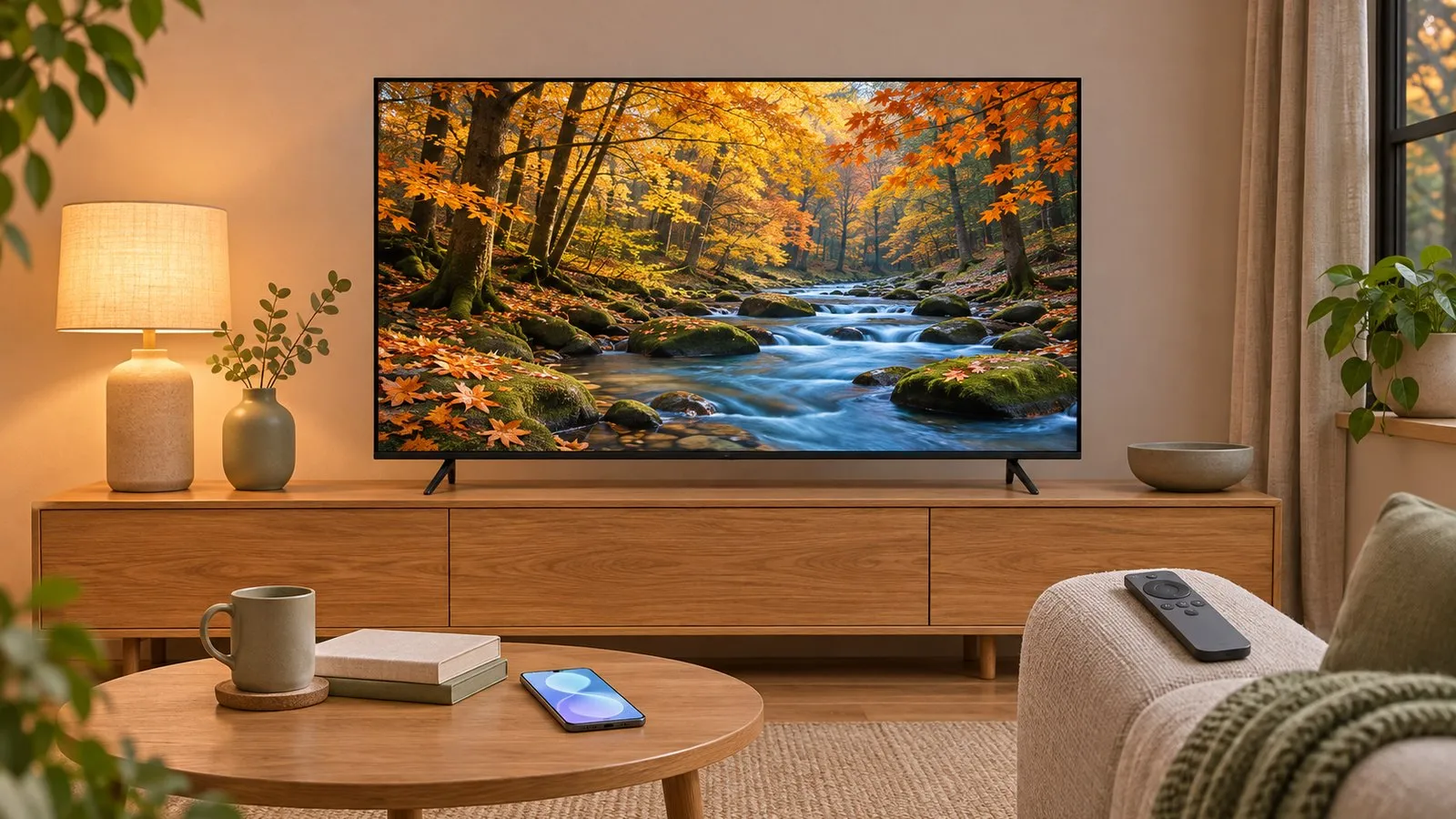
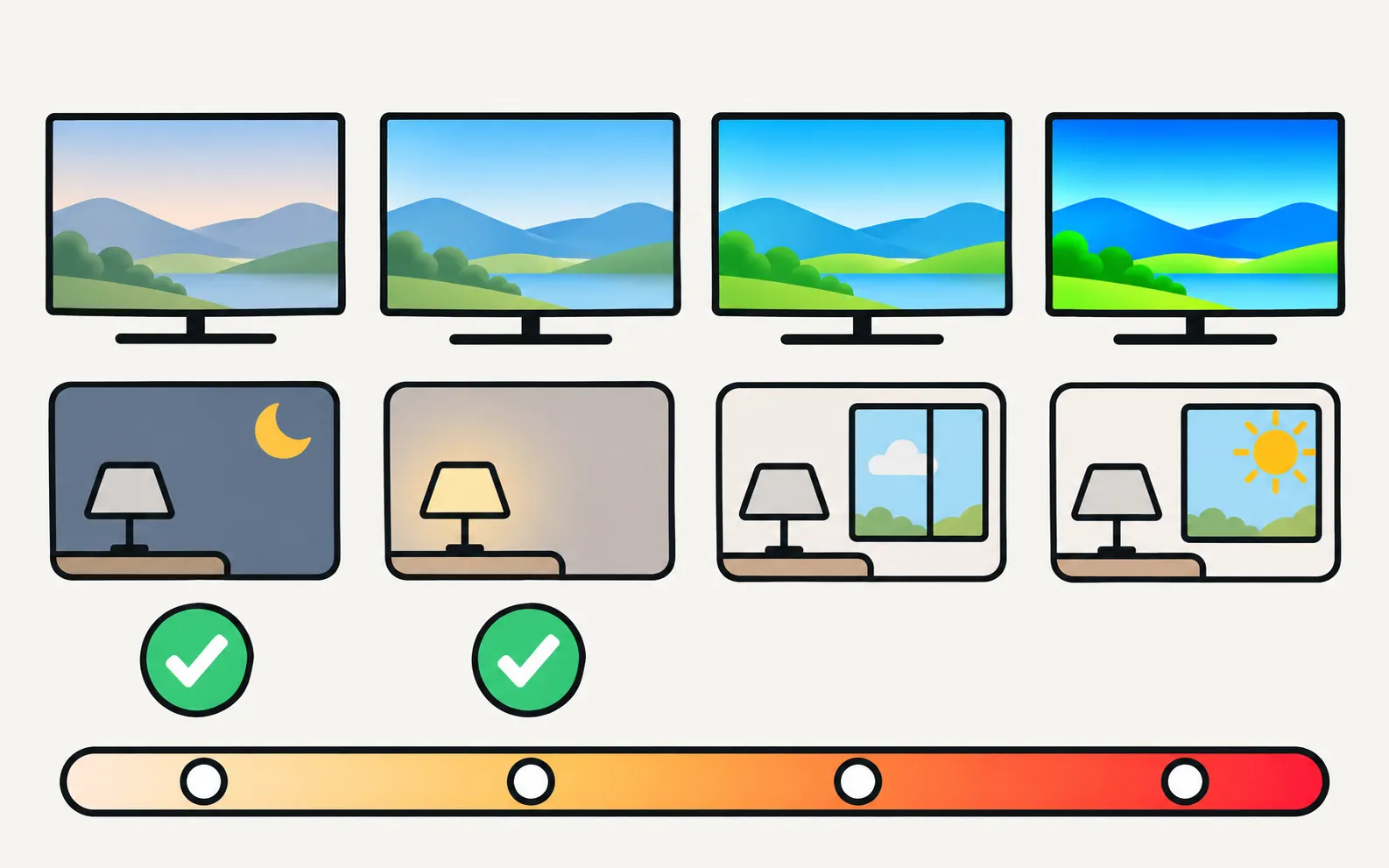
1. Pick the right picture mode
| Mode | Use it when |
|---|---|
| Filmmaker Mode | Watching films and series in a dim room; turns off most processing |
| Movie | Similar goal on models without Filmmaker Mode |
| Standard | Bright rooms and everyday TV |
| Dynamic | Very bright spaces only — colours and sharpness are exaggerated |
On models with AI picture features, Samsung notes that only the AI modes are offered while Adaptive Picture is on; turn it off to see all modes.
2. Decide on motion smoothing
Samsung’s motion processing is called Auto Motion Plus or Picture Clarity: . Off gives films their natural motion; Custom lets you keep a little Blur Reduction for sport while keeping Judder Reduction low. Full guide: turn off motion smoothing.
3. Stop the picture dimming itself
In , turn off Brightness Optimization and Energy Saving Solution if the picture looks dim or changes brightness (picture too dark).
4. Set brightness and contrast for your room
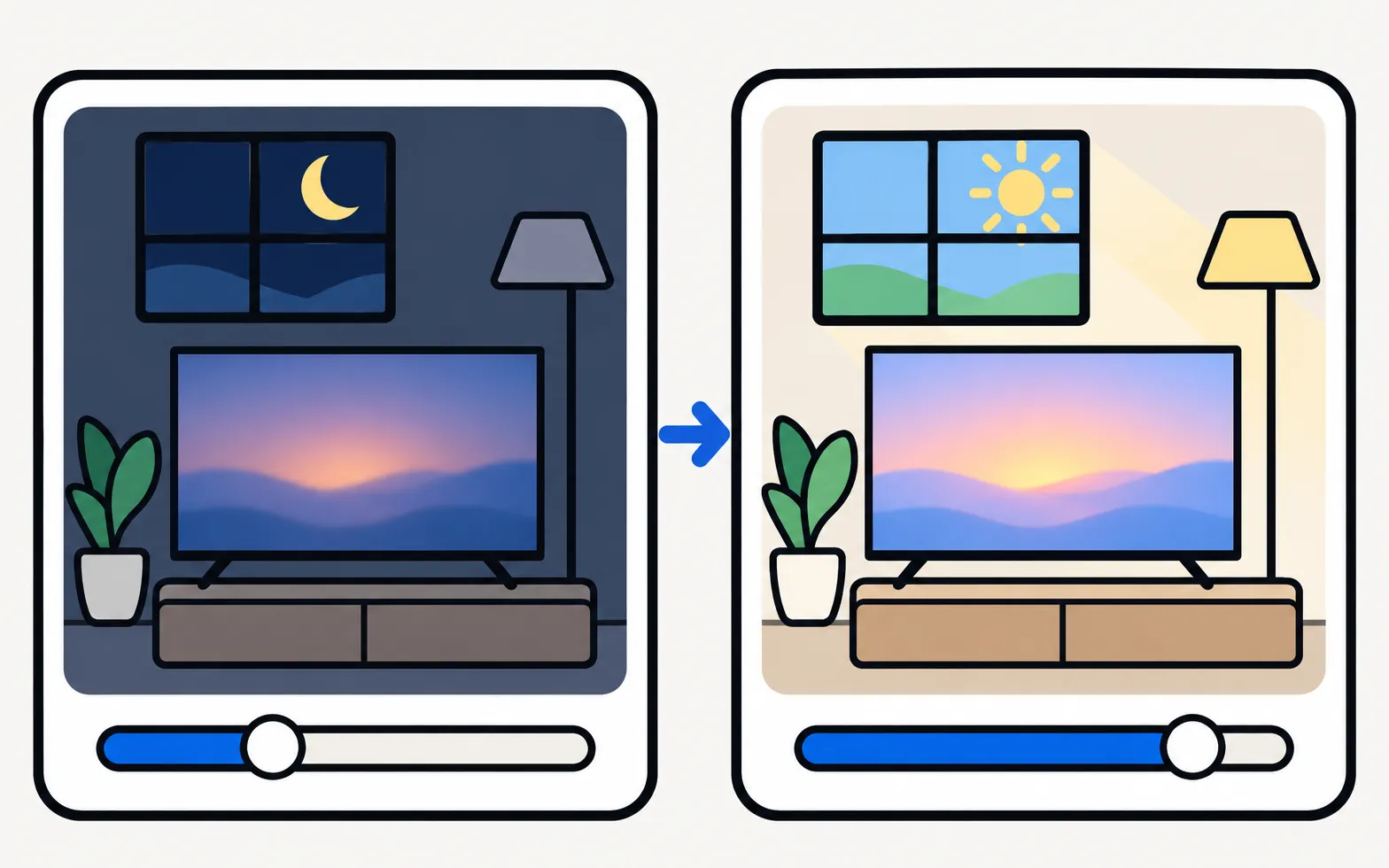
In Picture › Expert Settings:
- Brightness controls the backlight on LED/QLED TVs (or the overall light output on OLED). Raise it in a bright room, lower it at night.
- Contrast rarely needs changing from the mode’s default.
- Sharpness: lower is usually more natural; high values add halos.
- Contrast Enhancer: try Off for a stable picture.
5. Gaming and sports
- Consoles: Game Mode cuts input lag (Game Mode, PS5 and Xbox settings).
- Sport: Standard mode with some Blur Reduction often looks best.
Undo everything
Made a mess? Samsung’s US guide: . If colours still look wrong after a reset — a green or purple tint, or a washed-out picture — see wrong colours on a Samsung TV.
If your picture settings keep changing back on their own, the TV may be in store demo mode — see turn off store demo or hotel mode.
Measured settings per model
We don’t publish calibration numbers — they depend on your exact unit. For measured results and suggested settings per series, see the RTINGS review of your model (linked from our series pages).
Frequently asked questions
Which is the best picture mode on a Samsung TV?
Filmmaker Mode or Movie for accuracy in a dim room; Standard for bright rooms. Dynamic exaggerates colours and sharpness and is meant for shop floors.
Should I copy calibration settings from the internet?
Panels vary between units, so exact numbers rarely transfer. Labs such as RTINGS publish the settings they used per model as a starting point; adjust brightness to your room.
Why does Filmmaker Mode look too warm or dark?
It uses a warmer white point and turns off processing on purpose. Give it a few days; if it's too dark for your room, raise Brightness.
Do I need different settings for HDR?
The TV switches to separate HDR settings automatically when HDR content plays. The same principles apply.
Sources
- How to troubleshoot if the screen brightness of your Samsung TV changes automatically or is too dark — Samsung Hong Kong · Samsung · checked November 11, 2026
- Motion smoothing and the soap opera effect on Samsung TVs (ANS10006969) — Samsung US · Samsung · checked November 11, 2026
- How to reset your Samsung TV (ANS10005248) — Samsung US · Samsung · checked November 11, 2026
- Samsung TV reviews by series (e.g. MU6300; regional and retailer variants per review) — RTINGS.com · Reference · checked November 10, 2026
Related guides
How-to
Motion smoothing
Films look like cheap video on a Samsung TV? Turn off Auto Motion Plus (Picture Clarity) or set Custom with low Judder Reduction, with the menu path for each.
Troubleshooting
Picture too dark
Samsung TV too dark or dimming on its own? Turn off Brightness Optimization, Energy Saving Solution, Motion Lighting, Contrast Enhancer and Adaptive Picture.
Explainer
HDR and Dolby Vision
Samsung TVs play HDR10, HDR10+ and HLG but not Dolby Vision. How to get HDR from a console, player or PC with Input Signal Plus and the right picture mode.
How-to
Game Mode
Turn on Game Mode on a Samsung TV (paths 2016–2025), make it switch on automatically, open the Game Bar and cut input lag without ruining the picture.
Troubleshooting
Colour problems
Samsung TV showing a green, purple or pink tint, or washed-out colours? Separate settings, cable and panel faults with the Picture Test, then fix each one.
Explainer
OLED burn-in
Prevent and treat burn-in on a Samsung OLED TV: what Pixel Shift, Adjust Logo Brightness and Pixel Refresh do, where Panel Care is, and when to get service.