
Explainer
Samsung OLED burn-in: Panel Care settings and what to do
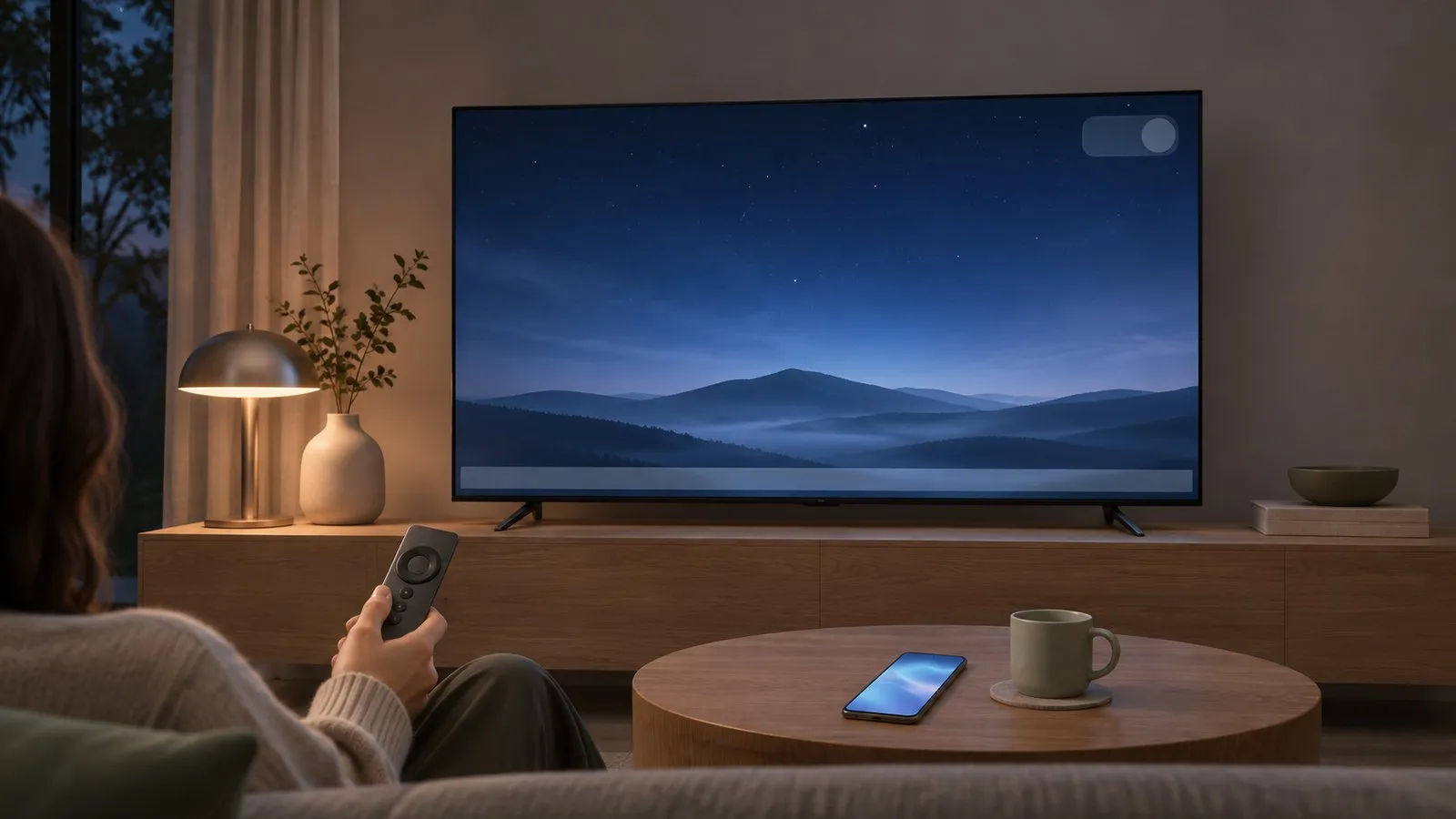
OLED pixels make their own light, so a logo left on screen for hours on end can wear unevenly. Samsung's OLED TVs include Panel Care tools to prevent it — and one to treat early signs.
Quick answer
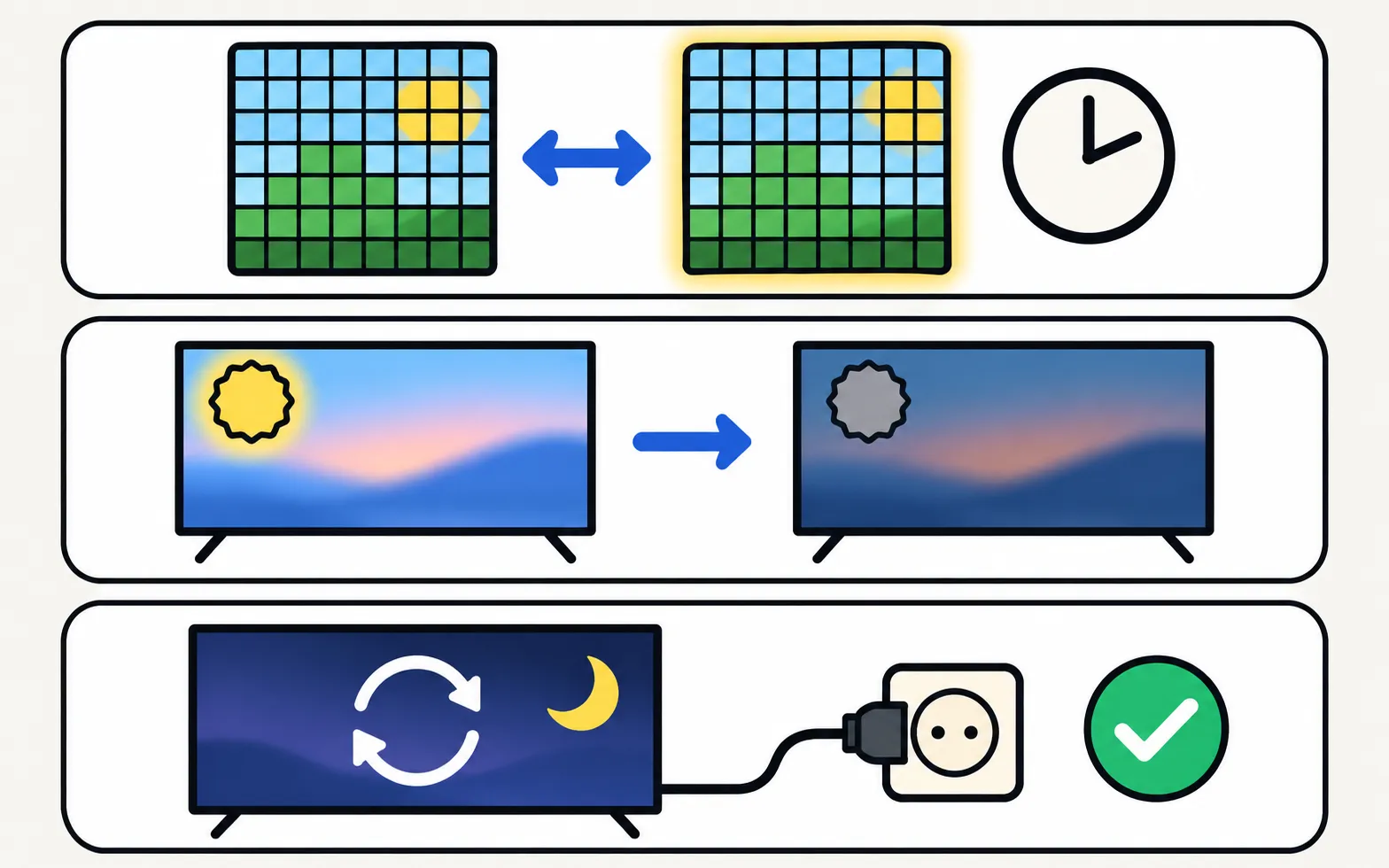
On Samsung OLED TVs, open Settings › All Settings › General & Privacy › Panel Care. Keep Pixel Shift on (it moves the picture slightly at intervals) and Adjust Logo Brightness on (it dims fixed logos and banners). If you see a faint ghost image, run Pixel Refresh, which adjusts the pixels; some features such as recording and voice recognition don't work while it runs. If the image remains, contact Samsung Support.
Is your TV an OLED?
Samsung’s OLED TVs include the 2025 S90F and the cheaper S85F; RTINGS notes the S90F uses QD-OLED or WOLED panels depending on size and region. Neo QLED, QLED and Crystal UHD TVs are LCD-based and don’t have Panel Care. Not sure? Check panel types explained.
Panel Care: where it is
Samsung’s Australian page shows this path on a 2024 model and notes that settings may vary by model and software version. Panel Care is only available on select Samsung OLED TVs.
| Tool | What Samsung says | Recommendation |
|---|---|---|
| Pixel Shift | Moves pixels at regular intervals to prevent screen issues; some edges may move outside the screen | Keep on, especially for content with many static images |
| Adjust Logo Brightness | Lowers the brightness of fixed images such as logos and banners | Keep on for news, sports and games with fixed HUDs |
| Pixel Refresh | Adjusts pixels to provide a clearer screen; recording, reservations and voice recognition don’t work while it runs | Use when you notice a ghost image |
Habits that help
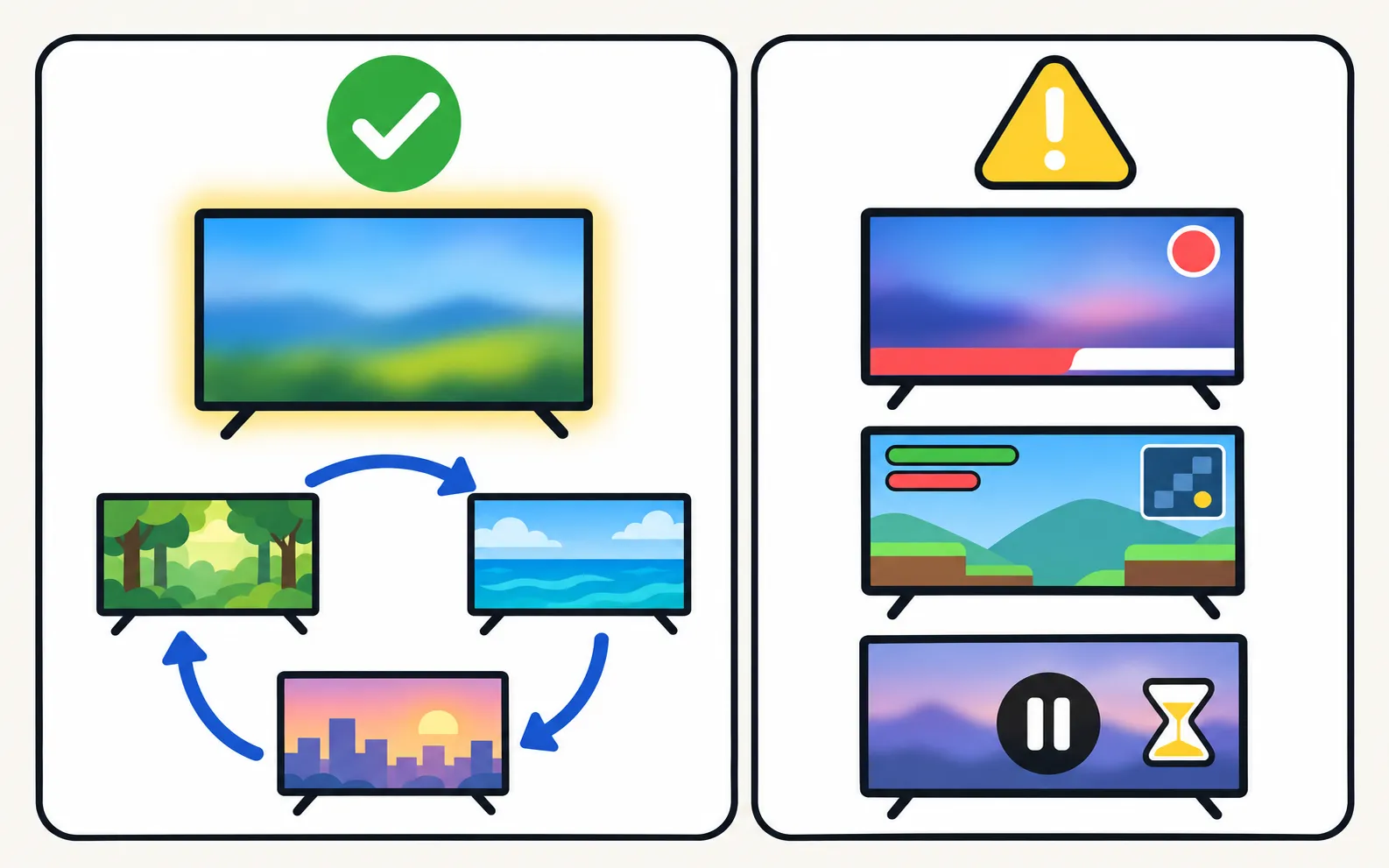
- Vary what you watch — hours of the same channel logo, news ticker or game HUD every day is the main risk.
- Don’t leave a paused image or menu on screen; let the TV’s screen saver or Auto Power Off act (power settings).
Gaming on an OLED? Turn on Game Mode for lag, but keep Panel Care on — see Game Mode.
You can see a ghost image
- Run Pixel Refresh from Panel Care and don’t use the TV until it finishes.
- Still visible? Contact Samsung Support. Check warranty first.
A dark shape that also appears in the Picture Test isn’t burn-in — see dark patches.
Frequently asked questions
Do Samsung QLED and Crystal UHD TVs get burn-in?
Burn-in is an OLED concern, and Samsung's Panel Care tools are only on select OLED TVs. QLED and Crystal UHD models use LCD panels with a backlight — see panel types explained.
Why are the edges of the picture cut off?
That's Pixel Shift: Samsung notes some screen edges may move outside the border. To keep the picture fixed, turn Pixel Shift off — at the cost of that protection.
How often should I run Pixel Refresh?
Samsung's page doesn't give an interval. Run it when you notice retention, and don't use the TV while it runs.
Is burn-in covered by the warranty?
It depends on your region's warranty terms; ask Samsung Support with your model and serial number.
Sources
- Using Panel Care on your Samsung OLED TV — Samsung Australia · Samsung · checked November 11, 2026
- Samsung S90F OLED review — RTINGS.com · Reference · checked November 11, 2026
Related guides

Explainer
Samsung TV types
What Crystal UHD, QLED, Neo QLED, OLED, The Frame and the 2026 M series mean on a Samsung TV, how the picture technology differs and how to tell from the code.

Troubleshooting
Dark patches and half-dark screen
Half the Samsung TV screen darker, dark spots or stuck pixels? Use the Picture Test to tell a source problem from a panel or backlight fault, then fix it.

TV series
S90F OLED (2025)
Samsung's 2025 OLED range — S85F, S90F, S94F and S95F — with S90F specs, the QD-OLED vs WOLED panel lottery by size and region, and developer-tested codes.

How-to
Game Mode
Turn on Game Mode on a Samsung TV (paths 2016–2025), make it switch on automatically, open the Game Bar and cut input lag without ruining the picture.
How-to
Warranty
Check a Samsung TV warranty: find the model and serial number, use Samsung's checker for your country, request service, and what Care+ and retailer plans add.