
App
Compatible TVs
Check your Samsung TV model code against 389 developer-tested models, and see which app features work on each Samsung Smart TV generation from 2010 on.
Samsung TV Remote

Samsung TV Remote
by Smart App Craft Free · No ads · No account
Connect your Android phone to the same Wi-Fi as your Samsung Smart TV, turn the TV on, open Samsung TV Remote and pick your TV from the list. Select Allow on the TV (or type the PIN on a 2014–2015 TV). The TV then stays in the app's list, and the remote, touchpad, keyboard, apps, power, mirroring and casting are ready.
Not sure your TV qualifies? Look up your model code on the compatibility page — it shows the developer-tested models and what each TV generation can do.
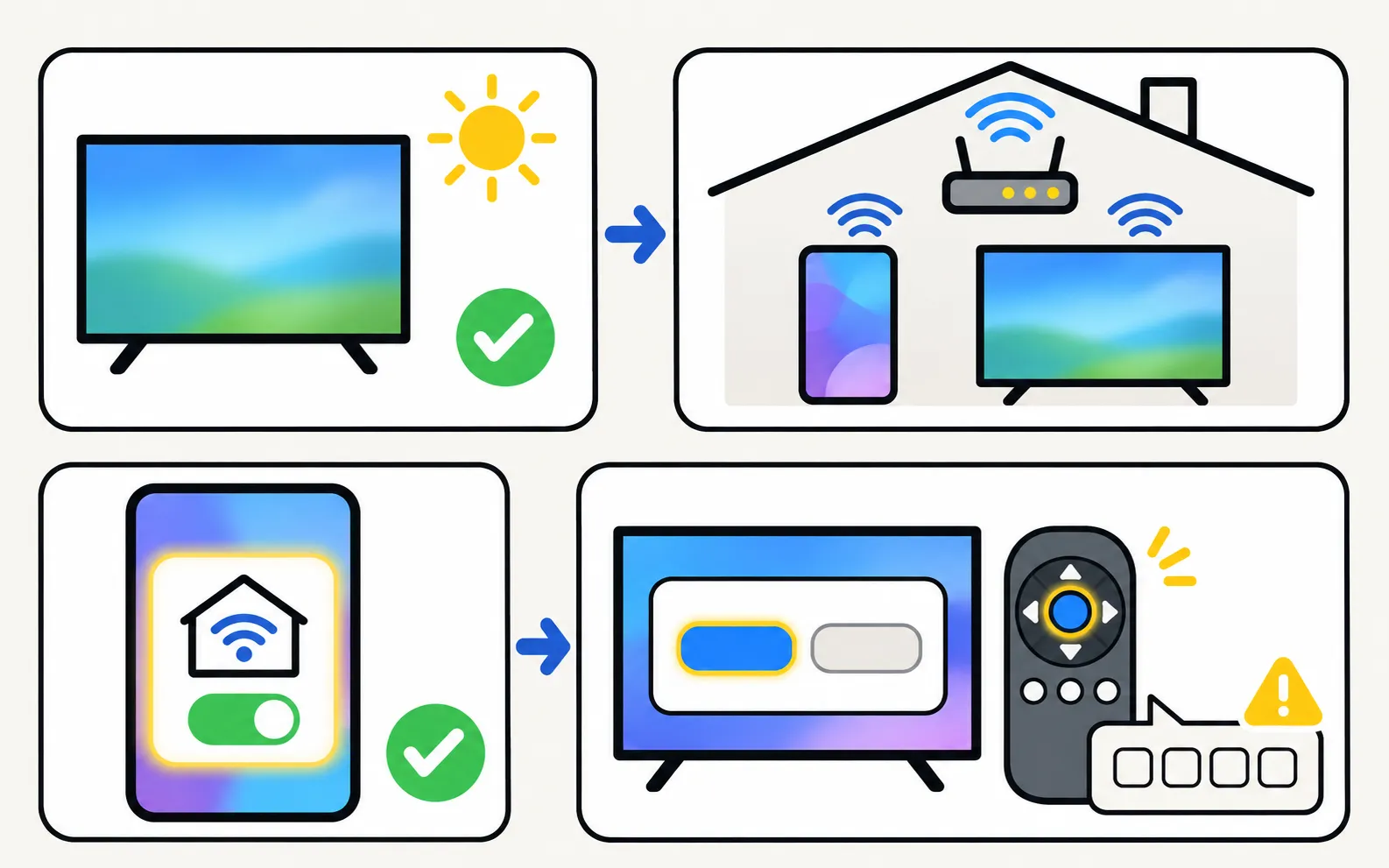
Turn the TV on
The TV must be fully on, with a picture on screen, for the first connection.Open the app on the same Wi-Fi
The app shows “Looking for Samsung TVs on your network…” and lists the TVs it finds. Finds Samsung TVs on your network and detects which control method each TV uses, so you don't have to choose.Allow network access if Android asks
On newer Android versions the app must be allowed local network access; without it the app can't connect.Pick your TV and accept it on the TV
The TV must be fully on for the first connection. Select Allow on the TV, or type the PIN shown on 2014–2015 TVs. If your remote is lost, the TV’s own control button can select Allow.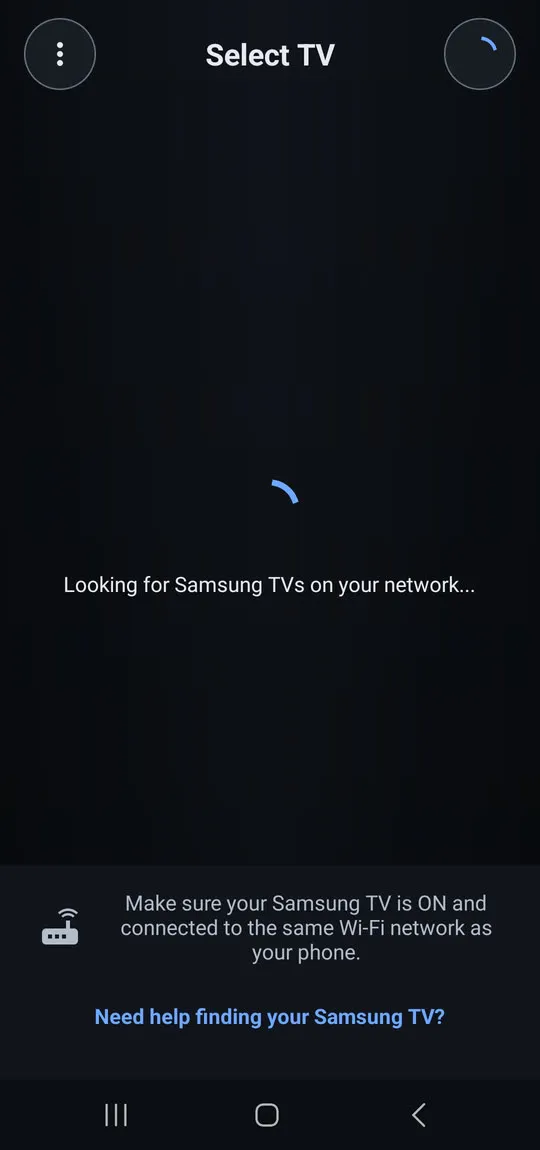
On 2014–2015 TVs, the app asks for the PIN shown on the TV screen.
After the first connection the TV stays in the app’s list, so next time the app connects by itself.
TV not in the list? Follow Samsung TV not showing up on your phone. TV keeps asking to Allow? See the Allow prompt and Device Connection Manager.
Remote buttons: power, volume, channels, navigation pad with OK, Home, Back, mute, play/pause and input, plus a MORE panel with extra keys.
Three control modes — navigation pad, touchpad and mouse — switched with one tap.
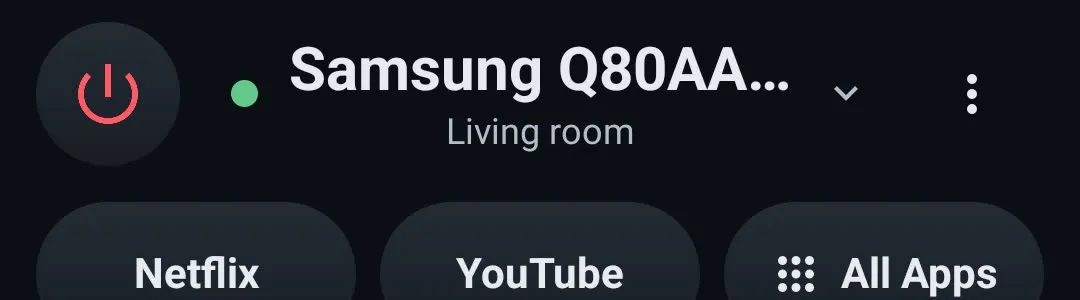
The header shows the name your TV reports and a green dot while connected.
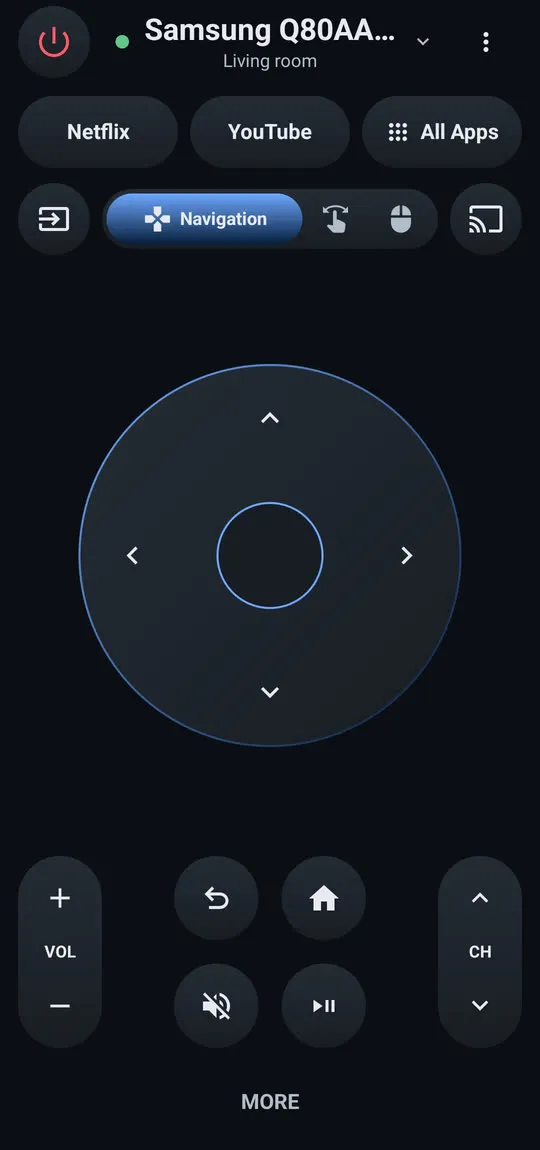
The MORE panel holds extra keys.
Says clearly when a button isn't available on your TV.
Touchpad: swipe to move the selection like the arrow keys; tap for OK. On 2010–2015 TVs, swipes work as arrow keys.
Mouse pointer: a pointer on the TV follows your finger in the TV browser and in apps that show a pointer. Tap to click, tap with two fingers for a right click, and move two fingers up or down to scroll.
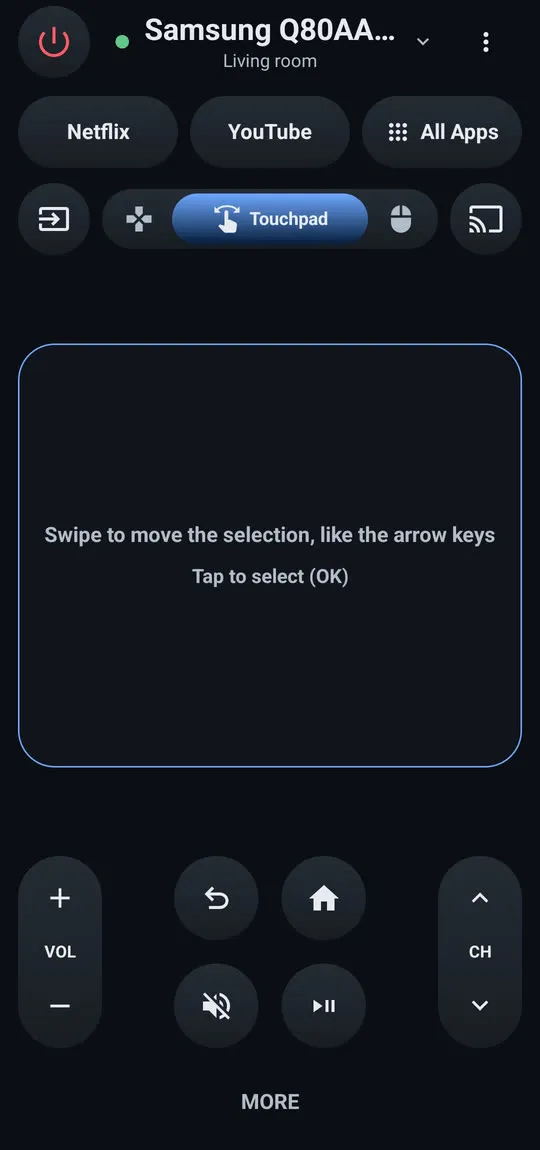
In mouse mode, a pointer appears on the TV and follows your finger; tap to click, two-finger tap for right click, two fingers up or down to scroll.
Select a text field on the TV, then open the keyboard dialog (“Enter text on the TV”) in the app.
Phone keyboard: type into the selected TV field with your normal Android keyboard, including voice typing and autocorrect.
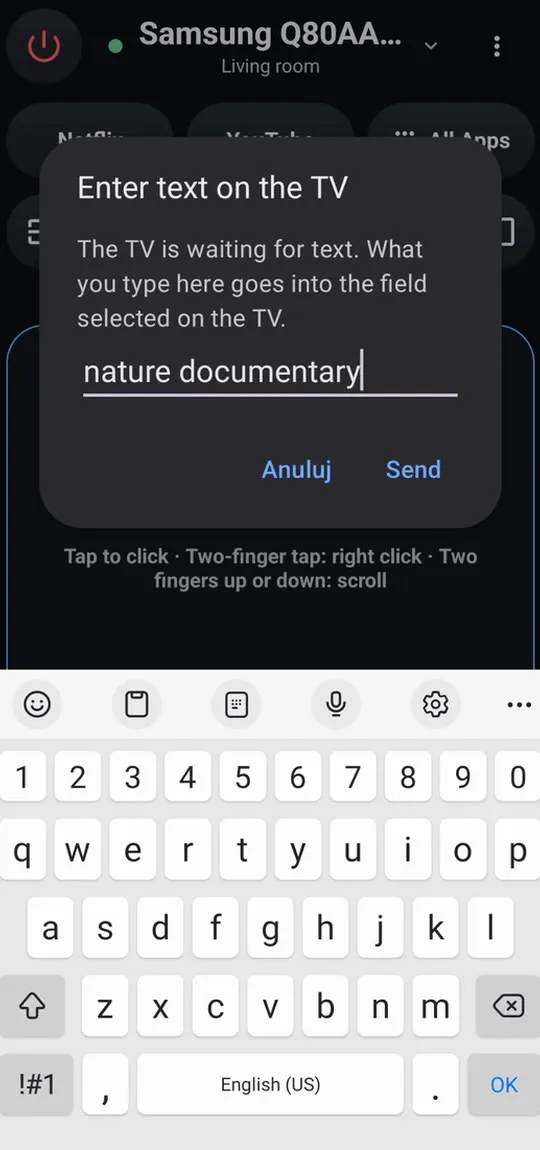
More ways to type: keyboard and mouse on a Samsung TV.
One-tap TV apps: Netflix and YouTube buttons, plus All Apps with every app installed on the TV.
All Apps lists every app installed on the TV; tap one to open it.
Power off on any connected Samsung Smart TV from 2010 on.
Power on over Wi-Fi with a wake-up signal (Wake-on-LAN) for 2016 or newer TVs with Power On with Mobile enabled. The power button is at the top left. If the TV doesn’t respond at once, the app keeps trying and shows each attempt.
When waking the TV, the app keeps trying and shows each attempt.
Set it up step by step: turn on your Samsung TV with your phone.
Tap the cast icon (“Show on TV”) and choose what to show.
The cast icon opens "Show on TV" with Screen mirroring and Send photo/video.
Screen mirroring with sound, using the TV's own media player — nothing is installed on the TV.
Android asks you to confirm every mirroring session. Sound needs Android 10 or newer and the audio-recording permission: The audio-recording permission is used only to capture app sound during mirroring; the microphone is never used. TV volume follows the phone’s media volume. Stop mirroring from the cast icon or the notification.
During mirroring, a notification with a stop control is shown on the phone.
Full guide: screen mirror Android to a Samsung TV.
Cast photos and videos picked in Android's photo picker; videos play with sound and can be paused and seeked.
Choose Send photo/video, pick one or more items, and the first one shows full screen. Use Next and Previous to move through them. Formats the TV can’t play — for example tall portrait screen recordings, HDR or 8K video — are converted on the phone first, with a progress display. The app sees only the photos and videos you pick in Android's photo picker, and requests no location, contacts, camera, phone, storage or account permissions.
While casting, Next/Previous, pause, resume and seek controls appear on the phone.
Full guide: cast photos and videos from Android to a Samsung TV.
Shows the TV's model, model code, model year and IP address, and whether it can be turned on from the app.
This is the quickest way to find your exact model code — useful for the compatibility checker and for decoding your model number.
Samsung changed its control interface twice before 2016, so older Smart TVs get fewer features:
| Feature | 2016 and newer Samsung Smart TVs | 2014–2015 Samsung Smart TVs (PIN pairing) | 2010–2013 Samsung Smart TVs |
|---|---|---|---|
| First connection | Select Allow on the TV | Type the PIN shown on the TV | Select Allow on the TV |
| Remote buttons | Yes | Yes | Yes |
| Touchpad | Yes | As arrow keys | As arrow keys |
| Mouse pointer | Yes | No | No |
| Phone keyboard | Yes | No | No |
| One-tap TV apps | Yes | No | No |
| Screen mirroring | Yes | Often not | Often not |
| Cast photos and videos | Yes | May work | May work |
| Power off | Yes | Yes | Yes |
| Power on over Wi-Fi | Yes | No | No |
Features vary by TV model and software version, and TV or phone updates may change them. Non-smart TVs are not supported; they need an infrared remote.
For non-Samsung devices and 2014–2015 TVs that need secure pairing, the app shows "This TV is not supported".
The app help page answers the common questions about connection, power-on, mirroring and the keyboard. For anything else, email smartappcraft@gmail.com with your TV’s full model code.
No Chromecast, HDMI cable, extra hardware, SmartThings or Samsung account is needed.
Yes. Each phone connects on its own and is allowed once on the TV. Two people can cast one after the other; the later cast replaces what is on screen.
The last TV, the TV's network address (used to wake it) and the connection token the TV issued. They stay in the app's private storage; clearing the app's data or uninstalling deletes them.
Only while you cast or mirror, with a stop control. There are no promotional notifications.
App
Check your Samsung TV model code against 389 developer-tested models, and see which app features work on each Samsung Smart TV generation from 2010 on.
App
Fix problems with the Samsung TV Remote app: TV not found, Allow prompt, TV won't turn on, mirroring with no sound or black screen, keyboard not typing.
Troubleshooting
Phone can't find your Samsung TV? Turn the TV fully on, put both on the same home Wi-Fi, switch off VPN and guest networks, and allow local network access.
Troubleshooting
Why your Samsung TV keeps asking to Allow a phone, how to stop it, and how to undo a Deny — with the Device Connection Manager settings by TV year.
How-to
Switch a Samsung TV on from your phone: enable Power On with Mobile (menu paths by year), keep the TV in standby, and fix a TV that won't wake over Wi-Fi.
How-to
Mirror an Android phone to a Samsung TV: Smart View on Galaxy, Cast or Wireless display on other brands, a mirroring app with sound, or a USB-C to HDMI cable.