
Troubleshooting
Samsung TV not showing up on your phone: network fixes
Why a phone remote, Smart View or a casting app can't see your Samsung TV — and the fixes that work, in the order that solves most cases.
Quick answer
A phone finds a Samsung TV only when the TV is fully on and both devices are on the same home network. Turn the TV on with a picture on screen, connect the phone to the same Wi-Fi as the TV (not a guest network), turn off any VPN, allow the app local network access, then search again and select Allow on the TV.
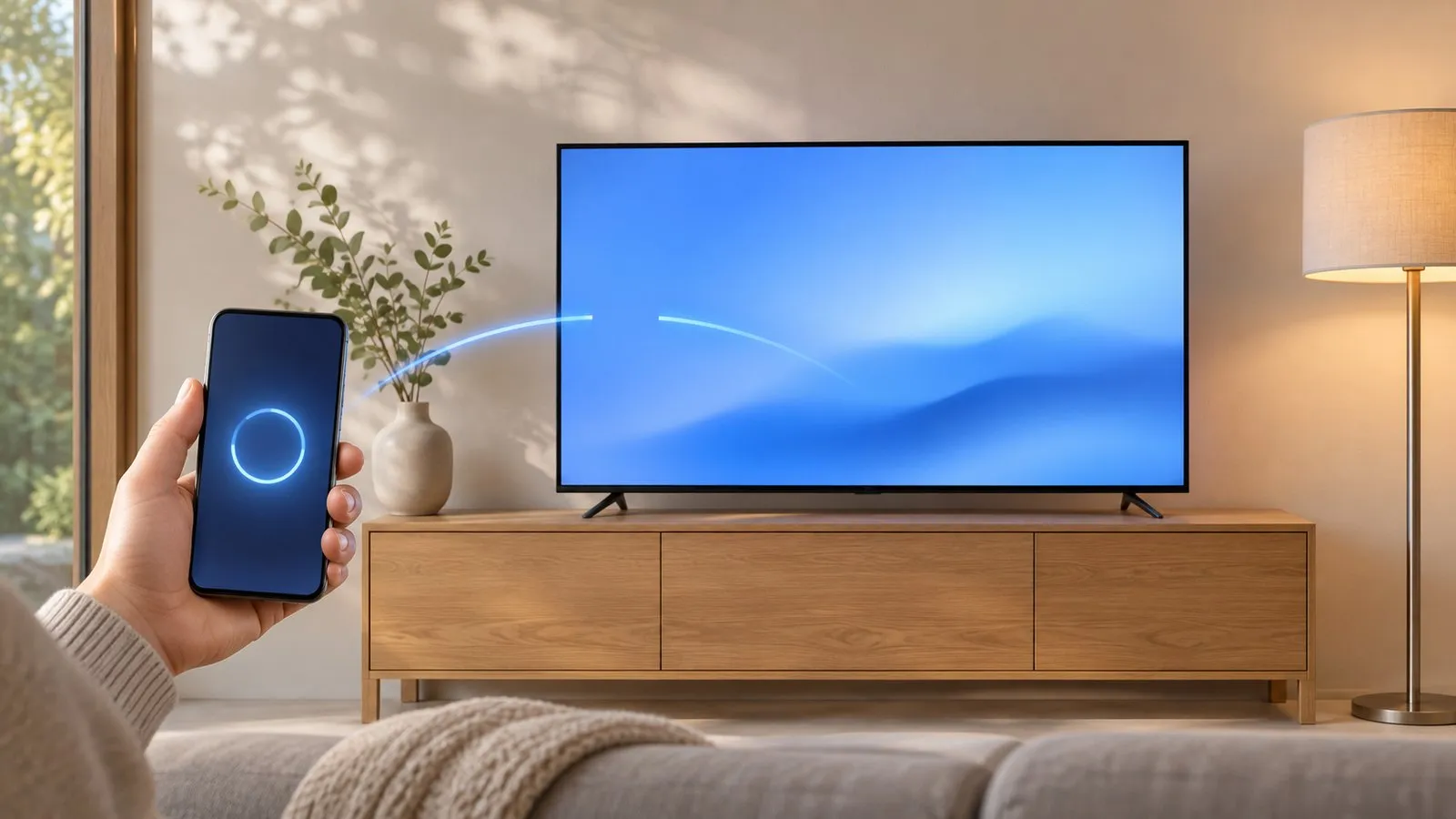
When a phone can’t see your Samsung TV, the TV is almost never broken. A phone remote, Samsung’s Smart View or any casting app discovers the TV by sending a small “who’s there?” message across your local network. If the TV is asleep, or if the phone and the TV are not truly on the same network, that message never arrives. The fixes below go from the most common cause to the rarest.
1. Make sure the TV is fully on
Discovery needs a TV that is switched on with a picture on the screen. A TV in standby does not answer, and a TV switched off at the wall or on a power strip cannot answer at all.
- Turn the TV on with its own button or a working remote, and wait until the home screen or a source appears.
- If the TV was just switched off, give it a minute before you expect a phone to wake or find it.
- If the TV has no picture at all, start with Samsung TV won’t turn on instead.
2. Put the phone and the TV on the same network
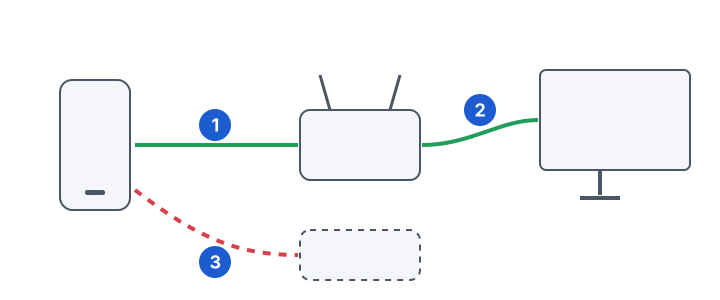
This is the cause in most cases. “Same network” means the same router and the same network name — not just “both have internet”.
-
Check the TV's network
On the TV, open the network status screen and note the network name (SSID) it uses, or whether it uses an Ethernet cable. The guide connect a Samsung TV to Wi-Fi shows where this is. -
Check the phone's network
On the phone, open Wi-Fi settings. It must be connected to the same network name as the TV. Turn mobile data off while you test, so the phone can’t quietly fall back to it. -
Mind the bands
Many routers broadcast a 2.4 GHz and a 5 GHz network. They are normally the same local network and work together, but some routers isolate them. If the TV is on one band, try the phone on the same band. -
Search again
Close and reopen the app (or Smart View) and search again with the TV on.
A TV on an Ethernet cable and a phone on Wi-Fi are fine together — as long as the cable goes to the same router that provides the phone’s Wi-Fi.
If the TV isn’t on any network, fix that first: Samsung TV won’t connect to Wi-Fi. If it was found yesterday and disappears now and then, the TV is probably dropping off the network — see Wi-Fi keeps disconnecting.
3. Remove what blocks local traffic
Some networks deliberately keep devices apart. These are the usual culprits:
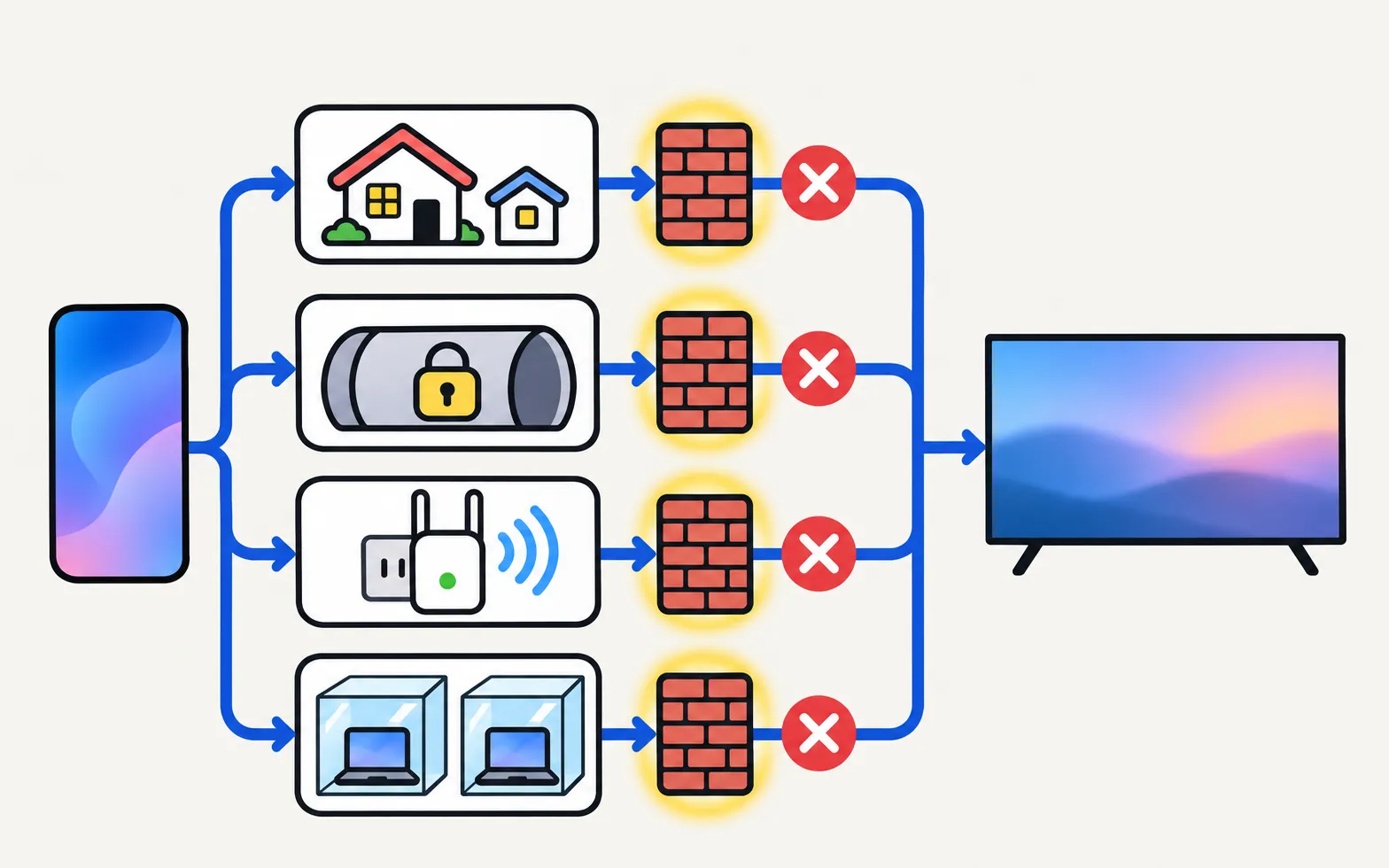
- VPN on the phone: a VPN sends the phone’s traffic through a tunnel to another place, so it can’t see the TV in the next room. Pause the VPN, or allow local network traffic if your VPN app has that option. See VPN on a Samsung TV for the bigger picture.
- Guest Wi-Fi: guest networks are built to isolate visitors. Put the phone on the main network.
- Hotel, campus, office and café Wi-Fi: these often use “client isolation” (also called AP isolation). You can’t change it; a phone remote usually won’t work there.
- Mesh systems and extenders: most mesh systems keep one network, which is fine. An older extender that creates its own network name (often ending in “_EXT”) can split the phone and the TV. Connect both to the main network name.
- Router settings: if you manage the router, look for “AP isolation”, “client isolation” or “wireless isolation” and make sure it is off for your main network.
4. Allow local network access on the phone
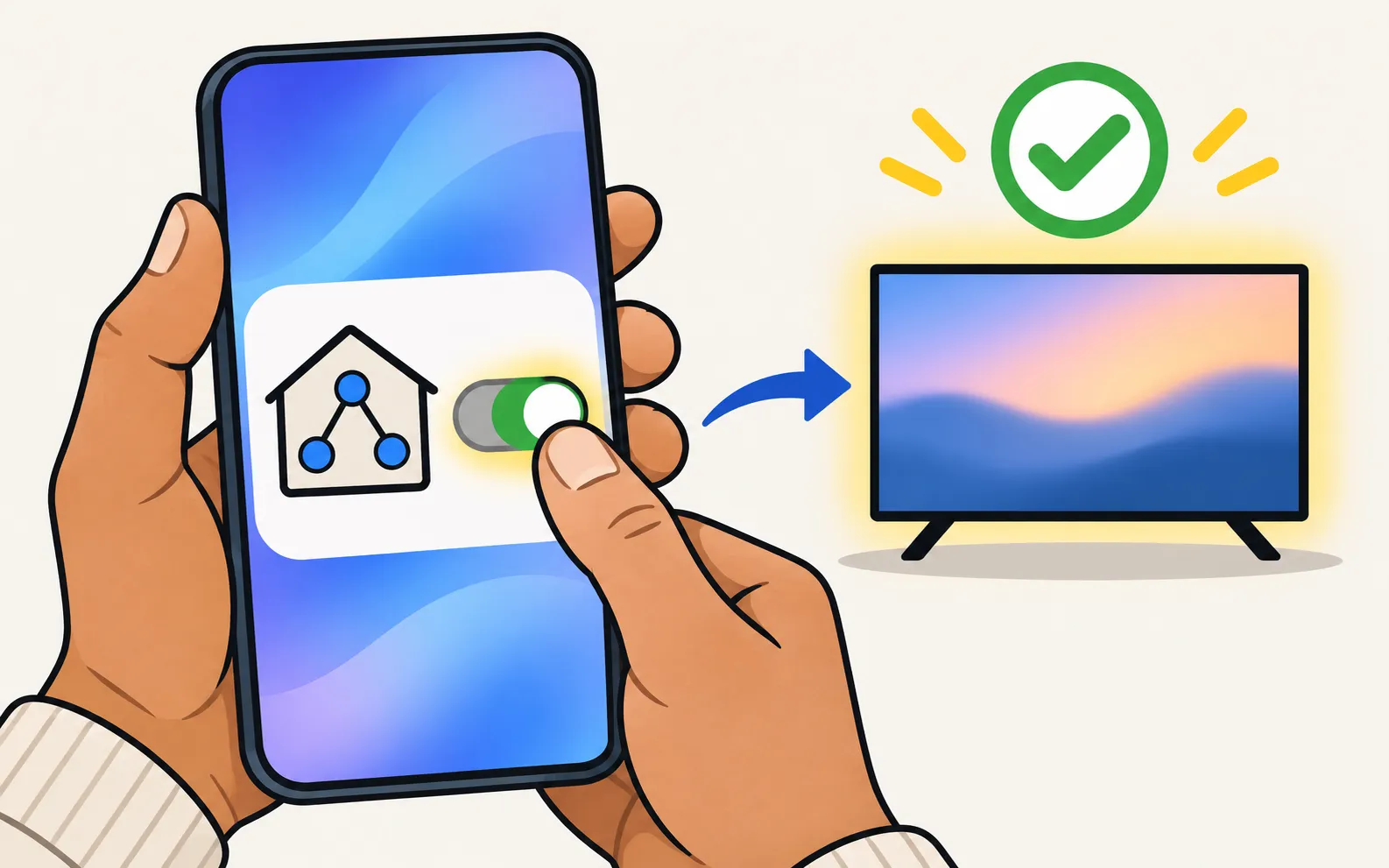
Newer Android versions ask whether an app may find and connect to devices on your local network. If you tapped “Don’t allow”, the app can’t see the TV even on a perfect network.
On newer Android versions the app must be allowed local network access; without it the app can't connect.
Open the phone’s Settings, go to Apps, pick the remote app, open Permissions, and allow the local network or “Nearby devices” permission (the label depends on your Android version and phone brand). Then reopen the app.
5. Restart the router, the TV and the phone
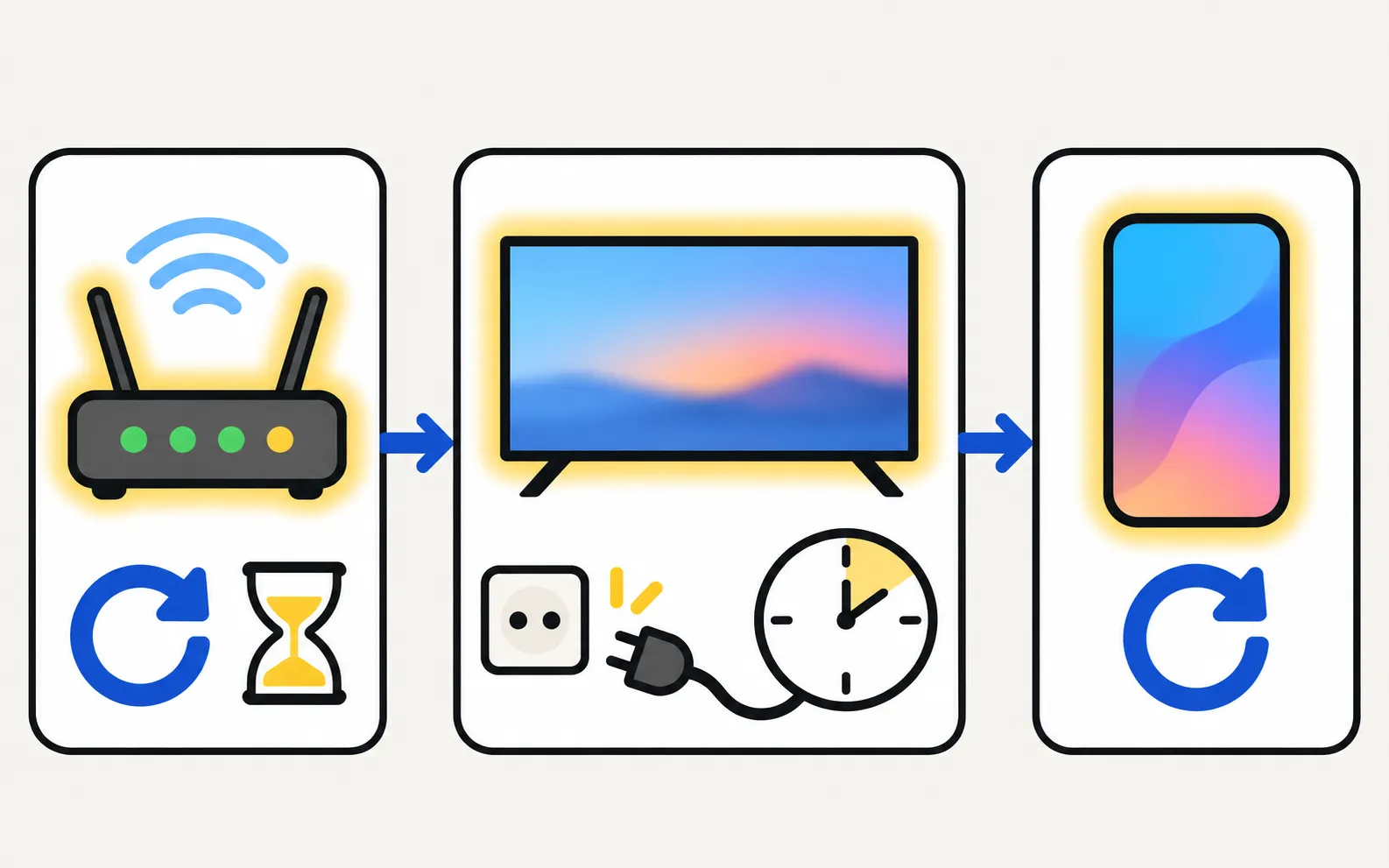
If everything above is right and the TV is still missing, restart in this order: router (wait until it is fully back), then the TV (unplug it for 30 seconds), then the phone. This clears stale network addresses and gives every device a fresh start.
6. When the TV appears but won’t connect
Seeing the TV in the list proves the network works. If the connection then fails, the TV is refusing the phone:
The TV must be fully on for the first connection. Select Allow on the TV, or type the PIN shown on 2014–2015 TVs.
If you once selected Deny, or the prompt never appears, the TV’s Device Connection Manager decides. The guide Samsung TV keeps asking to allow your phone explains every setting.
On 2014–2015 TVs the phone is paired with a PIN shown on the TV. Some of these TVs, after later firmware updates, use a secure pairing that third-party apps can’t complete:
Remote buttons, touchpad as arrow keys and power off. Casting may work; mirroring often does not. No keyboard, pointer, app launch or power on. Some 2014–2015 TVs with later firmware need a secure pairing the app doesn't support, and the app then shows "This TV is not supported".
If you use Samsung TV Remote
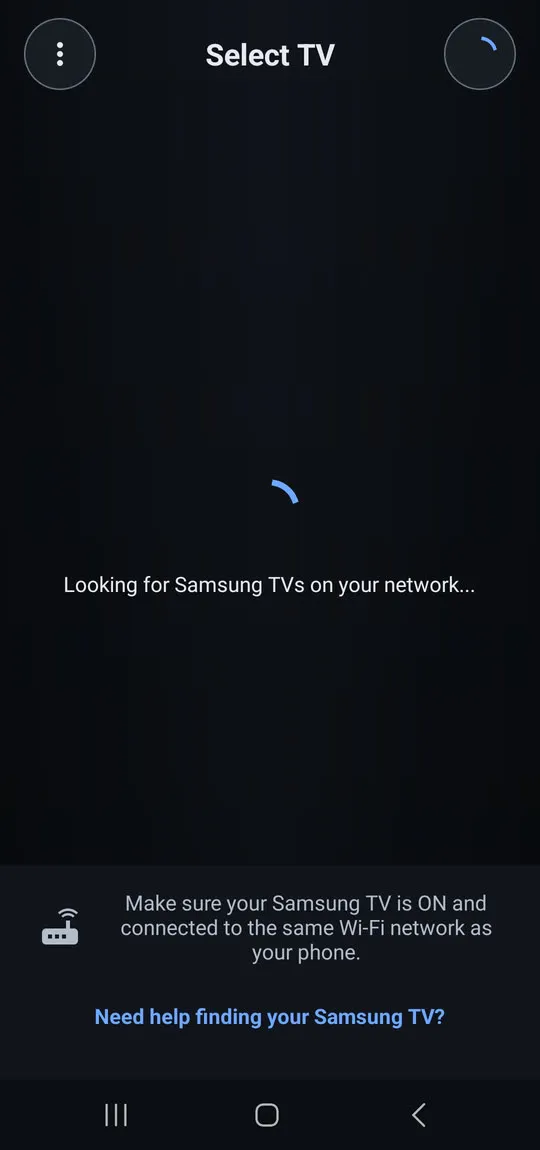
The app searches your network as soon as it opens and lists every Samsung TV that answers. If the list stays empty, the search screen offers the link “Need help finding your Samsung TV?” with the same checks as this page.
Finds Samsung TVs on your network and detects which control method each TV uses, so you don't have to choose.
Once connected, the app’s device information shows your TV’s IP address — handy if you ever need it for router settings (see find your TV’s IP and MAC address). The first connection is walked through in getting started; app-specific problems are on the app help page, and the compatibility page lists the developer-tested models.
Still not working?
If none of the steps help, email the developer with your TV’s full model code, your router brand and model, and the steps you have tried: smartappcraft@gmail.com. For Samsung’s own phone features, the same network rules apply — see screen mirroring not working.
Frequently asked questions
Do I need internet for a phone remote to find the TV?
Phone and TV must be on the same home network (not a guest network). The phone uses Wi-Fi; the TV can use Wi-Fi or Ethernet. No internet is needed, and mobile data can't be used.
Can I use mobile data or a hotspot from the same phone?
No. Discovery happens on the local network between the phone and the TV, so the phone must be connected to the same Wi-Fi network as the TV. A phone that shares its own hotspot is not on the TV's network in the usual way.
My TV shows up, but connecting fails. Is that the same problem?
No. If the TV is listed, the network is fine and the problem is usually the TV's Allow prompt or its Device Connection Manager list. See the guide on the Allow prompt.
Why did it work yesterday and not today?
The most common reasons are a router restart that gave the TV a new address, the phone joining a different band or network (for example an extender or guest network), a VPN that turned itself on, or the TV being in deep standby. Turn the TV on fully and check the phone's Wi-Fi name first.
Will a factory reset of the TV help?
Rarely, and it erases your settings. Try every network step on this page first. A reset also removes the list of phones the TV has allowed, so you will have to allow the phone again.
Sources
- Samsung TV Remote product documentation (developer-supplied facts) — Smart App Craft · Developer · checked November 10, 2026
- Samsung Hong Kong support: connect a mobile device and TV with Smart View — Samsung Hong Kong · Samsung · checked November 10, 2026
- How to connect TV and mobile device with Smart View — Samsung UAE · Samsung · checked November 11, 2026
Related guides
Troubleshooting
Allow prompt keeps appearing
Why your Samsung TV keeps asking to Allow a phone, how to stop it, and how to undo a Deny — with the Device Connection Manager settings by TV year.
Guide
Phone as a remote
Control a Samsung TV from your phone: Android remote apps, SmartThings, Samsung's 2025 Mobile Remote, IR-blaster phones and iPhone — what each needs and does.
App
App help
Fix problems with the Samsung TV Remote app: TV not found, Allow prompt, TV won't turn on, mirroring with no sound or black screen, keyboard not typing.
Troubleshooting
Won't connect to Wi-Fi
Samsung TV won't connect to Wi-Fi or can't find your network? Check signal and band, run Network Status, reset the network, set DNS, restart the router, update.
Troubleshooting
Mirroring not working
Samsung TV not showing up for screen mirroring, connection drops, black screen or no sound? Fixes for Smart View, AirPlay and mirroring apps, by symptom.
How-to
IP and MAC address
Find a Samsung TV's IP address (Network Status, IP Settings) and MAC address (About This TV), why you might need them, and how to reserve the IP in your router.