
Troubleshooting
Samsung TV won't connect to Wi-Fi: fixes
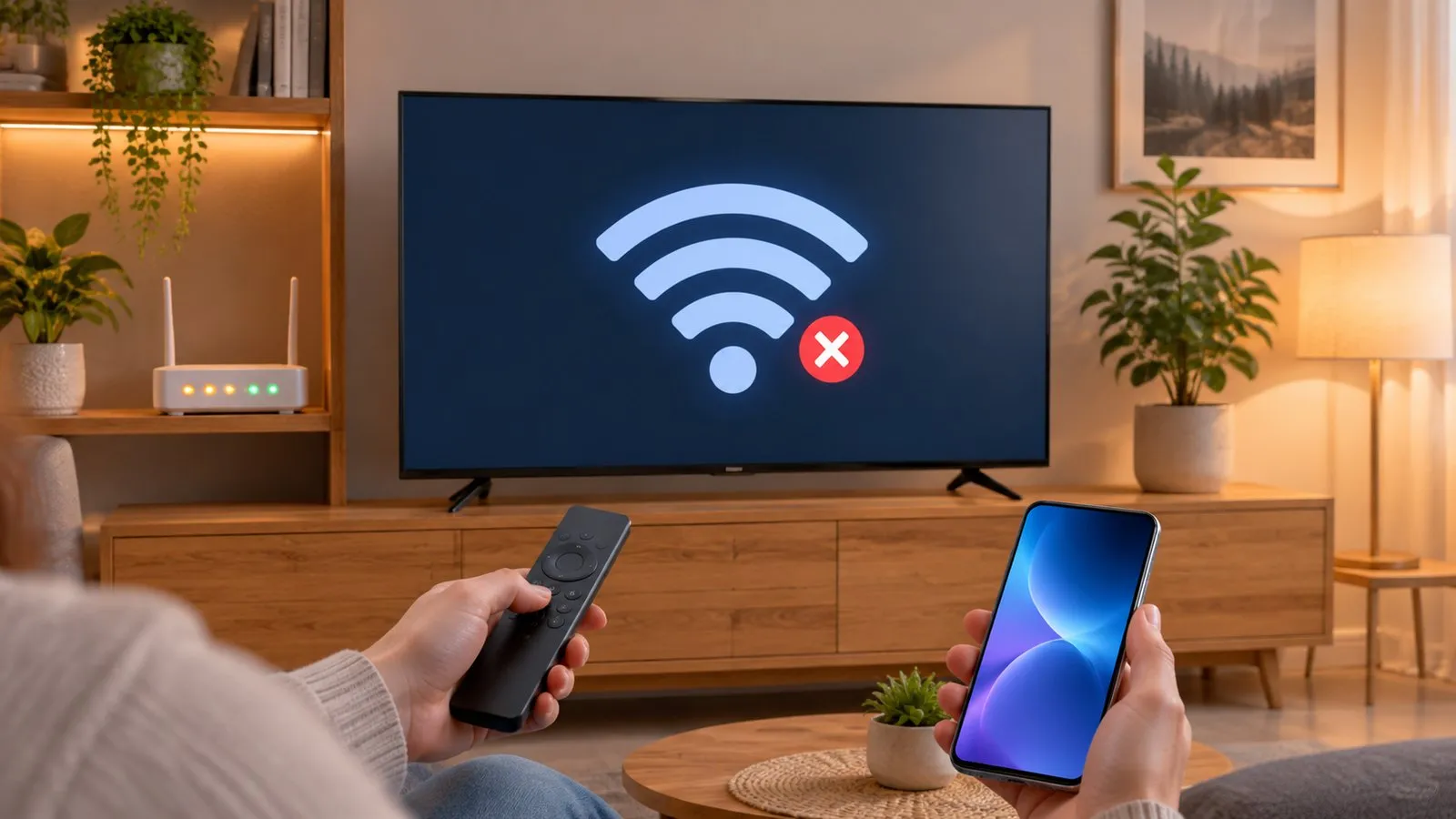
Work from the outside in: the router, the signal, the TV's network settings, then the TV's software. Samsung's own troubleshooting follows the same order.
Quick answer
Restart the router and unplug the TV for 30 seconds. Check the signal: if your phone shows only one or two Wi-Fi bars next to the TV, move the router closer or use a cable. Some 2018 TVs (NU6, NU71, NU72 and NU73 series) only see 2.4 GHz networks. Then run Network Status, use Reset Network, re-enter the password, and if it connects without internet, set DNS to 8.8.8.8.
1. Restart the network the right way
Samsung recommends unplugging every network device — modem, router, mesh units — and the TV, then powering them back on in order, starting where the internet enters your home and working towards the TV. Let each finish starting up before the next.
2. Check signal and band
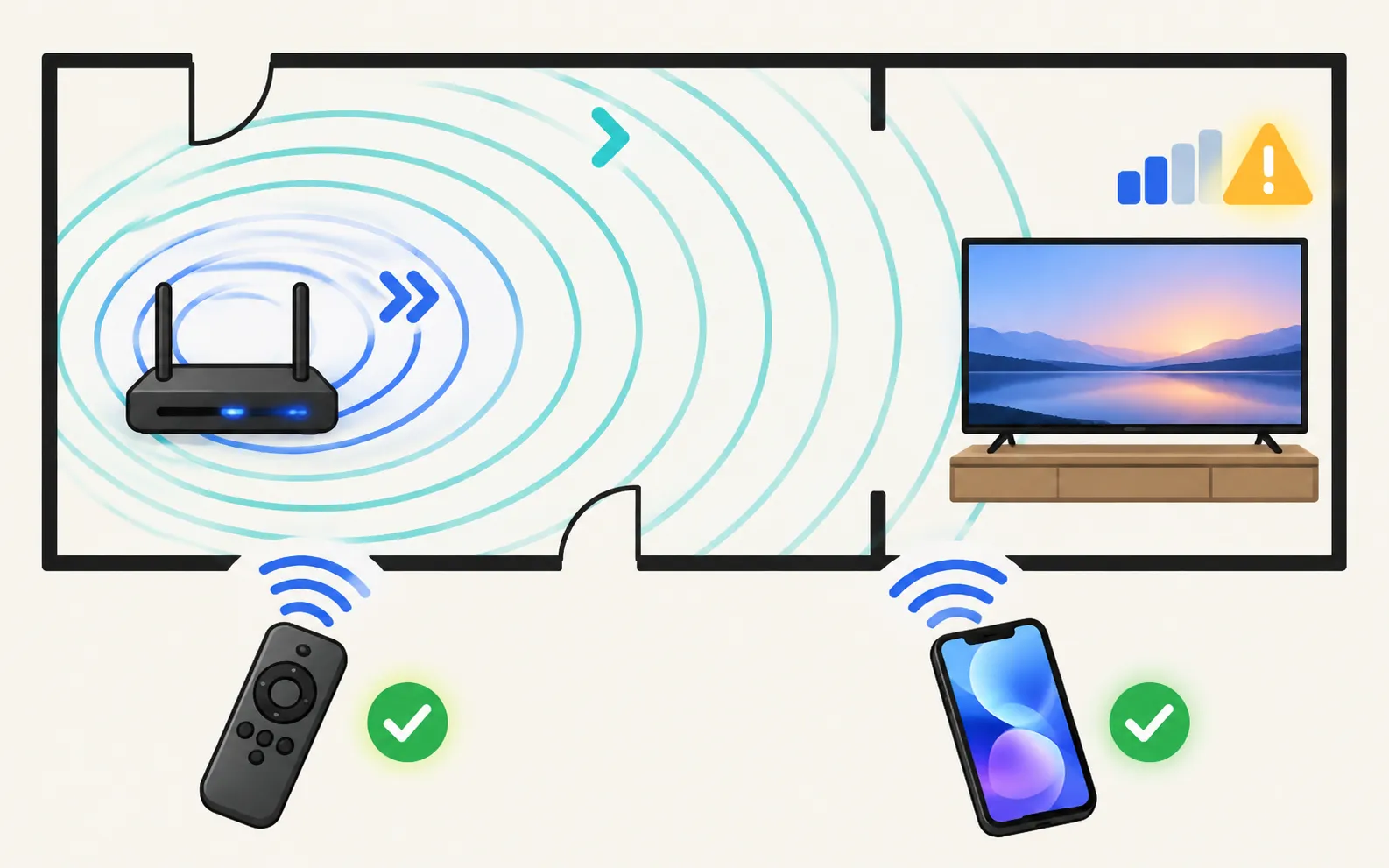
- Signal: stand by the TV with your phone and look at the Wi-Fi bars. Samsung says one or two bars may be too weak for the TV. Move the router closer, add a mesh node or extender, or use an Ethernet cable.
- Band: Samsung notes that certain 2018 models (NU6, NU71, NU72 and NU73 series) only support 2.4 GHz networks and can’t see 5 GHz. If your router uses one combined name for both bands, that’s fine; if it broadcasts only 5 GHz, enable 2.4 GHz.
- Hidden network or unusual security: a hidden network must be added manually by name. Very old or very new router security modes can also cause trouble — WPA2 is the safe common choice.
3. Run Network Status
Not sure of your TV’s year? The model number decoder tells you in seconds.
The TV’s built-in test shows where the connection breaks:
TVs from 2022 and newer
TVs from 2017–2021
On these years Network sits under General.
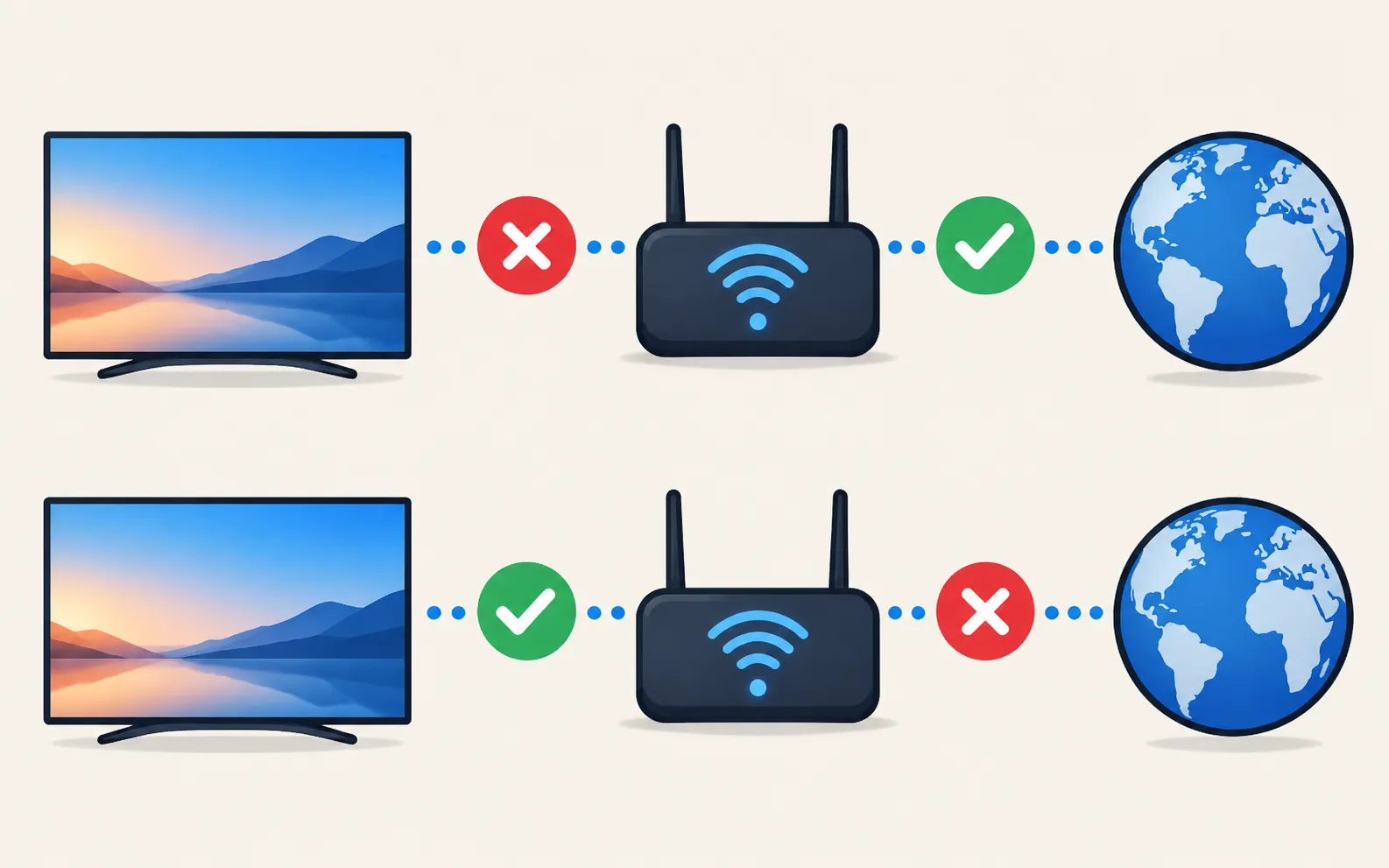
Any error message it shows tells you which link failed: TV to router (a Wi-Fi problem) or router to internet (an internet problem). Numbered errors in apps, such as 107 or 202, are explained in Samsung TV network error codes.
4. Reset the network settings
(under General › Network on older models). Then choose your network again and re-enter the password carefully — a USB keyboard makes this much easier (keyboard and mouse on a Samsung TV).
5. Set the DNS manually
If the TV joins Wi-Fi but can’t reach the internet, Samsung’s US guide suggests a manual DNS server: in Network Status, open IP Settings, set DNS Setting to Enter Manually and enter 8.8.8.8, then try again. More detail in connected but no internet.
6. Update the TV’s software (by USB)
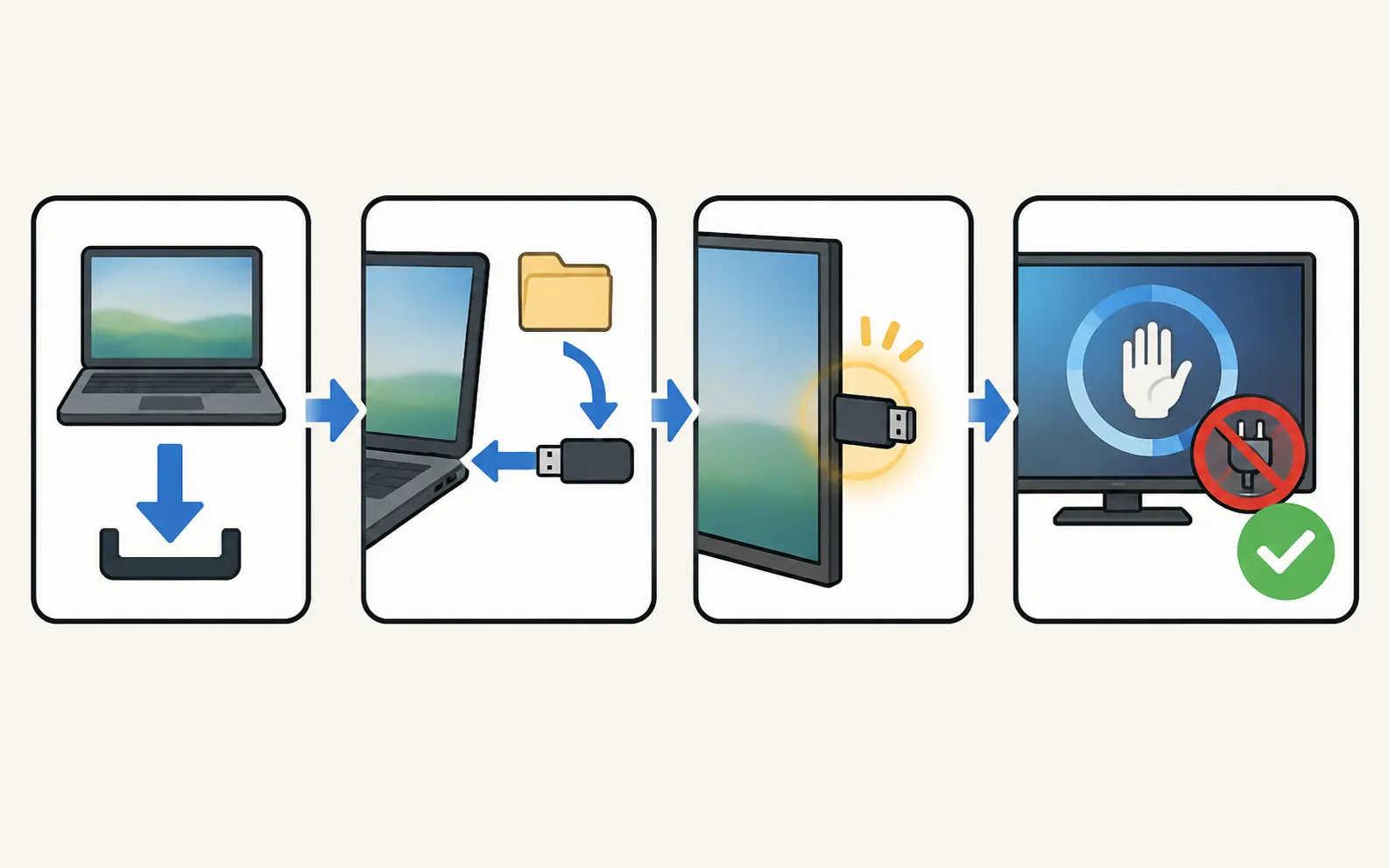
An outdated TV can fail with newer routers. Without internet, update by USB: download your model’s firmware from Samsung’s support site on a computer, extract it to the root of a USB drive, plug it in and open . Let the TV restart before removing the drive. Full steps: update a Samsung TV.
7. Try a cable
Connect the TV to the router with an Ethernet cable — Samsung suggests swapping in a cable you know works. If the wired connection works, the TV is fine and the problem is Wi-Fi coverage or router settings.
Still not connecting?
- Test with a phone hotspot: if the TV connects to that, your router is the issue — contact your internet provider or router maker.
- If the TV can’t see any network, including a hotspot right next to it, Samsung advises requesting service.
- Lost the remote while doing all this? See connect a Samsung TV to Wi-Fi without a remote.
Once the TV is online, every phone feature depends on that same network — Phone and TV must be on the same home network (not a guest network). The phone uses Wi-Fi; the TV can use Wi-Fi or Ethernet. No internet is needed, and mobile data can't be used.
Frequently asked questions
Why doesn't my TV see my 5 GHz network?
Samsung says certain 2018 models — the NU6, NU71, NU72 and NU73 series — support only 2.4 GHz networks. Make sure your router broadcasts 2.4 GHz, or use a cable.
The TV says connected, but apps say no internet. What now?
That's a different problem: the TV reaches the router but not the internet. Changing the DNS server often fixes it.
Should I try a factory reset?
Only after Reset Network, a router restart and a software update. A factory reset erases your apps and settings.
Can a phone remote help me enter the Wi-Fi password?
Not before the TV is on Wi-Fi: phone remotes need the TV on the network. Use the TV remote or a USB keyboard for the password.
Sources
- Samsung TV won't connect to Wi-Fi (TSG10002209) — Samsung US · Samsung · checked November 11, 2026
Related guides
How-to
Connect to the internet
How to connect a Samsung Smart TV to the internet: Wi-Fi step by step, a wired Ethernet connection, or a phone hotspot — plus how to check the connection works.
Troubleshooting
Wi-Fi keeps disconnecting
Samsung TV dropping Wi-Fi every few minutes or after standby? Improve the signal, fix band steering and address changes, reset the network, or use a cable.
Troubleshooting
Connected but no internet
Samsung TV connected but apps say no internet? Run Network Status, set DNS to 8.8.8.8 in IP Settings, check date and time, restart the router, update the TV.
How-to
Wi-Fi without a remote
No remote and the TV isn't online yet? Get a Samsung TV online with an Ethernet cable, a USB keyboard or mouse, or its control button, then use your phone.
How-to
Software update
Update a Samsung Smart TV: Auto Update, Update Now, or USB with the right file format and folder — plus fixes when the update is greyed out or fails.
Troubleshooting
TV not showing up on your phone
Phone can't find your Samsung TV? Turn the TV fully on, put both on the same home Wi-Fi, switch off VPN and guest networks, and allow local network access.