
How-to
Connect a Samsung TV to Wi-Fi without a remote
Phone remotes need the TV to be online first. Here's how to break that chicken-and-egg problem.
Quick answer
The easiest way is an Ethernet cable from your router to the TV's LAN port — most TVs connect by themselves. Otherwise plug a USB keyboard (or mouse) into the TV, open the network settings with the arrow keys and type the Wi-Fi password. The TV's own control button can also navigate menus, slowly. Once the TV is online, a phone remote app can take over.
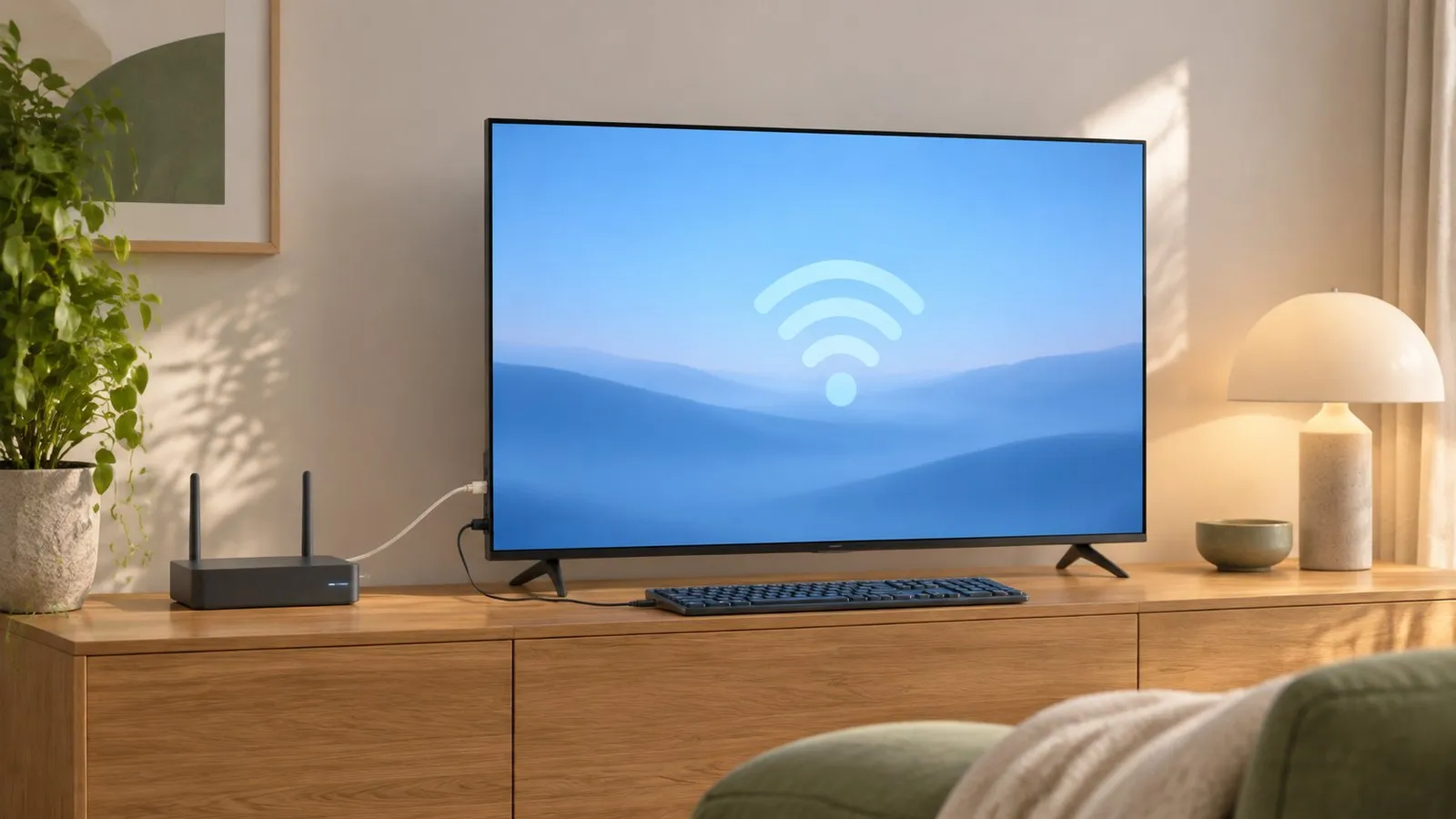
Why the phone can’t do it (yet)
Phone remote apps and SmartThings reach the TV over your home network. A TV that has never been connected isn’t on that network, so the phone can’t see it. Phone and TV must be on the same home network (not a guest network). The phone uses Wi-Fi; the TV can use Wi-Fi or Ethernet. No internet is needed, and mobile data can't be used. Get the TV online first with one of the methods below.
Method 1: an Ethernet cable (quickest)
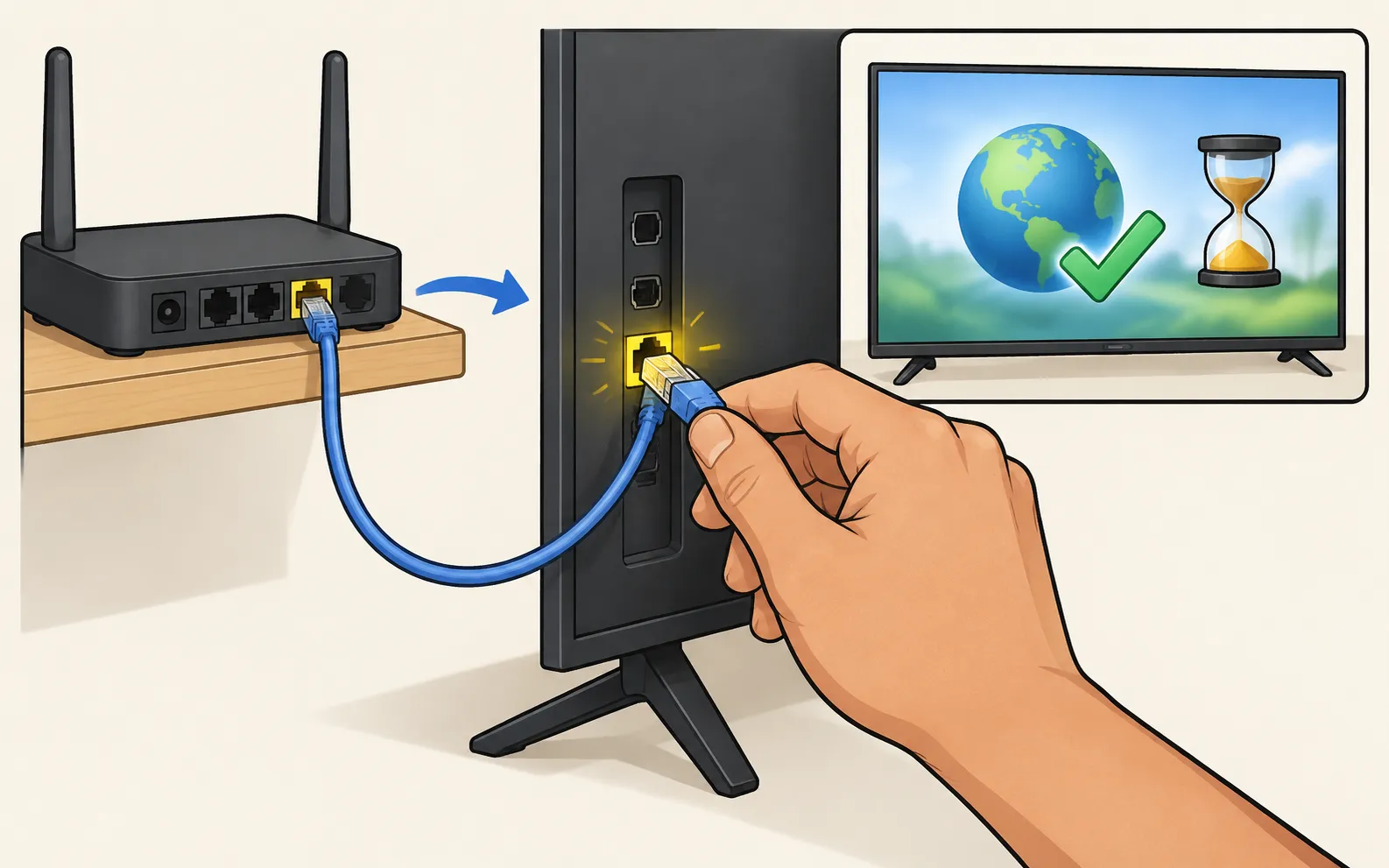
-
Plug in the cable
From a free port on your router (or mesh node) to the TV’s LAN port — on the One Connect box if your TV has one. -
Turn the TV on
Use its control button (where the power button is). -
Wait
Most TVs connect to a wired network automatically. Open a streaming app to check.
Method 2: a USB keyboard or mouse
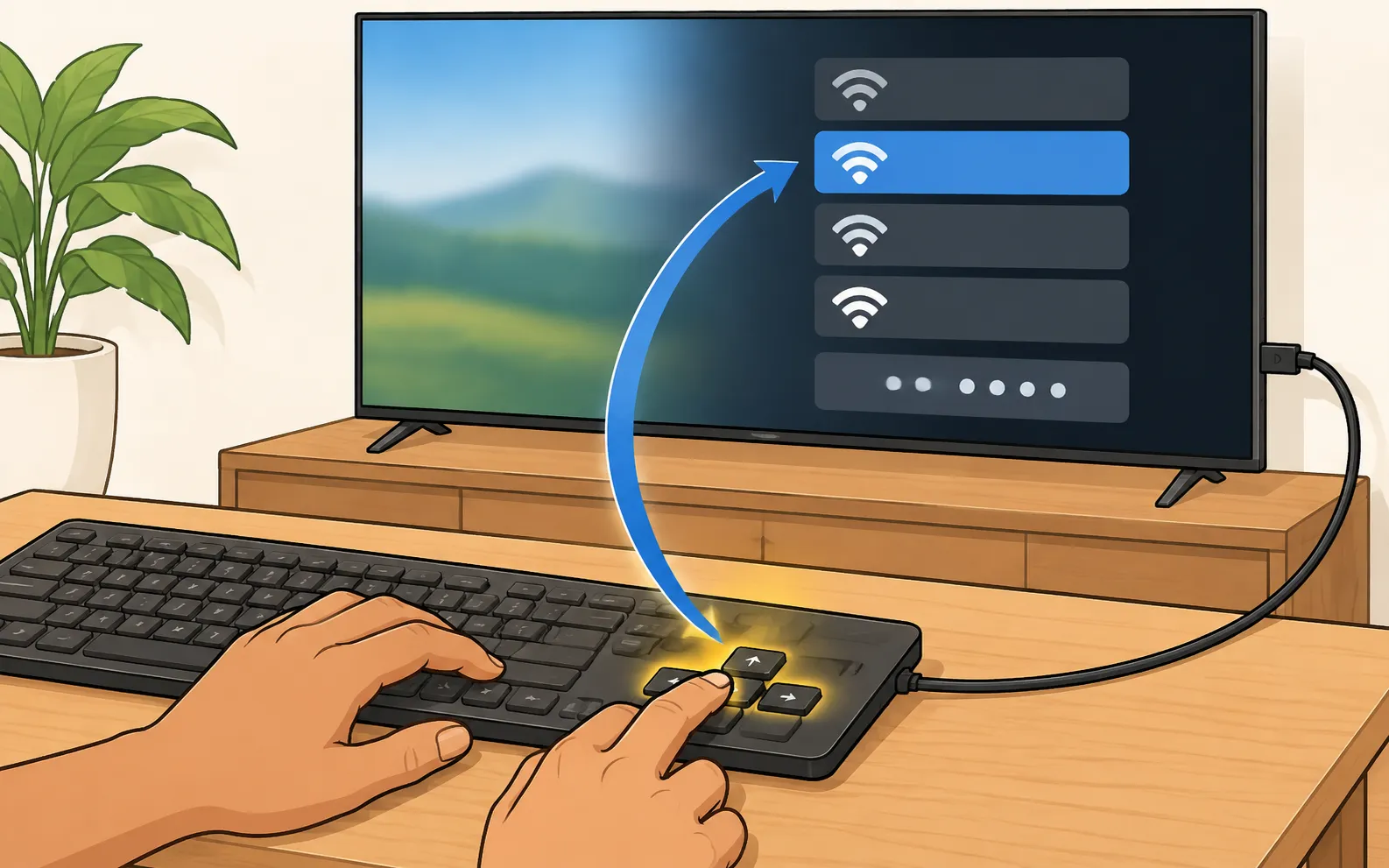
-
Plug in a keyboard
Wired, or a wireless set’s USB receiver, into a USB port on the TV. -
Open the network settings
Use the arrow keys and Enter. On 2022–2026 TVs: ; on 2017–2021 TVs, Network sits under General. -
Choose Wireless and your network
Then type the Wi-Fi password on the keyboard and confirm.
Samsung says most TVs made before 2018 recognise USB keyboards and mice automatically; on some models keyboard support may be limited. More in keyboard and mouse on a Samsung TV.
Method 3: the TV’s control button
The control button opens a small on-screen menu; short presses move and a long press selects (on single-button models). It’s slow for typing a password character by character, but it works when nothing else is available. See where the power button is.
Then: your phone takes over
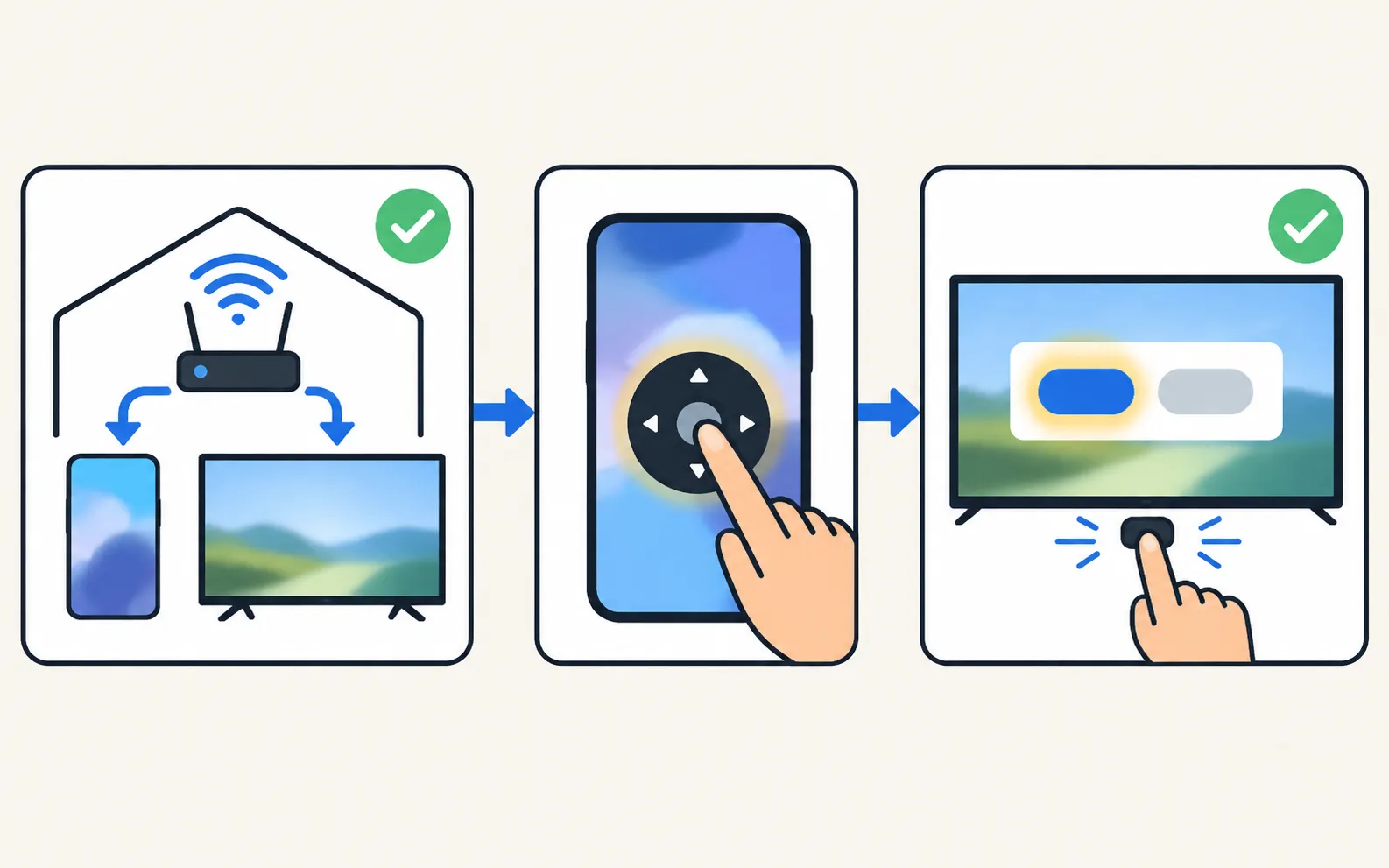
Once the TV is online:
-
Connect your phone to the same Wi-Fi
Not a guest network, and with any VPN off. -
Open a phone remote
A remote app on Android, or SmartThings on Android or iPhone. -
Allow the phone on the TV
The TV must be fully on for the first connection. Select Allow on the TV, or type the PIN shown on 2014–2015 TVs. Use the TV’s button or the keyboard to select Allow.
If the TV won’t connect at all, follow Samsung TV won’t connect to Wi-Fi. Once it’s online, the phone options are compared in use your phone as a Samsung TV remote, and everything else that works without a remote is in control a Samsung TV without a remote.
Frequently asked questions
Can a phone app connect my TV to Wi-Fi?
Network remote apps can't: they need the TV already on your network. Use a cable, a keyboard or the TV's button for the first connection.
Does any USB keyboard work?
Most standard wired USB keyboards and wireless sets with a USB receiver work. Samsung notes most TVs made before 2018 recognise them automatically, and some models may not support keyboards.
My TV doesn't react to the keyboard. What now?
Try another USB port, a simple wired keyboard, or a mouse. If nothing works, use the TV's control button or an Ethernet cable.
Sources
- Connect a Keyboard & Mouse to your Samsung TV — Samsung Australia · Samsung · checked November 11, 2026
- How to control a Samsung TV without a Remote — Samsung UAE · Samsung · checked November 11, 2026
- Samsung TV won't connect to Wi-Fi (TSG10002209) — Samsung US · Samsung · checked November 11, 2026
Related guides
How-to
Connect to the internet
How to connect a Samsung Smart TV to the internet: Wi-Fi step by step, a wired Ethernet connection, or a phone hotspot — plus how to check the connection works.
Troubleshooting
Won't connect to Wi-Fi
Samsung TV won't connect to Wi-Fi or can't find your network? Check signal and band, run Network Status, reset the network, set DNS, restart the router, update.
Guide
Without a remote
No remote? Control a Samsung TV with its own button, your phone, a USB keyboard, another remote via HDMI-CEC or a voice assistant, including volume and input.
How-to
Power button location
Can't find the power button on your Samsung TV? Check under the bottom centre, the back lower right and the front edge, and learn its short and long presses.
How-to
Keyboard and mouse on a Samsung TV
Stop typing passwords letter by letter. Use your phone's keyboard, a USB keyboard and mouse, or a Bluetooth keyboard on a Samsung TV — with paths by year.