
How-to
Where is the power button on a Samsung TV? Button locations
Samsung hides its TV buttons well. Here is where to feel for them, and how one button can switch the TV on, change the volume and pick the input.
Quick answer
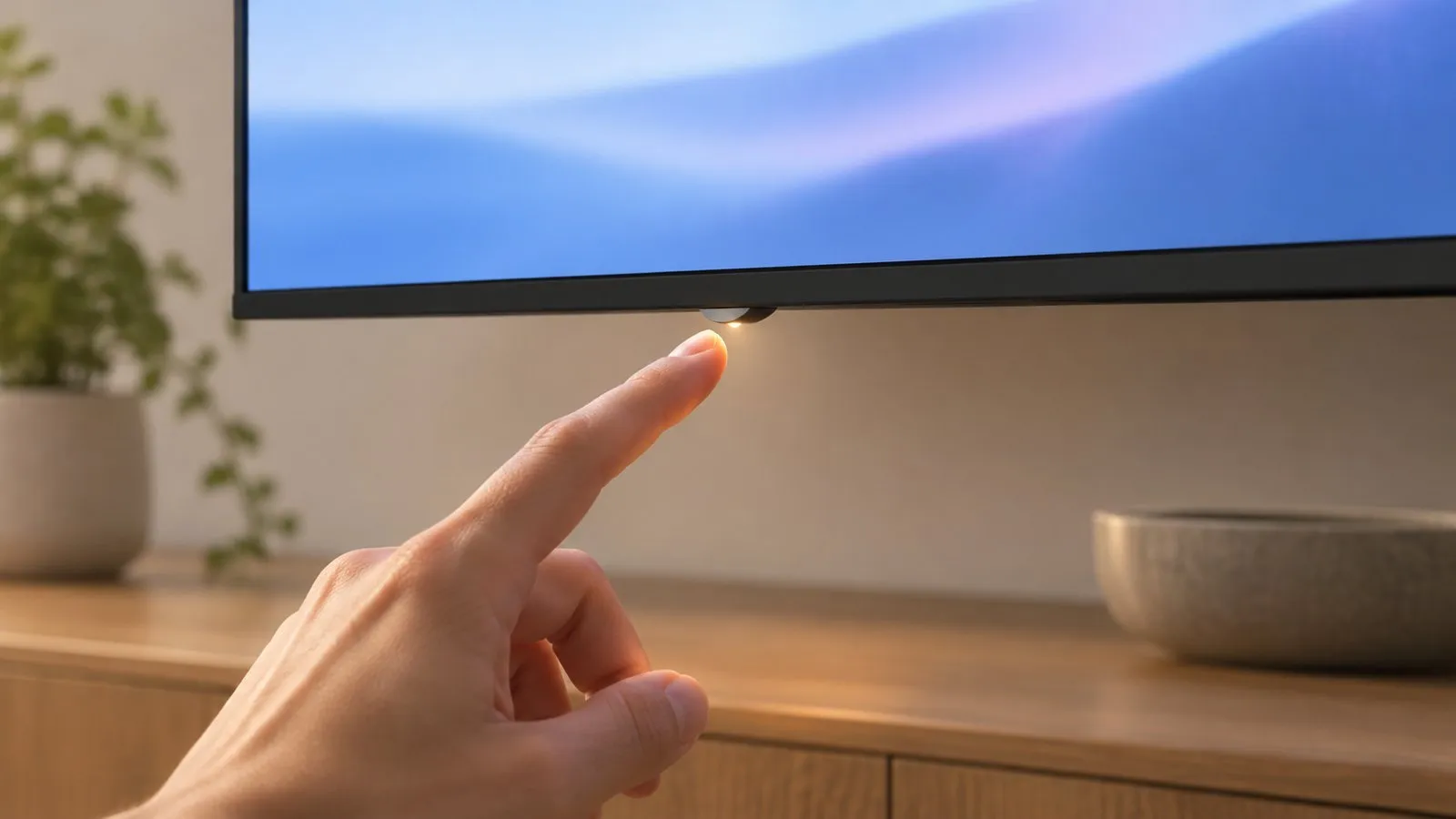
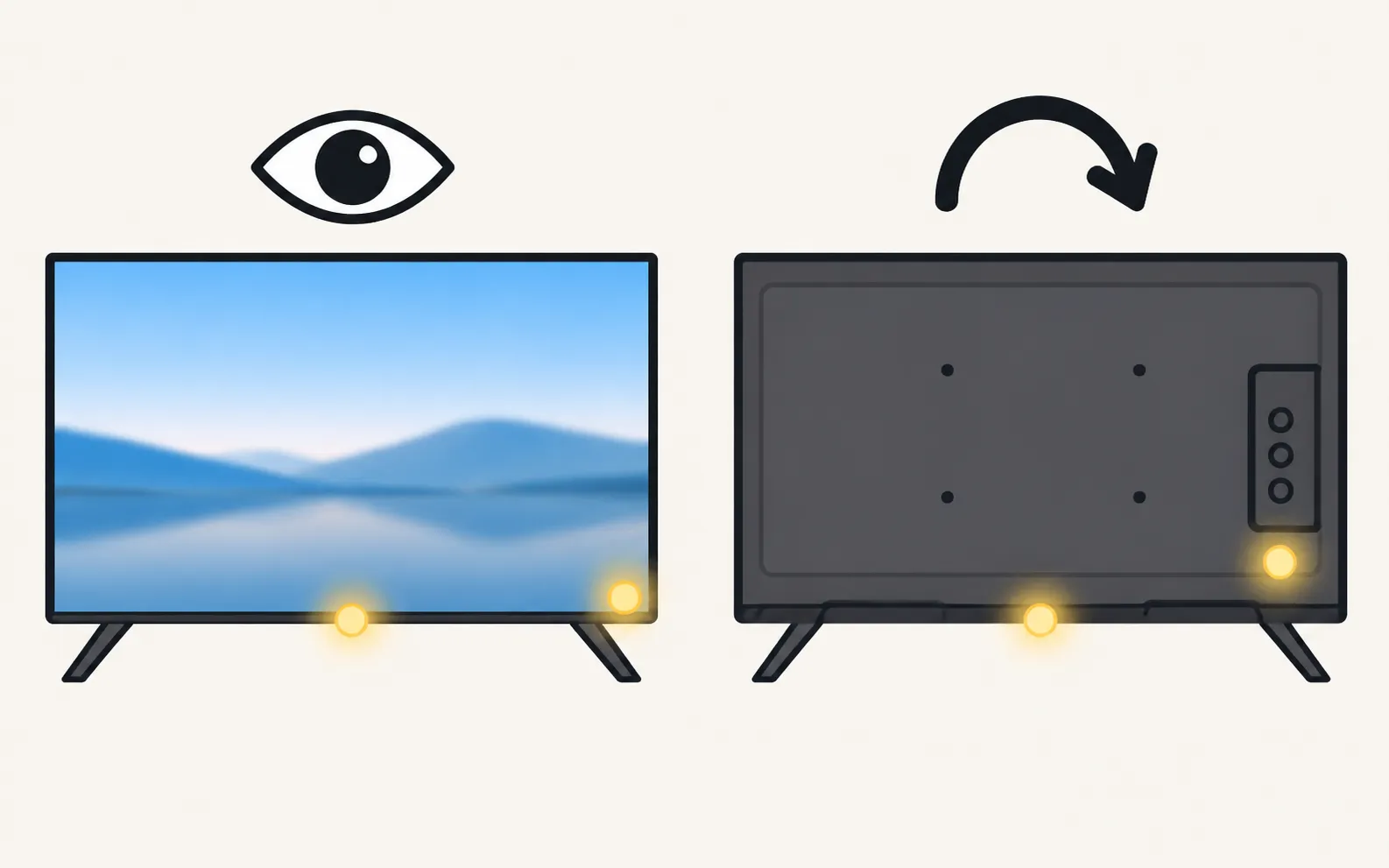
Most current Samsung TVs have a single control button under the bottom edge of the frame, near the centre (often just behind the Samsung logo). Many others have a small joystick on the back, lower right as you face the screen. Press it once to turn the TV on or open the control menu; short presses move between options and a long press selects.
Where to look
Samsung uses a few layouts, and the right one depends on the model. Check these spots in order — gently, with the TV switched on at the wall:
| Position | What you’ll find | How it works |
|---|---|---|
| Under the bottom edge, near the centre (often behind the Samsung logo) | A single small button | Long press when off: turns the TV on. Short press: moves through the menu. Long press: selects. Samsung lists this layout for certain 2018 models, and its 2025 guides place the button on the bottom edge of the screen. |
| Back panel, lower right (as you face the screen) | A small joystick | Push up, down, left or right to move; press the centre to open the menu or select. Samsung calls this the TV Controller. |
| Front panel, centre | A small set of buttons | Long-press the centre button to turn the TV on. |
| Lower right edge of the frame (facing the TV) | A controller under the bezel | One press opens the menu; further presses navigate. |
Run a fingertip slowly along the underside of the frame — the button is usually small, flush and easy to miss. On wall-mounted TVs a small mirror or your phone’s camera helps you see under the edge.
How one button controls the TV
-
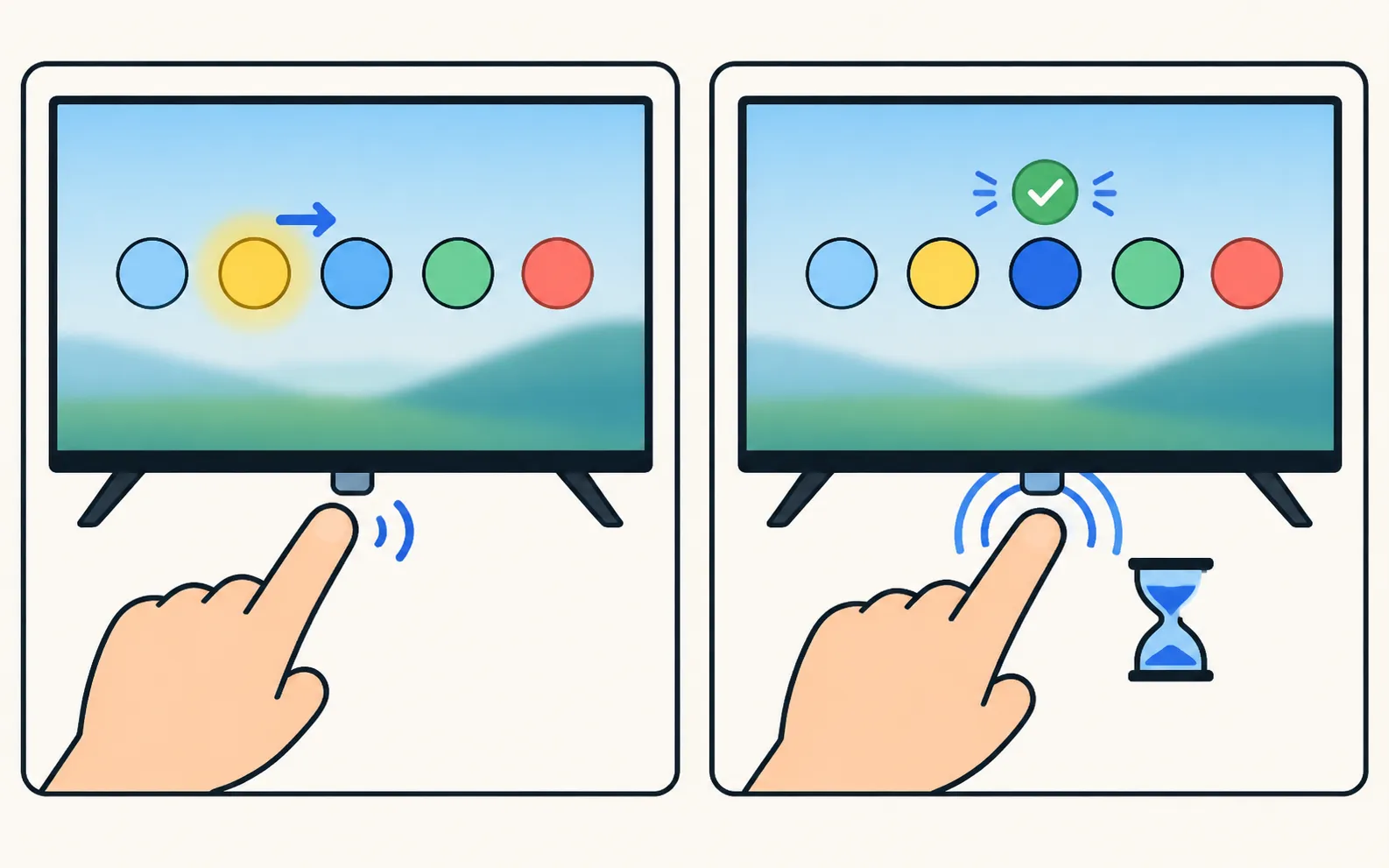
Turn the TV on
Press the button (on single-button models, press and hold for a moment). -
Open the control menu
With the TV on, press the button once. A small strip of icons appears — typically power off, volume, channel and source. -
Move and select
Single button: short presses move to the next icon, a long press selects it. Joystick: push in a direction to move, press the centre to select. -
Turn the TV off
Select the power icon, or on many models press and hold the button.
This is also how you accept a phone’s Allow prompt without a remote: move the highlight to Allow and select it (see the Allow prompt explained).
Samsung’s own tip on 2025 TVs
On select 2025 TVs, the same control button can also highlight a Mobile Remote icon: selecting it shows a QR code that opens a remote in Samsung’s SmartThings app. Samsung lists 2025 models from the U8000F series upward (Mobile Remote explained).
If you still can’t find it
- Check the manual: the e-Manual or quick-setup guide has a “TV Controller” section with a drawing for your model. Find the user manual for your Samsung TV.
- Use another control: a phone on the same Wi-Fi works on Smart TVs that are already connected — Phone and TV must be on the same home network (not a guest network). The phone uses Wi-Fi; the TV can use Wi-Fi or Ethernet. No internet is needed, and mobile data can't be used. More options in control a Samsung TV without a remote.
- The TV doesn’t react to anything: that is a power problem, not a button problem — see Samsung TV won’t turn on.
Frequently asked questions
Is the Samsung power button touch-sensitive?
On some models the controls on the front edge are touch controls rather than mechanical buttons. Samsung's troubleshooting even mentions wiping the bezel touch controls if the TV changes source or volume by itself.
I pressed the button and nothing happens.
Check that the TV is plugged in and the outlet works, then hold the button for a few seconds — on single-button models a long press switches the TV on. If the TV still doesn't start, follow the guide for a TV that won't turn on.
Where is the button on The Frame or a TV with a One Connect box?
The control is on the TV panel itself, not on the One Connect box. On The Frame it is typically along the bottom or the back near the edge; check the manual's 'TV Controller' section for your model.
Can I change channels and volume with the button?
Yes. The control menu that opens on screen typically offers power, volume, channel and source; move between them with short presses or the joystick.
Sources
- How to control a Samsung TV without a Remote — Samsung UAE · Samsung · checked November 11, 2026
- Samsung UK support: use Mobile Remote on your 2025 Samsung Smart TV — Samsung UK · Samsung · checked November 10, 2026
- Samsung US troubleshooting: remote is not working (TSG10002214) — Samsung US · Samsung · checked November 10, 2026
Related guides
Guide
Without a remote
No remote? Control a Samsung TV with its own button, your phone, a USB keyboard, another remote via HDMI-CEC or a voice assistant, including volume and input.

How-to
Lost remote
Lost the Samsung TV remote? Where to look first, how to keep watching tonight with the TV's button or your phone, and how to get the right replacement.
Troubleshooting
TV won't turn on
Samsung TV won't turn on? Read the standby light first — steady, off or blinking each point to a different cause — then follow the fixes for your case.
Troubleshooting
Allow prompt keeps appearing
Why your Samsung TV keeps asking to Allow a phone, how to stop it, and how to undo a Deny — with the Device Connection Manager settings by TV year.
How-to
Change the input
Switch HDMI inputs on a Samsung TV: the Source list on the Home screen, the TV's control button, a phone remote, HDMI-CEC from the device, or renamed inputs.