
How-to
Lost your Samsung TV remote? What to do right now
A three-step plan: find it, control the TV tonight without it, and replace it without buying the wrong one.
Quick answer
Check the usual hiding places (sofa, under cushions, bags, the fridge), then control the TV with its own button — usually under the bottom centre of the screen or on the back, lower right. If the TV is a Smart TV on your Wi-Fi, a phone remote app, SmartThings or (on select 2025+ TVs) Samsung's Mobile Remote QR code works straight away. For a replacement, note your TV's full model code first.
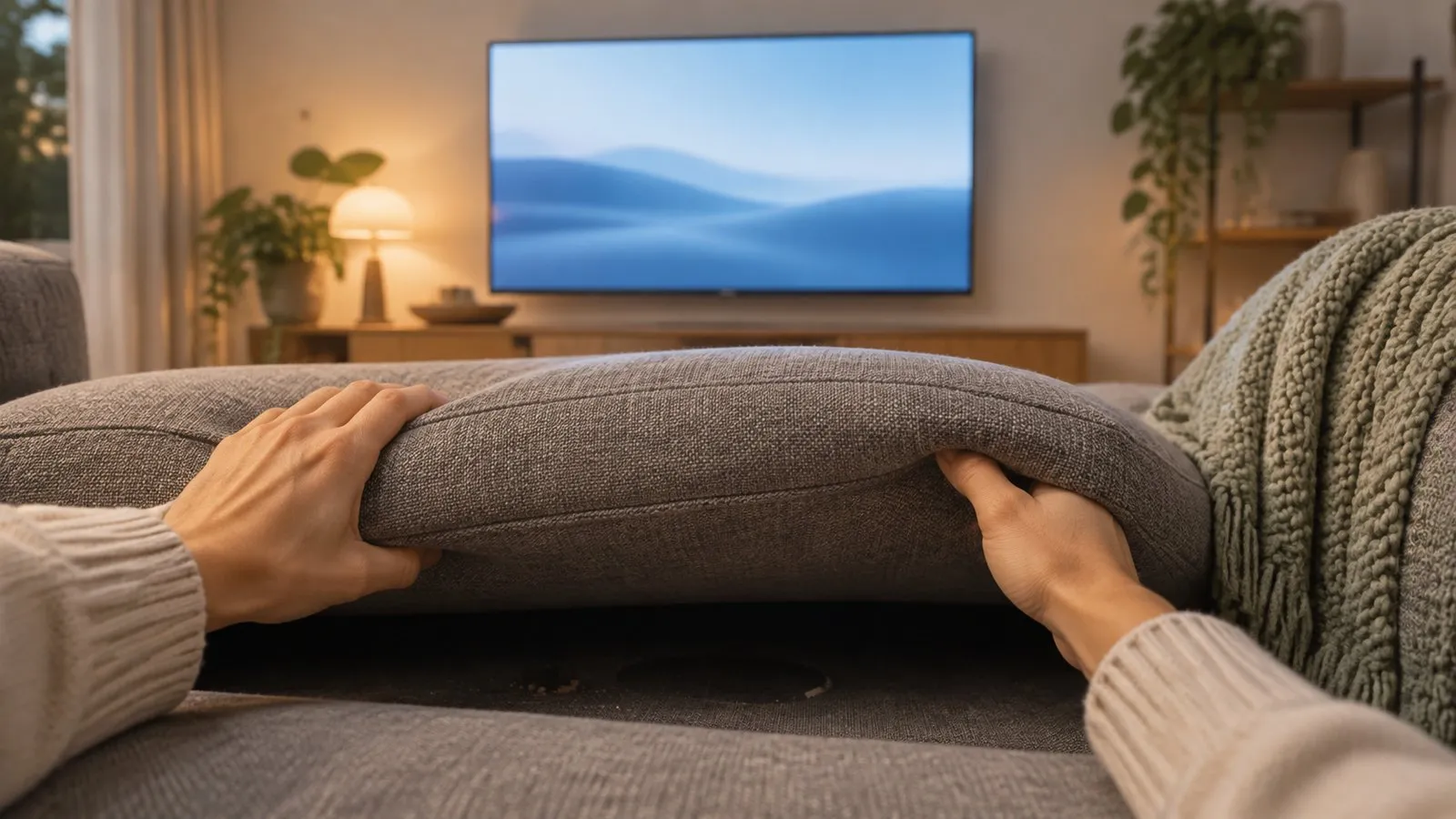
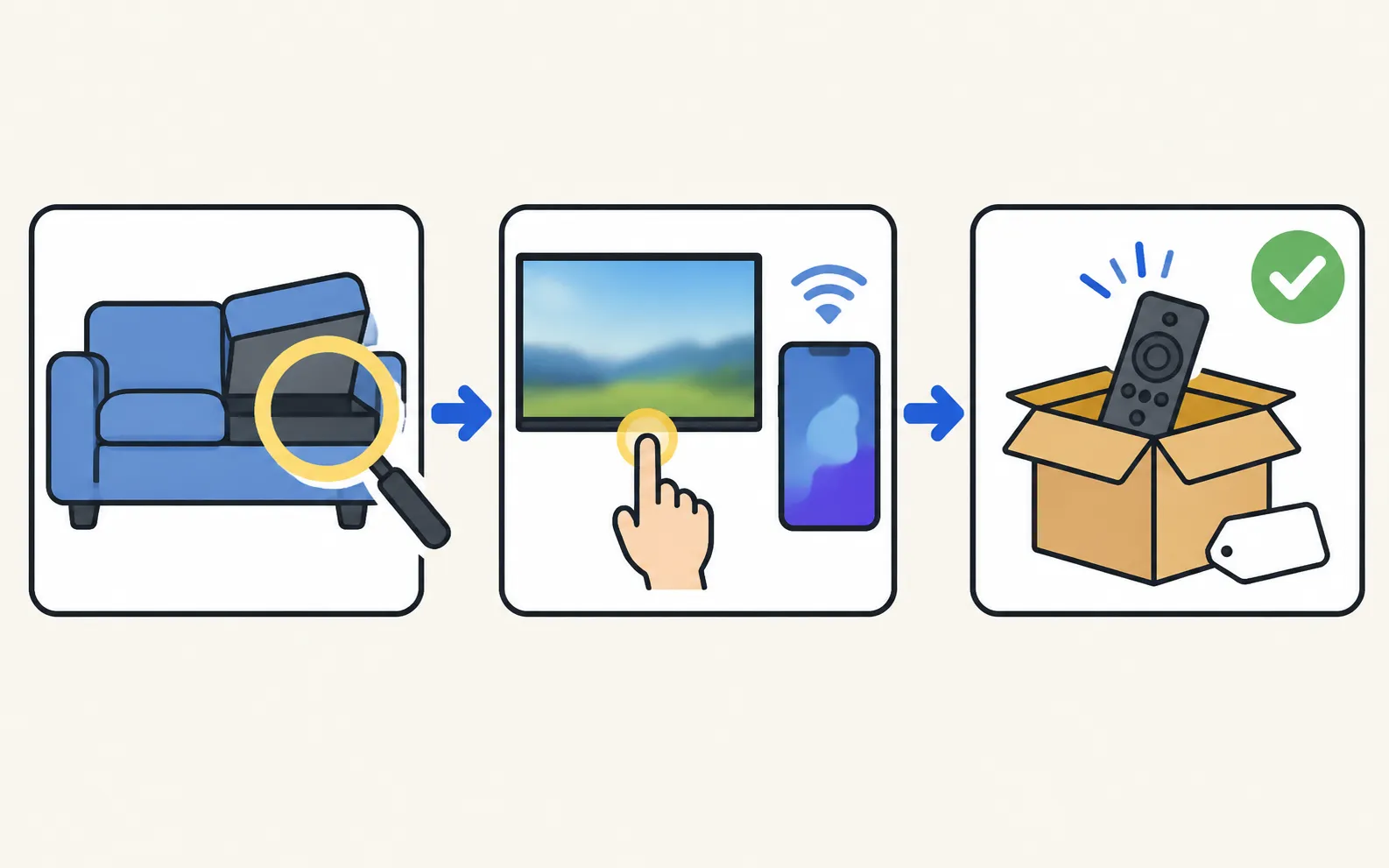
Step 1: search the places remotes actually go
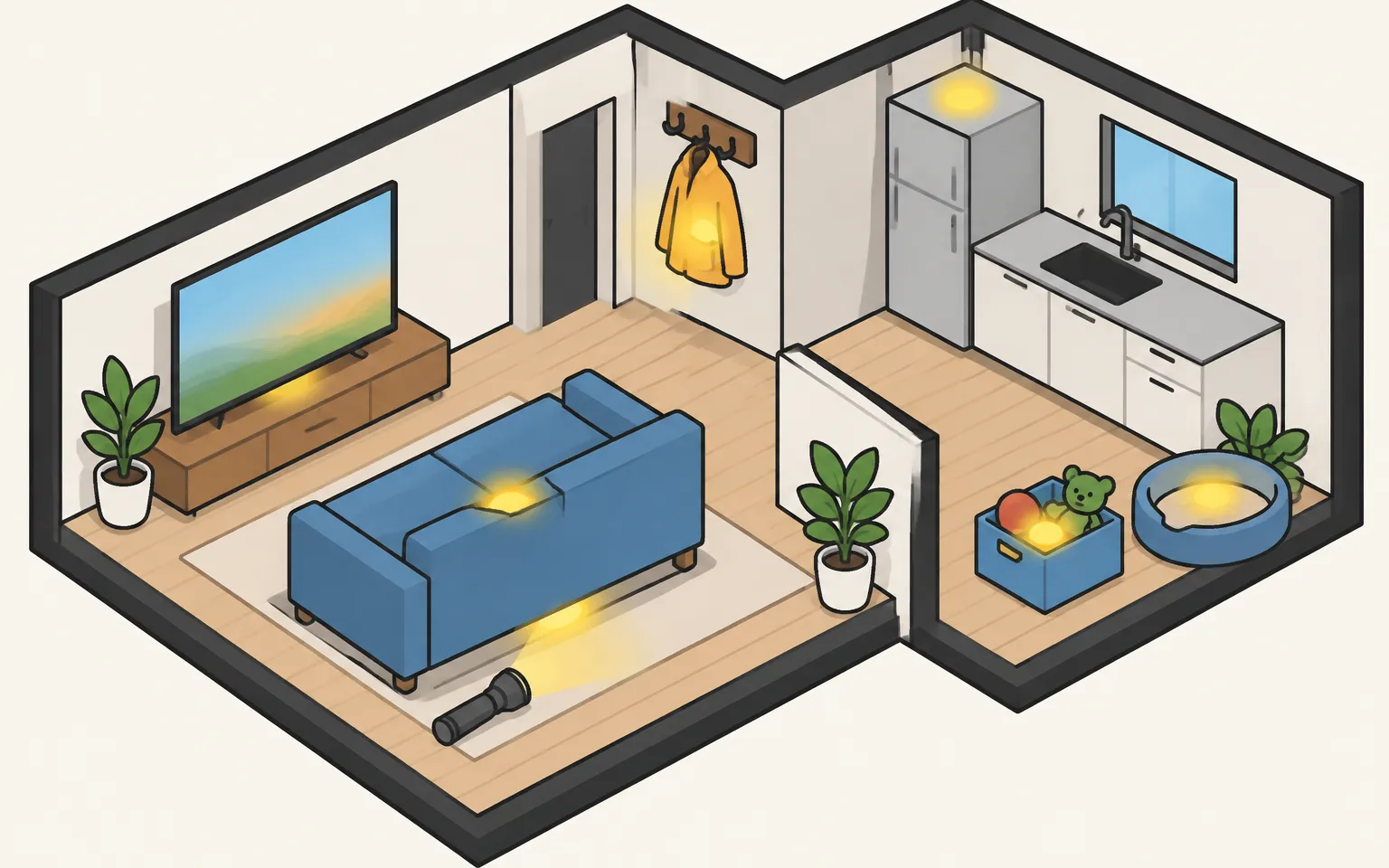
Five minutes of systematic searching beats an hour of random looking:
- The sofa: under and between cushions, inside the frame under the seat, under the sofa itself.
- Around the TV: behind the TV unit, inside drawers, under the soundbar.
- Pockets and bags: coats, handbags, backpacks, the laundry basket.
- Kitchen and fridge: remotes travel with snacks more often than anyone admits.
- Children and pets: toy boxes, under beds, and the dog’s favourite spot.
Use a torch at floor level — the light reflects off the remote’s glossy plastic.
Step 2: control the TV tonight
The TV’s own button
Every Samsung TV has a control button or joystick — usually under the bottom edge near the centre, or on the back at the lower right. Press it to turn the TV on and to open a small menu with volume, channel and source. Exact positions and press patterns: where is the power button on a Samsung TV.
Your phone
If the TV is a Smart TV that has been connected to your home Wi-Fi before, a phone gives you a full remote within minutes (all phone options compared):
-
Connect the phone to the same Wi-Fi as the TV
Phone and TV must be on the same home network (not a guest network). The phone uses Wi-Fi; the TV can use Wi-Fi or Ethernet. No internet is needed, and mobile data can't be used. -
Install a remote app
On Android, a remote app such as Samsung TV Remote; on Android or iPhone, Samsung’s SmartThings (Samsung account needed). -
Turn the TV on with its button
The TV must be fully on for the first connection. -
Allow the phone on the TV
Select Allow using the TV’s control button (2014–2015 TVs show a PIN instead).
Samsung TV Remote
Remote buttons: power, volume, channels, navigation pad with OK, Home, Back, mute, play/pause and input, plus a MORE panel with extra keys.
Three control modes — navigation pad, touchpad and mouse — switched with one tap.
Phone keyboard: type into the selected TV field with your normal Android keyboard, including voice typing and autocorrect.
Free, with no ads, no in-app purchases and no subscription. No account or sign-up needed. Requires Android 9 or newer (phones and tablets).
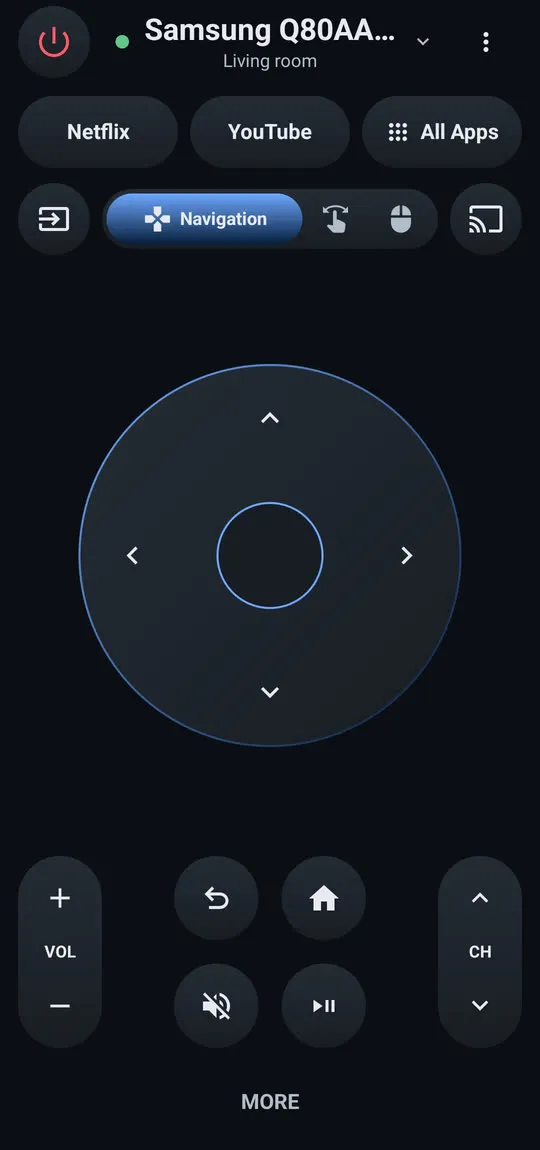
Step-by-step setup: getting started with Samsung TV Remote. Is your model on the tested list? Check your model code.
On select 2025 TVs Samsung adds Mobile Remote: highlight its icon with the TV’s control button and scan the QR code the TV shows; a remote opens in the SmartThings app (Mobile Remote explained).
If the TV isn’t on your network yet, connect it first with the control button or a USB keyboard: connect a Samsung TV to Wi-Fi without a remote.
Another remote you already own
A streaming stick, cable box or soundbar remote can often turn the TV on and off and change the volume through HDMI-CEC (Anynet+) — see control a Samsung TV without a remote.
Make the phone the morning-after remote too
Turn on Power On with Mobile so the phone can also switch the TV on next time: turn on your Samsung TV with your phone.
Step 3: replace it — without buying the wrong one
-
Find your TV's full model code
On the back label, or in (use the TV’s button or a phone to get there). A phone remote app may show it too. -
Choose the type
An original Samsung remote listed for your model, a compatible replacement that names your model code, or a universal remote with Samsung codes. -
Check what you'll lose
Cheaper infrared replacements usually lack the microphone and Bluetooth smart features of a Smart Remote.
The details — part numbers, generations and what “compatible” listings really mean — are in which replacement remote fits your Samsung TV.
Frequently asked questions
Is there a 'find my remote' feature on Samsung TVs?
We couldn't find a Samsung-documented feature that makes a standard Samsung remote beep or show its location, so don't count on one. The search tips on this page are the practical route.
Can my phone control the TV if it isn't connected to Wi-Fi yet?
Not over the network. Use the TV's control button or a USB keyboard to connect it to Wi-Fi first, then a phone remote works.
Will any Samsung remote work with my TV?
Basic infrared functions often work across Samsung TVs, but buttons and smart features differ by generation. Match the original remote's part number, or choose a replacement listed for your exact TV model code.
Do I need the remote to accept my phone on the TV?
No — when the TV asks to Allow the phone, select Allow with the TV's own control button.
Sources
- How to control a Samsung TV without a Remote — Samsung UAE · Samsung · checked November 11, 2026
- Samsung US support answer on TV model codes (ANS10006944) — Samsung US · Samsung · checked November 10, 2026
- Samsung UK support: use Mobile Remote on your 2025 Samsung Smart TV — Samsung UK · Samsung · checked November 10, 2026
- Control your Samsung TV or projector with your phone using SmartThings — Samsung US · Samsung · checked November 11, 2026
- Samsung TV Remote product documentation (developer-supplied facts) — Smart App Craft · Developer · checked November 10, 2026
Related guides
Guide
Without a remote
No remote? Control a Samsung TV with its own button, your phone, a USB keyboard, another remote via HDMI-CEC or a voice assistant, including volume and input.
How-to
Power button location
Can't find the power button on your Samsung TV? Check under the bottom centre, the back lower right and the front edge, and learn its short and long presses.
Guide
Phone as a remote
Control a Samsung TV from your phone: Android remote apps, SmartThings, Samsung's 2025 Mobile Remote, IR-blaster phones and iPhone — what each needs and does.
Explainer
Replacement remote
Choose a replacement remote for a Samsung TV: original by part number, compatible remotes, Smart Remote vs infrared, universal remotes and what copies lack.
Troubleshooting
Remote not working
Samsung TV remote not working? Reset it, do the 10-second phone-camera test, change or charge the battery, re-pair a Smart Remote and clear the TV's sensor.
How-to
Turn the TV on with your phone
Switch a Samsung TV on from your phone: enable Power On with Mobile (menu paths by year), keep the TV in standby, and fix a TV that won't wake over Wi-Fi.