

Lost remote
Lost the Samsung TV remote? Where to look first, how to keep watching tonight with the TV's button or your phone, and how to get the right replacement.
Guide
Six ways to switch on, change the volume and change the input on a Samsung TV when the remote is lost, broken or flat.
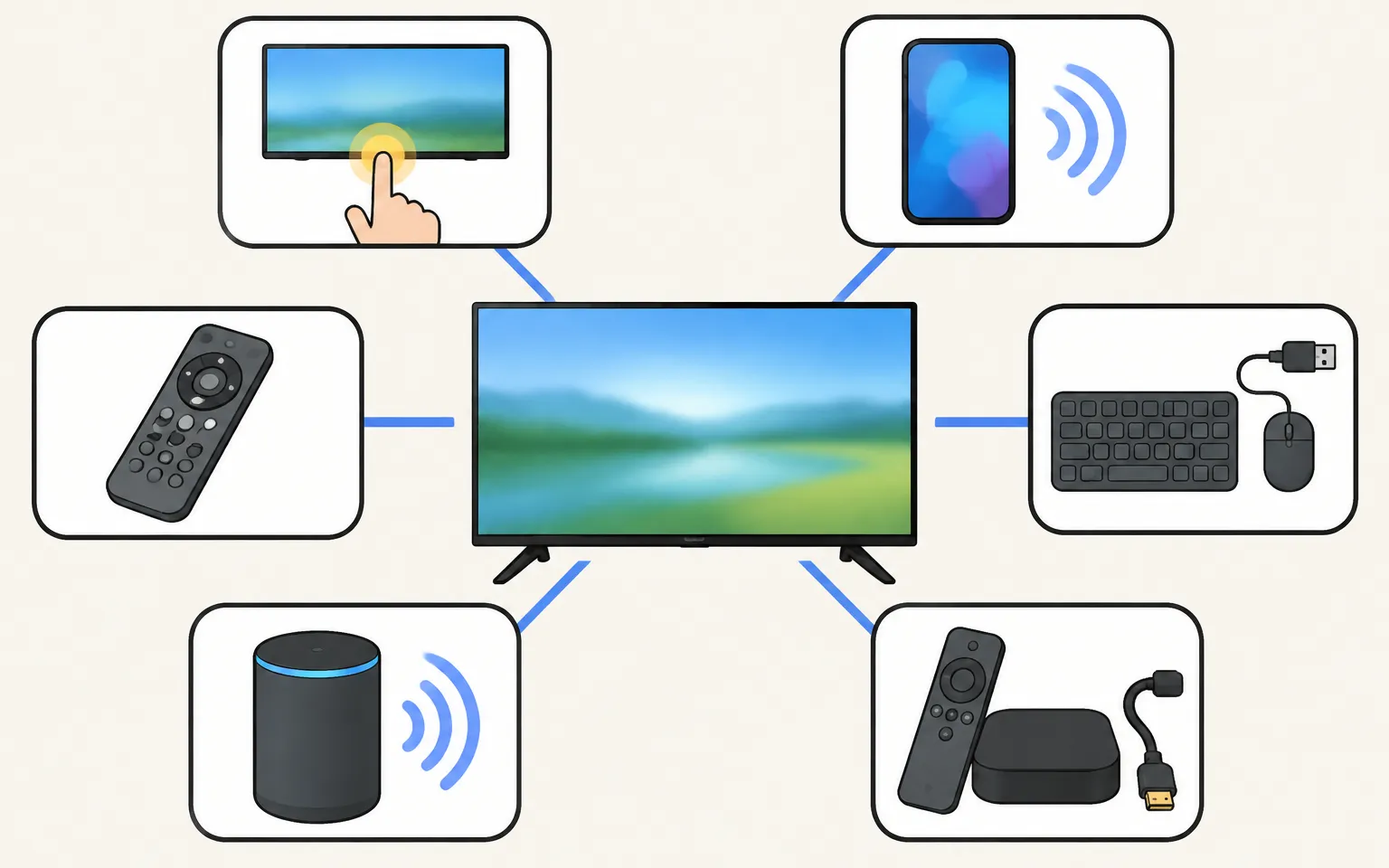
Every Samsung TV has a control button — usually under the bottom centre of the screen or at the back, lower right — that turns it on and opens a small menu for volume, channel and source. A Smart TV on your home Wi-Fi can also be controlled from a phone (a remote app, SmartThings, or the Mobile Remote QR code on select 2025+ TVs). A USB keyboard, a streaming stick's remote via HDMI-CEC, or a voice assistant are other options.
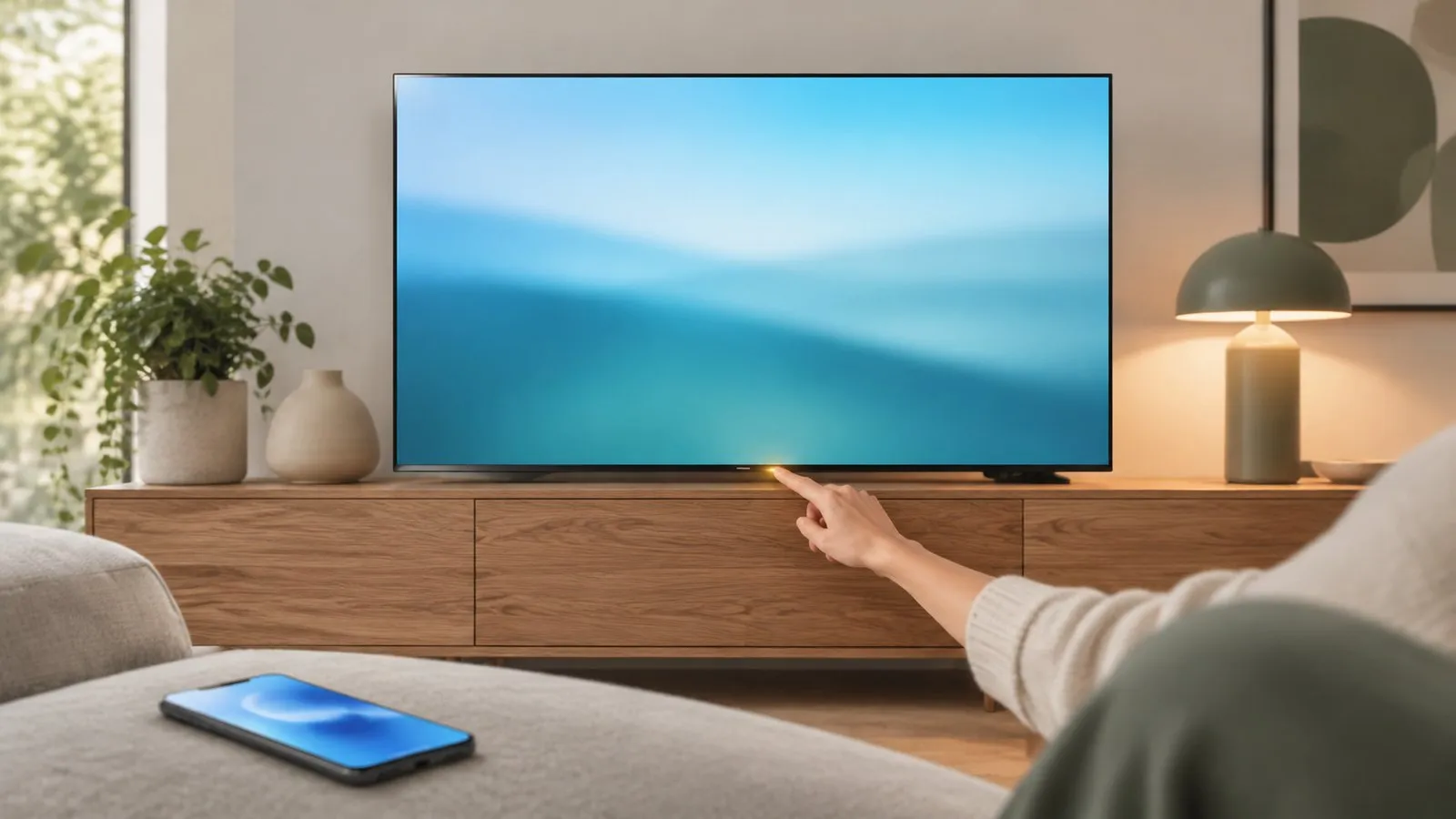
Losing the remote doesn’t lock you out of a Samsung TV. Which option suits you depends on whether the TV is a Smart TV already on your home network — that unlocks the phone options — and on what you have lying around.
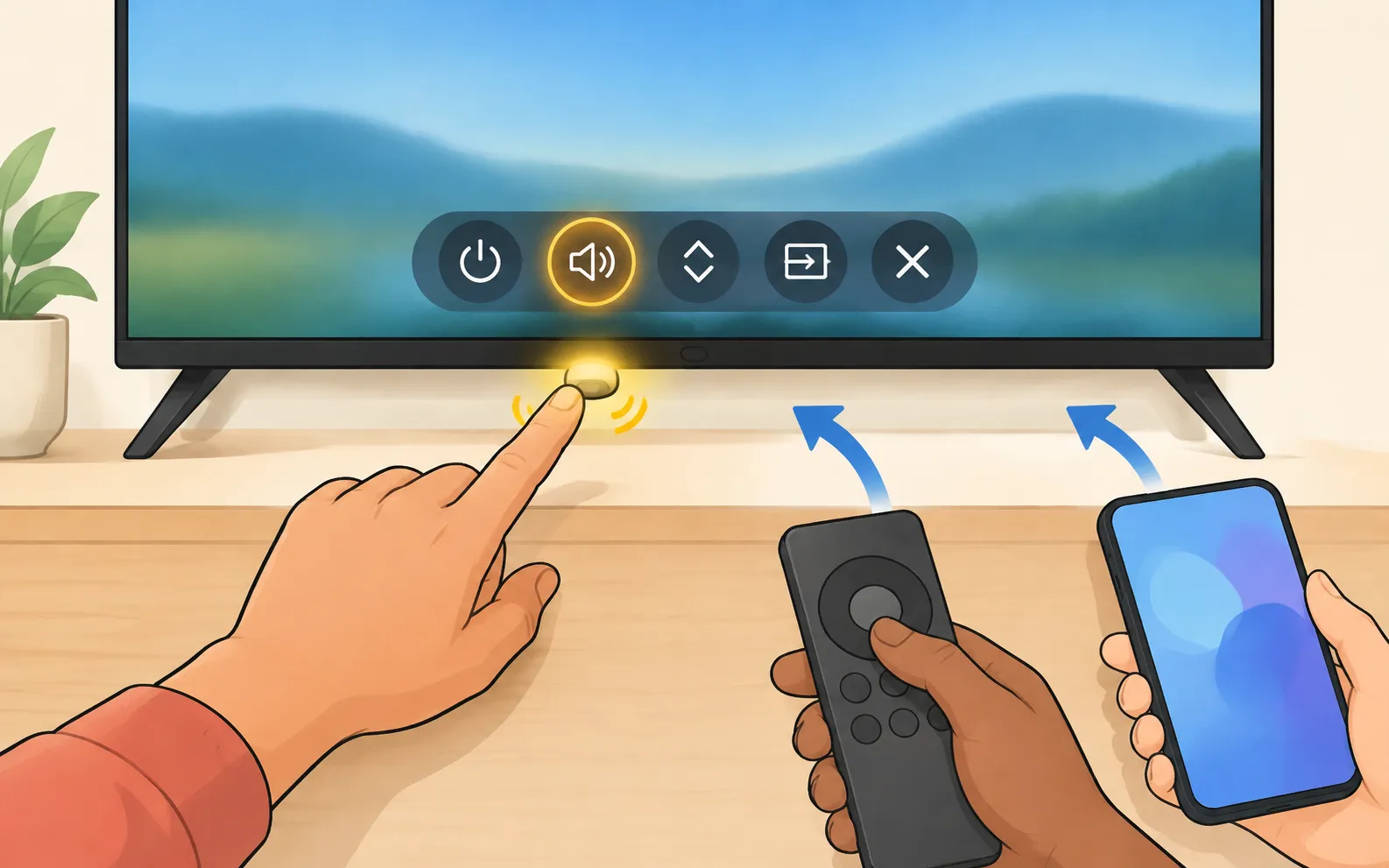
Every Samsung TV has a physical control — a single button, a small joystick or a row of buttons. Samsung describes several layouts:
The on-screen control menu typically offers power, volume, channel and source (input). Where exactly the button sits on your model is covered in where is the power button on a Samsung TV.
Press the control button to open the menu, move to the volume item and adjust it — with short presses and a long press to select on single-button models, or with the stick’s directions on joystick models. If sound comes from a soundbar, its own buttons or remote work as well.
Open the same control menu and select Source. More ways — including from a phone — in change the input on a Samsung TV.
On a Smart TV that is connected to your home network, a phone is the most complete replacement.
| What you need | Works for | |
|---|---|---|
| Android remote app (for example Samsung TV Remote) | Android phone on the same Wi-Fi; allow the phone once on the TV | Full remote, touchpad, keyboard, apps, power |
| SmartThings | Android or iPhone, Samsung account, TV added to SmartThings | Remote, power, smart-home control |
| Mobile Remote | Select 2025+ TVs; scan the QR code the TV shows; SmartThings app | Basic remote functions, quick start without searching |
Needs a Samsung Smart TV connected to your home network. Non-smart TVs are not supported. Phone and TV must be on the same home network (not a guest network). The phone uses Wi-Fi; the TV can use Wi-Fi or Ethernet. No internet is needed, and mobile data can't be used.
The TV must be fully on for the first connection. Select Allow on the TV, or type the PIN shown on 2014–2015 TVs. Without a remote, use the TV’s control button to select Allow.
Remote buttons: power, volume, channels, navigation pad with OK, Home, Back, mute, play/pause and input, plus a MORE panel with extra keys.
Phone keyboard: type into the selected TV field with your normal Android keyboard, including voice typing and autocorrect.
Power on over Wi-Fi with a wake-up signal (Wake-on-LAN) for 2016 or newer TVs with Power On with Mobile enabled.
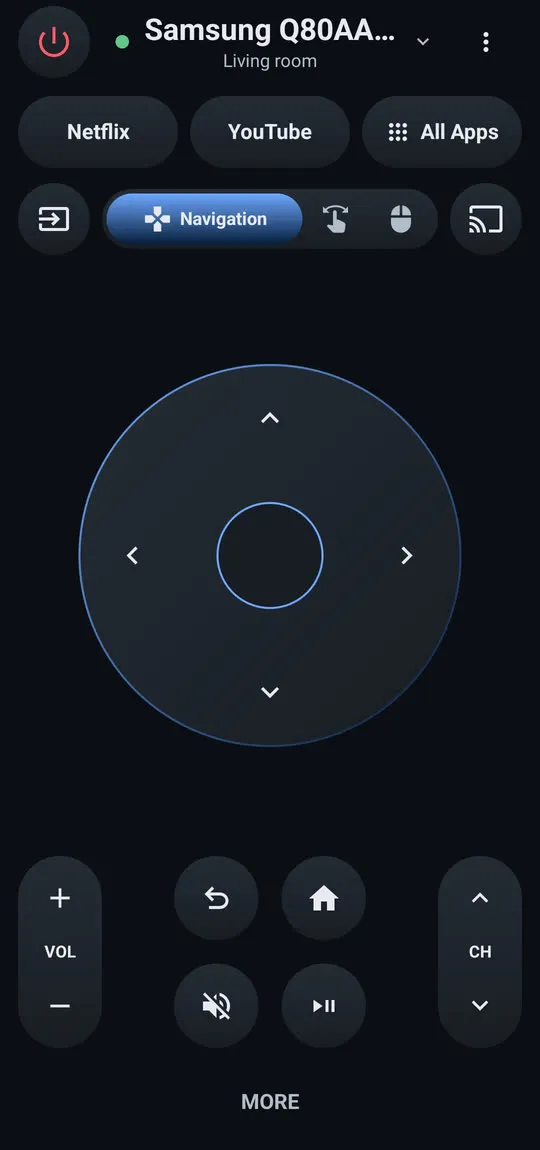
All phone methods compared: use your phone as a Samsung TV remote. Setting up Samsung TV Remote takes a few steps — getting started — and you can check your TV against the developer-tested models.
Plug a USB keyboard (or a wireless set’s USB receiver) into the TV. Arrow keys move the selection and Enter selects — enough to reach settings, accept prompts and type a Wi-Fi password. Samsung says most TVs made before 2018 recognise USB keyboards and mice automatically. Details: keyboard and mouse on a Samsung TV.

If a cable box, streaming stick, games console or soundbar is connected by HDMI, its remote can often turn the TV on and off, change the volume and switch to its input through Anynet+ (HDMI-CEC). For example, a streaming stick’s remote may wake the TV and switch to its input when you press Home. Anynet+ must be on in the TV’s settings; see Anynet+ explained.
A Samsung TV linked to Alexa or Google Home, or with Bixby on the TV, can be switched on (on supported models), muted or set to another input by voice. Setup needs a working way to reach the TV’s menus once. See control a Samsung TV with Alexa or Google Home.
A universal remote set to a Samsung code, or a replacement remote, brings back the full button set. See which replacement remote fits your Samsung TV and universal remote codes for Samsung TVs.
The step-by-step plan — search, control the TV right now, then replace — is in lost your Samsung TV remote? What to do now. If the remote is here but dead, start with remote not working.
Lost the Samsung TV remote? Where to look first, how to keep watching tonight with the TV's button or your phone, and how to get the right replacement.
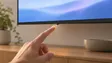
Can't find the power button on your Samsung TV? Check under the bottom centre, the back lower right and the front edge, and learn its short and long presses.
No remote and the TV isn't online yet? Get a Samsung TV online with an Ethernet cable, a USB keyboard or mouse, or its control button, then use your phone.
Press the TV's control button once to open its control menu, move to the volume item with short presses, and select it with a long press (single-button models), or use the stick's left and right directions (joystick models). A phone remote or a soundbar's own remote also works.
Open the control menu with the TV's button and choose Source (input). On a Smart TV on your network, a phone remote's input or source button does the same.
Yes, if it's a 2016 or newer Smart TV with Power On with Mobile enabled and it stays plugged in. Otherwise, use the TV's button.
Partly. The control button and a USB keyboard can get you through the menus. Phone remote apps need the TV already on your network, so they can't do the first Wi-Fi setup.
Modern Samsung TVs have at least one control button or a small joystick, but it is easy to miss: under the bottom edge of the frame, on the back near a corner, or under the Samsung logo. The guide to the power button shows where to look.