
Allow prompt keeps appearing
Why your Samsung TV keeps asking to Allow a phone, how to stop it, and how to undo a Deny — with the Device Connection Manager settings by TV year.
Guide
Five ways to turn the phone in your pocket into a Samsung TV remote, what each one needs, and how to pick the right one for your TV and phone.
If your Samsung TV is a Smart TV on your home Wi-Fi, your phone can control it over the network: use a remote app on Android, Samsung's SmartThings app (Android or iPhone, Samsung account needed), or Samsung's Mobile Remote QR code on select 2025 and newer TVs. If the TV is not a Smart TV or is offline, only a phone with a built-in infrared (IR) blaster can act as a remote.
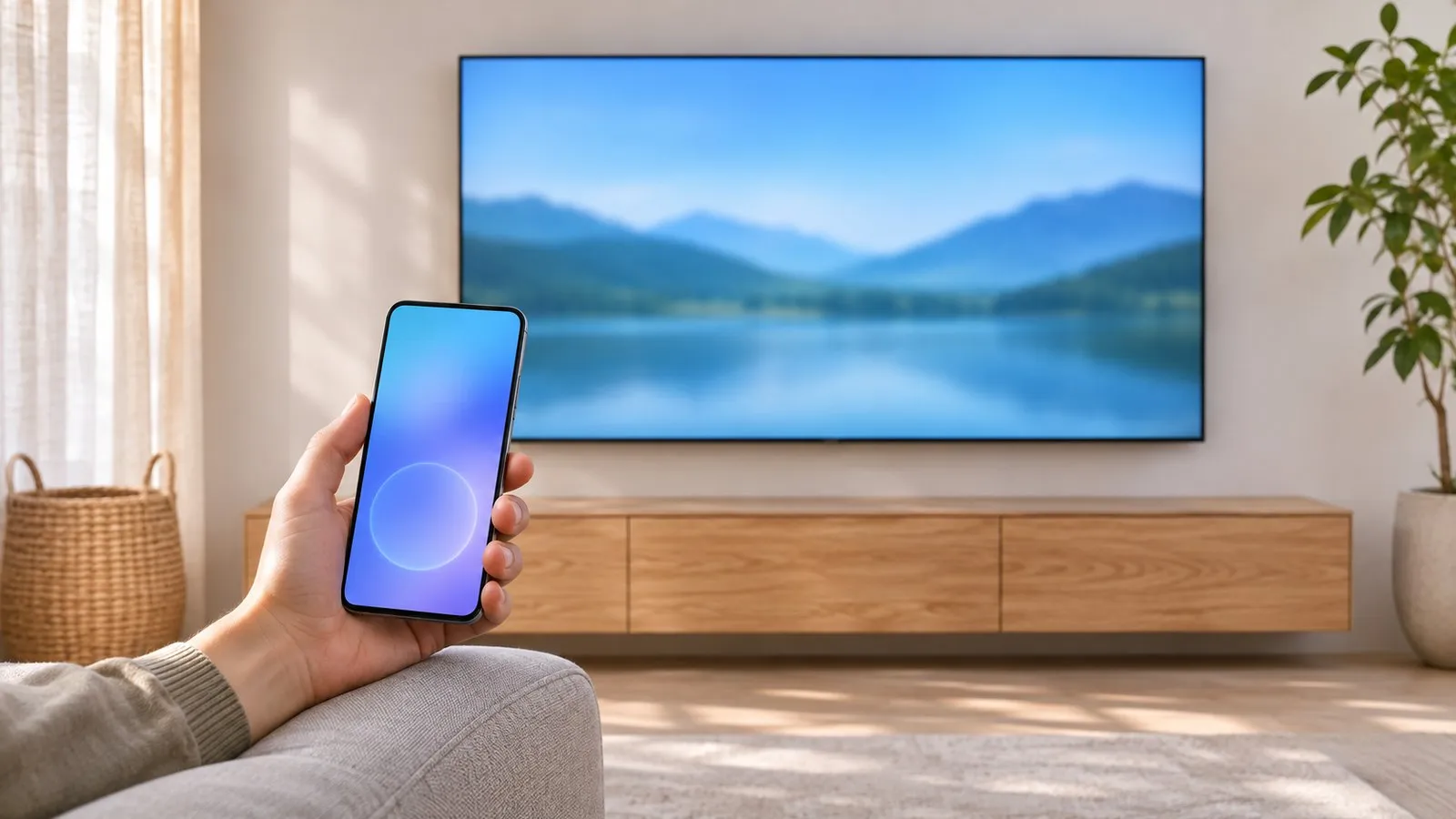
Your phone can do almost everything a Samsung remote does — and some things better, like typing passwords and showing photos on the big screen. Which method works depends on two questions: is your TV a Smart TV on your home network, and do you have Android or an iPhone?
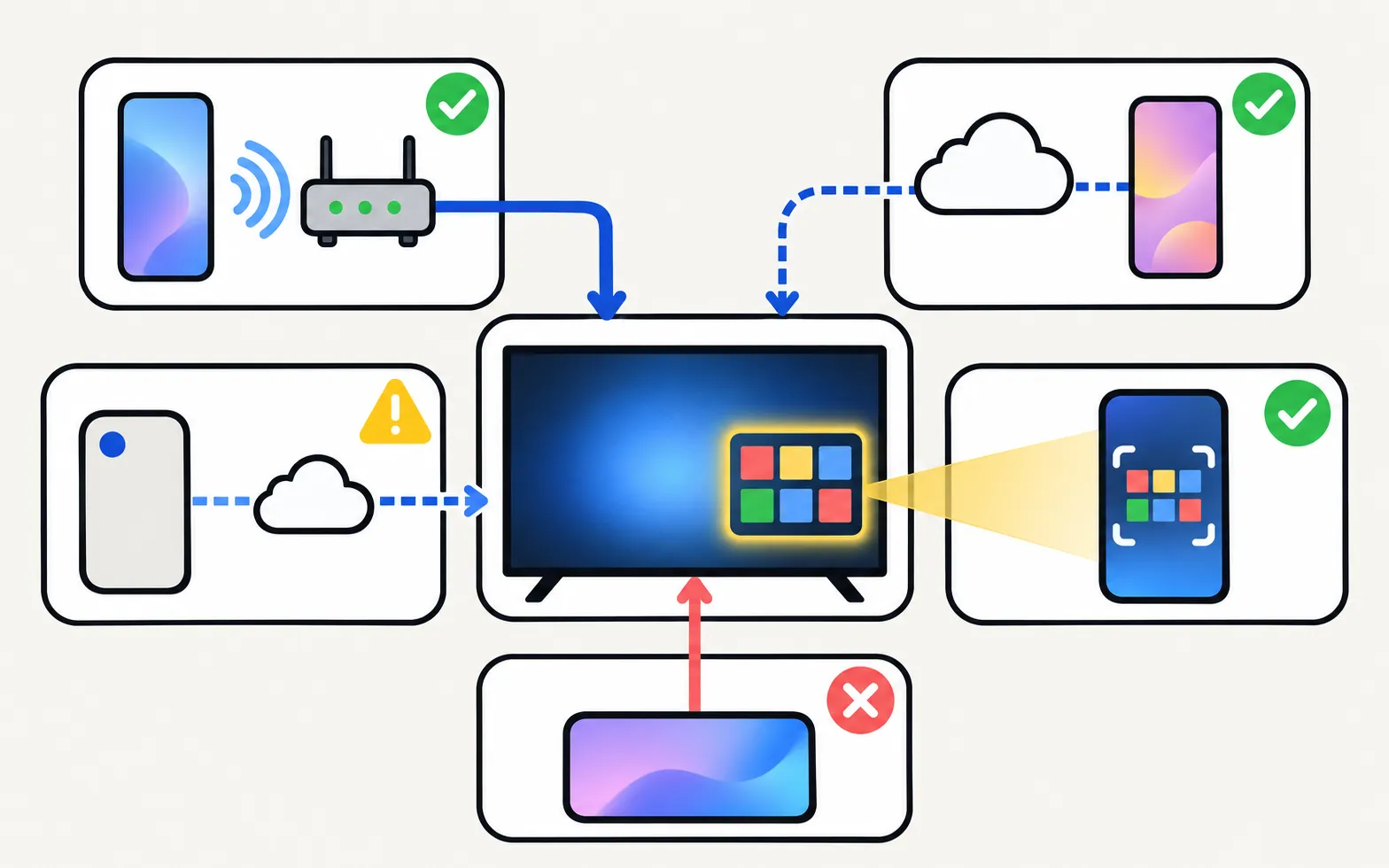
| Method | Phone | TV needs | Account | Best for |
|---|---|---|---|---|
| Android remote app (for example Samsung TV Remote) | Android | Smart TV on the same home network | Depends on the app; ours needs none | Everyday remote, keyboard, touchpad, mirroring |
| SmartThings (Samsung) | Android, iPhone | SmartThings-compatible Smart TV added to your account | Samsung account | Samsung’s own ecosystem, smart home, control through Samsung’s cloud |
| Mobile Remote (Samsung, QR code) | Android 11+, iOS 16+ with SmartThings | Select 2025 and newer TVs | Via SmartThings | Quick start straight from the TV screen |
| IR blaster phone | Phones with an infrared emitter | Any Samsung TV, smart or not | None | Non-smart TVs, TVs without a network |
| Smart View (mirroring) | Galaxy phones | Smart TV on the same network | None | Showing the phone screen, not remote control |
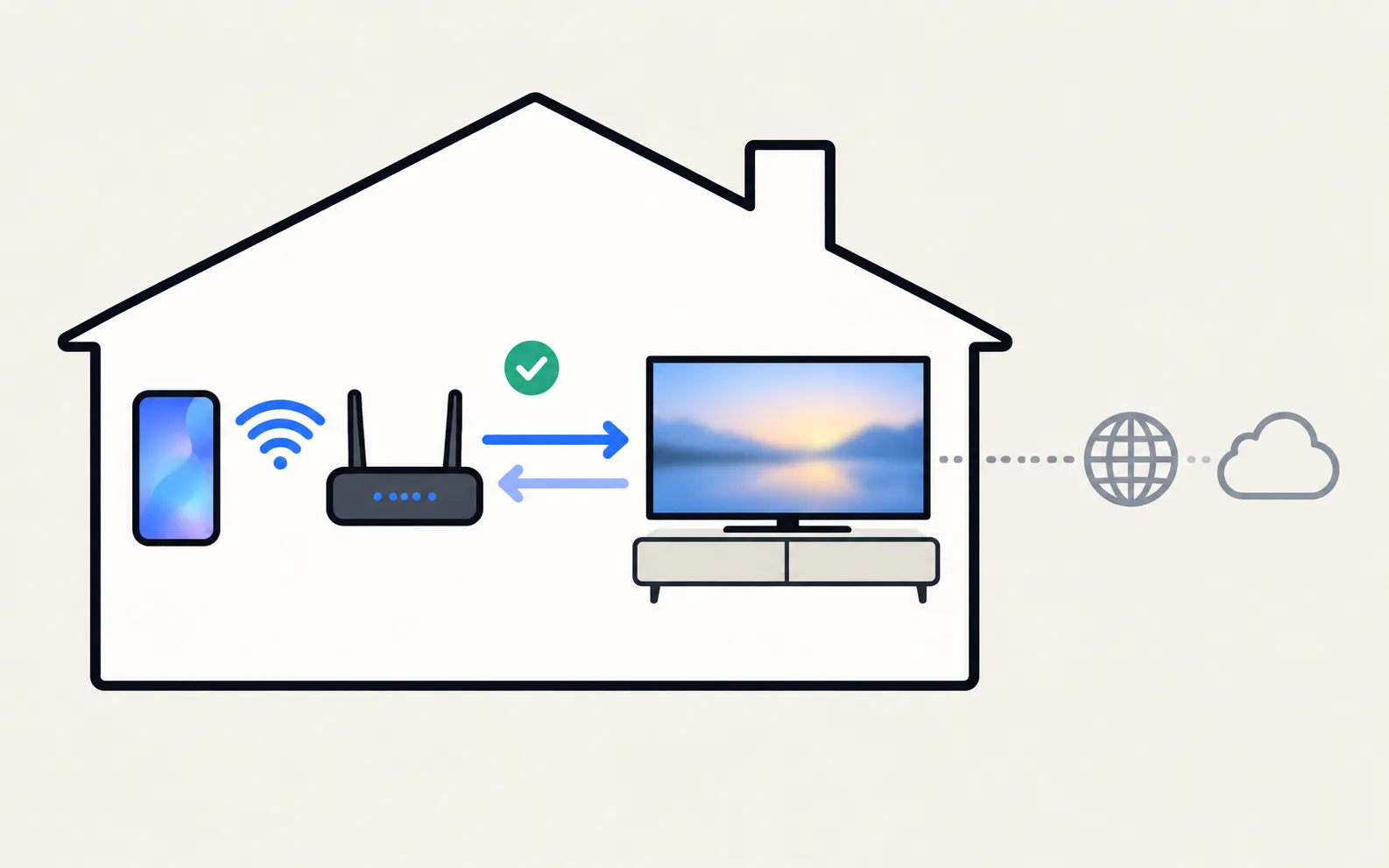
A Wi-Fi remote app sends the same commands as the TV remote, but through your home network instead of infrared. You don’t point the phone at the TV and it works through walls.
What you need: a Samsung Smart TV and the phone on the same home network. The TV must be on and allow the phone once.
Phone and TV must be on the same home network (not a guest network). The phone uses Wi-Fi; the TV can use Wi-Fi or Ethernet. No internet is needed, and mobile data can't be used.
This website belongs to the developer of Samsung TV Remote, a free Android remote for Samsung Smart TVs. We are not Samsung, and we compare options honestly.
Remote buttons: power, volume, channels, navigation pad with OK, Home, Back, mute, play/pause and input, plus a MORE panel with extra keys.
Three control modes — navigation pad, touchpad and mouse — switched with one tap.
Free, with no ads, no in-app purchases and no subscription. No account or sign-up needed.
What it can do depends on your TV’s age:
| TV generation | What works |
|---|---|
| 2016 and newer Samsung Smart TVs | All app features: remote buttons, touchpad, mouse pointer, phone keyboard, one-tap apps, power off, power on over Wi-Fi (needs Power On with Mobile), casting and screen mirroring. Features can vary by model and software version. |
| 2014–2015 Samsung Smart TVs (PIN pairing) | Remote buttons, touchpad as arrow keys and power off. Casting may work; mirroring often does not. No keyboard, pointer, app launch or power on. Some 2014–2015 TVs with later firmware need a secure pairing the app doesn't support, and the app then shows "This TV is not supported". |
| 2010–2013 Samsung Smart TVs | Remote buttons, touchpad as arrow keys and power off. Casting may work; mirroring often does not. No keyboard, pointer, app launch or power on. |
Check your exact model on the compatibility page, and see getting started for the first connection. Other Android apps exist too — our comparison of Samsung TV remote apps lays out the criteria that matter (ads, account, keyboard, power-on, privacy).
SmartThings is Samsung’s own app for its TVs, appliances and smart-home devices. Once your TV is added, the app shows an on-screen remote. Samsung’s support page lists what you need: a Samsung account, an internet connection and the TV added to SmartThings as a device.
Strengths: made by Samsung, works on iPhone, can turn the TV on (with Power On with Mobile) and can reach the TV through Samsung’s cloud. Trade-offs: sign-in required, the remote sits a few taps deep inside a smart-home app, and when the cloud link breaks the TV shows as “offline”.
On select 2025 TVs Samsung added Mobile Remote: press the TV’s own control button to reach the Mobile Remote icon, and the TV shows a QR code. Scanning it opens the remote in the SmartThings app. Samsung lists 2025 TVs from the U8000F series upward, plus some 2025 Smart Monitors and projectors, and phones with Android 11 or iOS 16 or newer. It is a handy rescue when the remote is missing — the guide Samsung Mobile Remote and the QR code explains it in detail.
Some phones — historically many Xiaomi, Redmi, POCO and Huawei models, and older Galaxy and LG flagships — have a small infrared emitter on the top edge. With an IR remote app, these phones behave exactly like a classic remote: point and press. This is the only phone method that works with a non-smart Samsung TV or a TV with no network. Check your phone’s specifications for “IR blaster” before you count on it. More in remote apps without Wi-Fi.
There is no iPhone version of Samsung TV Remote. iPhone owners can use SmartThings or Mobile Remote, and many recent Samsung TVs accept AirPlay for showing the iPhone’s screen. See control a Samsung TV with an iPhone and mirror an iPhone to a Samsung TV.
Most phone-remote problems come down to the network or the TV’s permission prompt:
Why your Samsung TV keeps asking to Allow a phone, how to stop it, and how to undo a Deny — with the Device Connection Manager settings by TV year.
SmartThings shows your Samsung TV as offline or the remote does nothing? Check the account, network and updates, enable Power On with Mobile and re-add the TV.
Phone can't find your Samsung TV? Turn the TV fully on, put both on the same home Wi-Fi, switch off VPN and guest networks, and allow local network access.
What SmartThings does for a Samsung TV, what you need, how to add the TV automatically or with the PIN, and fixes when SmartThings can't find it.
Use an iPhone as a Samsung TV remote: the SmartThings app, the Mobile Remote QR code on 2025 TVs, AirPlay for your screen, and fixes when it can't find the TV.
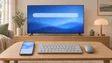
Stop typing passwords letter by letter. Use your phone's keyboard, a USB keyboard and mouse, or a Bluetooth keyboard on a Samsung TV — with paths by year.
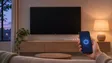
Switch a Samsung TV on from your phone: enable Power On with Mobile (menu paths by year), keep the TV in standby, and fix a TV that won't wake over Wi-Fi.
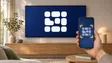
The QR code on a 2025 Samsung TV opens Mobile Remote, a phone remote in SmartThings: supported TVs, phone requirements, setup and the Quick Remote setting.
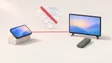
Can a phone control a Samsung TV without Wi-Fi? Only with an infrared (IR) blaster — here's why Wi-Fi remotes can't, which phones have IR, and the alternatives.
How Samsung TV remote apps for Android differ: SmartThings, Mobile Remote, IR apps and Wi-Fi remotes, compared on ads, accounts, keyboard, power-on and privacy.
Only with a phone that has a built-in infrared (IR) blaster, which few current phones have. Wi-Fi remote apps, SmartThings and Mobile Remote all need the TV on a network. See the guide on remote apps without Wi-Fi.
No. SmartThings runs on Android and iPhone, and third-party remote apps run on many Android phones. Some extras, like Smart View mirroring, are built into Galaxy phones.
Third-party Wi-Fi remote apps that talk to the TV on your local network. SmartThings and Mobile Remote use Samsung's SmartThings app, which works with a Samsung account.
Usually not with a Wi-Fi remote: the TV must already be on your network. During first setup, use the TV's own button, a USB keyboard or the SmartThings setup flow Samsung offers on the TV screen.
There is no iPhone version.