
Troubleshooting
SmartThings TV remote not working or TV offline: fixes
When SmartThings loses your TV, the cause is usually the TV's sleep state, the network, the Samsung account or an outdated app — in that order.
Quick answer
If SmartThings shows your Samsung TV as offline, turn the TV fully on, make sure the phone and TV are on the same Wi-Fi and signed in to the same Samsung account, update the SmartThings app and the TV software, and enable Power On with Mobile on the TV. Some 2017–2018 models always show offline when switched off. If nothing helps, remove the TV from SmartThings and add it again.
SmartThings is Samsung’s app for its TVs and smart-home devices. Its remote works through your Samsung account and, often, Samsung’s cloud — which is why problems show up as “offline” or “disconnected” even when the TV is right in front of you.
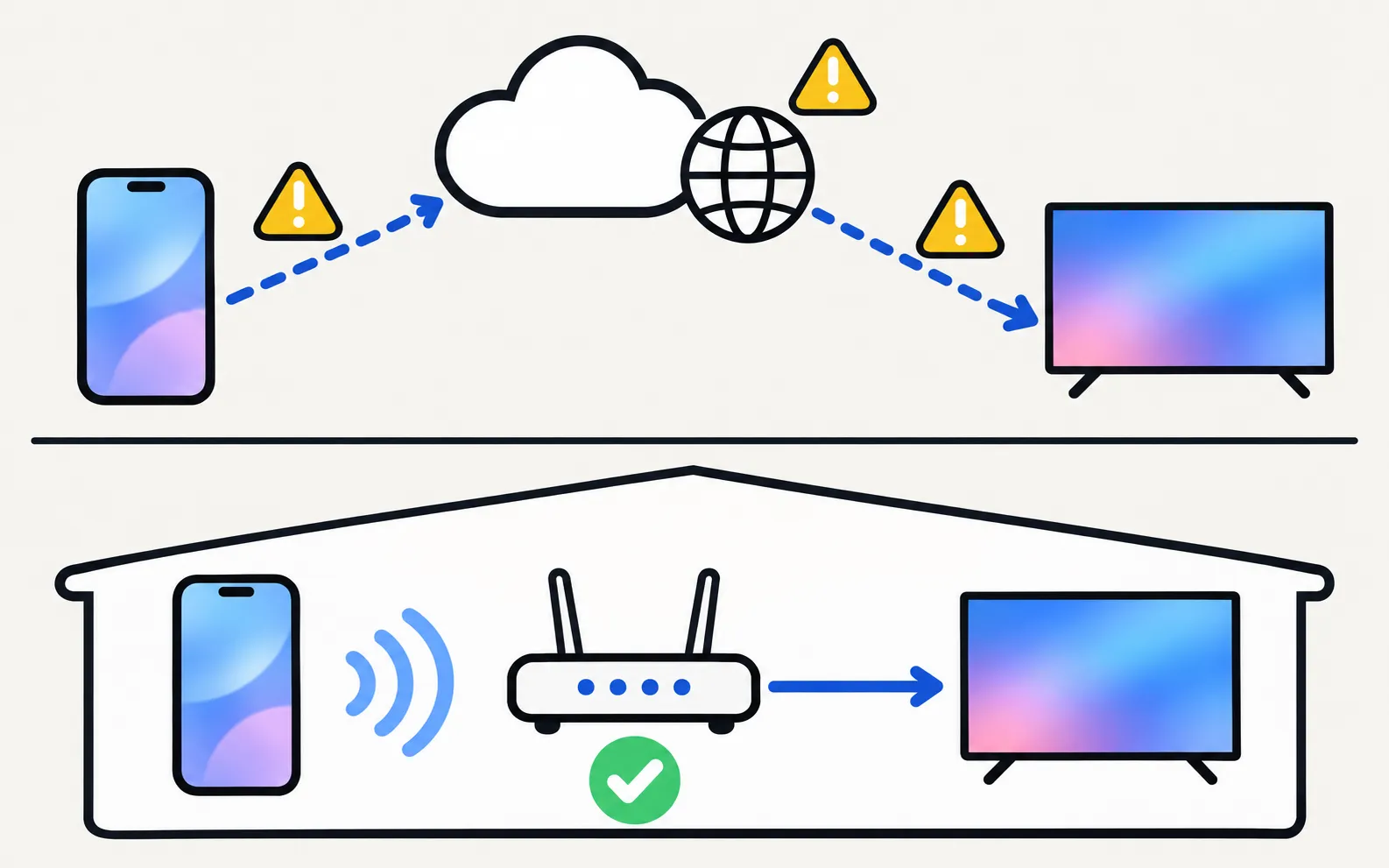
1. Wake the TV and test again
Turn the TV fully on with its button or remote and wait a minute, then pull down to refresh the SmartThings device list. Samsung notes that some 2017 and 2018 models — 2017 TVs from the M5500 series upward and 2018 TVs up to the N5500 — always appear offline in SmartThings when they’re switched off. On those, offline-while-off is normal.
2. Turn on Power On with Mobile
Use the steps for your TV’s year; the model code decoder shows it if you’re unsure.
SmartThings can only reach a TV in standby (and turn it on) when Power On with Mobile is enabled:
TVs from 2022 and newer
TVs from 2017–2021
Keep the TV plugged in; a TV switched off at the wall can’t be reached. More detail: turn on your Samsung TV with your phone.
3. Check the account and the network
-
Same Samsung account
For power-on, Samsung requires the TV and the phone to be registered to the same Samsung account. Check the account on the TV (Samsung account settings) and in SmartThings. -
Same Wi-Fi
Put the phone on the same Wi-Fi network as the TV — not a guest network, and with any VPN switched off. -
Internet working
SmartThings needs an internet connection. Open a streaming app on the TV to confirm the TV is online; if it isn’t, see Samsung TV won’t connect to Wi-Fi. -
Router load
Samsung notes that adding a device may fail when more than 10 devices are connected to the router. Restart the router before you try again.
4. Update everything
- SmartThings app: update it from the Play Store or App Store. Samsung’s guide also shows the in-app check: menu, SmartThings settings, About SmartThings, then Update if offered.
- Phone software: install pending system updates.
- TV software: see update a Samsung TV’s software.
5. Remove the TV and add it again
When the steps above don’t help, the TV’s registration may be stuck. In SmartThings, open the TV, use the menu to delete or remove the device, then add it again with Add device while the TV is on. Step-by-step: add a Samsung TV to SmartThings. If the TV asks you to allow the phone, accept it; if it refuses or keeps asking, see the Allow prompt and Device Connection Manager.
6. Restart in the right order
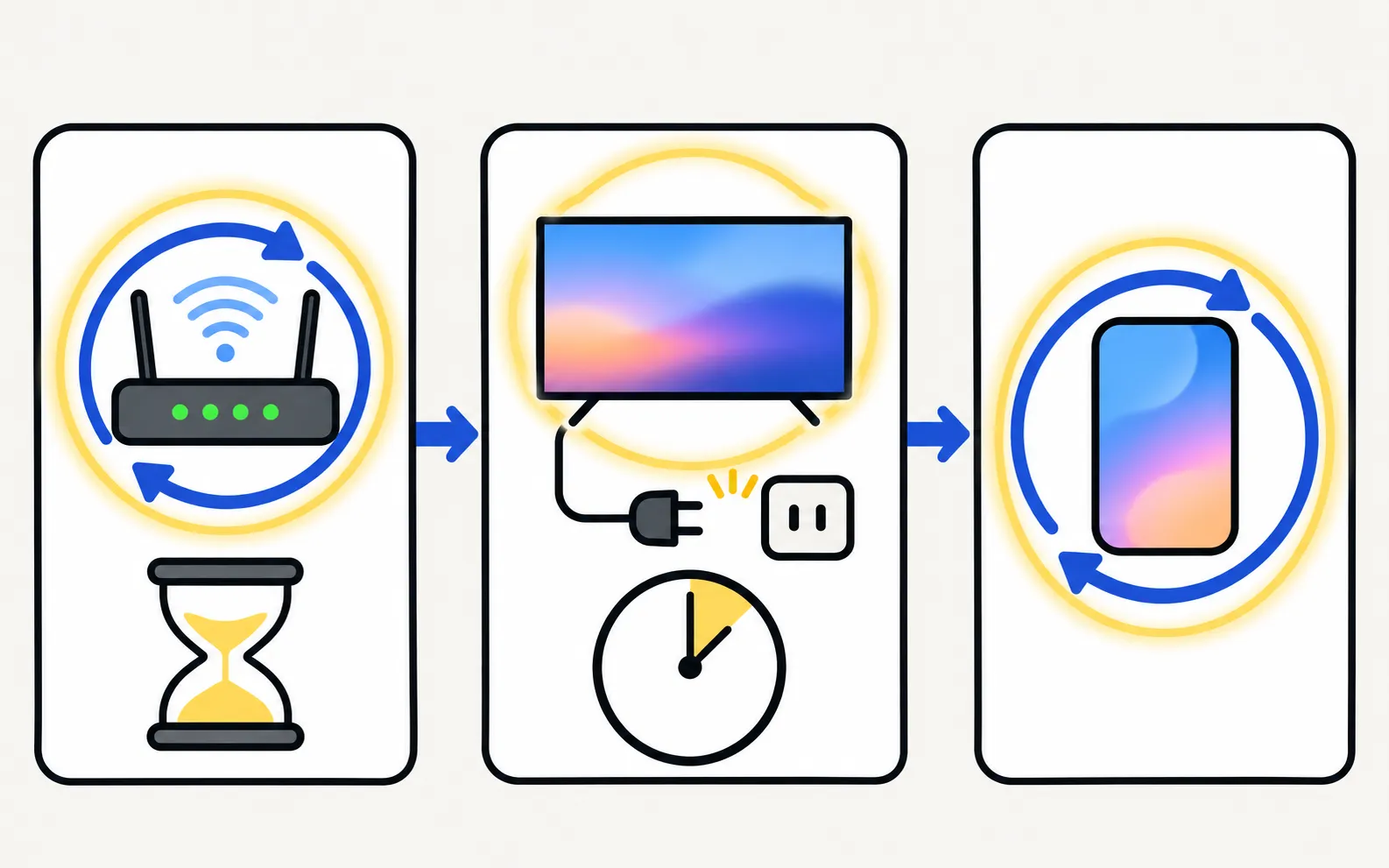
Restart the router first and wait until it’s fully up, then unplug the TV for 30 seconds, then restart the phone. This clears stale connections on all three.
Only power or volume fails
- The TV won’t turn on from SmartThings, but other buttons work once it’s on: that’s Power On with Mobile (step 2), or the TV was switched off at the wall. More in turn on your Samsung TV with your phone.
- Volume does nothing while a soundbar is connected: with a soundbar on HDMI ARC or eARC, volume commands have to reach the soundbar through Anynet+ (HDMI-CEC). If the soundbar doesn’t react, see soundbar and HDMI ARC.
If the remote still won’t respond
Some owners report that a SmartThings TV keeps dropping offline after every power-off even after all of these steps. If that is you:
- Contact Samsung support for your country, with your TV’s model code and what you’ve tried.
- Use a remote that doesn’t depend on the cloud in the meantime: the TV’s control button (where is the power button), or a phone app that talks to the TV directly on your network.
A local alternative
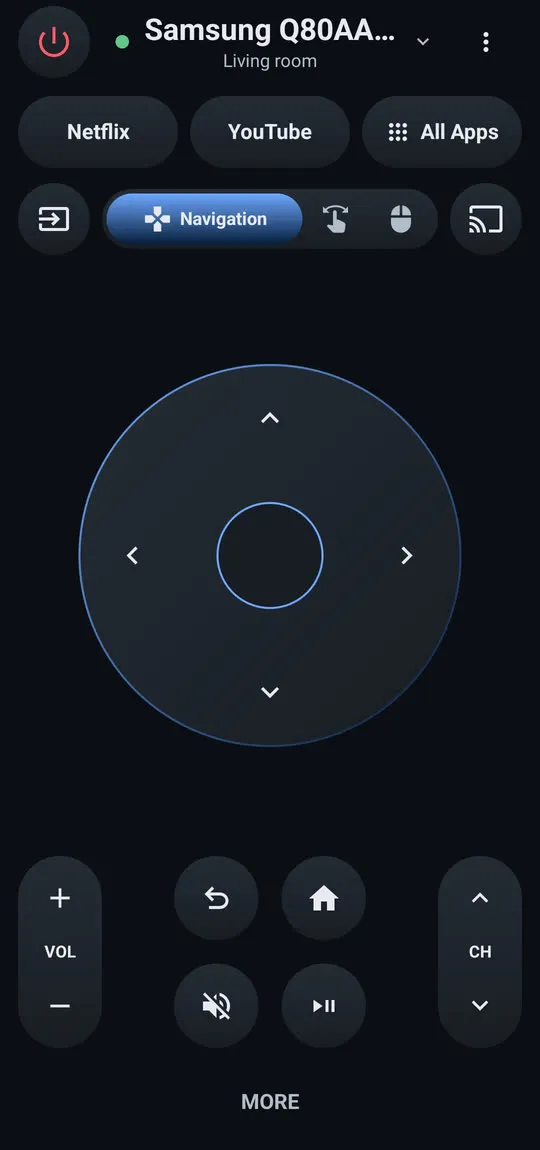
Samsung TV Remote doesn’t use SmartThings, a Samsung account or the cloud:
No account or sign-up needed. All traffic stays on your local network between phone and TV; the app connects to no internet server.
Phone and TV must be on the same home network (not a guest network). The phone uses Wi-Fi; the TV can use Wi-Fi or Ethernet. No internet is needed, and mobile data can't be used.
Compare all the options in Samsung TV remote apps compared. To try it: check your model against the tested list, then follow getting started.
Frequently asked questions
Why is my TV 'offline' in SmartThings when it's switched off?
Samsung says some 2017 and 2018 Smart TVs (2017 from the M5500 series upward, 2018 up to the N5500) appear offline in SmartThings whenever they are turned off. On other models, enable Power On with Mobile so the TV stays reachable in standby.
Does SmartThings need the internet?
Yes. Samsung lists an internet connection and a Samsung account among the requirements. If your internet is down, SmartThings may not reach the TV even though it's in the same room.
Can too many devices on my router cause problems?
Samsung's Australian guide notes that registration may fail when more than 10 devices are connected to the router. Restarting the router, or temporarily disconnecting unused devices, is worth a try when adding the TV fails.
Is there a remote that works without SmartThings?
Yes: the TV's control button, Samsung's Mobile Remote on select 2025+ TVs (it opens inside SmartThings, though), and third-party remote apps that talk to the TV on your home network without an account.
Sources
- How to fix the disconnection between my TV and SmartThings App — Samsung Australia · Samsung · checked November 11, 2026
- My Samsung TV is connected to SmartThings but appears offline when I power off the TV — Samsung Australia · Samsung · checked November 11, 2026
- Control your Samsung TV or projector with your phone using SmartThings — Samsung US · Samsung · checked November 11, 2026
- Samsung Australia support: power on the TV with the SmartThings app (Power On with Mobile) — Samsung Australia · Samsung · checked November 10, 2026
Related guides
How-to
Add a TV to SmartThings
What SmartThings does for a Samsung TV, what you need, how to add the TV automatically or with the PIN, and fixes when SmartThings can't find it.
Guide
Phone as a remote
Control a Samsung TV from your phone: Android remote apps, SmartThings, Samsung's 2025 Mobile Remote, IR-blaster phones and iPhone — what each needs and does.
Comparison
Remote apps compared
How Samsung TV remote apps for Android differ: SmartThings, Mobile Remote, IR apps and Wi-Fi remotes, compared on ads, accounts, keyboard, power-on and privacy.
How-to
Turn the TV on with your phone
Switch a Samsung TV on from your phone: enable Power On with Mobile (menu paths by year), keep the TV in standby, and fix a TV that won't wake over Wi-Fi.
Troubleshooting
Won't connect to Wi-Fi
Samsung TV won't connect to Wi-Fi or can't find your network? Check signal and band, run Network Status, reset the network, set DNS, restart the router, update.
Troubleshooting
TV not showing up on your phone
Phone can't find your Samsung TV? Turn the TV fully on, put both on the same home Wi-Fi, switch off VPN and guest networks, and allow local network access.