
How-to
How to add a Samsung TV to SmartThings (and what SmartThings is)
SmartThings is Samsung's app for its TVs, appliances and smart-home gear. Adding your TV takes a few minutes and gives you a phone remote that works on Android and iPhone.
Quick answer
Install SmartThings on your phone, sign in with a Samsung account and connect the phone to the same Wi-Fi as the TV. Turn the TV on: SmartThings usually offers to add it automatically. If not, open Devices, tap Add, choose By brand, Samsung, TV and follow the steps, entering the PIN the TV shows. Then choose a room, and the TV's tile opens an on-screen remote.
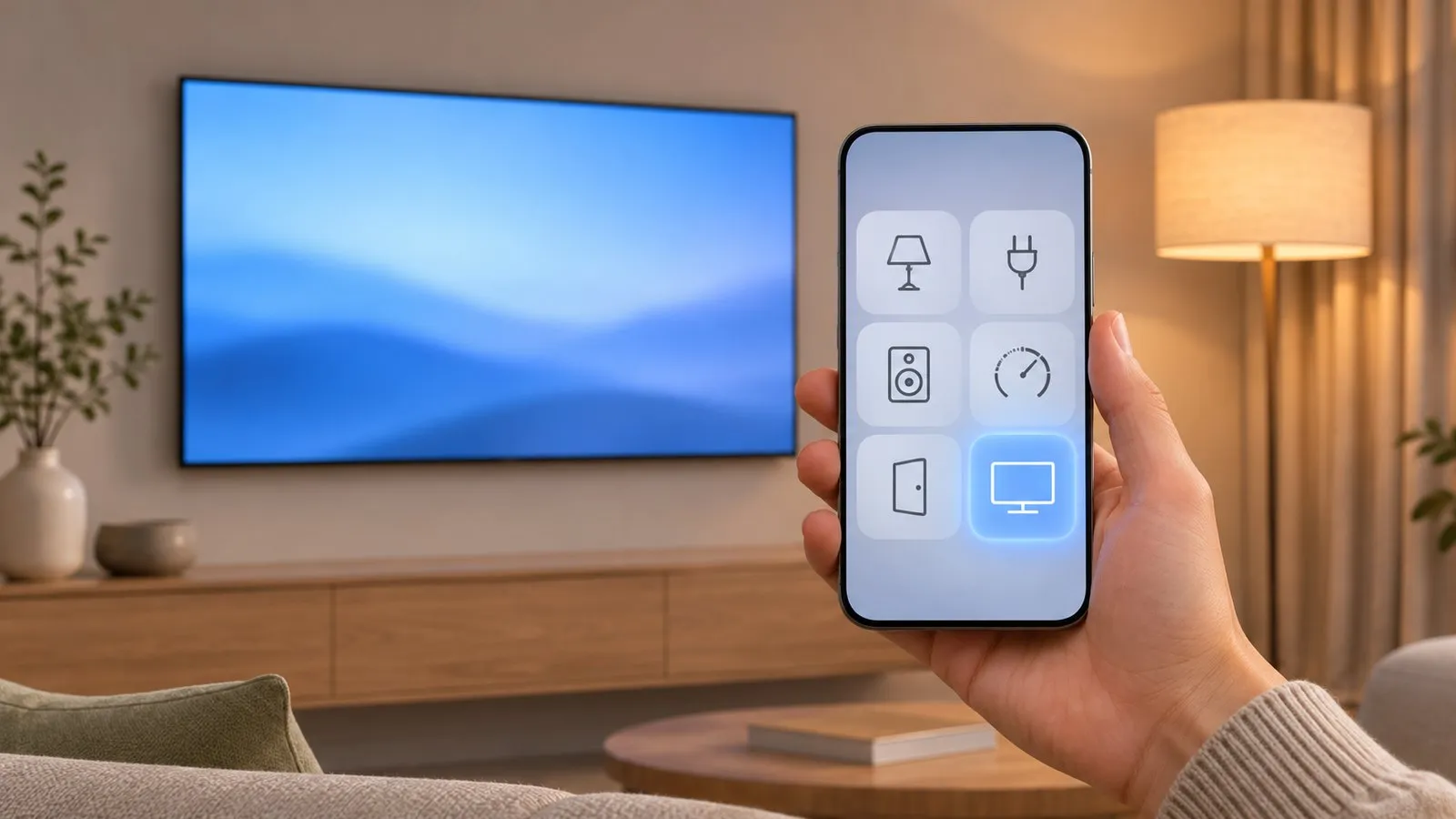
What SmartThings does for your TV
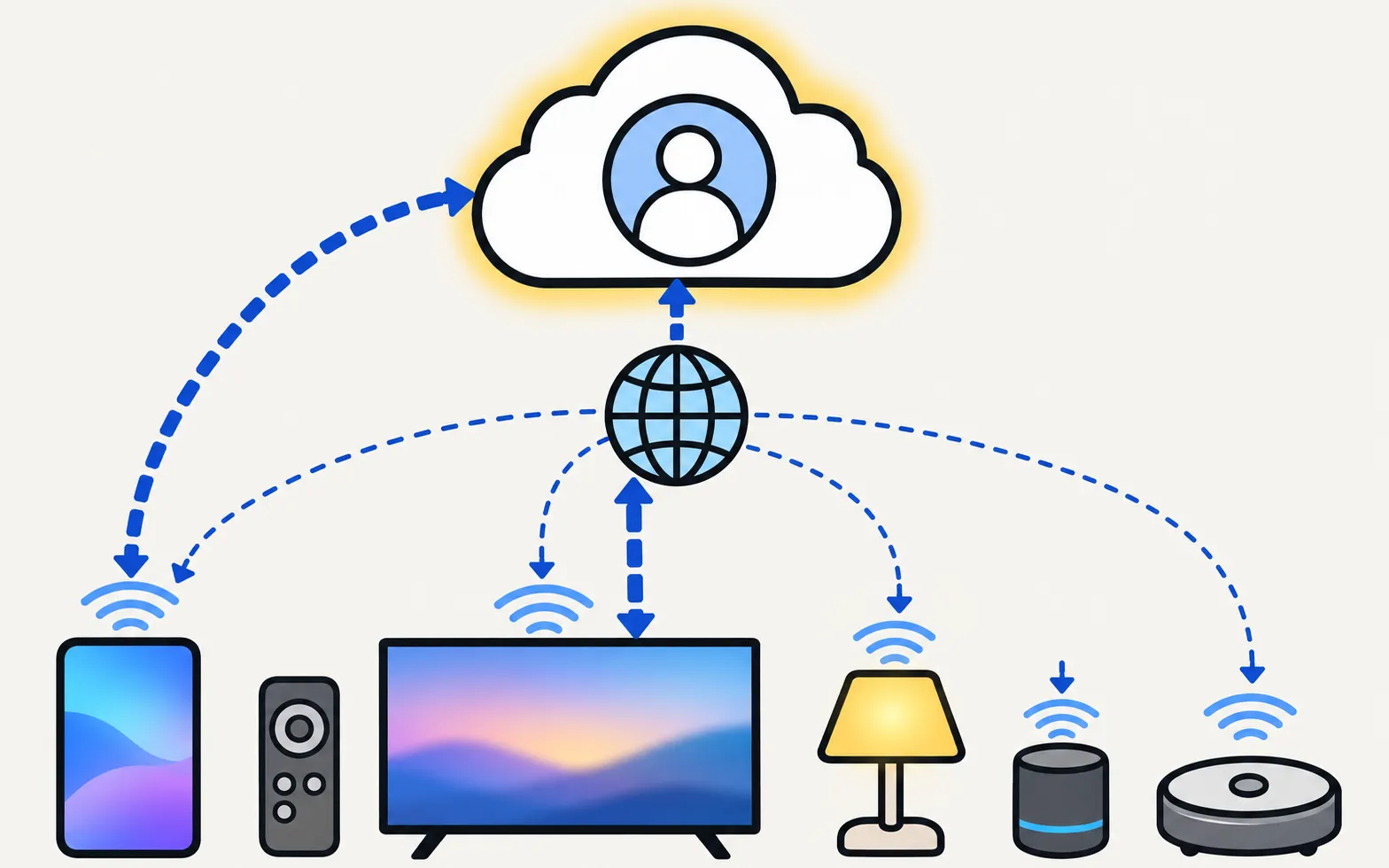
- Remote control on Android and iPhone, from the TV’s tile in the app.
- Power on over the network when the TV has Power On with Mobile enabled (2017+ SmartThings-compatible TVs, per Samsung).
- Smart-home routines, for example turning the TV on with a “movie night” scene.
- Mobile Remote on select 2025+ TVs opens inside SmartThings from a QR code on the TV.
What you need
- The SmartThings app (Google Play, Galaxy Store or App Store).
- A Samsung account, signed in on the phone.
- The phone and the TV on the same Wi-Fi network, with the TV switched on.
Add the TV
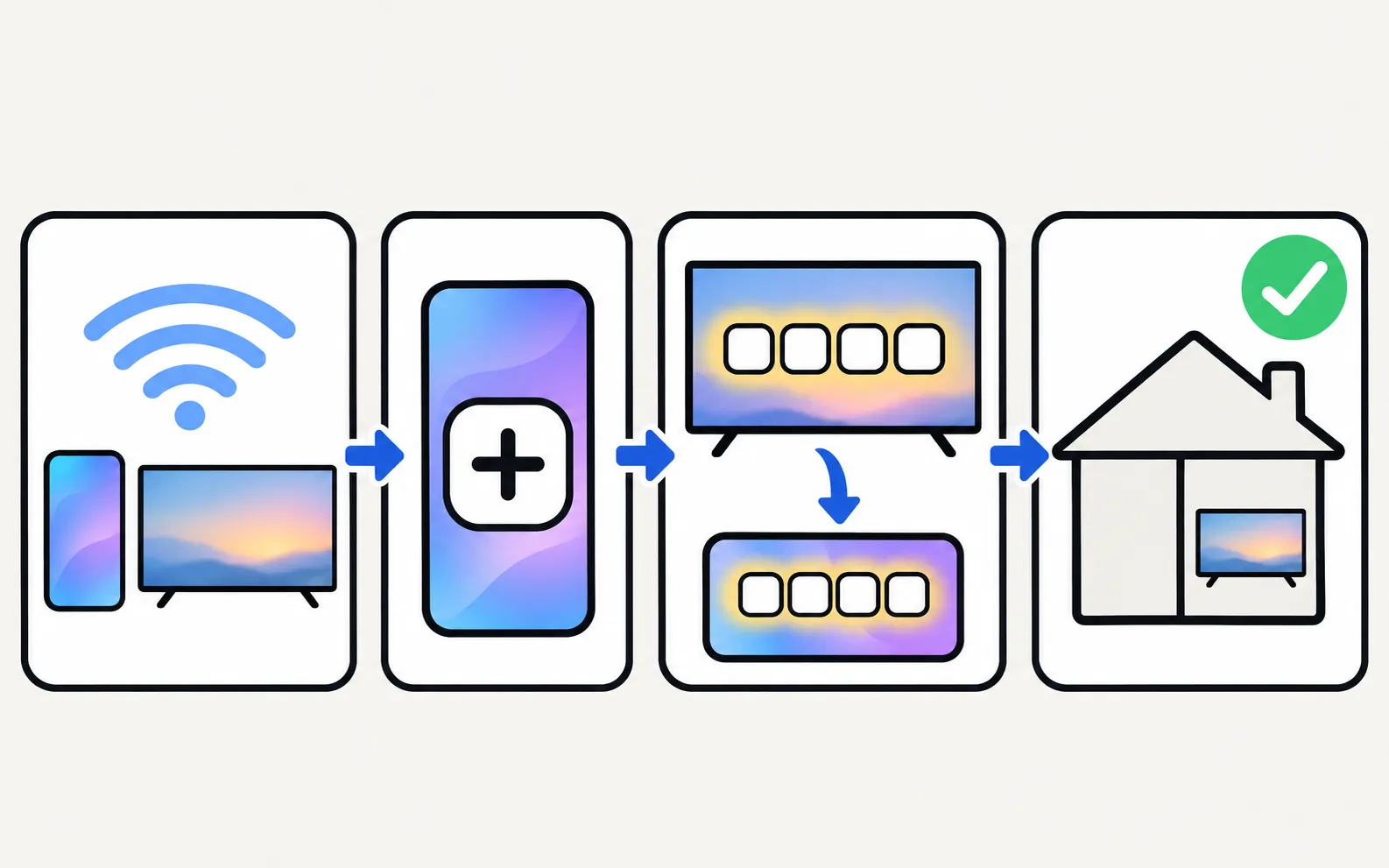
Automatically
-
Turn the TV on and open SmartThings
The app should detect the TV and show a pop-up. -
Add it now
Tap the button to add the TV, then Start. -
Choose location and room
The TV appears in your device list.
Manually (if the pop-up doesn’t appear)
-
Open Devices and tap Add
In SmartThings, go to the Devices tab. -
Choose By brand, Samsung, TV
Then tap Start. -
Turn on the TV
Wait for the phone to connect to it. -
Enter the PIN
Type the PIN the TV shows into the phone and wait while the TV registers to your Samsung account. -
Name it and pick a room
Then tap Done.
If SmartThings can’t add or find the TV
- Same network: recheck the phone’s Wi-Fi name; no guest Wi-Fi or VPN.
- Router load: Samsung’s Australian guide notes registration may fail with more than 10 devices on the router — restart the router and try again.
- Updates: update the SmartThings app, the phone and the TV software.
- Compatibility: search your model in SmartThings’ supported device list (Add › By device type › TV › Samsung › help menu).
- Once added but showing offline: see SmartThings TV remote not working.
SmartThings or a local remote app?
SmartThings is a good fit if you use Samsung’s ecosystem or an iPhone. Some people prefer a remote that works without an account or cloud — for example, Samsung TV Remote on Android:
The options side by side: Samsung TV remote apps compared.
Frequently asked questions
Do I need a Samsung account for SmartThings?
Yes. Samsung says to sign in to a Samsung account first; the TV is registered to that account.
Which phones work with SmartThings?
Samsung's Canadian guide lists Android 8.0 or higher and iOS 12.0 or higher for the app. Some features, like turning the TV on, have their own requirements.
How do I know if my TV works with SmartThings?
In SmartThings, choose Add, By device type, TV, Samsung, Start, then open the help (question mark) menu and search the supported device list by model number.
Is there a remote without an account?
Yes — the TV's own control button, or a phone remote app that works on your home network without signing in.
Sources
- How to use SmartThings on your TV (add a TV to SmartThings) — Samsung Canada · Samsung · checked November 11, 2026
- Control your Samsung TV or projector with your phone using SmartThings — Samsung US · Samsung · checked November 11, 2026
- How to fix the disconnection between my TV and SmartThings App — Samsung Australia · Samsung · checked November 11, 2026
- Samsung Australia support: power on the TV with the SmartThings app (Power On with Mobile) — Samsung Australia · Samsung · checked November 10, 2026
Related guides
Troubleshooting
SmartThings remote not working
SmartThings shows your Samsung TV as offline or the remote does nothing? Check the account, network and updates, enable Power On with Mobile and re-add the TV.
Guide
Phone as a remote
Control a Samsung TV from your phone: Android remote apps, SmartThings, Samsung's 2025 Mobile Remote, IR-blaster phones and iPhone — what each needs and does.
Comparison
Remote apps compared
How Samsung TV remote apps for Android differ: SmartThings, Mobile Remote, IR apps and Wi-Fi remotes, compared on ads, accounts, keyboard, power-on and privacy.
How-to
iPhone as a remote
Use an iPhone as a Samsung TV remote: the SmartThings app, the Mobile Remote QR code on 2025 TVs, AirPlay for your screen, and fixes when it can't find the TV.
How-to
Turn the TV on with your phone
Switch a Samsung TV on from your phone: enable Power On with Mobile (menu paths by year), keep the TV in standby, and fix a TV that won't wake over Wi-Fi.