
Troubleshooting
Samsung TV keeps asking to allow your phone: Device Connection Manager
The Allow prompt is the TV's door lock for phones and apps. Here is how to set it so trusted phones get in once and stay in.
Quick answer
Samsung TVs ask you to Allow a phone the first time it connects. If the prompt keeps returning, open Device Connection Manager (Settings, then Connection or General, then External Device Manager), set Access Notification to First Time Only, and make sure the phone is set to Allow in the Device List. If you once chose Deny, change it to Allow or delete the entry and connect again.
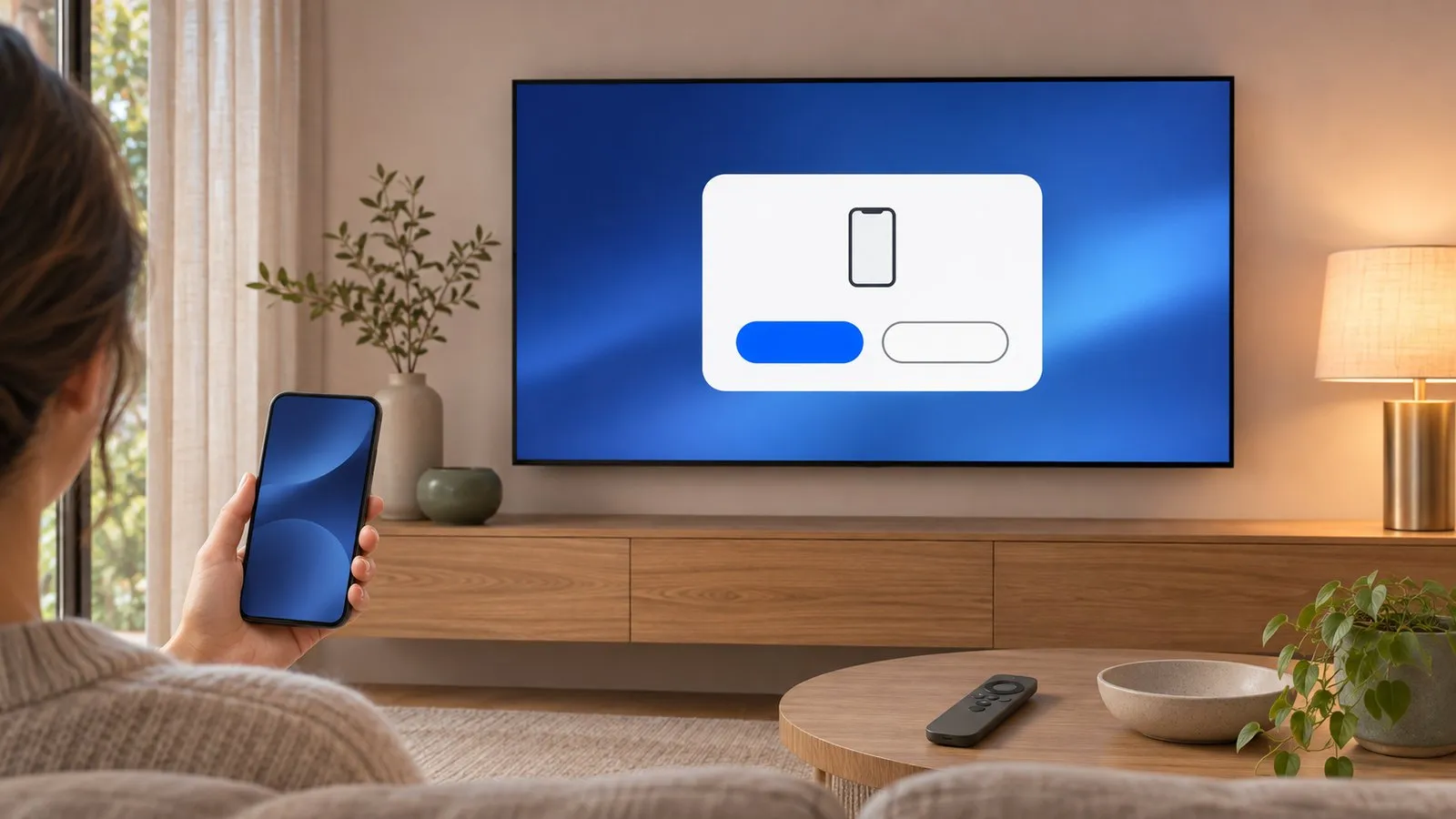
Every time a phone app, Smart View or a smart-home system wants to control a Samsung Smart TV over the network, the TV checks a list of devices it trusts. A new device triggers the Allow prompt. Once you allow it, the TV should remember it. When the prompt keeps coming back — or never appears — the cause is almost always one of three settings in Device Connection Manager.
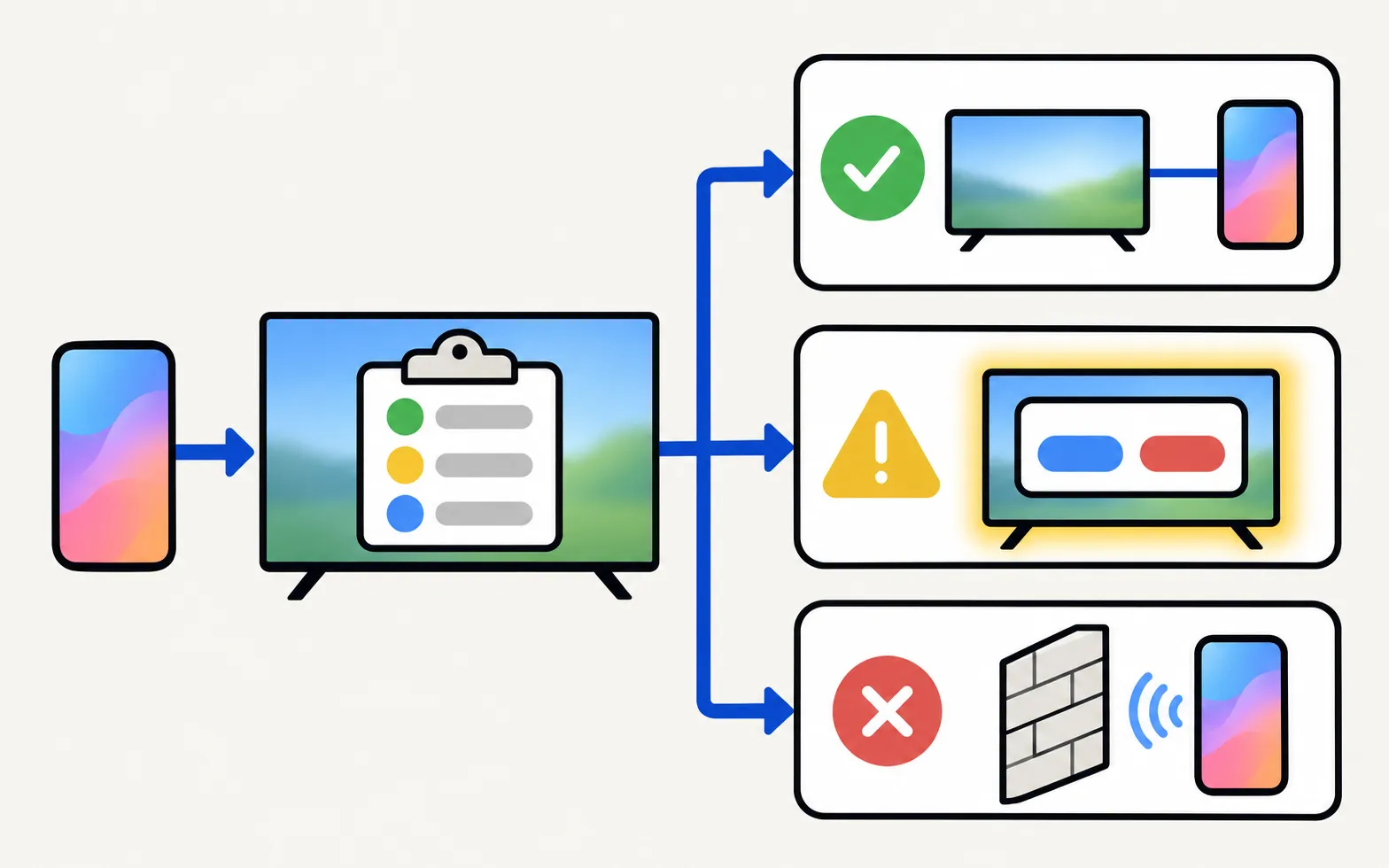
Where Device Connection Manager is
Not sure of your TV’s year? The model number decoder tells you in seconds.
The menu moved a few times. Look in these places:
TVs from 2022 and newer
Samsung’s own Smart View instructions use this path on current TVs. Some menus shorten the name to “Device Connect Manager”.
TVs from 2017–2021
On these years External Device Manager sits under General. If you don’t see it there, check Connection — menu layouts differ by model and region.
TVs from 2014–2016
Older Tizen and pre-Tizen menus group device permissions under Network or System (for example a “Device Manager” or “Screen Mirroring” device list). Use the TV’s e-Manual — see find the user manual for your Samsung TV.
Inside you will normally find two items:
| Setting | What it does |
|---|---|
| Access Notification | Decides when the TV shows the Allow prompt. Typical choices are Off, First Time Only and Always On. |
| Device List | Every phone, tablet, computer or smart-home hub that has asked to connect, each marked Allow or Deny. You can change the status or delete entries. |
Fix 1: the prompt appears every time
-
Set Access Notification to First Time Only
With Always On, the TV asks at every connection, even for phones you allowed before. First Time Only asks once per new device. -
Check the phone in the Device List
Open Device List and find your phone or the app. It should say Allow. If there are several entries with similar names, delete the old ones and connect again. -
Keep the app's data
The TV recognises an app by a token it issued the first time. Clearing the app’s storage or reinstalling it creates a “new” device. After that one extra prompt, it should stop.
Fix 2: you pressed Deny (or the TV refuses the phone)
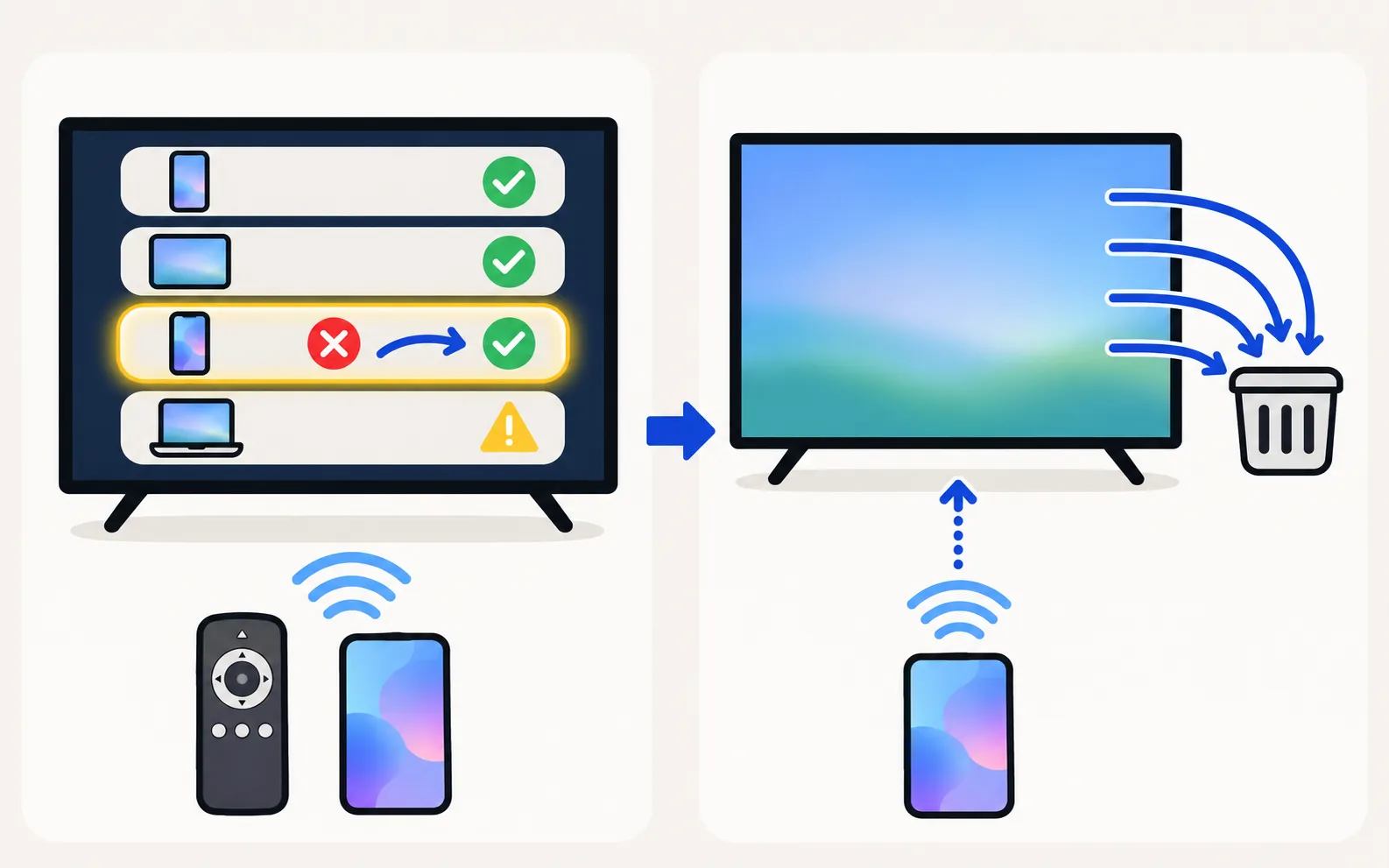
A denied device is blocked silently: the app may find the TV but every connection fails. Open Device List, select the phone and change it to Allow, or delete the entry. The next connection then brings the prompt back so you can choose again.
If the list is long or confusing, select Edit or Delete in the Device List and clear it entirely. Every device will ask once more — a clean restart for permissions.
Fix 3: no prompt appears at all
-
Watch the right screen
The prompt appears on the TV, usually for only a few seconds. It doesn’t appear if the TV is showing a full-screen app that hides pop-ups — go to the home screen and try again. -
Turn Access Notification on
If it is Off, the TV may accept new devices silently or, on some models, refuse them without asking. Set it to First Time Only while you connect the phone. -
Make sure the phone really reached the TV
If the app never lists the TV, the problem is the network, not the prompt — follow Samsung TV not showing up on your phone. -
Restart the TV
Unplug the TV for 30 seconds. A stuck connection service is cleared by a cold start.
Accepting the prompt when the remote is lost
The prompt is waiting for a TV remote you may not have. You still have options:
- The TV’s control button: most Samsung TVs have a single button or joystick under the bottom edge or at the back. A short press moves between options and a long press selects. See where the power button is on a Samsung TV.
- A USB keyboard: plug it in, use the arrow keys to reach Allow and press Enter.
The TV must be fully on for the first connection. Select Allow on the TV, or type the PIN shown on 2014–2015 TVs.
The full first-connection walkthrough for Samsung TV Remote is in getting started. On 2014–2015 TVs a PIN replaces the Allow button — the compatibility page explains what works on each TV generation.
Why Samsung TVs ask at all
The prompt protects you: without it, anything on your network — a visitor’s phone, a misbehaving smart-home hub — could change channels or turn your TV off. Samsung’s own apps, third-party remotes and smart-home systems such as Home Assistant all meet the same prompt (see Samsung TV in Home Assistant).
After a factory reset
A factory reset clears the Device List. Every phone and app has to be allowed once more. That is expected — choose Allow when the prompt appears.
Frequently asked questions
Is it safe to set Access Notification to Off?
Off means any device on your home network can connect without asking. That is convenient in a private home with a password-protected Wi-Fi, but less safe in shared housing or with many guests on your network. First Time Only is the balanced choice.
I pressed Deny by mistake. How do I undo it?
Open Device Connection Manager, then Device List, select the phone and change it to Allow — or delete it so the TV asks again next time.
Why does the TV ask again after I reinstalled the app?
The TV remembers the app through a token it issued at the first connection. Reinstalling the app or clearing its data deletes that token, so the TV sees a new device and asks again. Allow it once more.
My TV shows a PIN instead of an Allow button.
That is normal on 2014–2015 Samsung Smart TVs. Type the PIN shown on the TV into the phone before it expires.
Can I accept the prompt without the TV remote?
Yes. Use the TV's own control button (usually under the bottom edge of the screen) to move to Allow and select it, or plug in a USB keyboard and press Enter.
Sources
- Samsung Hong Kong support: connect a mobile device and TV with Smart View — Samsung Hong Kong · Samsung · checked November 10, 2026
- How to connect TV and mobile device with Smart View — Samsung UAE · Samsung · checked November 11, 2026
- Samsung TV Remote product documentation (developer-supplied facts) — Smart App Craft · Developer · checked November 10, 2026
Related guides
Troubleshooting
TV not showing up on your phone
Phone can't find your Samsung TV? Turn the TV fully on, put both on the same home Wi-Fi, switch off VPN and guest networks, and allow local network access.
Guide
Phone as a remote
Control a Samsung TV from your phone: Android remote apps, SmartThings, Samsung's 2025 Mobile Remote, IR-blaster phones and iPhone — what each needs and does.

App
App help
Fix problems with the Samsung TV Remote app: TV not found, Allow prompt, TV won't turn on, mirroring with no sound or black screen, keyboard not typing.
Troubleshooting
Mirroring not working
Samsung TV not showing up for screen mirroring, connection drops, black screen or no sound? Fixes for Smart View, AirPlay and mirroring apps, by symptom.

How-to
Factory reset
Factory reset a Samsung TV: the menu path for each year since 2013, default PIN 0000, what a reset erases, lighter resets first, and how without a remote.

How-to
Home Assistant
Add a Samsung Smart TV to Home Assistant with the samsungtv integration: discovery, the Allow prompt, Wake-on-LAN power-on, what it controls and the VLAN limit.