
How-to
Samsung TV in Home Assistant, and how local control works
Samsung Tizen TVs can be controlled on your home network without any cloud service. Home Assistant uses exactly that local connection — and so do phone remote apps.
Quick answer
Home Assistant's Samsung Smart TV integration supports Tizen TVs from 2016 onward. It usually discovers the TV automatically; you confirm the IP address and accept the authorisation prompt on the TV (H and J series models use an encrypted protocol with a PIN). It can switch the TV off, change volume, channels and sources and send remote keys. Turning the TV on uses Wake-on-LAN, which must be enabled on the TV.
What the integration supports
From Home Assistant’s documentation for the Samsung Smart TV integration:
| TVs | Samsung Smart TVs with Tizen (2016 and later) and TVs with WebSocket API support; some H and J series models use an encrypted protocol |
| Media player | Power off and on, volume and mute, channel by number, play and pause, source selection (TV, HDMI inputs and apps) |
| Remote | Sends key commands and sequences; available keys vary by model |
| Turning on | Wake-on-LAN (must be enabled on the TV), or a custom turn-on action |
| Updates | Checks every 10 seconds whether the TV is on; volume and mute pushed via UPnP where supported |
Add your TV
-
Turn the TV on
It must be on and on the same network as Home Assistant. -
Add the integration
Accept the discovered Samsung TV, or add it and enter the TV’s IP address or hostname. Find the address in IP and MAC address. -
Allow on the TV
Accept the authorisation pop-up with the TV remote. Encrypted H and J series TVs ask for a PIN instead. -
Test power-on
Switch the TV off and try turning it on from Home Assistant. If it stays off, enable Wake-on-LAN on the TV.
How local control works
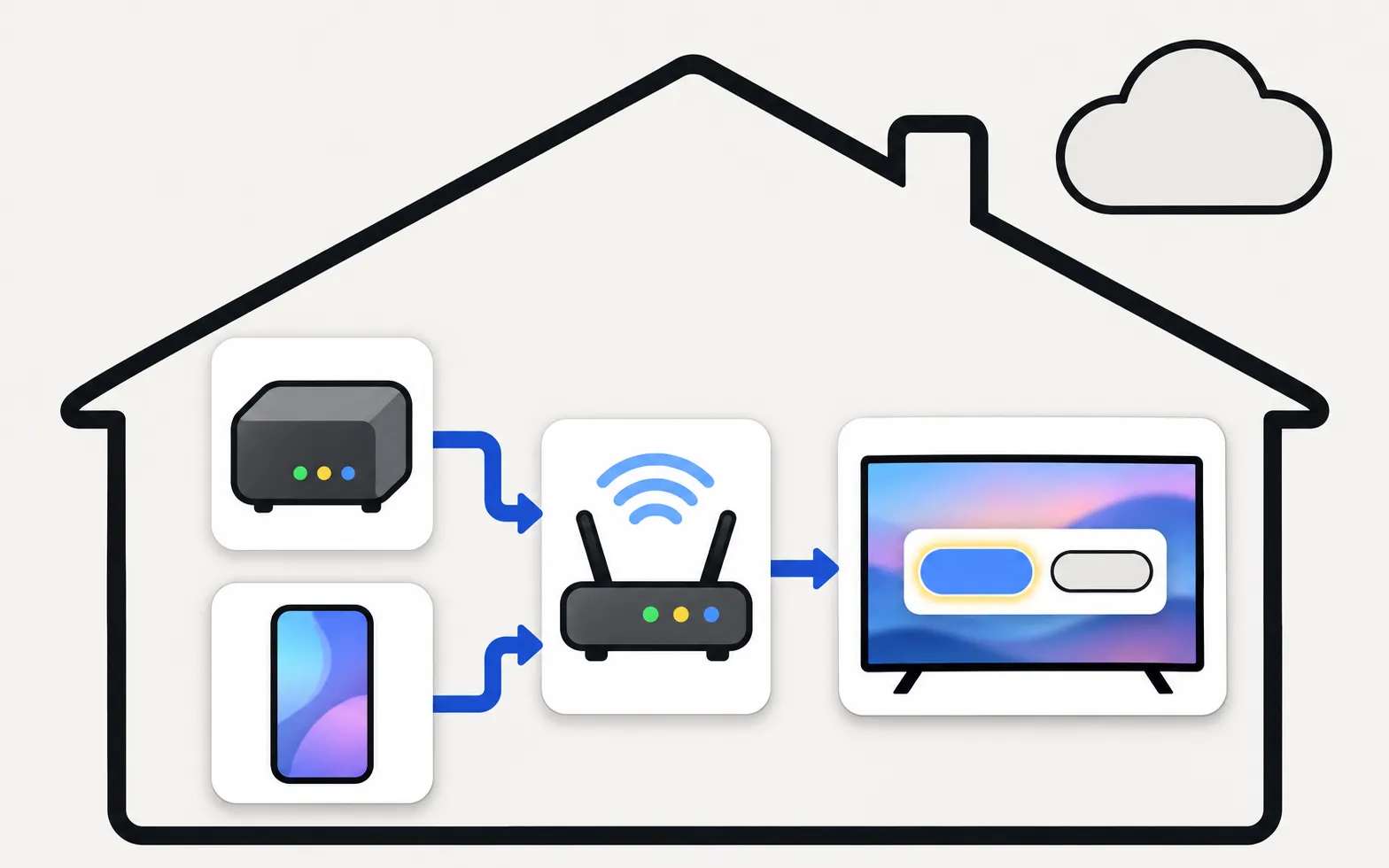
Samsung Tizen TVs (2016 and later, per Home Assistant’s documentation) accept commands from devices on the same home network over a local WebSocket connection, once you allow the device on the TV. Home Assistant, phone remote apps and other tools use it in the same way: the commands go from your device to the TV through your router, not through the internet.
That’s also why the same things break them:
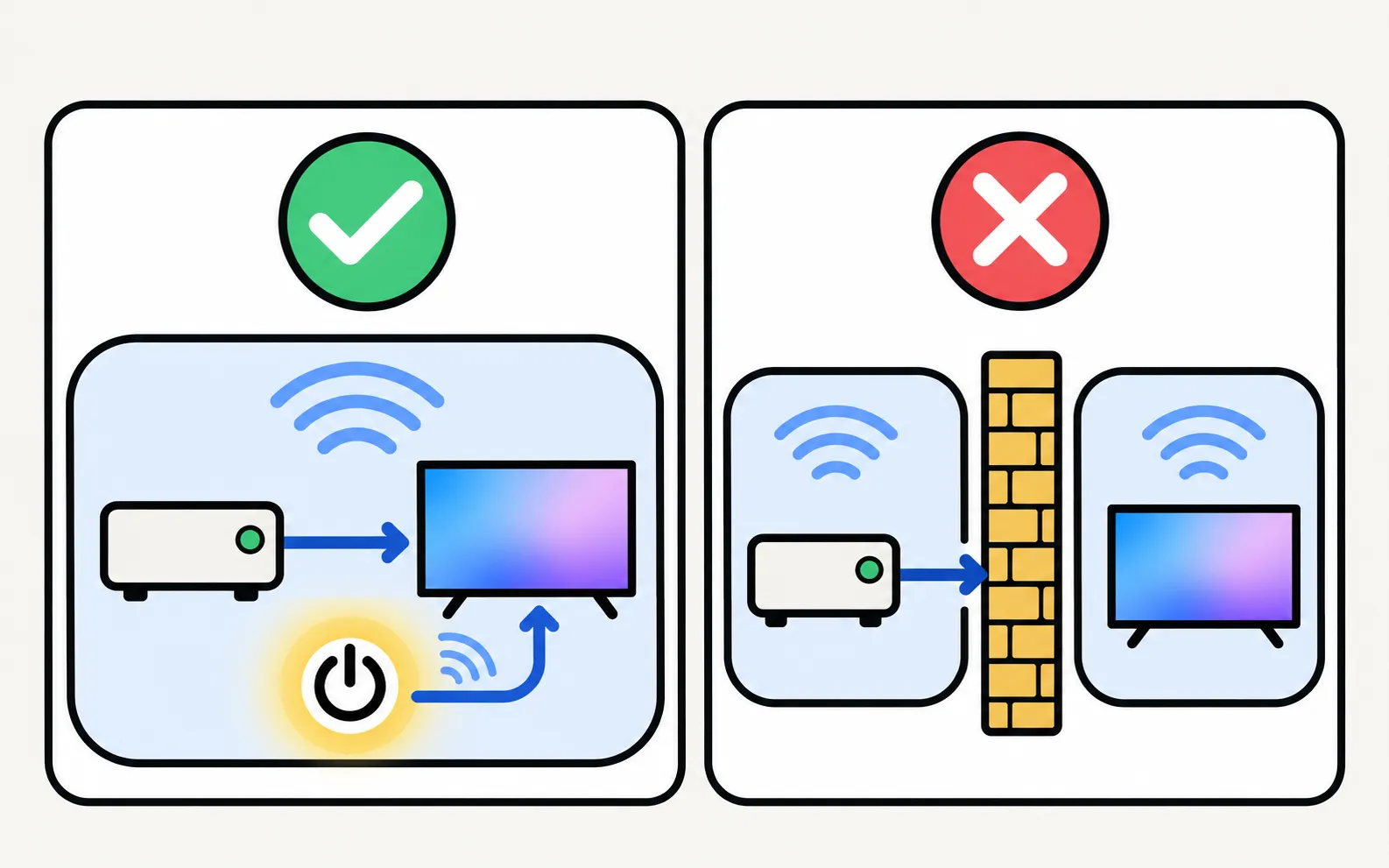
- Different networks: guest Wi-Fi, separate VLANs or subnets block the connection.
- Access refused: a denied or expired Allow prompt — see the Allow prompt.
- TV fully off: network wake-up needs the right setting — see turn on the TV with your phone.
Prefer a voice assistant? See Alexa and Google Home. Remote app can’t find the TV? TV not showing up.
Frequently asked questions
Do I need SmartThings for Home Assistant?
No. The samsungtv integration talks to the TV directly on your local network. Home Assistant's documentation doesn't require SmartThings for it.
Why does the TV keep asking me to allow Home Assistant?
Newer TVs can ask on every connection. Home Assistant suggests setting Device connection manager › Access notification to First time only, then clearing old connection attempts.
Home Assistant can turn the TV off but not on. Why?
Power-on uses Wake-on-LAN, which must be enabled on the TV, and needs the TV's MAC address. For TVs on smart plugs or with unusual setups you can define your own turn-on action.
My TV is on a separate VLAN for IoT devices. Will it work?
Home Assistant notes that Samsung TVs don't allow WebSocket connections across different subnets or VLANs. Put Home Assistant and the TV on the same network, or use a proxy or masquerading setup.
Sources
- Samsung Smart TV integration — Home Assistant · Reference · checked November 11, 2026
- Samsung TV Remote product documentation (developer-supplied facts) — Smart App Craft · Developer · checked November 10, 2026
Related guides

How-to
Alexa and Google Home
Use Alexa or Google Home with a Samsung TV: built-in Alexa on supported models, linking via SmartThings, what voice can control, and the setting power-on needs.

Troubleshooting
Allow prompt keeps appearing
Why your Samsung TV keeps asking to Allow a phone, how to stop it, and how to undo a Deny — with the Device Connection Manager settings by TV year.

How-to
Turn the TV on with your phone
Switch a Samsung TV on from your phone: enable Power On with Mobile (menu paths by year), keep the TV in standby, and fix a TV that won't wake over Wi-Fi.
Troubleshooting
TV not showing up on your phone
Phone can't find your Samsung TV? Turn the TV fully on, put both on the same home Wi-Fi, switch off VPN and guest networks, and allow local network access.
How-to
IP and MAC address
Find a Samsung TV's IP address (Network Status, IP Settings) and MAC address (About This TV), why you might need them, and how to reserve the IP in your router.