
How-to
Connect Alexa or Google Home to a Samsung TV: voice control
Two different things share the name 'Alexa on my TV': Alexa built into the TV, and an Echo or Google speaker controlling the TV. Here's how both work with Samsung.
Quick answer
On supported Samsung TVs, Alexa can be the TV's built-in voice assistant: choose it in Settings, General, Voice, then scan the QR code with the Amazon Alexa app. To control the TV from an Echo or Google Home speaker, link Samsung's SmartThings service in the Alexa or Google Home app after adding the TV to SmartThings. For voice power-on, enable Power On with Mobile and keep the TV plugged in.
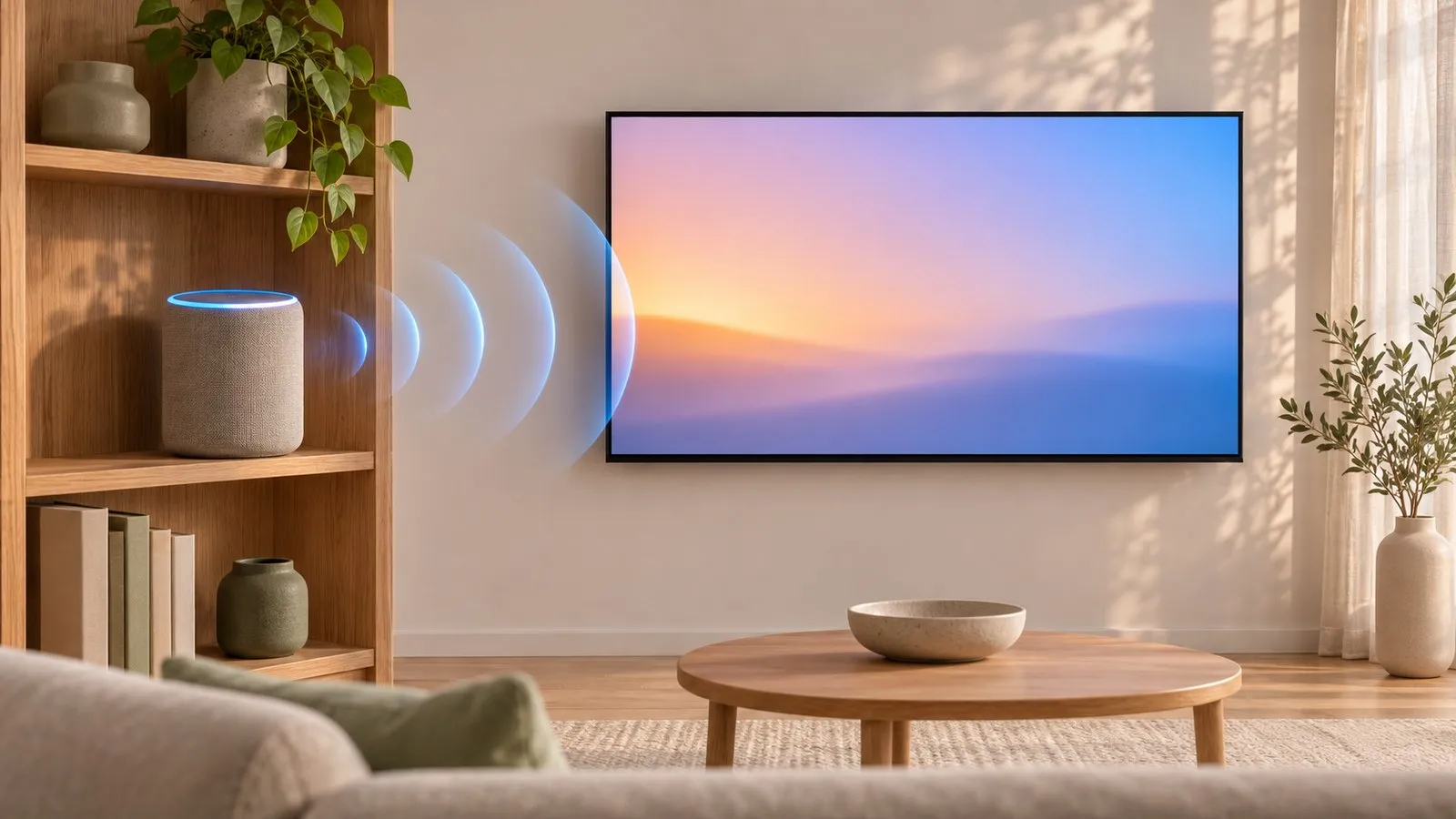
Option 1: Alexa built into the TV
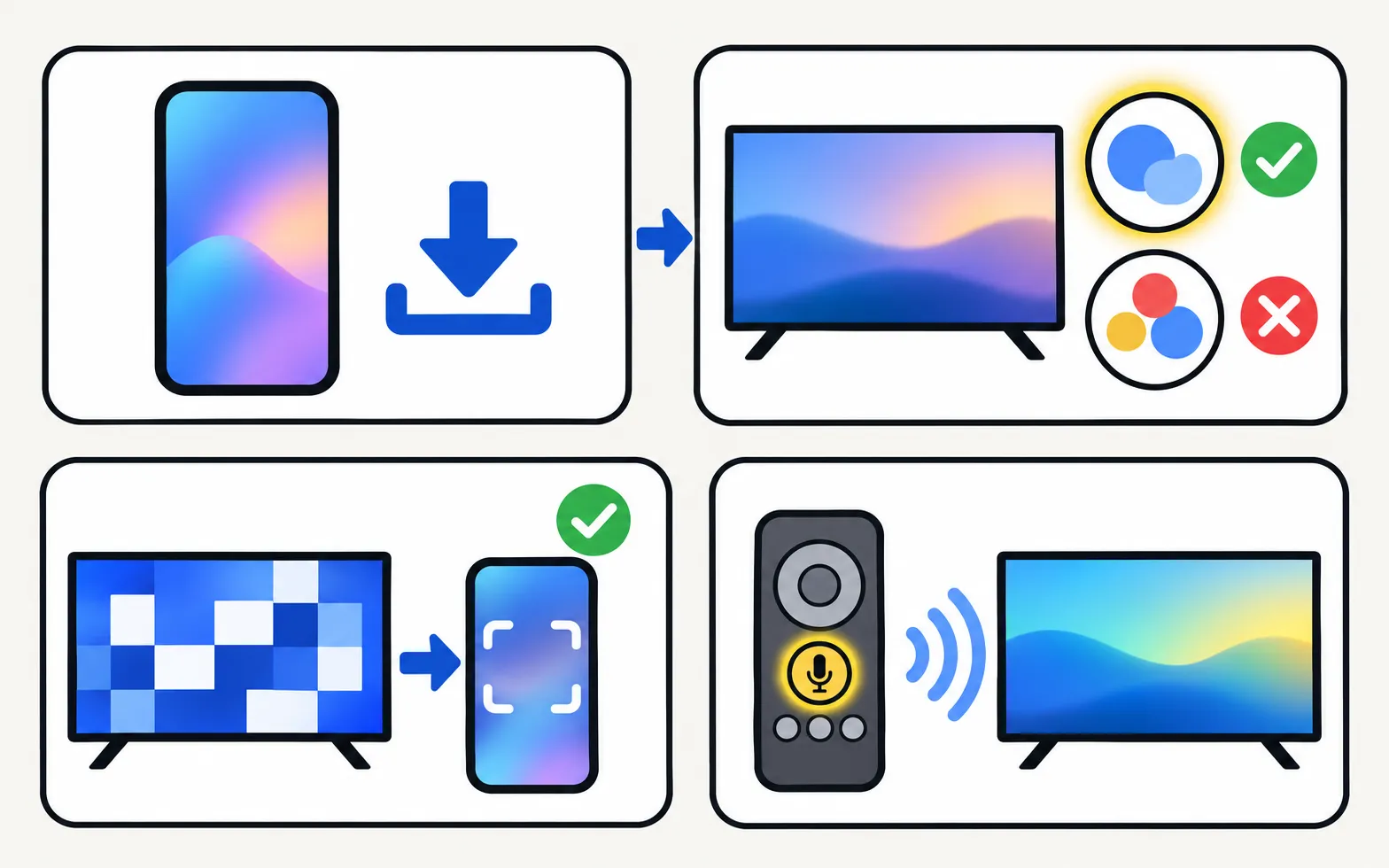
On supported models and regions, Alexa can be the TV’s own voice assistant. Samsung’s US guides:
-
Install the Amazon Alexa app
On your phone, before starting. -
Choose Alexa on the TV
Settings → General → Voice → Voice Assistant → Alexa (General & Privacy on newer models). Alexa may also be offered during first setup. -
Scan the QR code
Sign in to your Amazon account and tap Allow on the phone. -
Use it
Say “Alexa” while pressing the remote’s microphone button.
Switching between Bixby and Alexa means running Alexa’s setup again. More on assistants: voice control.
Option 2: an Echo or Google Home speaker controls the TV
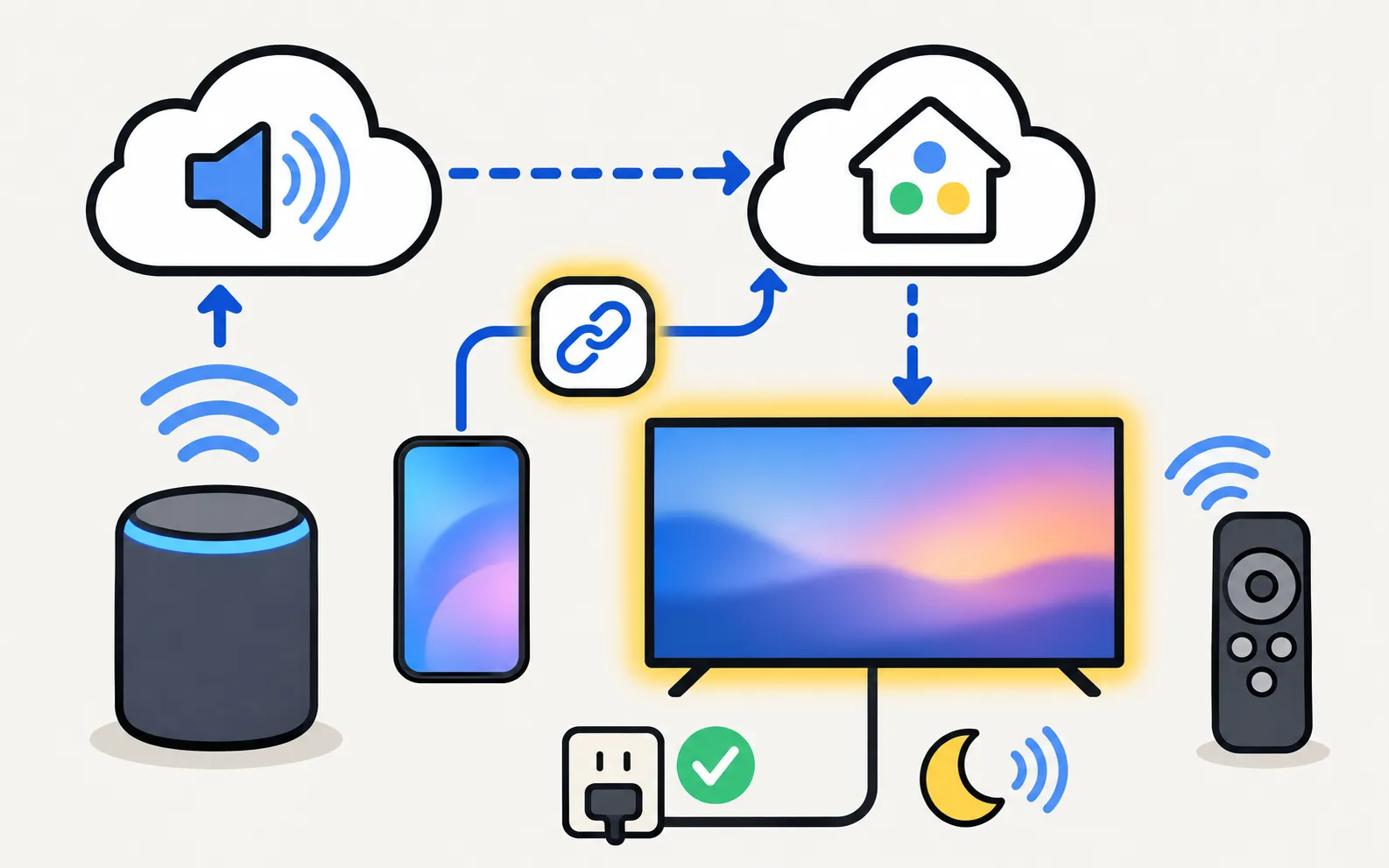
-
Add the TV to SmartThings
With a Samsung account (add a TV to SmartThings). -
Link SmartThings
In the Alexa app or the Google Home app, add the SmartThings service and sign in with the same Samsung account. -
Discover devices
The TV appears as a device you can control by voice.
Typical commands cover power, volume, mute and switching inputs or channels; the exact set depends on the TV and the assistant.
Make voice power-on work
Speakers can only switch the TV on if the TV is listening in standby:
- Turn on Power On with Mobile — paths by year in turn on your Samsung TV with your phone.
- Keep the TV plugged in (not on a switched-off power strip).
- Samsung notes some 2017–2018 models appear offline in SmartThings when switched off (SmartThings not working).
When the TV turns on unexpectedly
Routines in Alexa, Google Home or SmartThings can switch the TV on at set times. Check them first if the TV seems to have a mind of its own (turns on by itself).
Frequently asked questions
Can Google Assistant run on my Samsung TV?
Not any more: Samsung removed Google Assistant from its TVs in early 2024 (reported by 9to5Google, 2 February 2024). Google Home speakers can still control the TV through SmartThings.
Can Alexa turn on my Samsung TV?
It can when the TV is linked through SmartThings and Power On with Mobile is enabled, as long as the TV stays plugged in.
Do I need a Samsung account?
Yes for SmartThings linking, and for Bixby. Built-in Alexa uses your Amazon account.
Sources
- Use Alexa with your Samsung TV or monitor (ANS10005261) — Samsung US · Samsung · checked November 11, 2026
- Report on the removal of Google Assistant from Samsung TVs — 9to5Google (2 Feb 2024) · Media · checked November 10, 2026
- Samsung Australia support: power on the TV with the SmartThings app (Power On with Mobile) — Samsung Australia · Samsung · checked November 10, 2026
- How to use SmartThings on your TV (add a TV to SmartThings) — Samsung Canada · Samsung · checked November 11, 2026
Related guides
Troubleshooting
Voice control
Set up Bixby or Alexa on a Samsung TV, fix a microphone button that does nothing, and why Google Assistant disappeared from Samsung TVs in 2024.
How-to
Add a TV to SmartThings
What SmartThings does for a Samsung TV, what you need, how to add the TV automatically or with the PIN, and fixes when SmartThings can't find it.
How-to
Turn the TV on with your phone
Switch a Samsung TV on from your phone: enable Power On with Mobile (menu paths by year), keep the TV in standby, and fix a TV that won't wake over Wi-Fi.

How-to
Home Assistant
Add a Samsung Smart TV to Home Assistant with the samsungtv integration: discovery, the Allow prompt, Wake-on-LAN power-on, what it controls and the VLAN limit.

Troubleshooting
TV turns on by itself
Samsung TV switching itself on at night or in the morning? Read the Event Log's power-on reason, then turn off Anynet+, Power On with Mobile or the trigger.