
How-to
Mirror a Windows laptop to a Samsung TV: wireless or HDMI
A cable gives a perfect, lag-free picture; wireless is convenient for presentations and photos. Here's how to do both with a Samsung TV.
Quick answer
For the best picture, connect the laptop's HDMI port (or USB-C with an HDMI adapter) to a TV HDMI port and select that input on the TV. For wireless, press Windows key + K on the laptop and pick the Samsung TV from the list — this uses Miracast, which many Samsung TVs accept for screen mirroring. Both need the TV switched on; wireless also needs both on the same network.
Option 1: HDMI cable (recommended)
-
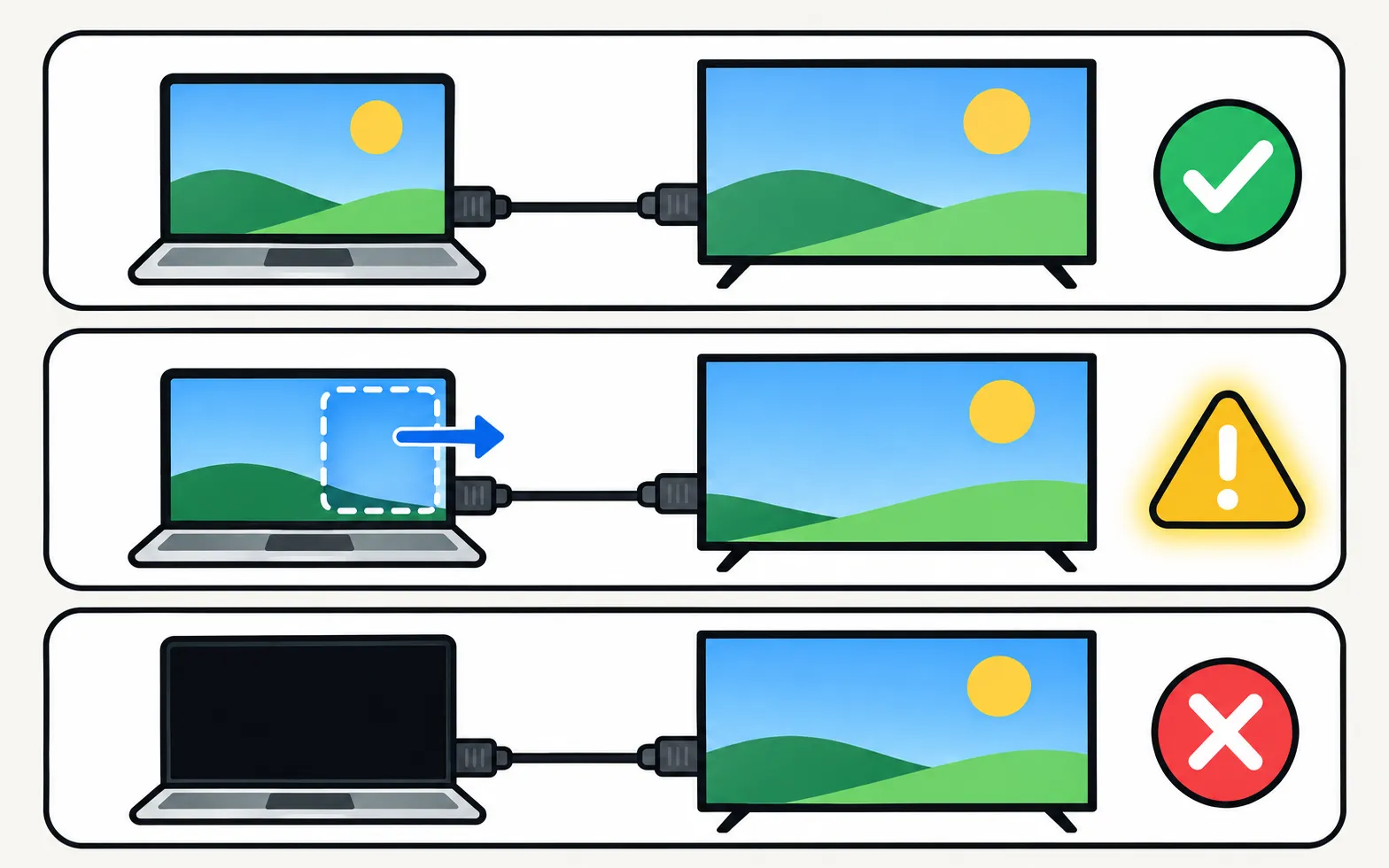
Connect the cable
Laptop HDMI port (or USB-C/Thunderbolt with an HDMI adapter) → a TV HDMI port. -
Select the input
Choose that HDMI input on the TV (change the input). -
Choose a display mode
On the laptop, press Windows key + P: Duplicate, Extend or Second screen only. -
Set resolution and sound
In Windows display settings, pick the TV’s native resolution; in sound settings, choose the TV if audio stays on the laptop.
No picture? Samsung’s checks for HDMI devices apply: make sure the laptop isn’t asleep, select the right source, reconnect the cable and try another port (HDMI no signal).
For gaming and movies
- Use the TV’s Game Mode for low input lag (Game Mode).
- For 4K HDR or high refresh rates, turn on Input Signal Plus for that HDMI port and use a high-quality cable.
Option 2: wireless with Windows Cast (Miracast)
-
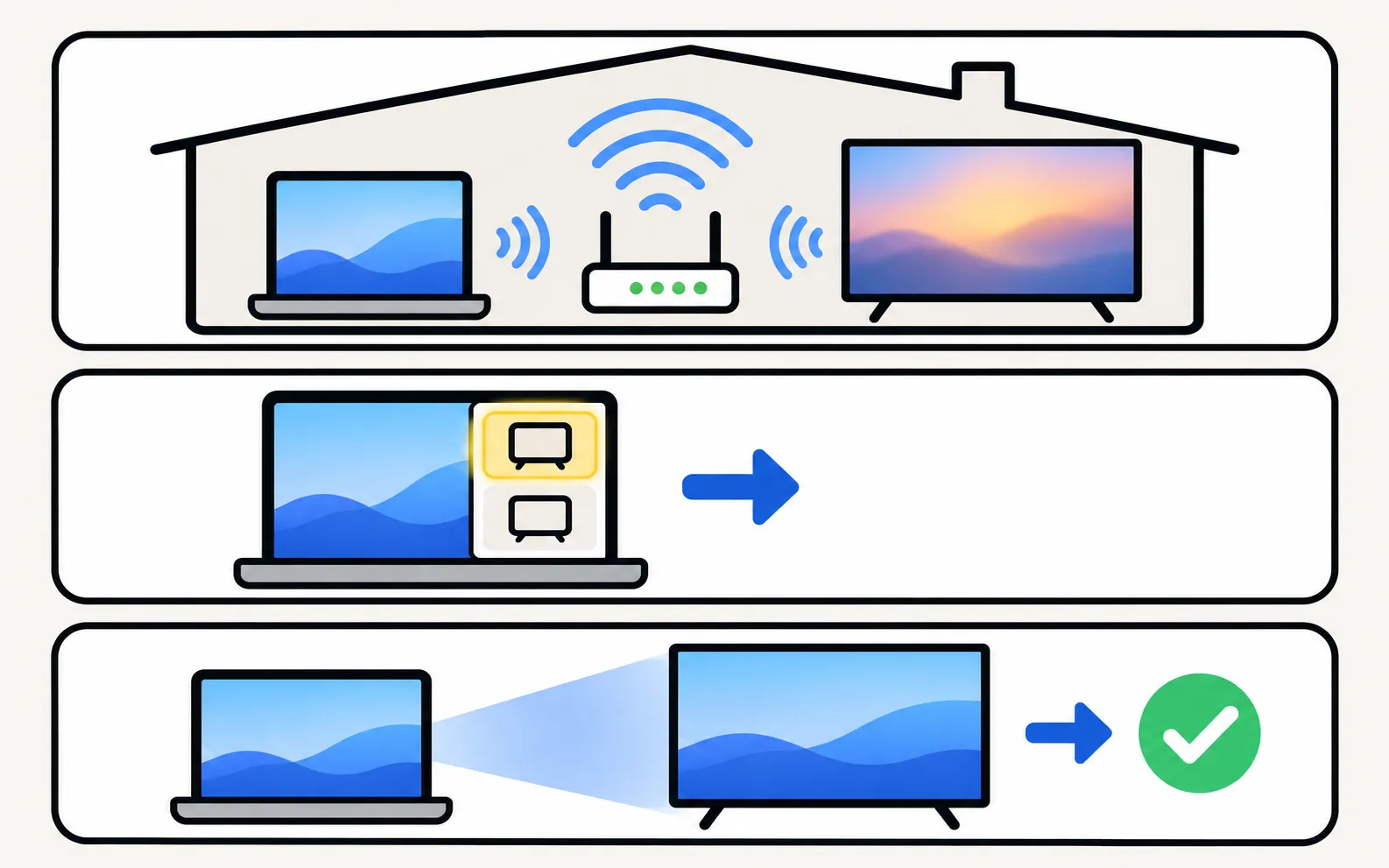
Same network
Connect the laptop to the same Wi-Fi as the TV. -
Open Cast
Press Windows key + K (or use Cast in the quick settings). -
Choose the TV
Select your Samsung TV; accept the connection on the TV if asked.
Samsung’s Smart View guide notes that mirroring needs a TV that supports Miracast or Samsung’s protocol. Wireless mirroring has more delay than a cable — fine for slides and photos, not for games.
Control the laptop from the sofa
A Bluetooth or wireless keyboard with touchpad connected to the laptop makes this setup comfortable. To control the TV itself with a keyboard, see keyboard and mouse on a Samsung TV.
Mac users: mirror or extend a Mac.
Frequently asked questions
Why is there no sound on the TV from my laptop?
Choose the TV as the sound output on the laptop (Windows sound settings). Over HDMI, Windows usually switches automatically, but not always.
The TV doesn't appear in Windows' Cast list. Why?
The laptop's Wi-Fi adapter must support Miracast, both devices should be on the same network, and the TV must be on. A cable is the reliable fallback.
Can I use the TV as a second monitor?
Yes. Press Windows key + P and choose Extend to use the TV as a second screen, or Duplicate to show the same picture.
Why are the edges of my desktop cut off?
That's overscan. Set the TV's picture size to fit the screen, and check the graphics driver's scaling.
Sources
- How to fix Smart View connection and casting issues — Samsung UAE · Samsung · checked November 11, 2026
- My TV doesn't detect a device connected via HDMI — Samsung UK · Samsung · checked November 11, 2026
- Connect a Keyboard & Mouse to your Samsung TV — Samsung Australia · Samsung · checked November 11, 2026
Related guides
How-to
Mac to Samsung TV
Show a Mac on a Samsung TV with AirPlay (2018 and newer TVs) or HDMI: mirror or use the TV as a second display, and fix the code prompt, sound and resolution.
Troubleshooting
Mirroring not working
Samsung TV not showing up for screen mirroring, connection drops, black screen or no sound? Fixes for Smart View, AirPlay and mirroring apps, by symptom.
Troubleshooting
HDMI no signal
Samsung TV says No Signal or won't detect HDMI? Wake the device, pick the right source, reconnect in Samsung's order, run HDMI Troubleshooting, check 4K 120 Hz.
How-to
Change the input
Switch HDMI inputs on a Samsung TV: the Source list on the Home screen, the TV's control button, a phone remote, HDMI-CEC from the device, or renamed inputs.

How-to
PS5 and Xbox settings
Set up a PS5 or Xbox Series X|S on a Samsung TV: HDMI port, Game Mode, Input Signal Plus, 4K 120 Hz and VRR on capable models, HDR and audio settings.