
How-to
Best Samsung TV settings for PS5 and Xbox (4K 120 Hz, VRR, HDR)
Getting 4K 120 Hz and VRR from a console depends first on whether your Samsung TV supports them. Then it's four settings.
Quick answer
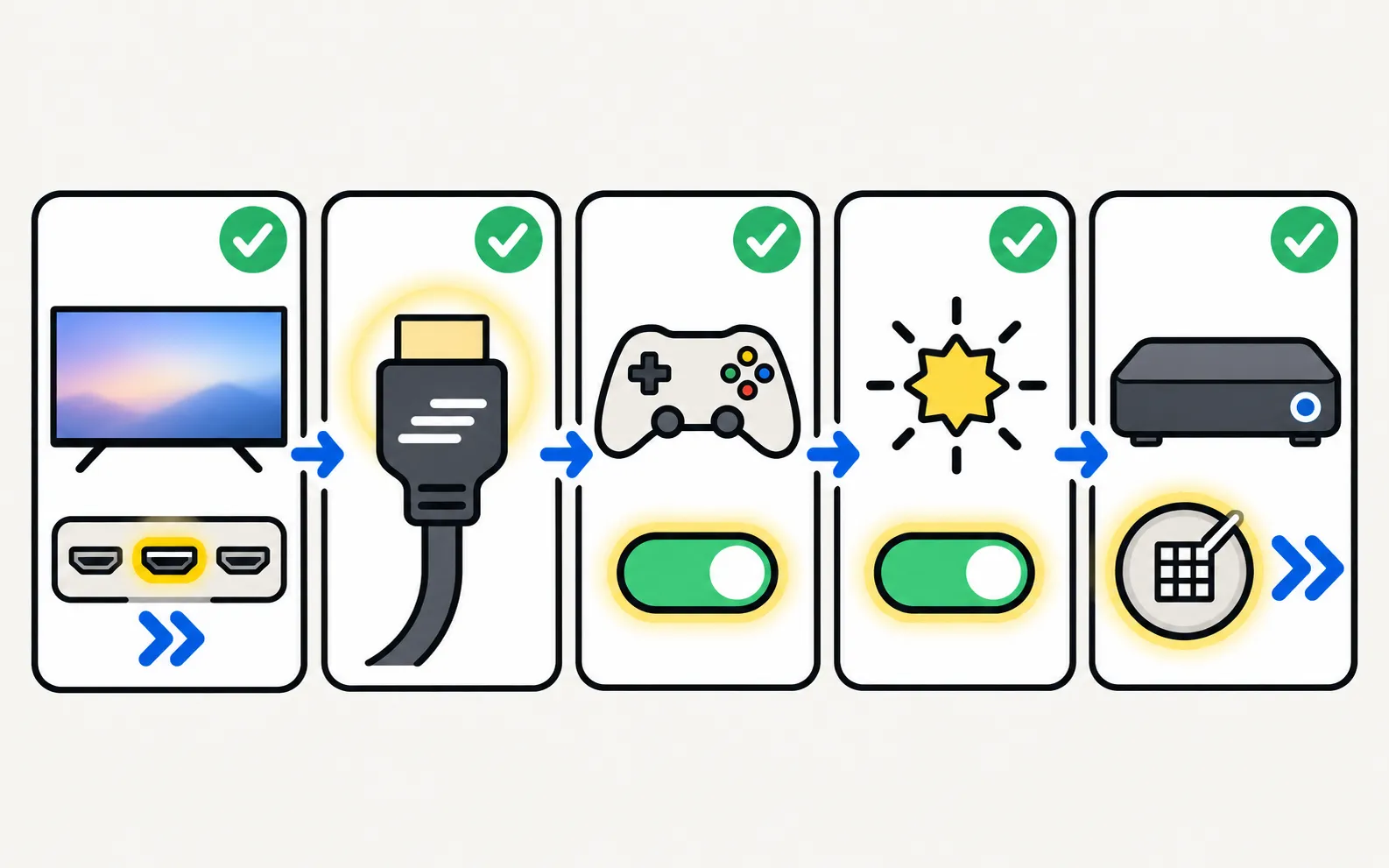
Connect the console to an HDMI port that supports 4K 120 Hz (if your TV has one), turn on Game Mode (or Auto) and Input Signal Plus for that port, and use the console's own video settings to enable 120 Hz, VRR and HDR, then run its HDR calibration. Entry Samsung TVs such as the CU7000, DU7200, U8000F and 2025 Q7F are 60 Hz and can't show 4K 120 Hz; high-end models such as the 2025 QN90F support it on all four HDMI ports.
Step 1: know what your TV can do
| Your TV | 4K 120 Hz | VRR | Source |
|---|---|---|---|
| High-end, e.g. 2025 QN90F | Yes — all four HDMI ports up to 4K 165 Hz | Yes | RTINGS |
| 2025 Q8F (QLED step-up) | Yes, HDMI 2.1 on all four inputs | Yes | RTINGS (Q7F review) |
| 2025 Q7F | No (60 Hz) | No | RTINGS |
| 2024 DU7200 | No (60 Hz, HDMI 2.0) | Basic, 48–60 Hz | RTINGS |
| 2023 CU7000 | No (60 Hz) | No | RTINGS |
Check your series on our model pages, or your TV’s specifications for “120 Hz”, “HDMI 2.1” and “VRR”. No console at all? Samsung Gaming Hub streams games from the cloud on supported TVs.
Step 2: TV settings
-
Use the right HDMI port
On models where only some ports support 4K 120 Hz, they’re labelled or listed in the manual. -
Game Mode on (or Auto)
Paths by year in Game Mode. Samsung says consoles are detected automatically. -
Input Signal Plus on for that port
Lets the port accept high-bandwidth 4K HDR/120 Hz signals. -
Ultra High Speed HDMI cable
For 4K 120 Hz; the cable in the console box is fine.
Step 3: console settings
- PS5: in Settings → Screen and Video, set video output to automatic/4K, enable 120 Hz output and VRR (where the TV supports them), and run Adjust HDR.
- Xbox Series X|S: in Settings → General → TV & display options, choose 4K and 120 Hz if listed, enable VRR and auto low-latency mode, and run the HDR game calibration app.
Step 4: sound
Consoles can send surround sound to a soundbar through the TV’s eARC/ARC port. If lip-sync is off, see audio out of sync. Samsung TVs don’t pass through DTS over eARC.
Troubleshooting
- No signal at 120 Hz: cable, port and Input Signal Plus — HDMI no signal.
- Picture flickers in Game Mode: some models’ backlights flicker in Game Mode — flickering.
- HDR looks washed out or dark: HDR on Samsung TVs.
- Green, purple or pink tint from the console: usually the cable or the console’s colour-format settings — wrong colours on a Samsung TV.
- The console switches the TV on (or the TV switches the console on): that’s HDMI-CEC, which Samsung calls Anynet+ — keep it, or limit it.
More console, Game Mode and cloud-gaming guides: gaming on Samsung TVs.
Frequently asked questions
Why can't I select 120 Hz on my console?
Your TV or the port may not support it. Many entry Samsung TVs have 60 Hz panels. On capable models, use a 4K 120 Hz port, an Ultra High Speed HDMI cable and Input Signal Plus.
Do Samsung TVs support Dolby Vision gaming?
No. Samsung TVs support HDR10 and HDR10+, not Dolby Vision. Consoles output HDR10 to Samsung TVs.
What is VRR and do I need it?
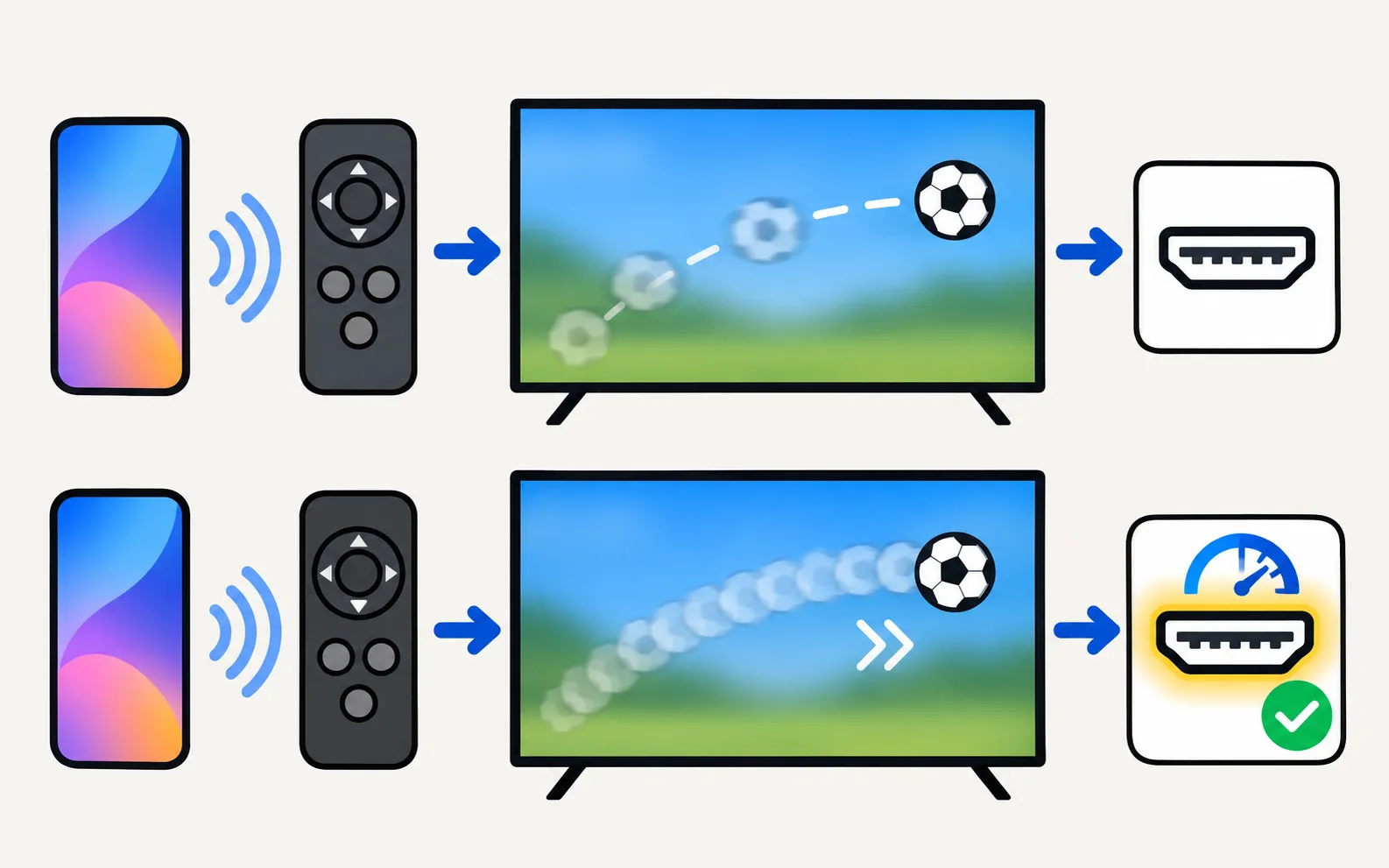
Variable refresh rate matches the TV's refresh to the game's frame rate to avoid tearing. It helps most when frame rates fluctuate. Some entry models have only a narrow VRR range, which RTINGS notes is less effective.
My console shows no signal at 4K 120 Hz. What now?
Check the port, the cable and Input Signal Plus; lower to 60 Hz temporarily to confirm. See the HDMI no signal guide.
Sources
- Game Mode Settings on your Samsung TV (paths 2016–2025) — Samsung Australia · Samsung · checked November 11, 2026
- Samsung QN90F review — RTINGS.com · Reference · checked November 11, 2026
- Samsung Q7F 2025 review — RTINGS.com · Reference · checked November 11, 2026
- Samsung CU7000/CU7000D review — RTINGS.com · Reference · checked November 11, 2026
- Samsung DU7200 review — RTINGS.com · Reference · checked November 11, 2026
- My TV doesn't detect a device connected via HDMI — Samsung UK · Samsung · checked November 11, 2026
- What is eARC and how to set on Samsung Smart TV (incl. Anynet+ paths 2014–2026) — Samsung Australia · Samsung · checked November 11, 2026
Related guides
How-to
Game Mode
Turn on Game Mode on a Samsung TV (paths 2016–2025), make it switch on automatically, open the Game Bar and cut input lag without ruining the picture.
Troubleshooting
HDMI no signal
Samsung TV says No Signal or won't detect HDMI? Wake the device, pick the right source, reconnect in Samsung's order, run HDMI Troubleshooting, check 4K 120 Hz.

Troubleshooting
Nintendo Switch
Samsung TV shows no signal from a Switch 2 or Switch? Nintendo's checks (cable, AC adapter, direct connection, VRR), plus Game Mode and Input Signal Plus.

Explainer
HDR and Dolby Vision
Samsung TVs play HDR10, HDR10+ and HLG but not Dolby Vision. How to get HDR from a console, player or PC with Input Signal Plus and the right picture mode.

TV series
QN90F Neo QLED (2025)
Samsung's 2025 Neo QLED range (QN90F, QN80F, QN70F, European QN74F and QN83F) with QN90F specs: 165 Hz, four HDMI 2.1 ports, size differences, tested codes.