
Troubleshooting
Samsung TV screen flickering: causes and fixes
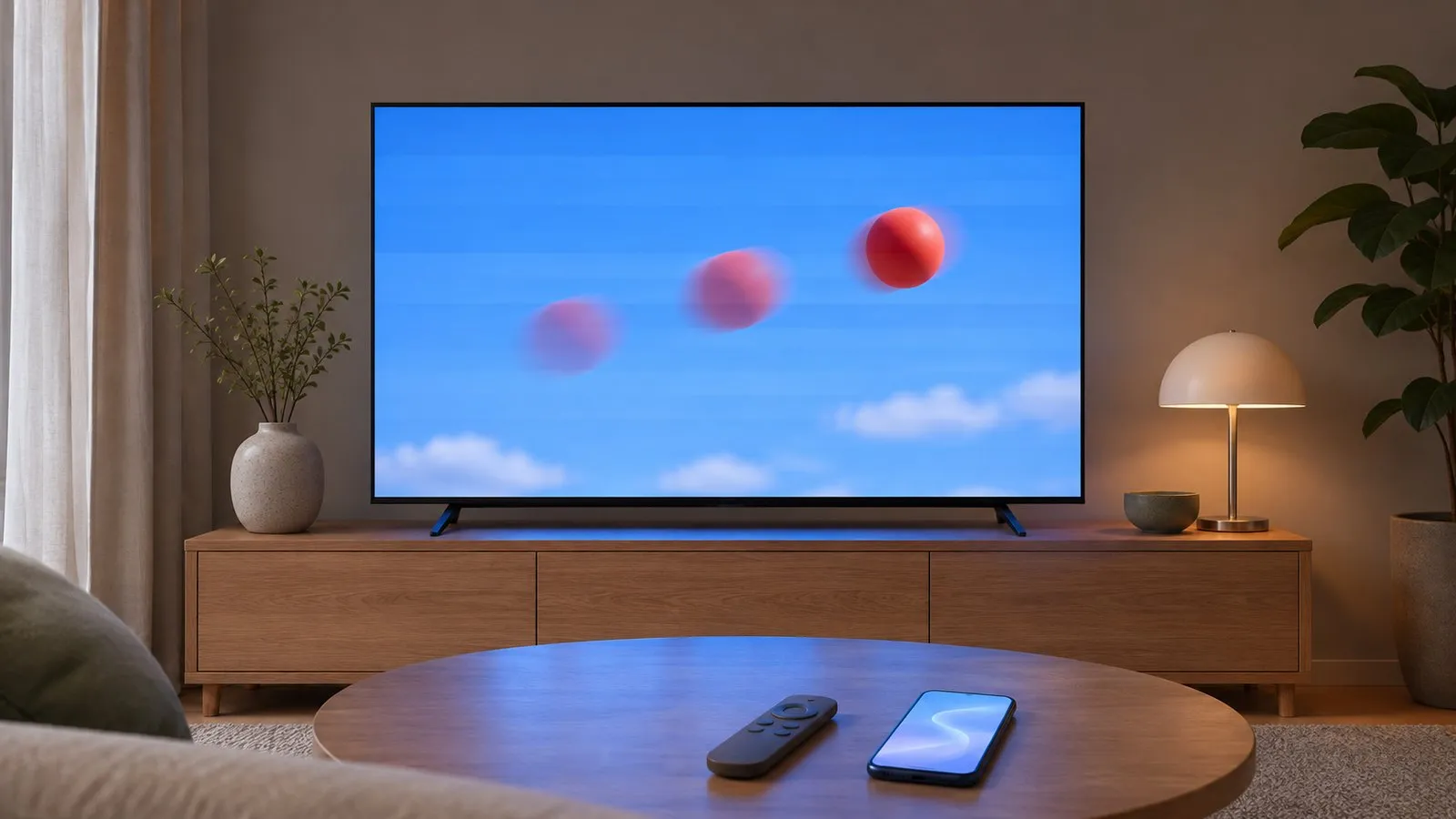
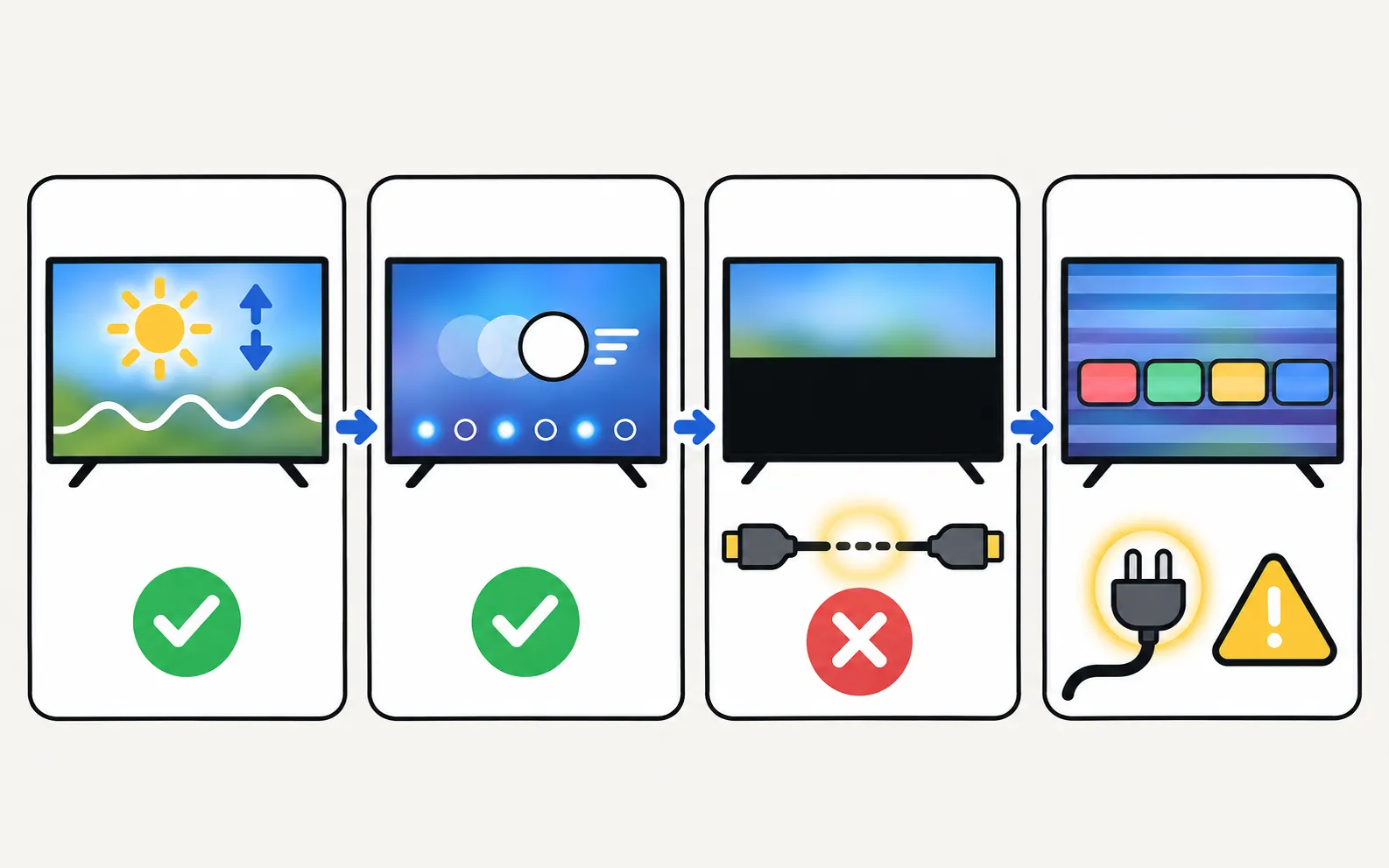
Flicker comes in three kinds: brightness that pumps up and down (settings), a picture that blinks out (signal), and a steady shimmer (backlight). Each has a different fix.
Quick answer
If the brightness pumps up and down, turn off Brightness Optimization, Motion Lighting and Contrast Enhancer. If the picture blinks or drops out on one input, reseat or replace the HDMI cable and update the source device. If you notice a shimmer in motion, turn off LED Clear Motion under Auto Motion Plus or Picture Clarity. Flicker that shows in the Picture Test needs service.
1. Brightness pumping up and down (settings)
Automatic brightness features react to the room and the content, which can look like slow flicker. Samsung’s support guide lists these to turn off:
- Brightness Optimization and Motion Lighting:
- Contrast Enhancer:
- Adaptive Picture (AI models):
More detail: picture too dark or dimming by itself.
2. Shimmer or double images in motion (backlight)
Many LED TVs drive their backlight with rapid pulses. RTINGS measures this on Samsung models — for example, entry models such as the 2020 TU7000 and 2023 CU7000 flicker at 120 Hz in Game Mode at most brightness settings. Things that help:
- Turn off LED Clear Motion, found in the Custom options of (called Picture Clarity Settings on some models).
- Raise the backlight brightness; on some models flicker reduces at maximum.
- Try a different picture mode.
3. The picture blinks or drops out (signal)
- Happens on one input only? Reseat or replace the HDMI cable (an Ultra High Speed cable for 4K 120 Hz), try another port, and update the device.
- Turn off the device’s HDR or lower its resolution to see if the blinking stops — then enable Input Signal Plus for that port.
- On an antenna, flicker or blocky drop-outs point to weak reception (no channels / reception).
4. Flicker everywhere, including the TV’s own menus
Run the Picture Test under Support, Self Diagnosis (paths by year in lines on the screen). If the test image flickers too, the backlight or panel electronics are the likely cause and the TV needs service.
5. Quick fixes worth trying first
- Unplug the TV for 30 seconds (restart properly).
- Update the software (software update).
- Reset the picture settings: Samsung’s US guide gives Settings, Picture, Expert Settings, Reset Picture.
Frequently asked questions
Why does my TV flicker only in Game Mode?
Many LED TVs drive their backlight with a pulsing (PWM) technique, and some settings or modes change its frequency. RTINGS notes that several entry Samsung models flicker at 120 Hz in Game Mode at most brightness levels.
Is flicker harmful?
Most people don't notice it; some sensitive viewers get eye strain. If it bothers you, try other picture modes, raise the backlight brightness, or consider a flicker-free model when you replace the TV.
The picture blinks black for a second now and then. What's that?
Usually an HDMI handshake dropping — a cable, a device's HDR or resolution setting, or HDCP. Try another cable and port.
Sources
- How to troubleshoot if the screen brightness of your Samsung TV changes automatically or is too dark — Samsung Hong Kong · Samsung · checked November 11, 2026
- Motion smoothing and the soap opera effect on Samsung TVs (ANS10006969) — Samsung US · Samsung · checked November 11, 2026
- Lines on Samsung TV screen (Picture Test paths 2015–2026) — Samsung Australia · Samsung · checked November 11, 2026
- How to reset your Samsung TV (ANS10005248) — Samsung US · Samsung · checked November 11, 2026
- Samsung TU7000 review — RTINGS.com · Reference · checked November 11, 2026
- Samsung CU7000/CU7000D review — RTINGS.com · Reference · checked November 11, 2026
Related guides
Troubleshooting
Picture too dark
Samsung TV too dark or dimming on its own? Turn off Brightness Optimization, Energy Saving Solution, Motion Lighting, Contrast Enhancer and Adaptive Picture.
Troubleshooting
Lines on the screen
Lines on a Samsung TV screen? Find out in two minutes if it's a cable or a panel fault: see if the lines move, check the TV's own menu and run the Picture Test.
How-to
Motion smoothing
Films look like cheap video on a Samsung TV? Turn off Auto Motion Plus (Picture Clarity) or set Custom with low Judder Reduction, with the menu path for each.
Troubleshooting
HDMI no signal
Samsung TV says No Signal or won't detect HDMI? Wake the device, pick the right source, reconnect in Samsung's order, run HDMI Troubleshooting, check 4K 120 Hz.
How-to
Best picture settings
The Samsung TV picture settings that matter: Movie or Filmmaker Mode, motion smoothing, automatic dimming and brightness for your room, and what to leave alone.