
Troubleshooting
Samsung TV picture too dark or dimming by itself: fixes
Samsung ships TVs with several automatic dimming features switched on to save energy. Each one can make the picture darker — here is where they all hide.
Quick answer
A Samsung TV that's too dark or keeps dimming usually has energy-saving and automatic features on. In Settings, All Settings, General & Privacy, Power and Energy Saving, turn off Brightness Optimization, Energy Saving Solution and Motion Lighting. In Picture, Expert Settings, turn off Contrast Enhancer and raise Brightness. On AI models, also turn off Adaptive Picture. Then choose a brighter picture mode.
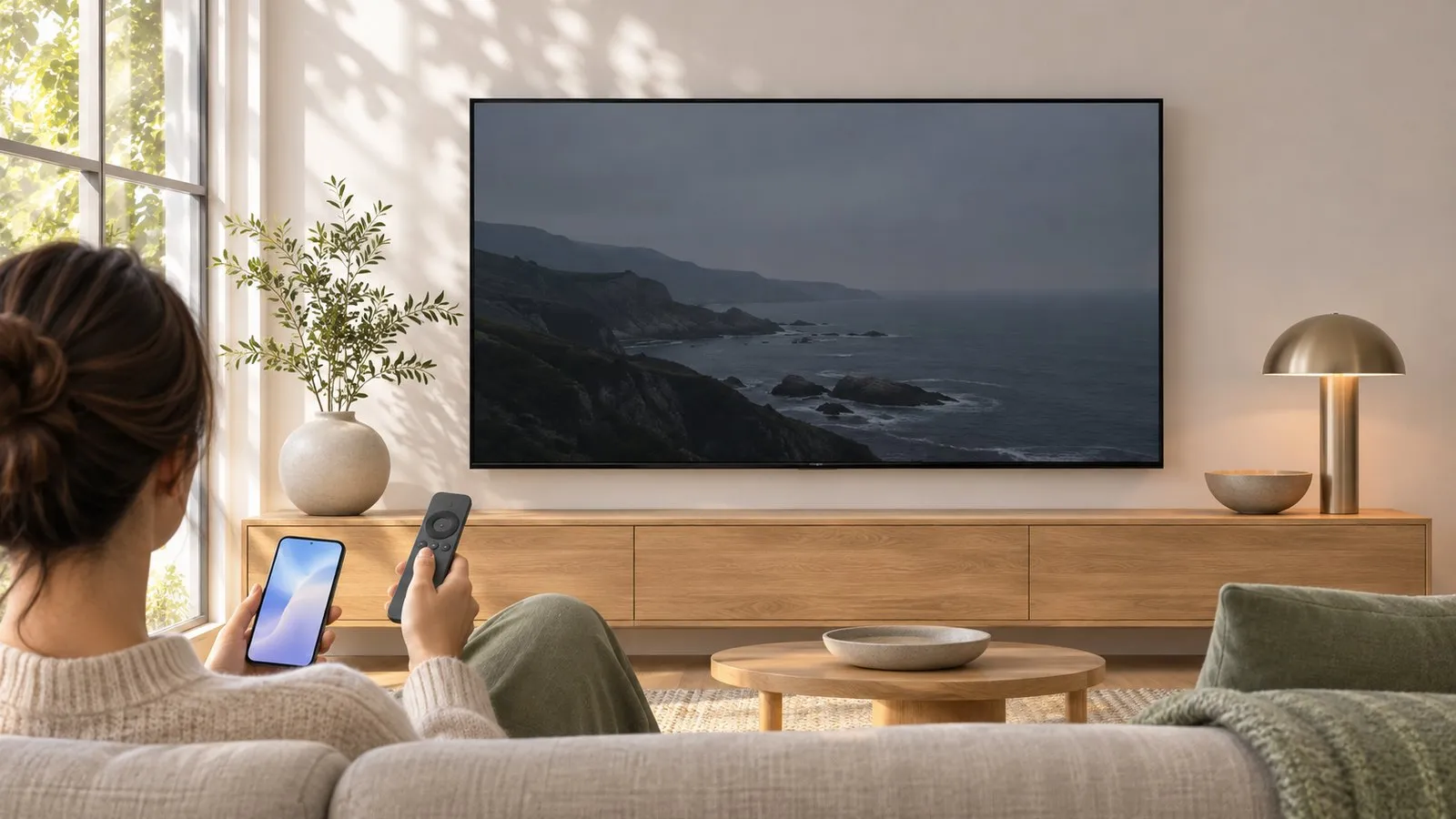
Samsung TVs balance picture and energy use out of the box. Several features can each lower the brightness — and when two or three work together, the picture looks murky or “breathes” brighter and darker. Turn them off one by one, checking the picture after each.
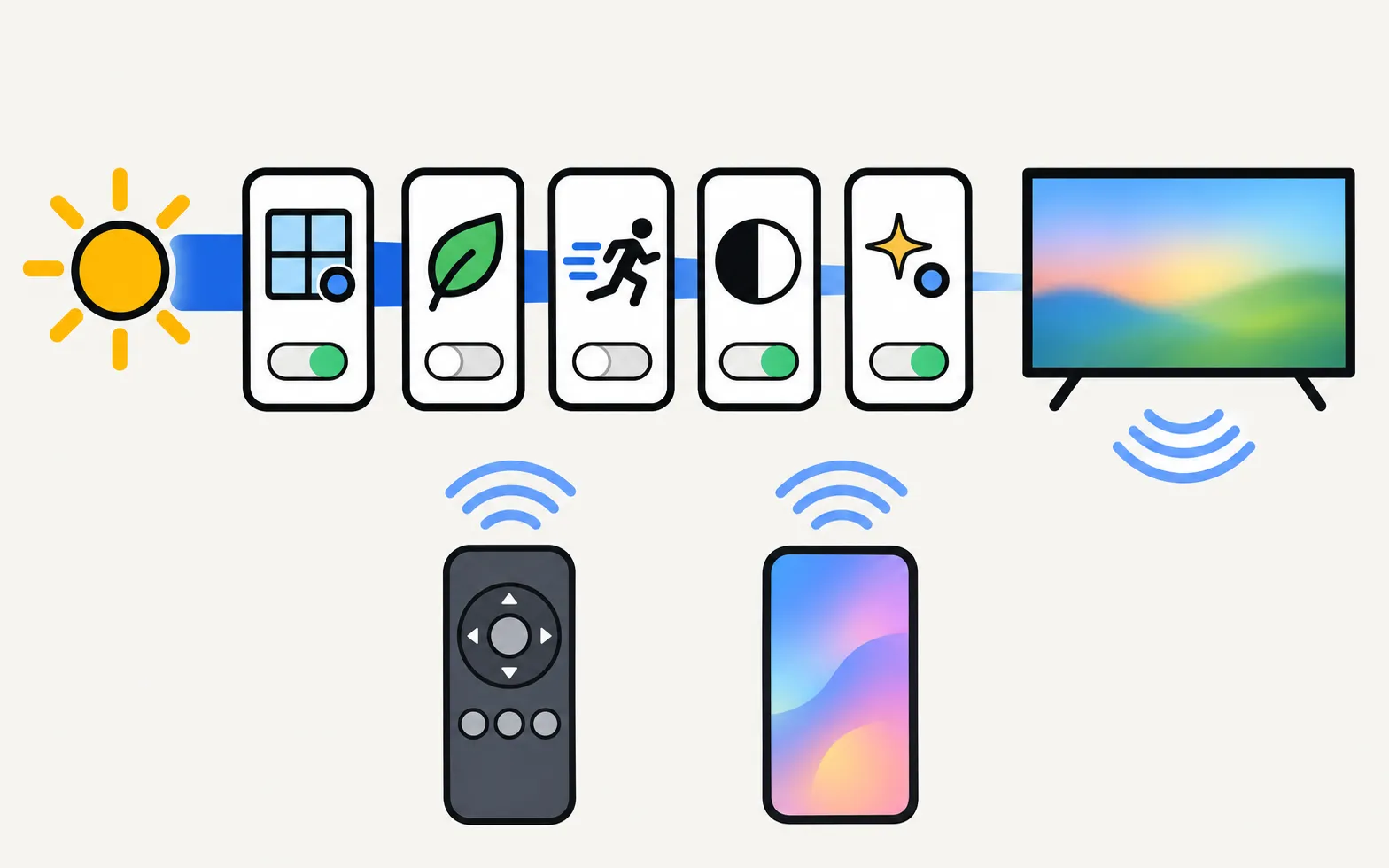
Paths below are from Samsung’s support guide for recent models. Menu names and positions vary by model, year and software; on 2017–2020 menus, energy options sit under General, sometimes in an Eco Solution submenu.
1. Energy-saving features
Open and turn off:
| Setting | What it does |
|---|---|
| Brightness Optimization | Adjusts brightness to the room’s light. Samsung notes it’s disabled while Adaptive Picture is on. |
| Energy Saving Solution | Lowers brightness to save power. Samsung’s first suspect when the screen stays dark after you raise brightness. |
| Motion Lighting | Dims the screen during motion to save energy. Also disabled while Adaptive Picture is on. |
2. Picture features
- Contrast Enhancer: → Off. It evens out bright and dark areas, which can make the overall picture flatter and darker.
- Brightness: in the same Expert Settings, raise Brightness. On LED/QLED TVs this controls the backlight; small steps make a big difference.
- Picture Mode: . Standard is bright; Movie and Filmmaker Mode are more accurate but dimmer by design. In a bright room, Standard may suit you better.
3. AI picture on newer models
On models with AI picture features, Adaptive Picture controls brightness for you: , then set Adaptive Picture to Off. Samsung notes that while Adaptive Picture is on, only the AI picture modes are offered. On 2025 and newer models these features sit under Samsung’s Vision AI umbrella — see Samsung Vision AI explained.
4. Update the software
Samsung recommends checking for a software update, which can change how these features behave (update a Samsung TV).
Still too dark?
- Only some content is dark: HDR films and dark series are often mastered darker than broadcast TV. See HDR on Samsung TVs and best picture settings.
- Dark only on one input: check the device’s own output and HDR settings.
- Patches or half the screen darker: that’s a panel or backlight fault — see dark patches or a half-dark screen.
- Dim in every mode with every setting at maximum, and getting worse: the backlight may be wearing out; it needs a technician.
Frequently asked questions
Why does my Samsung TV get darker in dark scenes or when the room is dark?
That's Brightness Optimization (also called ambient light detection or Eco Sensor on older models) adjusting to the room, or Contrast Enhancer and Motion Lighting reacting to the content. Turn them off for a stable picture.
Will turning off energy saving increase my electricity use?
Yes, somewhat — a brighter picture uses more power. Many people keep Brightness Optimization on and switch off only the features that bother them.
HDR films look too dark. Is that the same problem?
Partly. HDR content is mastered for very bright TVs, and many TVs tone it down. Use the Movie or Filmmaker mode with the settings on this page, and see the HDR guide for HDR-specific options.
My TV is dark even with every setting at maximum. Why?
If the picture is dim in every mode and input, the backlight may be failing. If parts of the screen are darker than others, see the guide to dark patches.
Sources
- How to troubleshoot if the screen brightness of your Samsung TV changes automatically or is too dark — Samsung Hong Kong · Samsung · checked November 11, 2026
Related guides
How-to
Best picture settings
The Samsung TV picture settings that matter: Movie or Filmmaker Mode, motion smoothing, automatic dimming and brightness for your room, and what to leave alone.
Troubleshooting
Black screen
Samsung TV on but the screen is black? Check if the menu appears, the input and cable, energy-saving and screen-off settings, then do the torch test.
Explainer
HDR and Dolby Vision
Samsung TVs play HDR10, HDR10+ and HLG but not Dolby Vision. How to get HDR from a console, player or PC with Input Signal Plus and the right picture mode.

Troubleshooting
Screen flickering
Samsung TV flickering? Turn off auto-brightness features and LED Clear Motion, check the HDMI cable and source, run the Picture Test and spot backlight faults.
How-to
Motion smoothing
Films look like cheap video on a Samsung TV? Turn off Auto Motion Plus (Picture Clarity) or set Custom with low Judder Reduction, with the menu path for each.