
Troubleshooting
Nintendo Switch 2 or Switch not detected on a Samsung TV: fixes
The Switch connects like any HDMI device. When the TV shows nothing, the dock's power and cable are the usual suspects — and Nintendo's checklist covers them in order.
Quick answer
Connect the dock straight to a TV HDMI port with the supplied adapter, select that input and turn on Game Mode. For a Switch 2 with no picture, Nintendo advises an Ultra High Speed HDMI cable, the Switch 2 AC adapter (NGN-01) — the original Switch adapter can't power the Switch 2 in the dock — unplugging the adapter for 20 seconds, removing splitters, and turning off the TV's VRR.
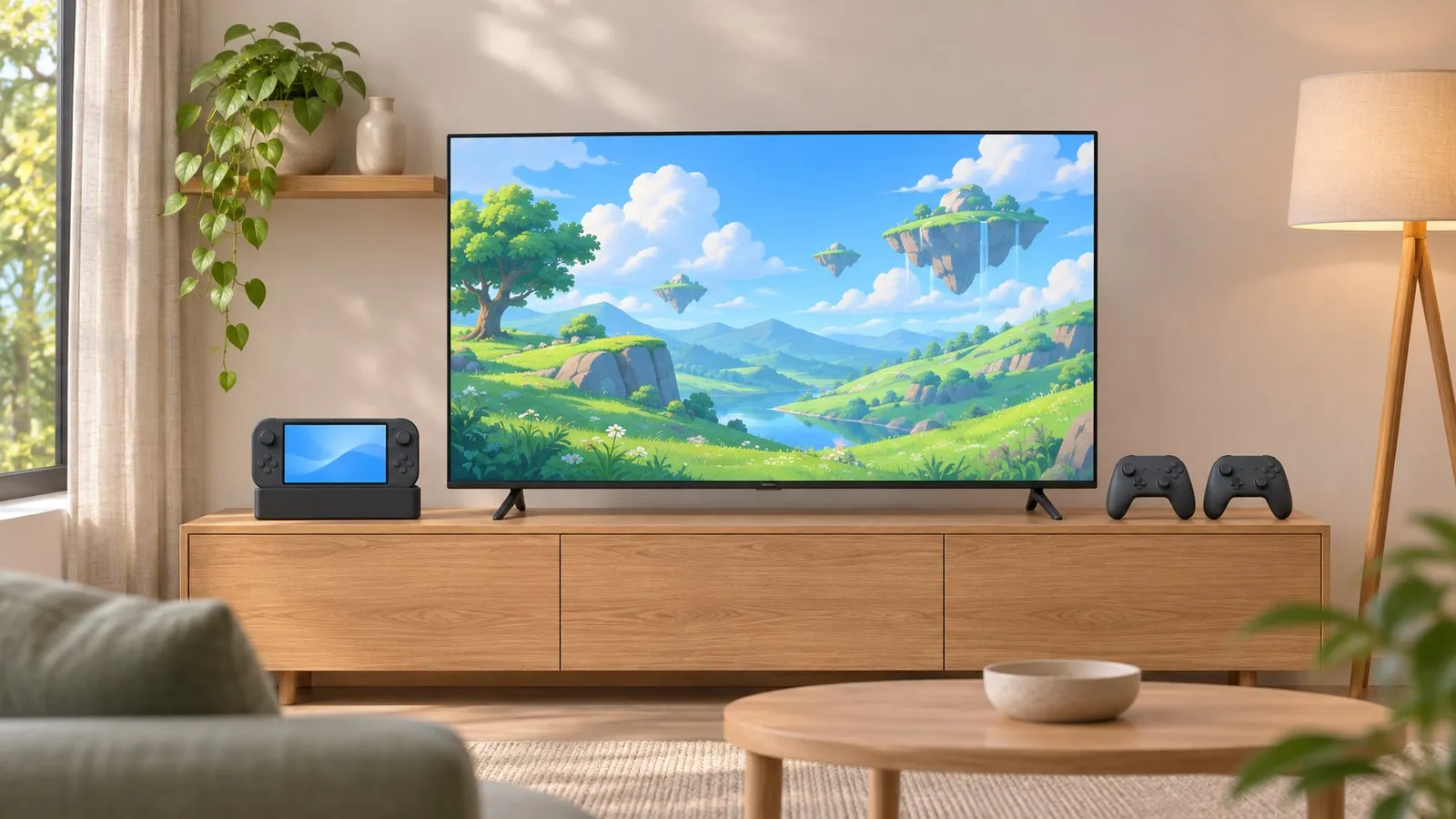
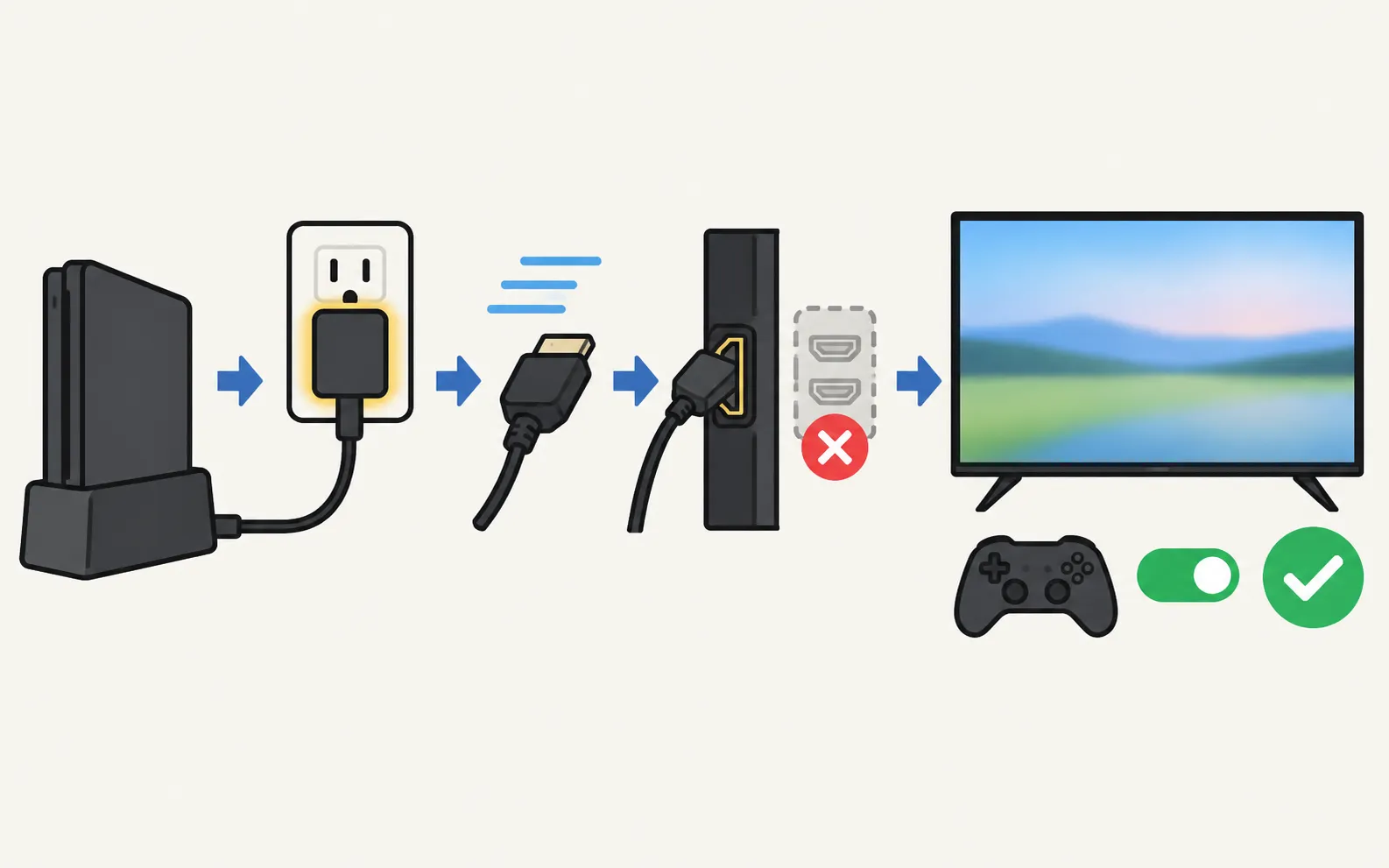
Set up the TV for the Switch
-
Connect directly
Dock HDMI out straight into a TV HDMI port — no splitter or switch in between for the first test. -
Select the input
Choose that HDMI port as the source — see change the input. -
Turn on Game Mode
It lowers input lag. Paths by year are in Game Mode. -
Enable Input Signal Plus for HDR (Switch 2)
Samsung: turn on Input Signal Plus for the HDMI port of an HDR device — . See HDR on Samsung TVs.
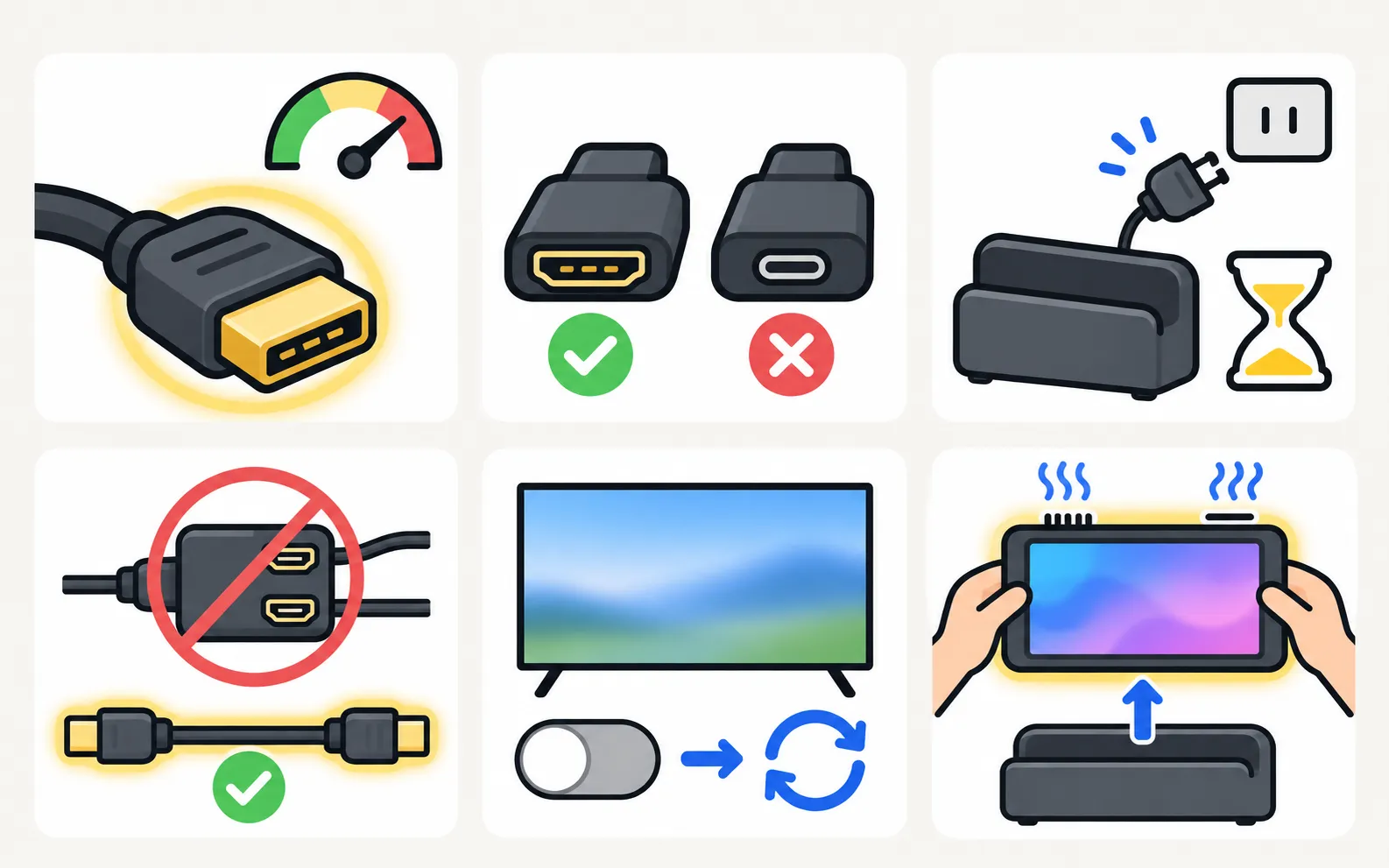
No picture from a Switch 2: Nintendo’s checklist
-
Check the cable
Use an Ultra High Speed HDMI cable (printed on the cable); try another one. -
Check the AC adapter
Use the Switch 2 adapter (NGN-01). The original Switch adapter (HAC-002) can’t charge the Switch 2 in the dock. -
Power-cycle the dock
Unplug the adapter from the dock and the wall socket, wait 20 seconds, reconnect. -
Connect directly
Remove any HDMI splitter or other device between dock and TV. -
Turn off VRR on the TV
Nintendo lists switching off Variable Refresh Rate in the TV’s settings. -
Check the console
Take it out of the dock: it should power on. Keep the console and dock vents clear and cool. Put it back — the console screen should go black when the TV takes over.
Nintendo says the dock may need repair if there’s still no TV output, and the console may need repair if it won’t charge with any adapter.
On the Samsung side
- Try another HDMI port and update the TV (software update).
- Turn Input Signal Plus off for that port as a test — if the picture returns, the cable or signal is the limit.
- Through a soundbar or receiver? Connect the dock to the TV first; route sound back with HDMI ARC — see soundbar and HDMI ARC.
- Still no signal? Follow HDMI no signal.
The original Switch
The same basics apply: the official dock and adapter, a direct HDMI connection, the right input and Game Mode. Nintendo’s checklist above is written for Switch 2; for the original Switch, follow Nintendo’s support pages for that console.
Frequently asked questions
Do I need Input Signal Plus for a Switch?
Samsung's HDR guidance is to turn on Input Signal Plus for the HDMI port of an HDR-capable device. If you use HDR on a Switch 2, enable it for that port; if the picture disappears, turn it off again to test.
Should I turn off VRR on my Samsung TV?
As a test, yes: Nintendo lists turning off Variable Refresh Rate in the TV settings among its fixes for no video output on Switch 2.
Can I use my old Switch dock or adapter with a Switch 2?
Nintendo says the original Switch AC adapter (HAC-002) can't charge the Switch 2 when it's in the dock. Use the Switch 2 adapter (NGN-01).
The Switch works on another TV but not on my Samsung.
Try another HDMI port, a different Ultra High Speed cable, VRR off and Input Signal Plus off, then update the TV. Some owners report recognition problems between particular Samsung TVs and the Switch 2; if the steps fail, contact Samsung and Nintendo support.
Sources
- No video output to TV in TV mode on Nintendo Switch 2 — Nintendo Australia · Samsung · checked November 11, 2026
- Game Mode Settings on your Samsung TV (paths 2016–2025) — Samsung Australia · Samsung · checked November 11, 2026
- Understanding HDR technology for Samsung TVs — Samsung Canada · Samsung · checked November 11, 2026
- My TV doesn't detect a device connected via HDMI — Samsung UK · Samsung · checked November 11, 2026
Related guides
How-to
Game Mode
Turn on Game Mode on a Samsung TV (paths 2016–2025), make it switch on automatically, open the Game Bar and cut input lag without ruining the picture.
How-to
PS5 and Xbox settings
Set up a PS5 or Xbox Series X|S on a Samsung TV: HDMI port, Game Mode, Input Signal Plus, 4K 120 Hz and VRR on capable models, HDR and audio settings.
Troubleshooting
HDMI no signal
Samsung TV says No Signal or won't detect HDMI? Wake the device, pick the right source, reconnect in Samsung's order, run HDMI Troubleshooting, check 4K 120 Hz.
Explainer
HDR and Dolby Vision
Samsung TVs play HDR10, HDR10+ and HLG but not Dolby Vision. How to get HDR from a console, player or PC with Input Signal Plus and the right picture mode.
Explainer
Anynet+ (HDMI-CEC)
Anynet+ is Samsung's HDMI-CEC: one remote for TV, soundbar and console — and why TVs switch on by themselves. Where to find it by year and when to turn it off.