
How-to
How to mirror an iPhone to a Samsung TV with AirPlay
Samsung TVs from 2018 onwards speak Apple's AirPlay, so an iPhone can mirror its screen or send photos, video and music without any extra app.
Quick answer
On a Samsung TV that supports AirPlay (select 2018 models and newer), connect the iPhone to the same Wi-Fi as the TV, open Control Center, tap Screen Mirroring and choose the TV, then type the code shown on the TV. To send one photo or video instead, tap Share, then AirPlay. If the TV doesn't appear, turn AirPlay on in the TV's Apple AirPlay Settings.
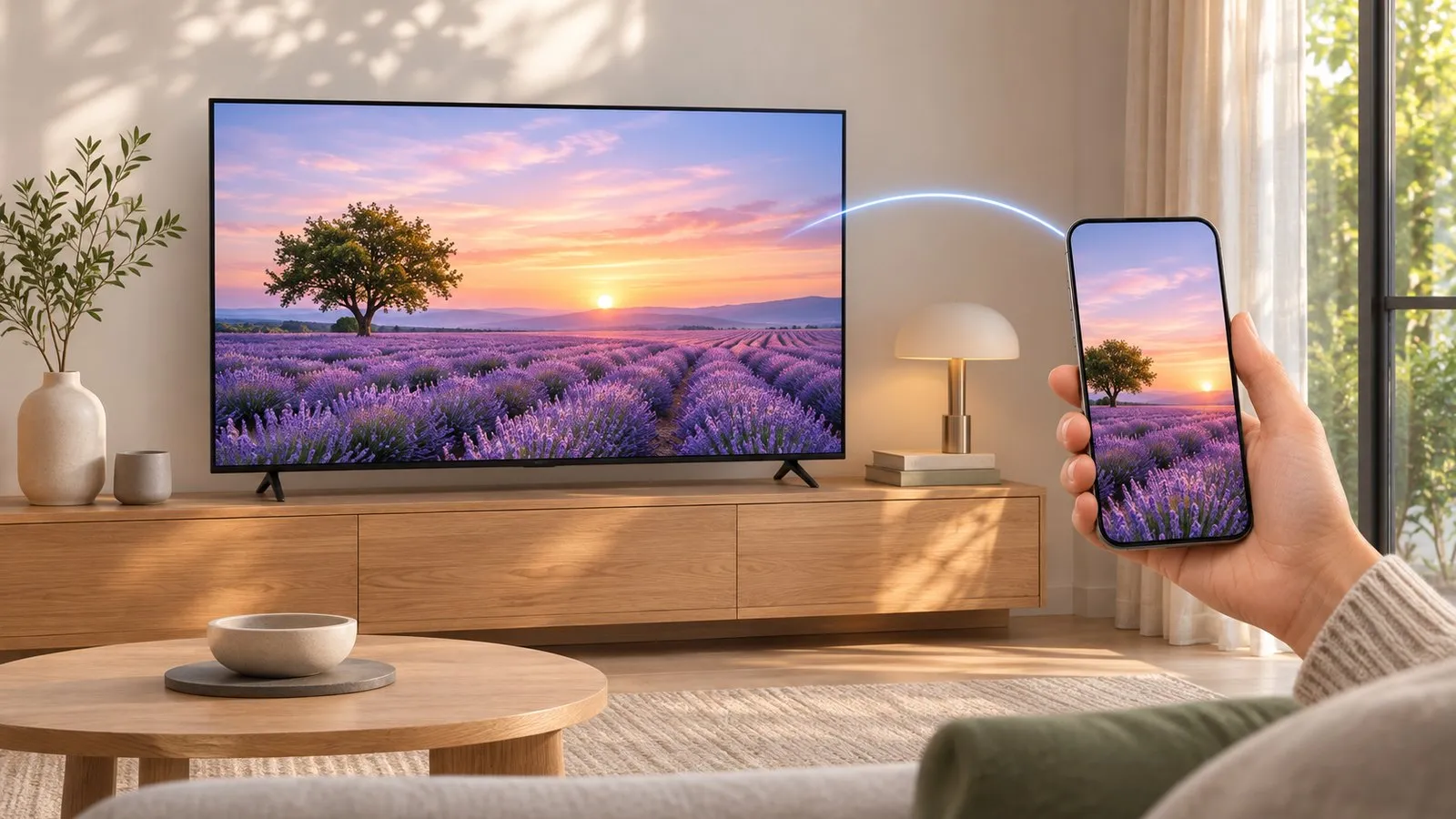
Check that your TV supports AirPlay
Samsung says AirPlay is available on specific Samsung TVs and monitors made from 2018 onwards. The quickest test: open the TV’s settings and look for Apple AirPlay Settings. On many models it’s under General; on 2022 and newer menus under Connection:
→ Apple AirPlay Settings
If the item isn’t there, your TV doesn’t support AirPlay — see Older Samsung TVs below. Year-by-year availability is collected in Samsung TV features by year.
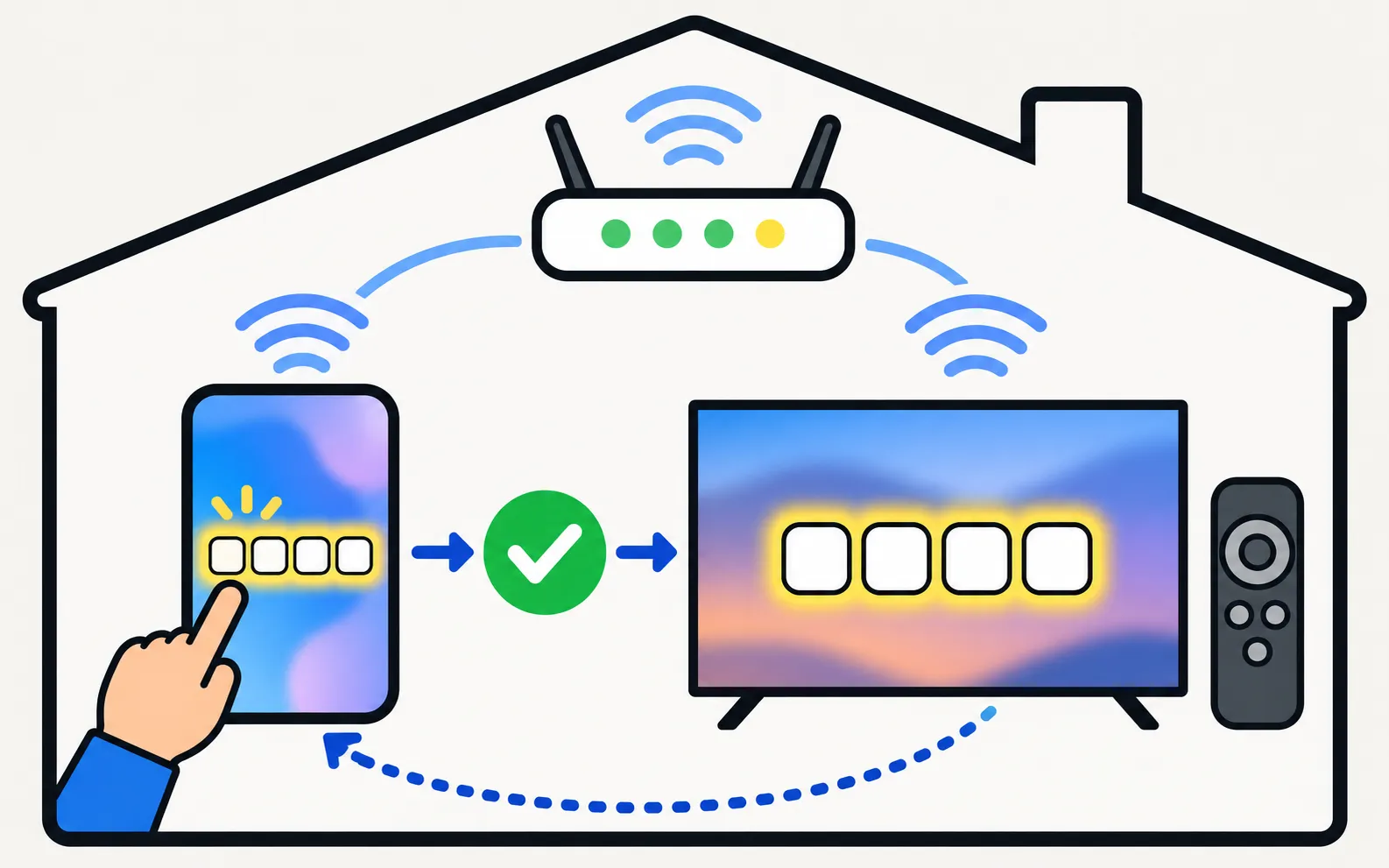
Mirror the whole iPhone screen
-
Join the same Wi-Fi
The iPhone and the TV must be on the same network. -
Open Control Center
Swipe down from the top-right corner of the screen. -
Tap Screen Mirroring
Choose your Samsung TV from the list. -
Type the code
The first time, the TV shows a code; enter it on the iPhone.
Turn the iPhone sideways for full-screen video. To stop, open Control Center again, tap Screen Mirroring, then Stop Mirroring.
Send just a photo, video or song
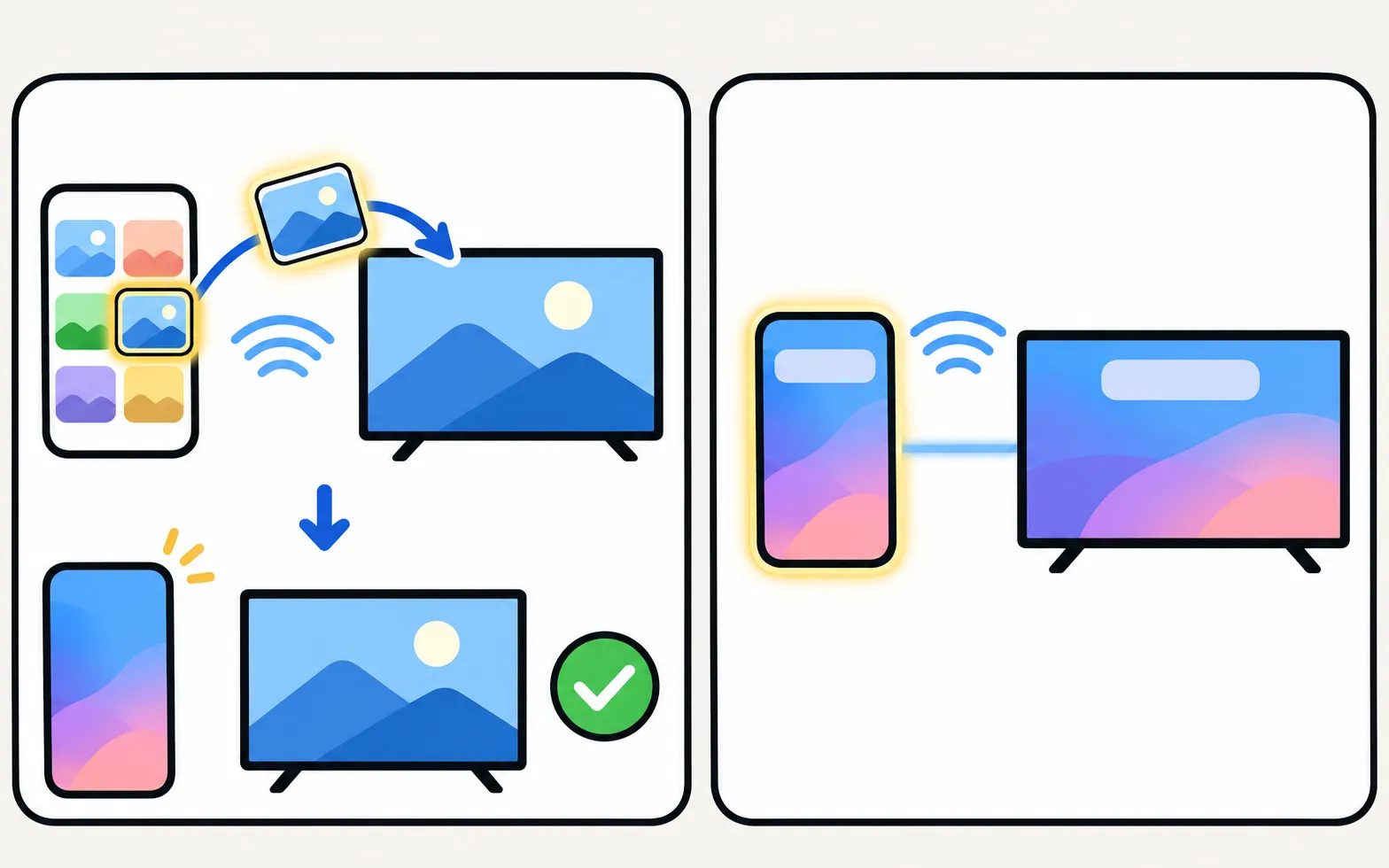
Sending content instead of mirroring keeps the iPhone free and usually looks better:
- Photos and videos: open Photos, choose an item, tap Share, then AirPlay, then the TV. Samsung’s guide adds: enter the code if prompted; to stop, tap Turn off AirPlay.
- Music: tap the AirPlay icon in the music player and select the TV.
- Video apps: many apps show their own AirPlay icon in the player.
Useful TV settings
In Apple AirPlay Settings on the TV:
| Setting | What it does |
|---|---|
| AirPlay | Turns the feature on or off |
| Require Code | Asks for a code the first time a device connects, every time, or uses a fixed code; you can also reset paired devices |
Older Samsung TVs (before AirPlay)
TVs without AirPlay have a few alternatives:
- An HDMI cable with Apple’s Lightning or USB-C digital AV adapter (depending on your iPhone) gives a dependable, delay-free picture — also the answer when there’s no Wi-Fi (mirror a phone without Wi-Fi).
- A streaming device with AirPlay (such as an Apple TV box) on a free HDMI port.
- Third-party mirroring apps for iPhone exist, with their own limits and pricing.
When AirPlay doesn’t show up or drops
The fixes — Wi-Fi checks, the AirPlay switch, software updates and the code prompt — are in AirPlay not working on a Samsung TV. Want to control the TV from the iPhone too? See control a Samsung TV with an iPhone.
Frequently asked questions
Which Samsung TVs support AirPlay?
Samsung says AirPlay is available on specific Samsung TVs from 2018 onwards, including its QLED, Crystal UHD, 4K UHD, The Frame and Serif ranges, the 2018 Full HD N5300 and some Smart Monitors. If your TV's settings include Apple AirPlay Settings, it is supported.
Do I need to install an app on the iPhone?
No. AirPlay is built into iOS: Screen Mirroring in Control Center, and AirPlay in the Share sheet of Photos and many video apps.
Why does the TV ask for a code every time?
The TV's Require Code setting decides that. In Apple AirPlay Settings you can choose to require a code only the first time an Apple device connects.
Can I control the Samsung TV from my iPhone?
Yes, with Samsung's SmartThings app for iPhone.
Sources
- How to stream to your TV using AirPlay — Samsung Ireland · Samsung · checked November 11, 2026
Related guides
Troubleshooting
AirPlay not working
Samsung TV not showing in AirPlay, asking for a code every time or dropping out? Check support and the AirPlay switch, Wi-Fi, the code setting and updates.
Topic
Mirroring and casting
Show your phone, tablet or computer on a Samsung TV: Android, Galaxy Smart View, iPhone AirPlay, Windows and Mac — and when casting beats mirroring.
How-to
iPhone as a remote
Use an iPhone as a Samsung TV remote: the SmartThings app, the Mobile Remote QR code on 2025 TVs, AirPlay for your screen, and fixes when it can't find the TV.
How-to
Mac to Samsung TV
Show a Mac on a Samsung TV with AirPlay (2018 and newer TVs) or HDMI: mirror or use the TV as a second display, and fix the code prompt, sound and resolution.
Tool
Features by year
Check which Samsung TV years support AirPlay, Google Cast, Bluetooth audio, eARC, 4K 120 Hz/VRR and Power On with Mobile — every cell sourced, unknowns marked.