
How-to
Cast photos and videos from Android to a Samsung TV
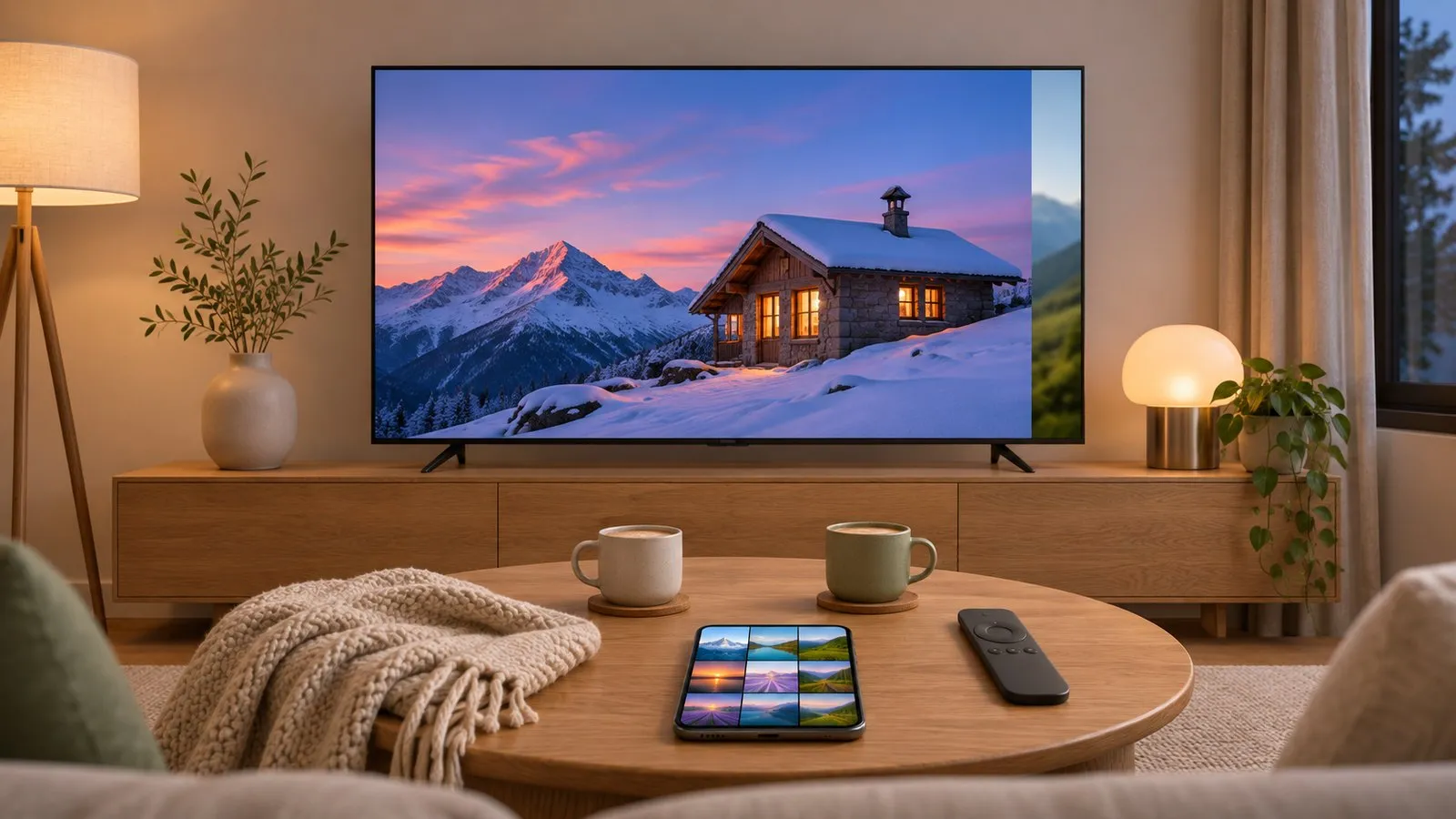
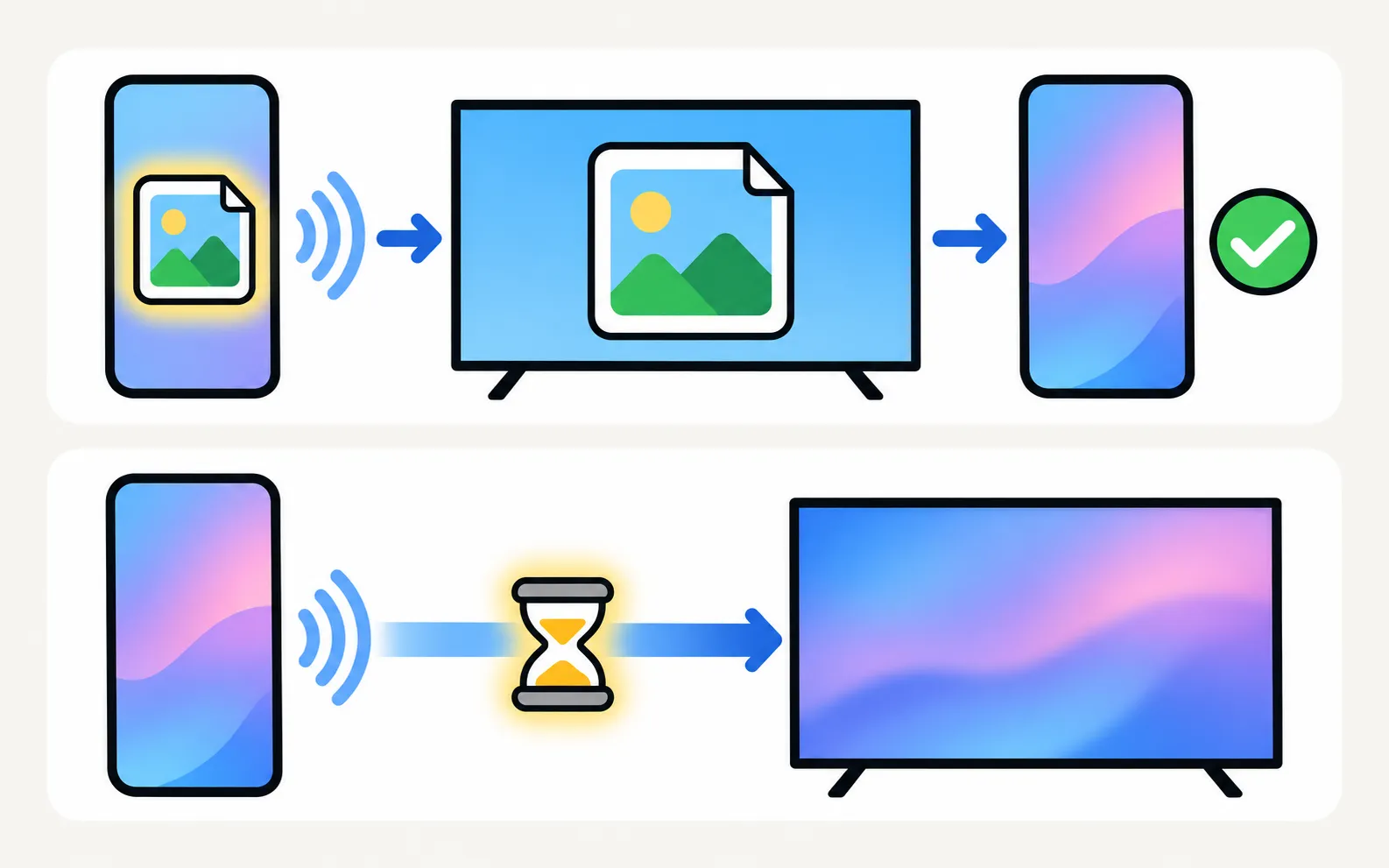
Casting sends the photo or video itself, so the TV plays it sharp and smooth while your phone stays free. Here is how, from any Android phone.
Quick answer
To show phone photos and videos on a Samsung Smart TV, put the phone and TV on the same Wi-Fi and send the files with a casting app (or, on Galaxy phones, share them through Smart View). The TV plays each file itself, so quality is higher than mirroring and there's no lag. For large collections or no Wi-Fi, copy the files to a USB stick and open them on the TV.
Your options
| Method | Needs | Best for |
|---|---|---|
| A casting app | Same Wi-Fi as the TV | Photos and videos from the phone’s gallery, at full quality |
| Smart View (Galaxy phones) | Same Wi-Fi; the TV supports Smart View | Quick sharing on Galaxy phones |
| An app’s own cast button (YouTube and similar) | The TV runs the same app | Online videos — the TV streams them itself |
| USB stick | A USB port on the TV | Large collections, holiday videos, no Wi-Fi (USB playback; other no-Wi-Fi options) |
| AirPlay | iPhone and a 2018+ Samsung TV | iPhone owners — see mirror an iPhone |
Cast with Samsung TV Remote
-
Connect to your TV
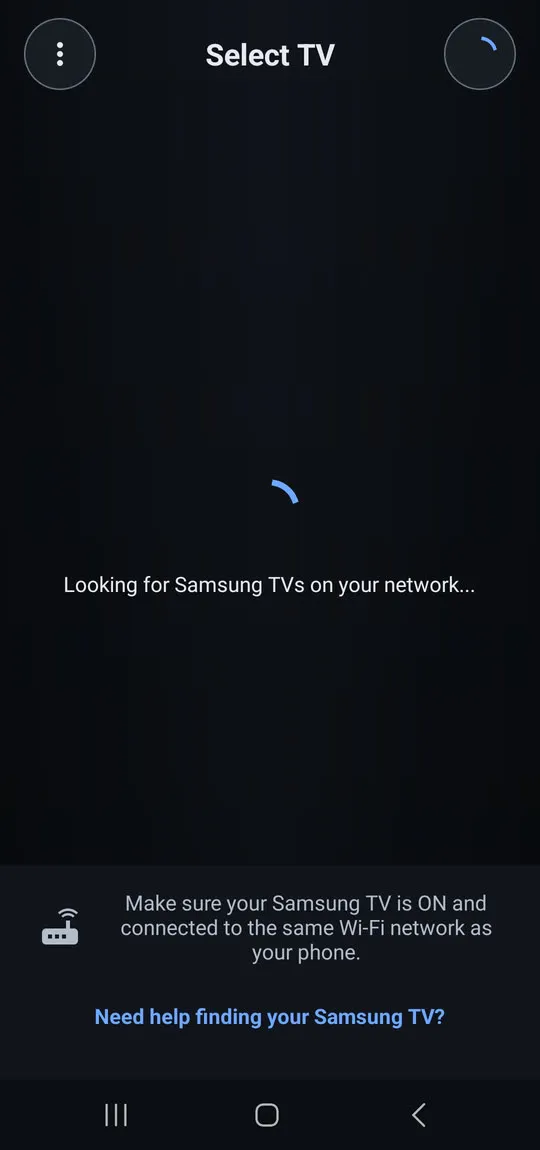
Phone and TV on the same Wi-Fi; select your TV in the app and allow it on the TV the first time. -
Tap the cast icon (Show on TV)
Choose Send photo/video. -
Pick photos and videos
Android’s photo picker opens; select one or several items. -
Watch on the TV
The first item shows full screen. Use Next and Previous; videos play with sound, and you can pause, resume and seek.
Cast photos and videos picked in Android's photo picker; videos play with sound and can be paused and seeked. The app sees only the photos and videos you pick in Android's photo picker, and requests no location, contacts, camera, phone, storage or account permissions.
New to the app? Getting started covers the first connection; the compatibility page lists the developer-tested models and what each TV generation supports.
While casting, Next/Previous, pause, resume and seek controls appear on the phone.
Formats the TV can’t decode — for example tall portrait screen recordings, HDR or 8K video — are converted on the phone first, with a progress display. While casting, the phone acts as a small media server for the TV and shows a notification.
Videos the TV can't play directly are converted on the phone first, with a progress display.
Casting uses the TV’s own media player, which is most reliable on 2016 and newer TVs. On older TVs:
Remote buttons, touchpad as arrow keys and power off. Casting may work; mirroring often does not. No keyboard, pointer, app launch or power on. Some 2014–2015 TVs with later firmware need a secure pairing the app doesn't support, and the app then shows "This TV is not supported".
Share from a Galaxy phone
Galaxy phones can send the screen to the TV with Smart View in Quick Settings (same Wi-Fi, select Allow on the TV the first time). With a photo open full screen and the phone turned sideways, it fills the TV. Smart View mirrors the whole screen, so turn on Do Not Disturb first. More in mirror Android to a Samsung TV.
Tips for a great slideshow
- Turn on Do Not Disturb if you mirror rather than cast.
- Download cloud photos first if your connection is slow; cloud-only items have to download before they can be shown.
- Pick landscape photos and videos for the big screen; portrait shots show with side bars.
- Use the 5 GHz Wi-Fi band or connect the TV by Ethernet for smooth 4K video.
- Check the TV’s picture mode: a Movie or Filmmaker mode shows photos with more natural colours than a vivid store mode (picture settings).
When a photo or video won’t show
- Nothing happens at all: the phone can’t reach the TV — see screen mirroring not working, the network fixes apply to casting too.
- One video won’t play while others do: the format is the likely cause. Convert it, or play it from USB if the TV supports that format.
- Long or 4K videos take a while to start: give it a moment, or trim long clips on the phone first.
Frequently asked questions
Is casting better than mirroring for photos?
Usually, yes. Casting sends the file, so the TV shows it at its own resolution without lag, and you can keep using your phone. Mirroring copies the screen, including notifications.
Why won't my video play on the TV?
The TV can't decode some formats — tall portrait screen recordings, some HDR and 8K files are common examples. A casting app that converts the file first, or a different source, helps.
Can I cast photos stored only in Google Photos or another cloud?
Yes, but cloud-only photos usually have to download to the phone first, which takes a moment.
Can two people cast to the same TV?
With Samsung TV Remote, yes, one after the other: each phone connects on its own, and the later cast replaces what is on screen.
Sources
- How to connect TV and mobile device with Smart View — Samsung UAE · Samsung · checked November 11, 2026
- Samsung TV Remote product documentation (developer-supplied facts) — Smart App Craft · Developer · checked November 10, 2026
Related guides
How-to
Mirror Android
Mirror an Android phone to a Samsung TV: Smart View on Galaxy, Cast or Wireless display on other brands, a mirroring app with sound, or a USB-C to HDMI cable.
Troubleshooting
Mirroring not working
Samsung TV not showing up for screen mirroring, connection drops, black screen or no sound? Fixes for Smart View, AirPlay and mirroring apps, by symptom.

How-to
USB playback
Play videos, photos and music from USB on a Samsung TV: how to open the drive, formats that work, why files won't play and the 4 GB FAT32 limit.

Topic
Mirroring and casting
Show your phone, tablet or computer on a Samsung TV: Android, Galaxy Smart View, iPhone AirPlay, Windows and Mac — and when casting beats mirroring.
How-to
Mirror an iPhone
Mirror or stream an iPhone or iPad to a Samsung TV with AirPlay: which TVs support it, how to turn it on, the on-screen code, and what to do on older TVs.