
How-to
Samsung TV USB: play videos and photos, fix drives it won't read
A USB stick is still the simplest way to show holiday videos on the big screen. When the TV won't read it, the drive format or the video codec is almost always the reason.
Quick answer
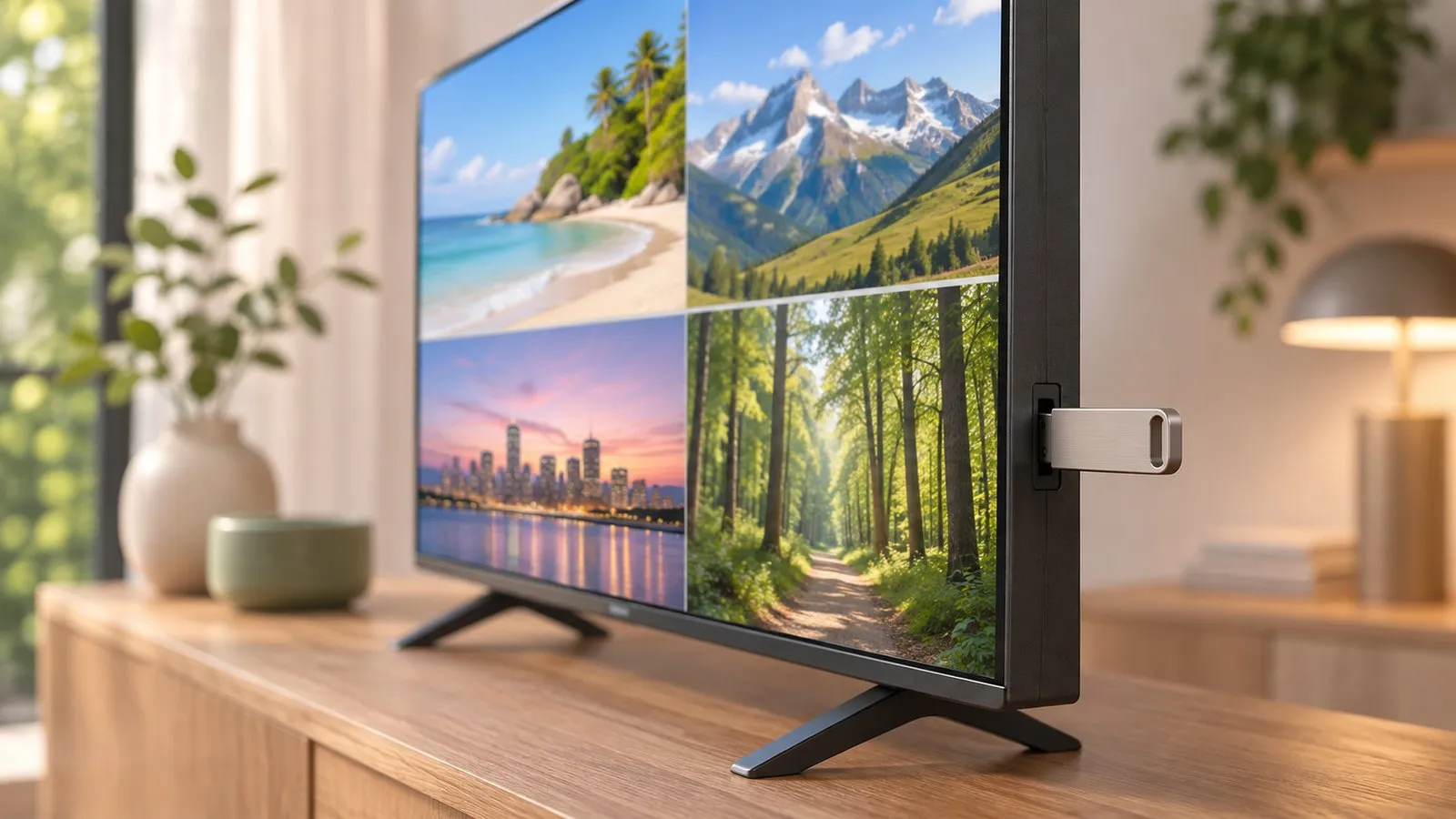
Plug the USB drive into the TV, then open it from the Home screen's Connected Devices/Source list or the pop-up that appears. If the TV doesn't see the drive, reformat it as exFAT or FAT32 (not Mac-only or Linux formats), avoid USB hubs and try another port. If the drive appears but a video won't play, the file's codec or container isn't supported — check the formats list in your TV's e-Manual or convert the file.
Open a USB drive
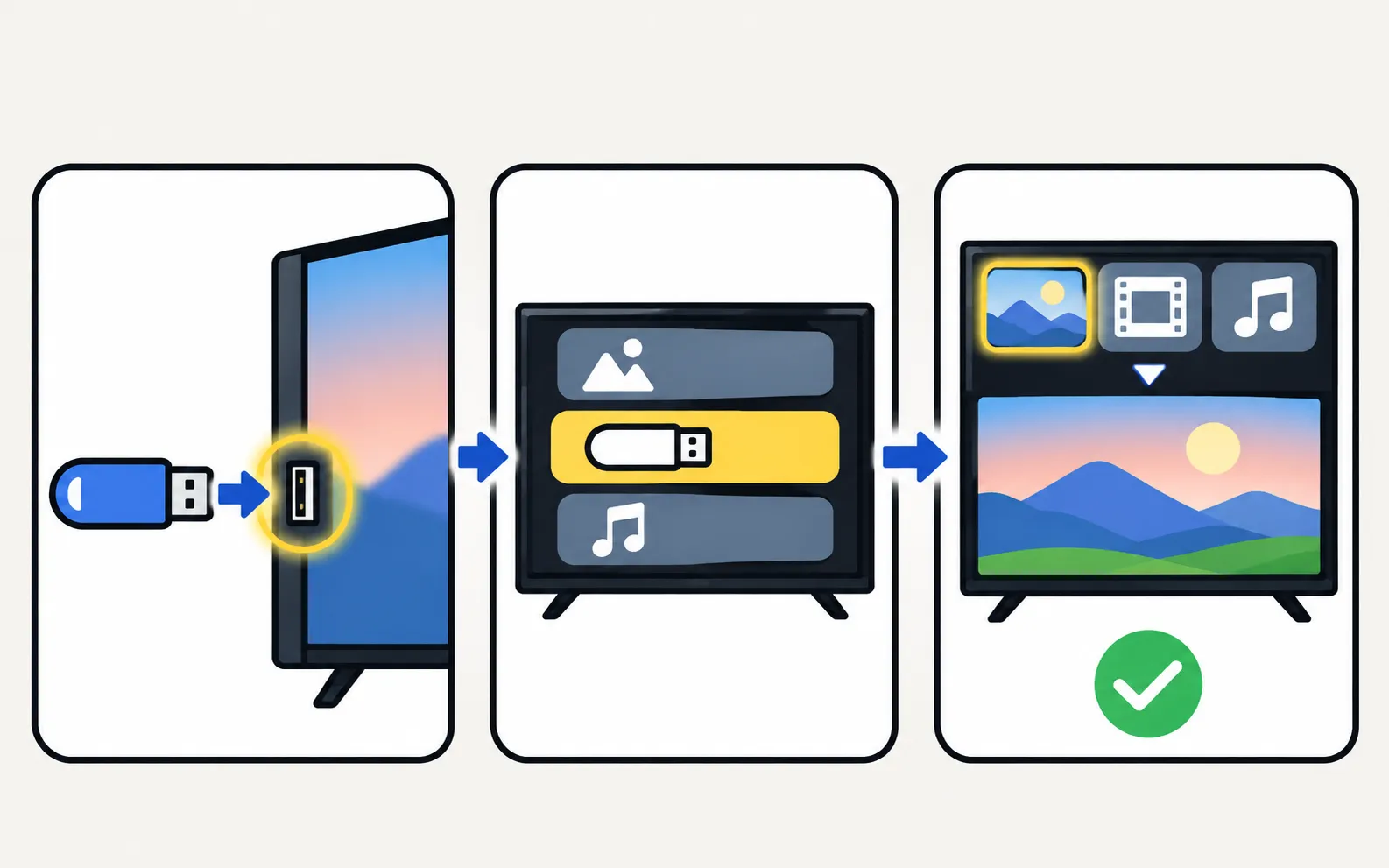
-
Plug it in
Use a USB port on the TV (or One Connect box). -
Open it
Select it in the pop-up, or go to Home, Connected Devices/Source and choose the USB device. -
Browse and play
Pick videos, photos or music. Use Play/Pause and the arrows to control playback.
Samsung’s spec sheets list USB media playback (ConnectShare) on its Smart TVs, from small HD models to Crystal UHD and above.
The TV doesn’t see the drive
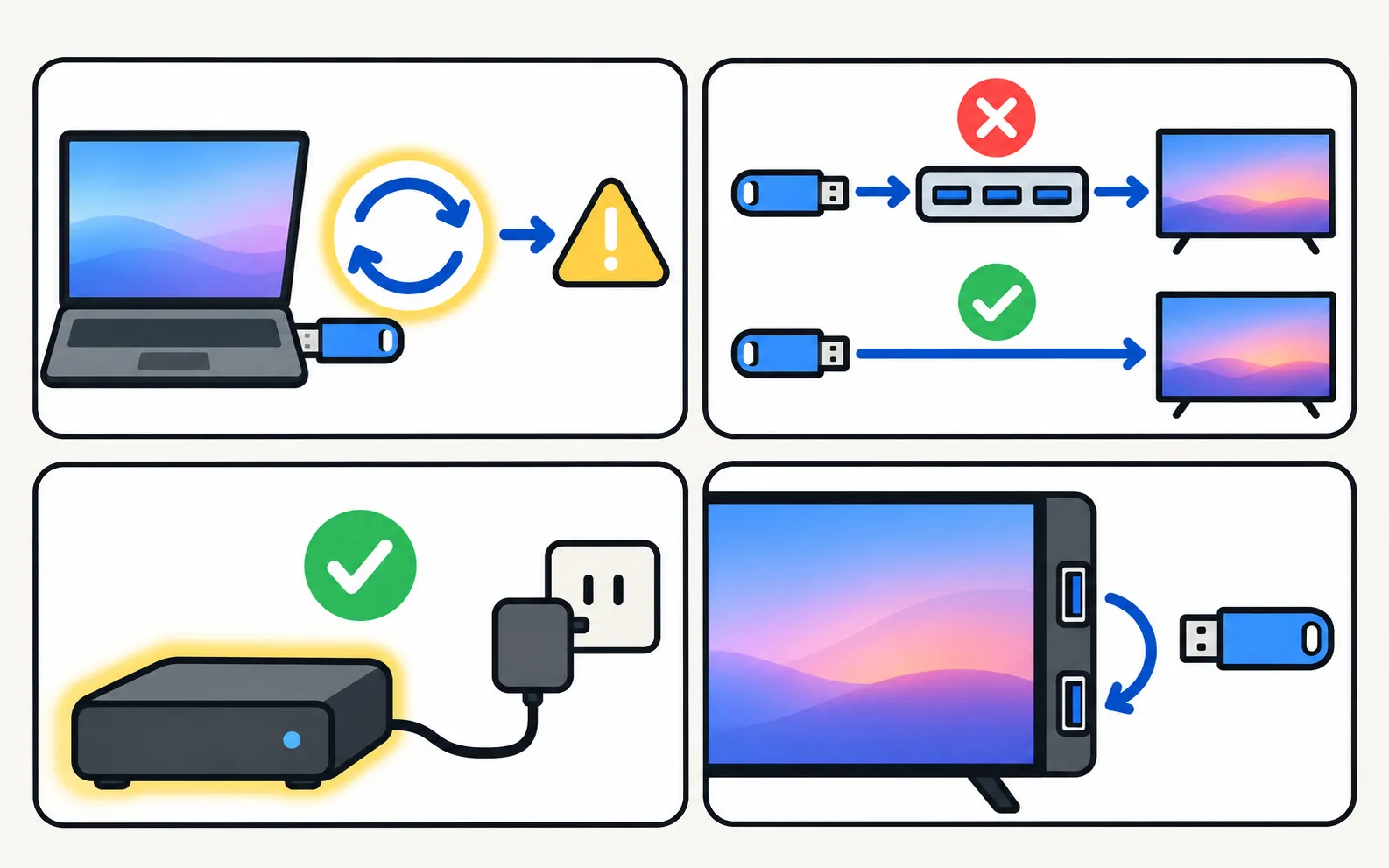
| Check | Why |
|---|---|
| Drive format | exFAT or FAT32 are the common safe choices; Mac (APFS/HFS+) and Linux (ext4) formats usually aren’t readable |
| No hub | Plug in directly; hubs and extension cables can fail |
| Power | Large hard drives may need their own power supply |
| Another port | Try every USB port |
| Restart | Unplug the TV for 30 seconds (restart) |
Reformatting erases the drive — copy the files off first.
The drive shows, but a file won’t play
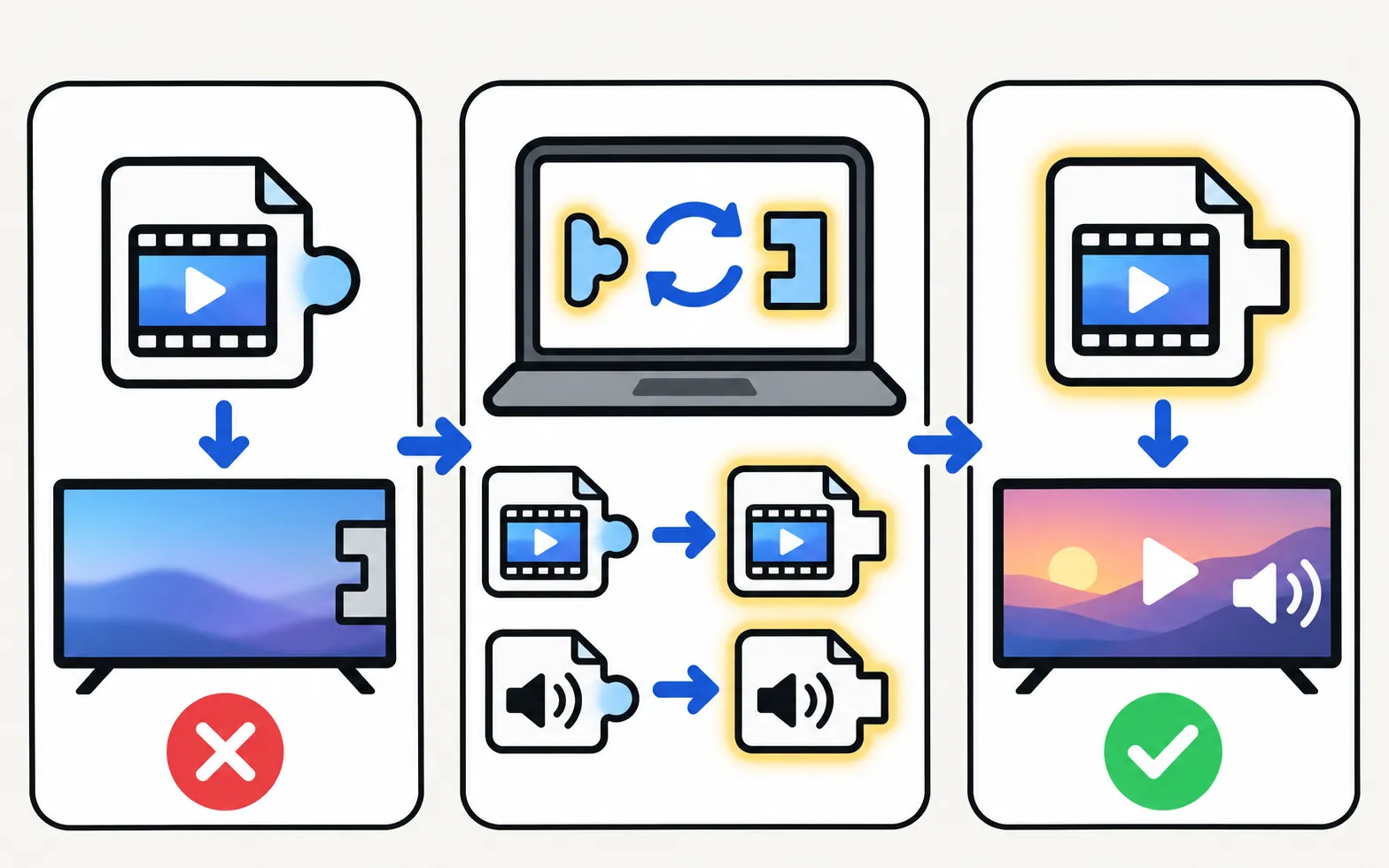
- “Format not supported”: the video codec or container isn’t supported. Convert to a common format (for example H.264 or H.265 video with AAC audio in an MP4 file) — check your TV’s e-Manual for its exact list (find the user manual).
- No sound: the audio codec is the problem; convert the audio track.
- Large file won’t copy to the stick: FAT32 can’t hold files over 4 GB; use exFAT.
- Phone screen recordings, HDR or 8K files: often not supported on the TV directly.
From a phone instead
For a handful of photos and videos, casting from the phone is quicker than copying to USB:
More: cast photos and videos from Android.
USB is also for…
- Software updates by USB (software update).
- Recording TV on some models and markets (can a Samsung TV record?).
- Keyboards and mice (keyboard and mouse).
For a whole film library, streaming it from a PC or NAS usually beats copying files to USB: see Plex, DLNA and media-server apps on a Samsung TV.
Frequently asked questions
Which USB format should I use?
exFAT is the safe choice for large files; FAT32 works too but can't hold single files larger than 4 GB. Mac-only (APFS, HFS+) and Linux (ext4) formats generally aren't readable.
Why does a video play without sound?
The audio track uses a codec the TV doesn't support (some DTS tracks, for example). Convert the audio or play the file through another device.
Can I use a USB hard drive?
Often yes. Large drives may need their own power supply, and a direct connection (no hub) is more reliable.
Where's the list of supported formats?
In your TV's e-Manual (the supported video, photo and music formats section) on Samsung's support site.
Sources
- Update the software on your Samsung smart TV or monitor (ANS00062224) — Samsung US · Samsung · checked November 11, 2026
- 55-inch Crystal UHD 4K AU7000 (UN55AU7000PXPA) specifications — Samsung Caribbean · Samsung · checked November 11, 2026
- 32-inch LED HD T4300 (UN32T4300APXPA) specifications — Samsung Caribbean · Samsung · checked November 11, 2026
Related guides

How-to
Cast photos and videos
Show phone photos and videos on a Samsung TV at full quality: cast from an app, use Smart View, a casting app or a USB stick — and fix videos that won't play.

Explainer
IPTV and media servers
Watch your own media and legal IPTV on a Samsung TV: Plex and media-server apps, Kodi and Jellyfin, DLNA from a PC or NAS, and when a streaming stick is better.

How-to
Software update
Update a Samsung Smart TV: Auto Update, Update Now, or USB with the right file format and folder — plus fixes when the update is greyed out or fails.

Explainer
Record TV
Recording TV to a USB drive on a Samsung TV depends on model and country (not the US or Canada). How recording, scheduling and Timeshift work where offered.
Topic
Connect devices
Connect and fix devices on a Samsung TV: HDMI no signal, inputs, Anynet+ (HDMI-CEC), One Connect, USB, cable boxes, streaming sticks, Alexa and Home Assistant.