
How-to
Samsung TV picture size: fit to screen, zoom and cut-off edges
When the picture is stretched, squeezed or missing its edges, the Picture Size settings fix it — on the inputs that allow it.
Quick answer
Open the picture size settings (Settings, Picture, Picture Size Settings on most models) and choose 16:9 Standard for normal widescreen, 4:3 for old content, or Custom to zoom and shift. Turn on Fit to Screen where offered so the TV shows the whole image without cutting edges. Samsung notes the options depend on the input, and some apps don't support changing the size.
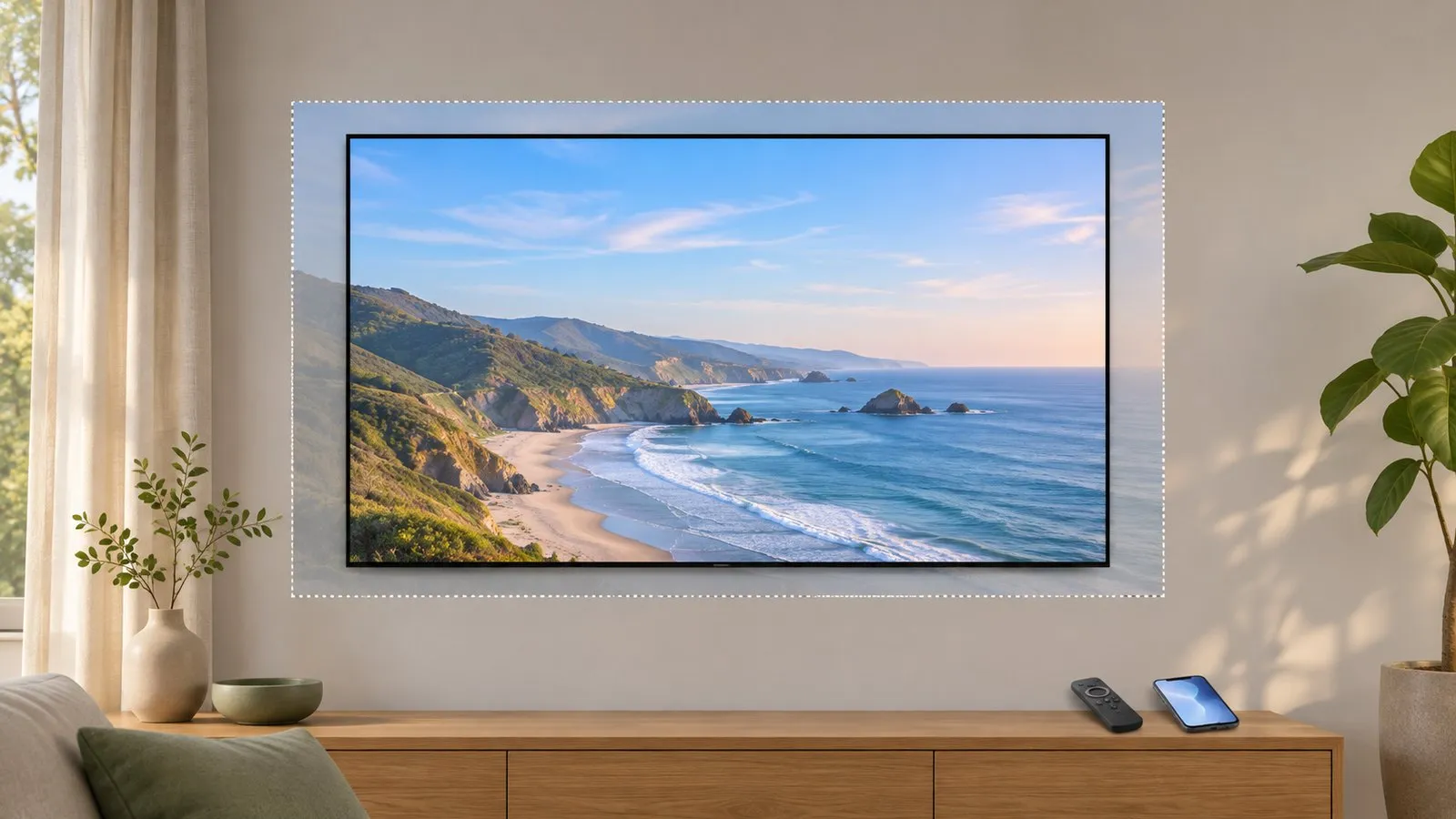
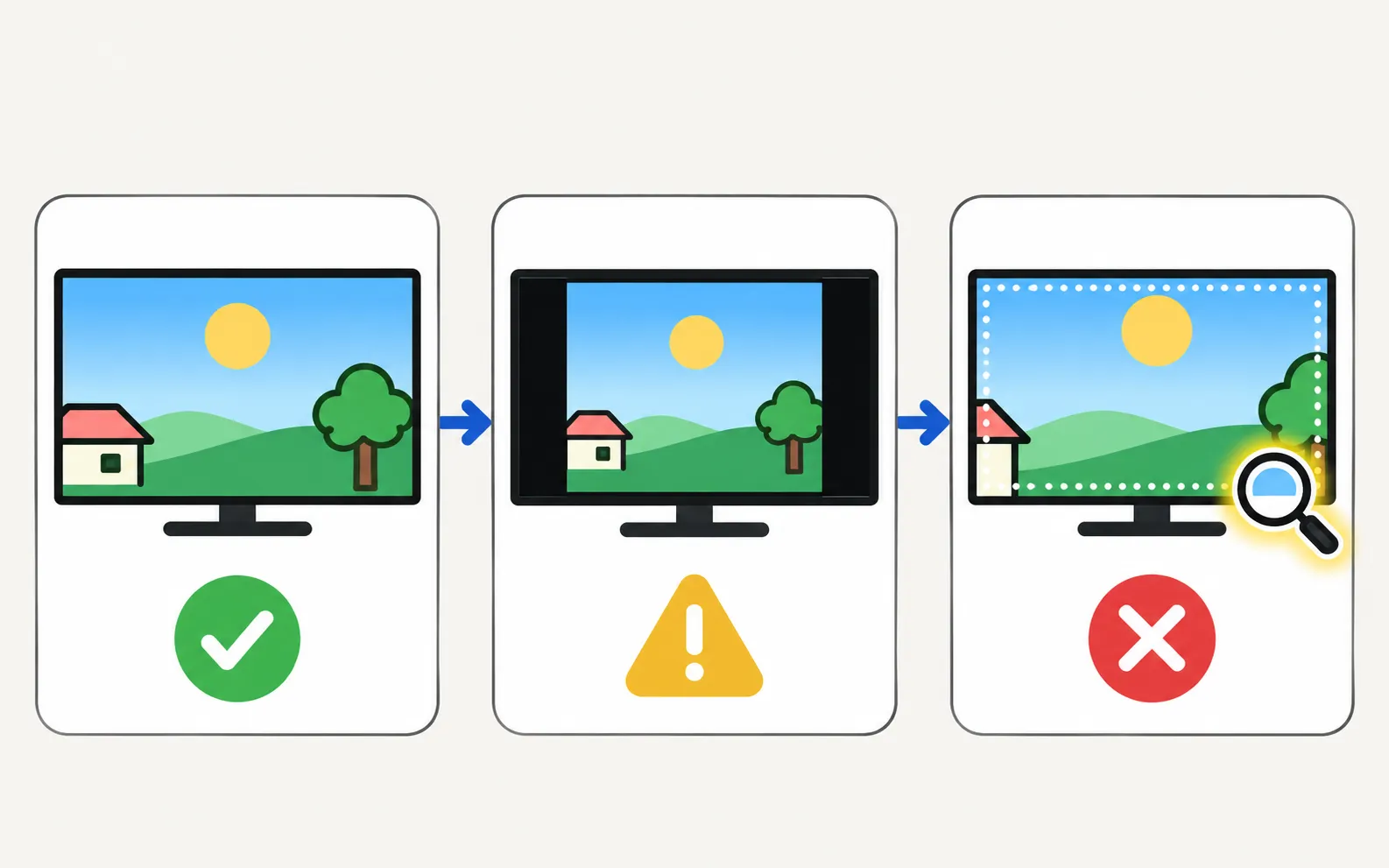
Change the picture size
On 2022 and newer menus the Picture section sits under All Settings. Samsung lists these options (names vary slightly by model):
| Option | Use for |
|---|---|
| 16:9 Standard | Normal widescreen TV and films |
| Custom | Zoom in and move the picture yourself |
| 4:3 | Old 4:3 programmes, shown with side bars |
| Fit to Screen (on some models) | Shows the whole image without trimming the edges |
Samsung notes that the available sizes depend on the input — TV channels, HDMI devices and USB video can each offer different choices — and that some apps don’t support changing the size.
Common fixes
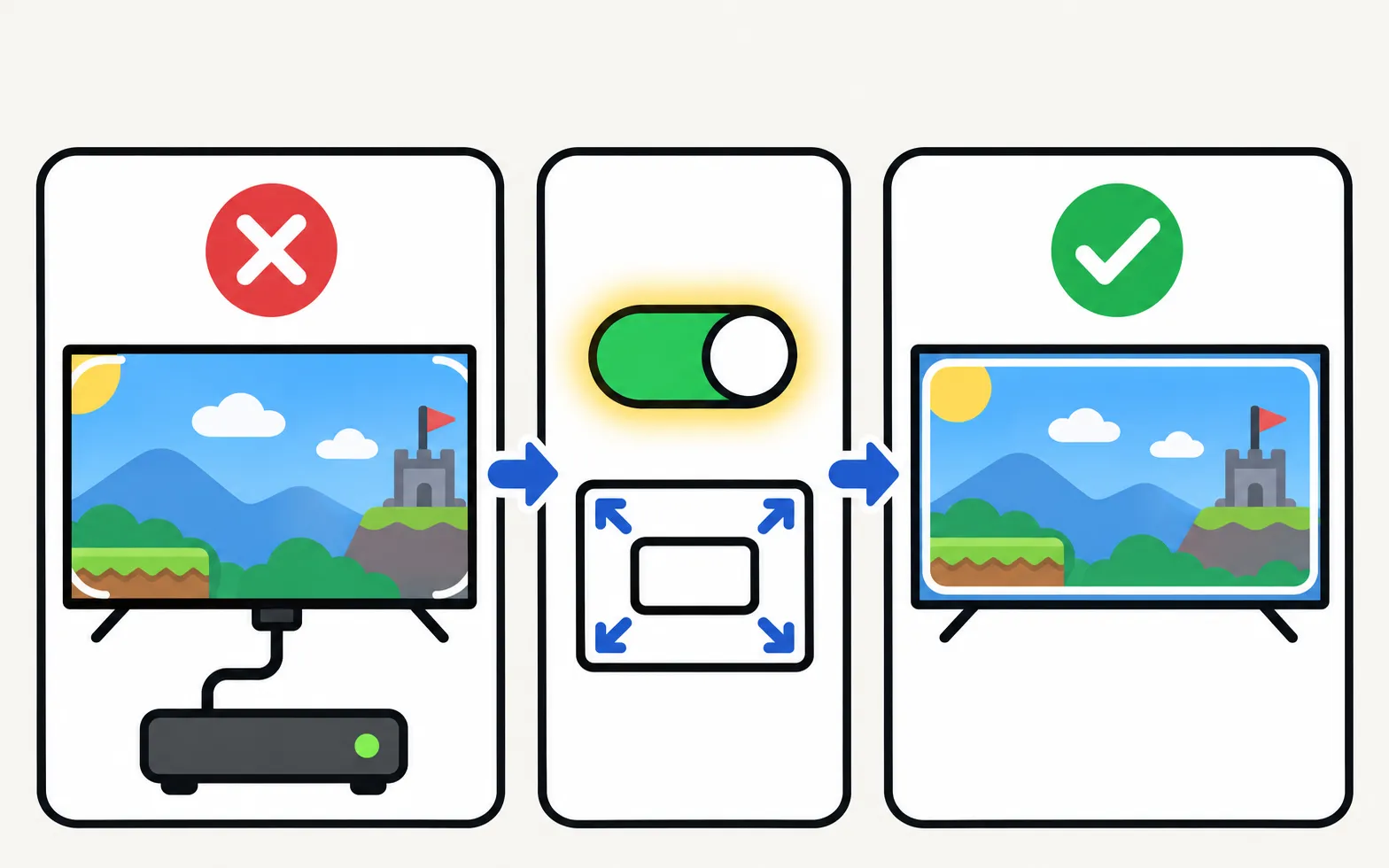
- Edges cut off from a console, PC or set-top box: choose 16:9 Standard and turn on Fit to Screen where offered. On PCs, also check the graphics driver’s scaling.
- Stretched or squashed faces: you’re probably on Custom or a zoom setting; return to 16:9 Standard.
- Black bars that won’t go away: they are part of the content’s format. Zooming removes them only by cropping.
- Mirrored phone looks tiny: that’s the phone’s aspect ratio — turn the phone sideways (mirroring not working).
When the option is greyed out
Picture Size can’t be changed while some apps are playing; exit the app and select the HDMI input or TV channel to adjust it.
Frequently asked questions
Why can't I change the picture size in Netflix or Samsung TV Plus?
Samsung notes the picture size function may not be supported in some apps, such as Samsung TV Plus or other streaming apps. The app decides the format.
Why are there black bars on the sides?
The content is in an older 4:3 format or a phone video in portrait. Stretching it distorts faces; bars are the correct presentation.
Why are there black bars above and below a film?
Many films are wider than 16:9. The bars preserve the full picture; zooming in crops the sides.
The edges of my console or PC picture are cut off. Why?
That's overscan. Set the picture size to 16:9 Standard with Fit to Screen (or the equivalent), and check the console's display-area setting.
Sources
- How to modify the Picture Size for Samsung Smart TV? — Samsung India · Samsung · checked November 11, 2026
- Adjust the picture size on your Samsung TV — Samsung Malaysia · Samsung · checked November 11, 2026
Related guides
How-to
Best picture settings
The Samsung TV picture settings that matter: Movie or Filmmaker Mode, motion smoothing, automatic dimming and brightness for your room, and what to leave alone.
Troubleshooting
Mirroring not working
Samsung TV not showing up for screen mirroring, connection drops, black screen or no sound? Fixes for Smart View, AirPlay and mirroring apps, by symptom.
Troubleshooting
HDMI no signal
Samsung TV says No Signal or won't detect HDMI? Wake the device, pick the right source, reconnect in Samsung's order, run HDMI Troubleshooting, check 4K 120 Hz.
Topic
Picture
Fix Samsung TV picture problems (black screen, too dark, lines, flicker, wrong colours) and set up the picture: modes, motion smoothing, size, HDR, burn-in.