
How-to
How to pair a Samsung Smart Remote with your TV
Smart Remotes talk to the TV over Bluetooth, so they need pairing — after a battery change, a TV reset or when you buy a replacement.
Quick answer
Point the Smart Remote at the bottom of the TV from within about 30 cm (1 ft), then press and hold Return (Back) and Play/Pause together for 3–5 seconds until the TV says the remote is connected. If it fails, reset the remote, check the battery, unplug the TV for 30 seconds and try again.
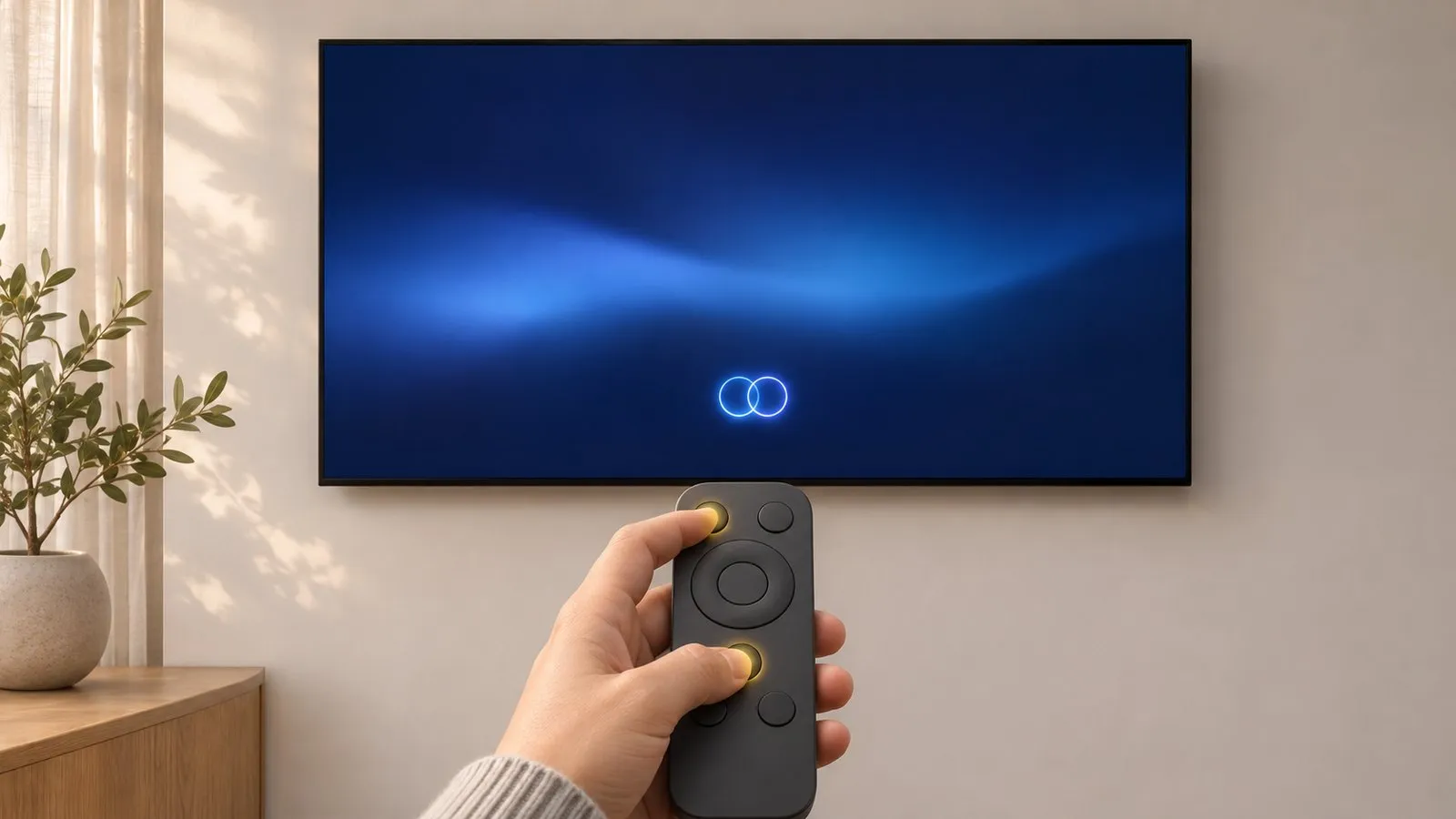
Before you start
- The TV is on.
- The remote has power: fresh batteries, or a charged SolarCell remote.
- Nothing blocks the bottom edge of the TV, where the remote sensor sits (lower right or bottom centre on most models).
Not sure which remote you have? Standard remotes with number keys don’t pair — skip to remote not working.
Pair the remote
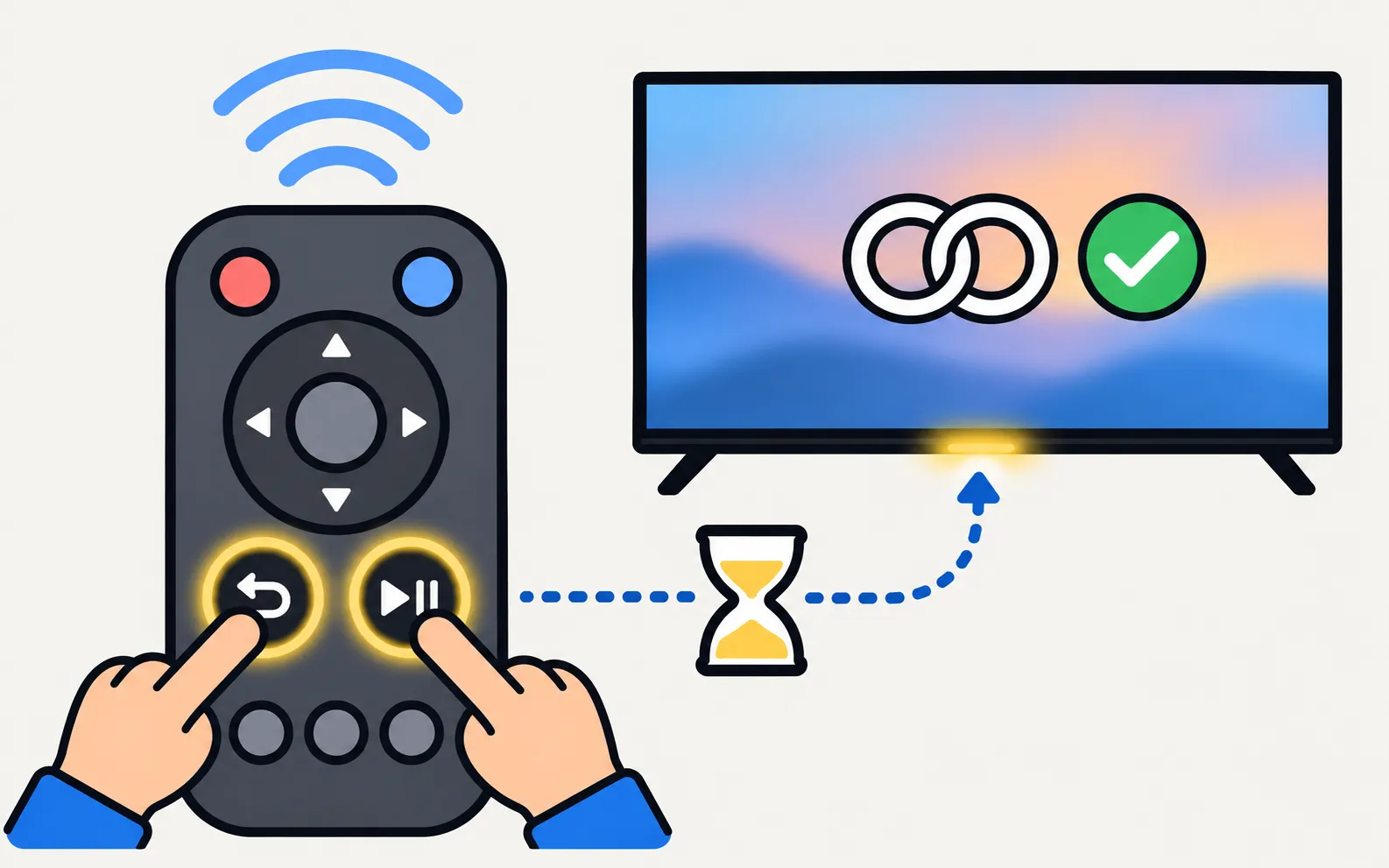
-
Stand close to the TV
Within about 30 cm (1 ft), pointing the remote at the bottom centre or lower right of the screen. -
Press and hold Return and Play/Pause
Hold both buttons together. Samsung Canada gives at least 3 seconds and Samsung US at least 5 seconds, so count to five. -
Watch the screen
A message shows that the remote is connected (on some TVs, a pairing icon appears first). -
Test a smart function
Press Home or the voice key; if they respond, Bluetooth pairing worked.
On a new TV, or after a factory reset, the TV usually asks you to pair the remote during setup and shows the same steps on screen.
If pairing doesn’t work
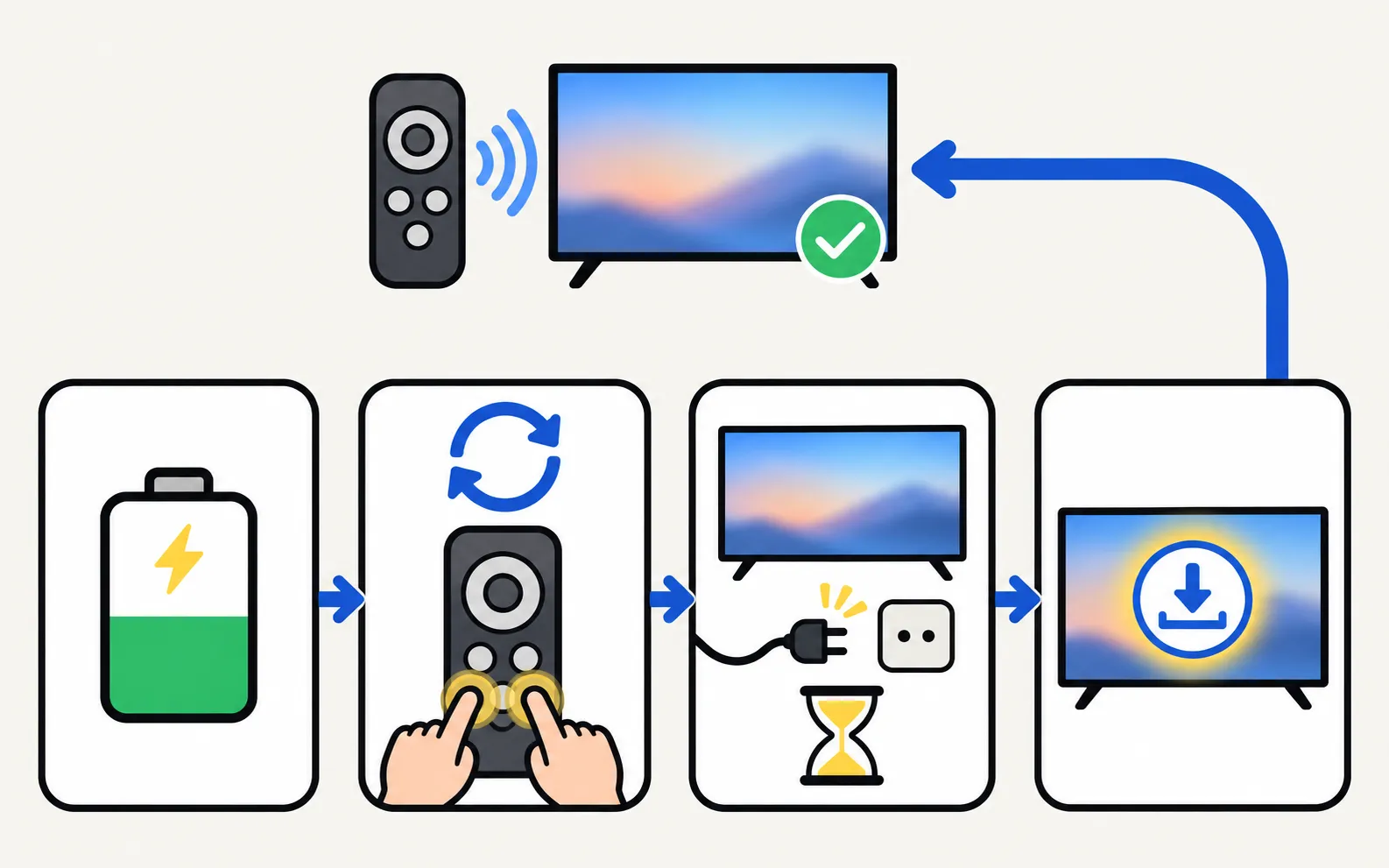
-
Check the battery
Samsung names low battery as the main reason a remote won’t pair. A SolarCell remote whose light stays on for 5 seconds after a press is low — charge it (SolarCell charging). -
Reset the remote
Battery remote: take the batteries out and hold Power for about 8 seconds. SolarCell remote: hold Return and Enter for about 10 seconds. Samsung’s US guide also gives a reset of holding Return and the button diagonally up and to the right of it (often the colour-dots key). Then pair again. -
Cold-boot the TV
Unplug the TV for 30 seconds, plug it back in, turn it on and pair again. -
Update the TV
If you can control the TV another way (its own button or a phone), install pending software updates and try once more — see update a Samsung TV.
If the remote shows no light in the phone-camera test even with fresh power, it is faulty; see which replacement remote fits your Samsung TV.
Older remotes
Samsung’s 2014–2015 “Smart Touch Control” remotes and other early Bluetooth remotes used different pairing steps, which are in the TV’s e-Manual (find the user manual). The Return + Play/Pause method applies to the Smart Remotes that came with later Samsung TVs.
Controlling the TV while the remote won’t pair
The TV’s own control button can open menus and switch inputs (where the power button is; more options in control a Samsung TV without a remote). On a Smart TV already on your home Wi-Fi, a phone remote app is a full stand-in:
Frequently asked questions
Do I need to pair a standard Samsung remote with number keys?
No. Standard remotes are infrared only and work as soon as they have batteries. Only Smart Remotes and SolarCell remotes, which also use Bluetooth, need pairing.
How long should I hold the buttons — 3 or 5 seconds?
Samsung's Canadian guide says at least 3 seconds; Samsung's US troubleshooting guide says at least 5 seconds. Hold for 5 seconds and you cover both.
Can one TV have two Smart Remotes?
A TV is normally paired with one Smart Remote over Bluetooth at a time; pairing a new one replaces the old link. A spare standard infrared remote can still be used alongside it for basic functions.
Will a Smart Remote from another Samsung TV work with mine?
Often, if it is from a similar generation, because the basic buttons use infrared and pairing is standard. Smart features may not all work. Check the remote's part number against your TV before buying a replacement.
I reset my TV. Do I have to pair the remote again?
Yes. A factory reset clears the Bluetooth pairing. The TV usually prompts you to pair during the setup that follows.
Sources
- Pair your Samsung Smart Remote to your Samsung TV — Samsung Canada · Samsung · checked November 11, 2026
- Samsung US troubleshooting: remote is not working (TSG10002214) — Samsung US · Samsung · checked November 10, 2026
- Samsung Smart TV remote control LED guide — Samsung Canada · Samsung · checked November 11, 2026
- How to charge and use the Samsung SolarCell Remote — Samsung UK · Samsung · checked November 11, 2026
Related guides
Troubleshooting
Remote not working
Samsung TV remote not working? Reset it, do the 10-second phone-camera test, change or charge the battery, re-pair a Smart Remote and clear the TV's sensor.
Troubleshooting
Remote light blinking
Samsung remote light blinks twice, stays on or flashes when you press Power? What each pattern means (low battery, lost pairing, charging) and how to fix it.
How-to
SolarCell remote charging
Charge a Samsung SolarCell remote with light or USB-C, check its battery level on the TV, and fix a remote that won't charge, locks up or drains quickly.
Explainer
Replacement remote
Choose a replacement remote for a Samsung TV: original by part number, compatible remotes, Smart Remote vs infrared, universal remotes and what copies lack.
How-to
Factory reset
Factory reset a Samsung TV: the menu path for each year since 2013, default PIN 0000, what a reset erases, lighter resets first, and how without a remote.