
Troubleshooting
Samsung TV slow or freezing? Clear cache, free storage and more
Smart TVs slow down as apps pile up and caches fill. A few minutes of housekeeping usually brings the menus back to speed.
Quick answer
Cold-boot the TV first (hold the remote's power button until it restarts, or unplug it for 30 seconds). Then open Device Care's storage view (Settings, Support, Device Care, then Storage or Manage Storage) and clear the cache of the apps you use most; delete apps you don't use. Update the TV's software. If it's still slow, reset Smart Hub, and only then consider a factory reset.
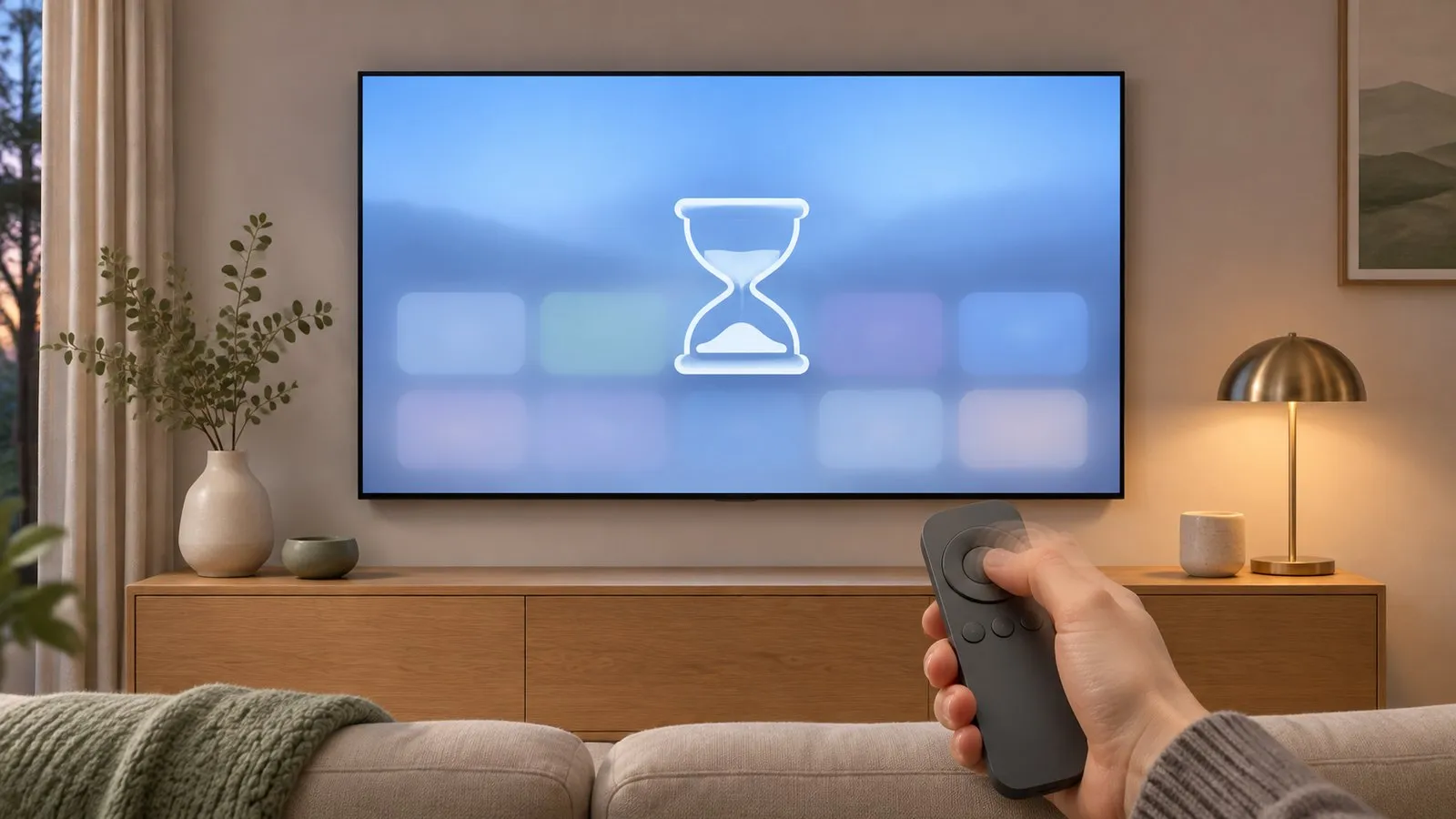
1. Cold-boot the TV
Standby doesn’t clear memory. Hold the remote’s Power button until the TV switches off and back on (Samsung’s US guide calls this a cold boot), or unplug it for 30 seconds (restart properly).
2. Clear app cache and free storage
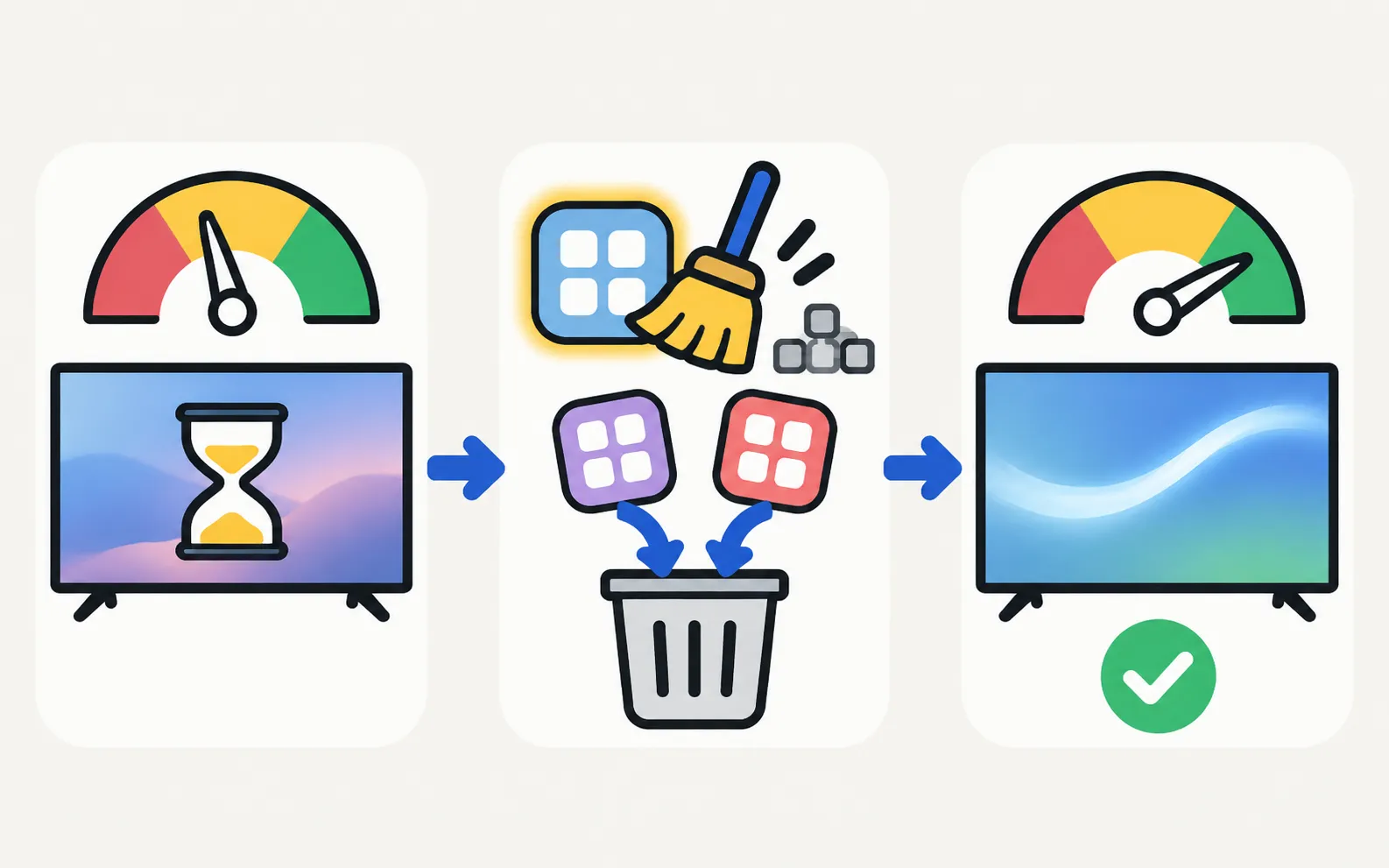
Samsung’s UAE guide for slow apps uses Device Care:
(Some models call it Manage Storage; on 2022 and newer menus Support sits under All Settings.) Then:
- Select an app and clear its cache — temporary data only.
- Delete apps you never use (install and delete apps).
- Use Clear Data only for an app that misbehaves; it signs you out.
If Device Care is greyed out, close running apps and cold-boot the TV.
3. Update the software
— updates often include performance fixes (software update).
4. Reduce background load
- Close apps you’ve left open; some keep running in the background.
- Turn off features you don’t use that run in the background, such as automatic content recommendations, where your model offers the option.
5. Heavier resets
-
Reset Smart Hub
Clears app-platform data and signs you out of all apps (apps not working). -
Factory reset
Last resort — erases everything (factory reset).
When the TV is simply old
Newer app versions demand more than older TVs can deliver. A streaming stick on HDMI brings current, fast apps to an older Samsung TV (connect a streaming device).
Frequently asked questions
Does clearing the cache delete my apps or logins?
Clear Cache removes temporary files only. Clear Data (where offered) resets the app and signs you out — use it only for a misbehaving app.
Why is Device Care greyed out?
Close any running apps and try again, or cold-boot the TV first.
Is a slow TV a sign it's failing?
Usually not — older TVs simply have less processing power for newer apps. If a cold boot, cache clean and update don't help, a streaming stick can make apps snappy again.
Sources
- How to Troubleshoot a Slow Samsung TV App? (Device Care, storage and cache) — Samsung UAE · Samsung · checked November 11, 2026
- Samsung UK support: TV apps won't open — Samsung UK · Samsung · checked November 10, 2026
- Samsung TV has very low or no audio (TSG10002215) — Samsung US · Samsung · checked November 11, 2026
- How to reset your Samsung TV (ANS10005248) — Samsung US · Samsung · checked November 11, 2026
Related guides

Troubleshooting
Apps not working
Samsung TV apps won't open, crash or keep loading? Power-cycle, check the internet, update the TV, reinstall the app, then reset Smart Hub — in Samsung's order.

How-to
Restart a Samsung TV
Restart a Samsung TV properly: hold the remote's power button until it reboots, or unplug it for 30 seconds. Why standby isn't a restart, and when to reset.

How-to
Software update
Update a Samsung Smart TV: Auto Update, Update Now, or USB with the right file format and folder — plus fixes when the update is greyed out or fails.

How-to
Factory reset
Factory reset a Samsung TV: the menu path for each year since 2013, default PIN 0000, what a reset erases, lighter resets first, and how without a remote.

Explainer
Diagnostics and service menu
What Samsung TV Self Diagnosis and Device Care test (picture, sound, HDMI, signal, storage), where they are by year, and why to avoid the hidden service menu.