
How-to
Connect a Fire TV, Roku, Apple TV or Chromecast to a Samsung TV
A streaming stick adds apps your Samsung TV lacks, or replaces an ageing Smart Hub. Five minutes of setup gets one remote, the right picture and the right sound.
Quick answer
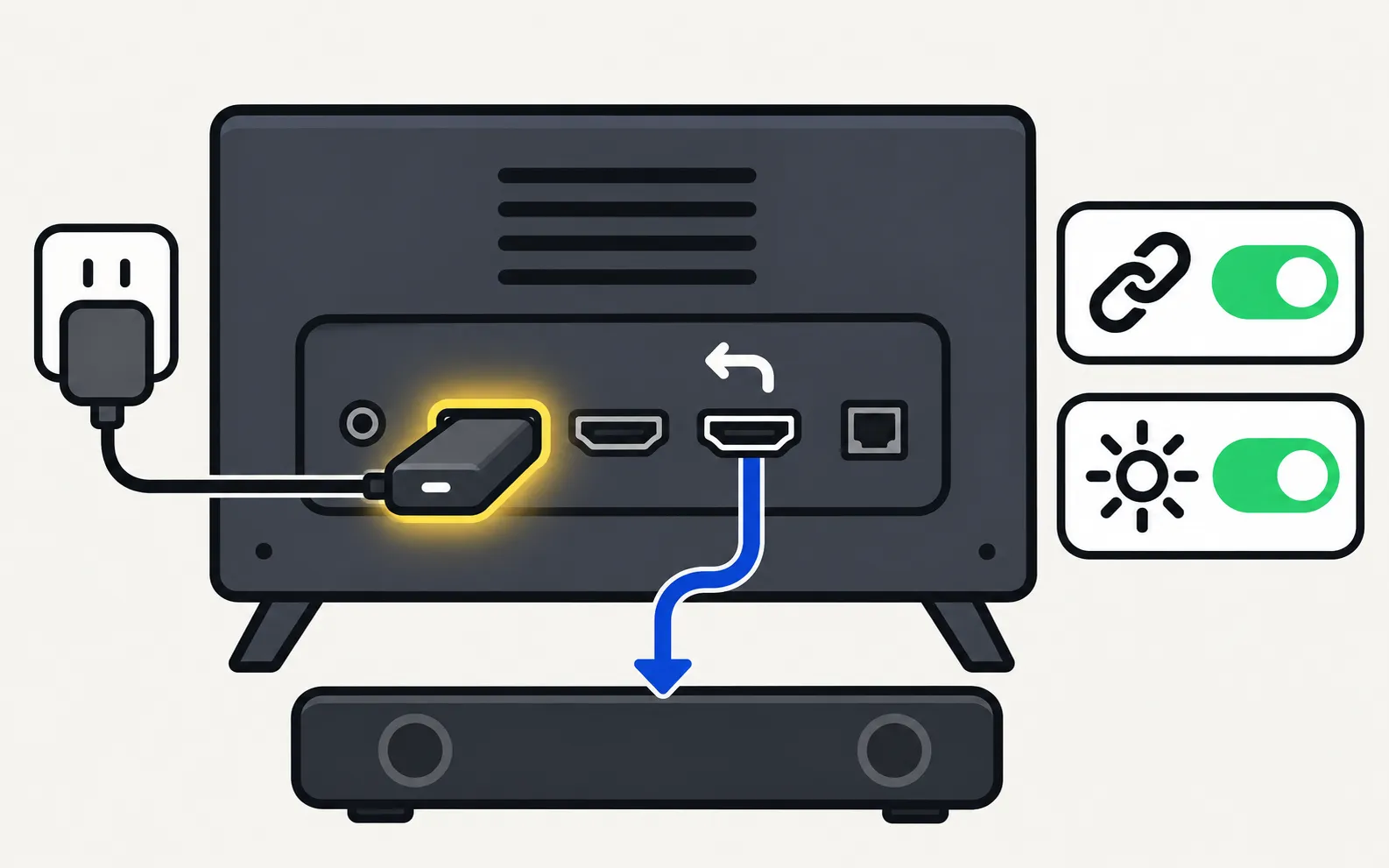
Plug the stick or box into a free HDMI port and power it from its own adapter, then select that HDMI input. Turn on Anynet+ (HDMI-CEC) in the TV's External Device Manager so the device's remote can switch the TV on and control volume, and enable Input Signal Plus for that port if the device outputs 4K HDR. Then run the device's own TV-control setup.
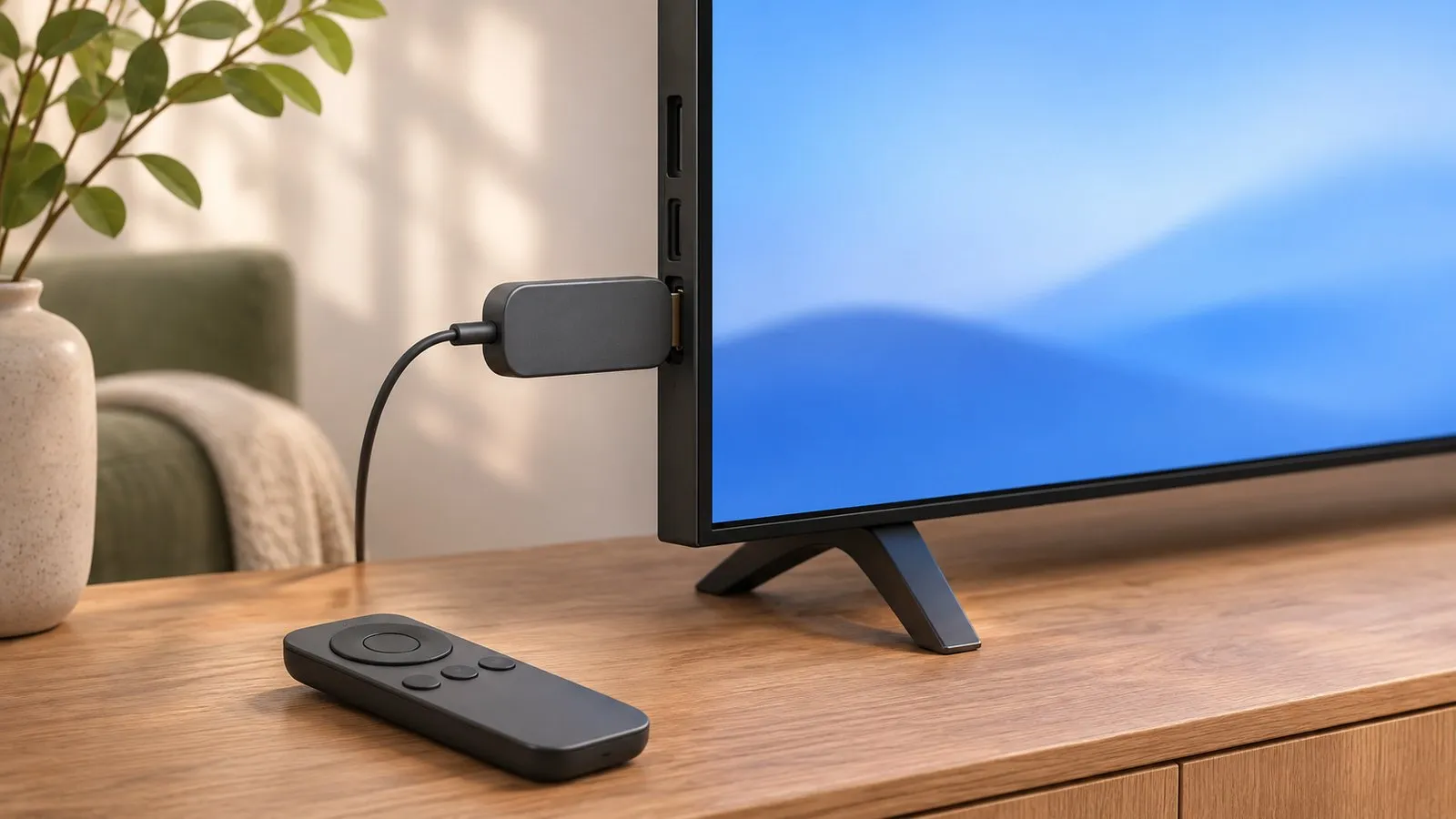
1. Connect and power it
-
Pick a port
Any free HDMI port works. If you have a soundbar, keep the ARC/eARC port for it. For 4K at 120 Hz devices, check which ports support it in your manual. -
Power the device
Use the adapter that came with it, plugged into the wall. -
Select the input
Choose the HDMI port in Source — see change the input.
2. Turn on Anynet+ for one-remote control
Streaming devices use HDMI-CEC — Samsung’s Anynet+ — to turn the TV on and off and often to change its volume.
Not sure of your TV’s year? The model number decoder tells you in seconds.
TVs from 2025 and newer
TVs from 2023–2024
TVs from 2022
TVs from 2017–2021
Then run the device’s TV-control setup — Roku, Fire TV, Apple TV and Xfinity steps are in cable and streaming remotes.
3. Get 4K HDR
If the device outputs 4K HDR, turn on Input Signal Plus for its port: . Samsung says 2022 and newer TVs recognise HDR automatically but still lists this step. More in HDR on Samsung TVs.
4. Sound through a soundbar
With a soundbar on the TV’s ARC or eARC port, the TV passes the stick’s sound to it — see soundbar and HDMI ARC.
5. Network
The stick needs its own internet connection. For 4K streaming, Samsung UK recommends at least 25 Mbps — a useful benchmark for the stick too. If it buffers, see buffering.
Device by device
| Device | Note |
|---|---|
| Amazon Fire TV | TV control: Settings › Equipment Control › Manage Equipment › TV |
| Roku | TV control: Settings › Remotes & devices › Remotes › Set up remote for TV control; Roku notes some TVs allow volume control only |
| Apple TV 4K | TV control: Settings › Remotes and Devices › Home Theater Control |
| Chromecast / Google TV Streamer | Follow Google’s setup instructions for your model |
Want an app that’s missing on the TV itself? See streaming apps on Samsung TVs.
Frequently asked questions
Can I power a Fire TV Stick or Chromecast from the TV's USB port?
Follow the device maker's advice. The supplied wall adapter is the safe choice; whether a TV's USB port is enough depends on the device.
The TV says no signal on the stick's input.
Check power to the stick, try another HDMI port, and see the HDMI no-signal guide.
Why does my Samsung TV switch on when the stick starts an update?
Anynet+ (HDMI-CEC) lets connected devices wake the TV. Turn it off in External Device Manager if that bothers you — you'll lose one-remote power control.
Do I need a streaming device if my TV is a Smart TV?
Not necessarily. It's useful when an app isn't available on your TV or your model year no longer gets app updates.
Sources
- What is eARC and how to set on Samsung Smart TV (incl. Anynet+ paths 2014–2026) — Samsung Australia · Samsung · checked November 11, 2026
- Understanding HDR technology for Samsung TVs — Samsung Canada · Samsung · checked November 11, 2026
- How to set up your Roku voice remote to control your TV — Roku · Samsung · checked November 11, 2026
- Control your TV and volume with the Siri Remote (Apple TV User Guide) — Apple · Samsung · checked November 11, 2026
- How to pair an Amazon Fire TV Stick remote to your TV's volume — How-To Geek · Media · checked November 11, 2026
- Samsung TV not connecting to WiFi or internet — Samsung UK · Samsung · checked November 11, 2026
Related guides
How-to
Cable and streaming remotes
Make an Xfinity, Roku, Fire TV or Apple TV remote turn your Samsung TV on and off and change volume: turn on Anynet+ (HDMI-CEC), then run the device's TV setup.
Explainer
Anynet+ (HDMI-CEC)
Anynet+ is Samsung's HDMI-CEC: one remote for TV, soundbar and console — and why TVs switch on by themselves. Where to find it by year and when to turn it off.
Troubleshooting
HDMI no signal
Samsung TV says No Signal or won't detect HDMI? Wake the device, pick the right source, reconnect in Samsung's order, run HDMI Troubleshooting, check 4K 120 Hz.
Reference
Streaming apps
Get Disney+, Apple TV, Max, Prime Video or Crunchyroll on a Samsung TV: how to install them, which TV years each supports, and what to do if an app is missing.

Explainer
HDR and Dolby Vision
Samsung TVs play HDR10, HDR10+ and HLG but not Dolby Vision. How to get HDR from a console, player or PC with Input Signal Plus and the right picture mode.