
Troubleshooting
Samsung TV buffering or slow internet: how to fix it
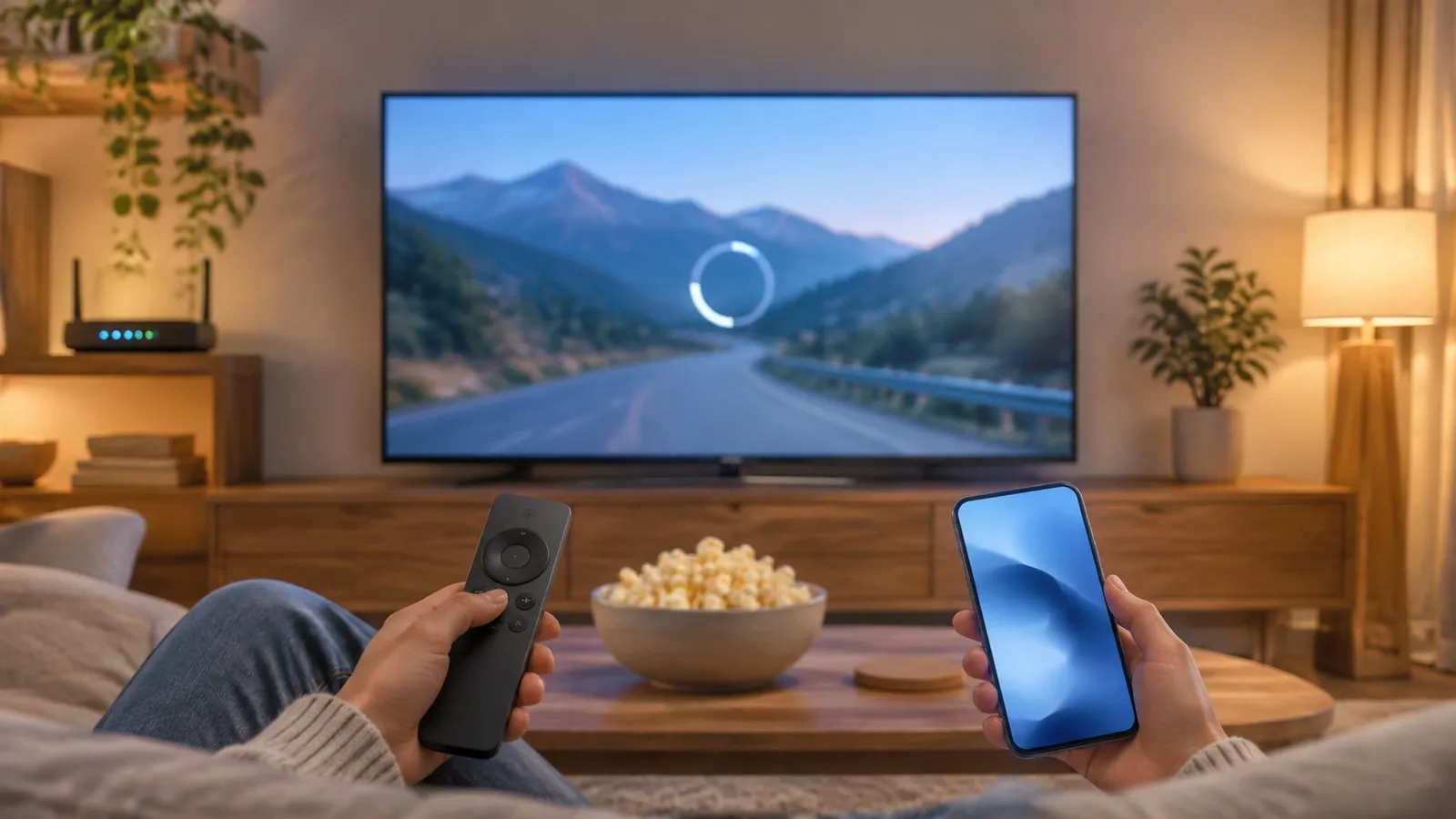
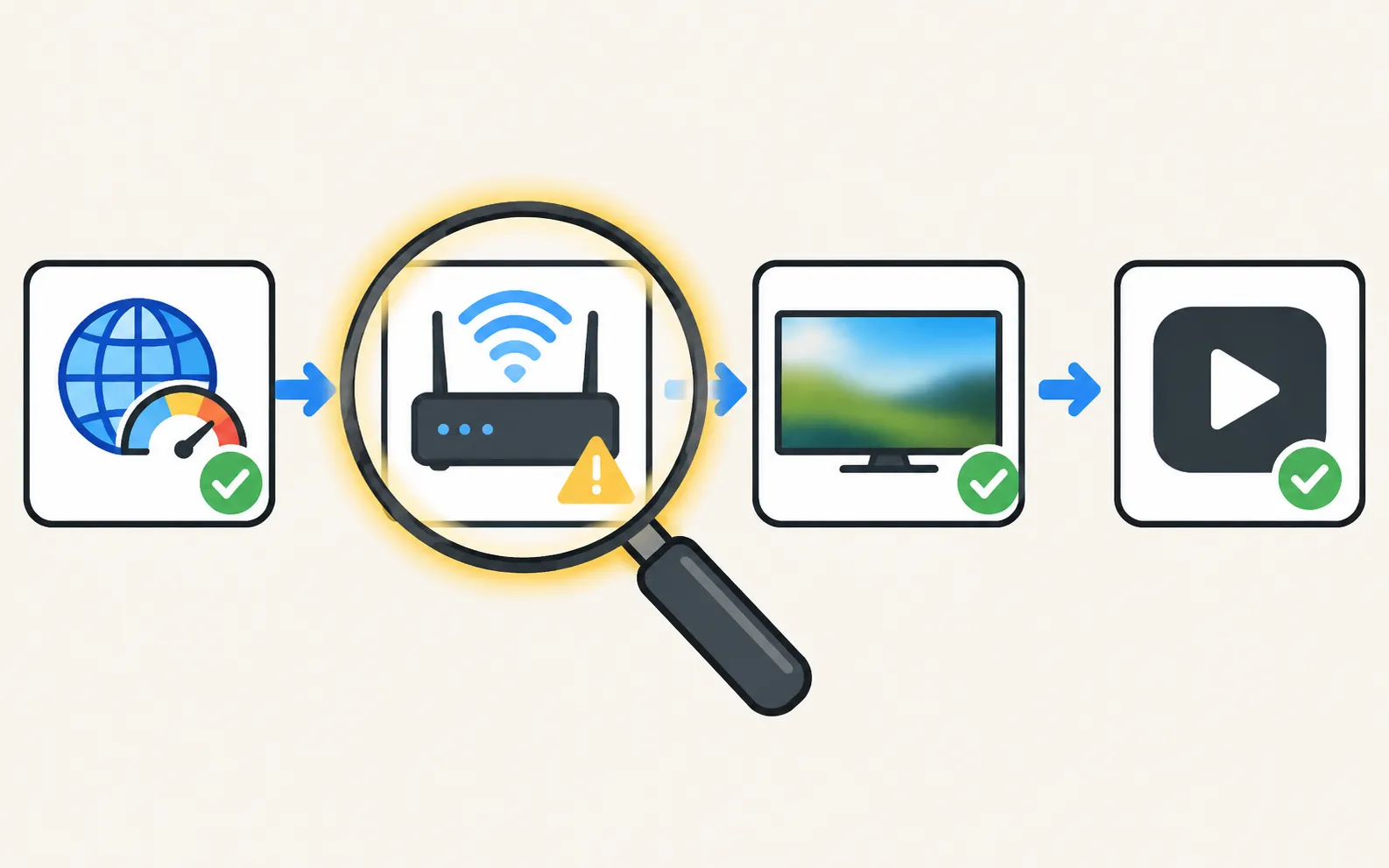
Buffering means the video arrives slower than it plays. Find out whether the bottleneck is the internet, your Wi-Fi, the TV or the app — the fix is different for each.
Quick answer
Samsung recommends at least 25 Mbps for 4K streaming and about 50 Mbps for 8K. Run a speed test near the TV, then improve the link: use an Ethernet cable or the 5 GHz band if the router is close, move the router or add a repeater, and pause other heavy downloads. Restart the TV and router, reset the TV's network, and update the TV. If only one app buffers, it's that app.
1. Know the speed you need
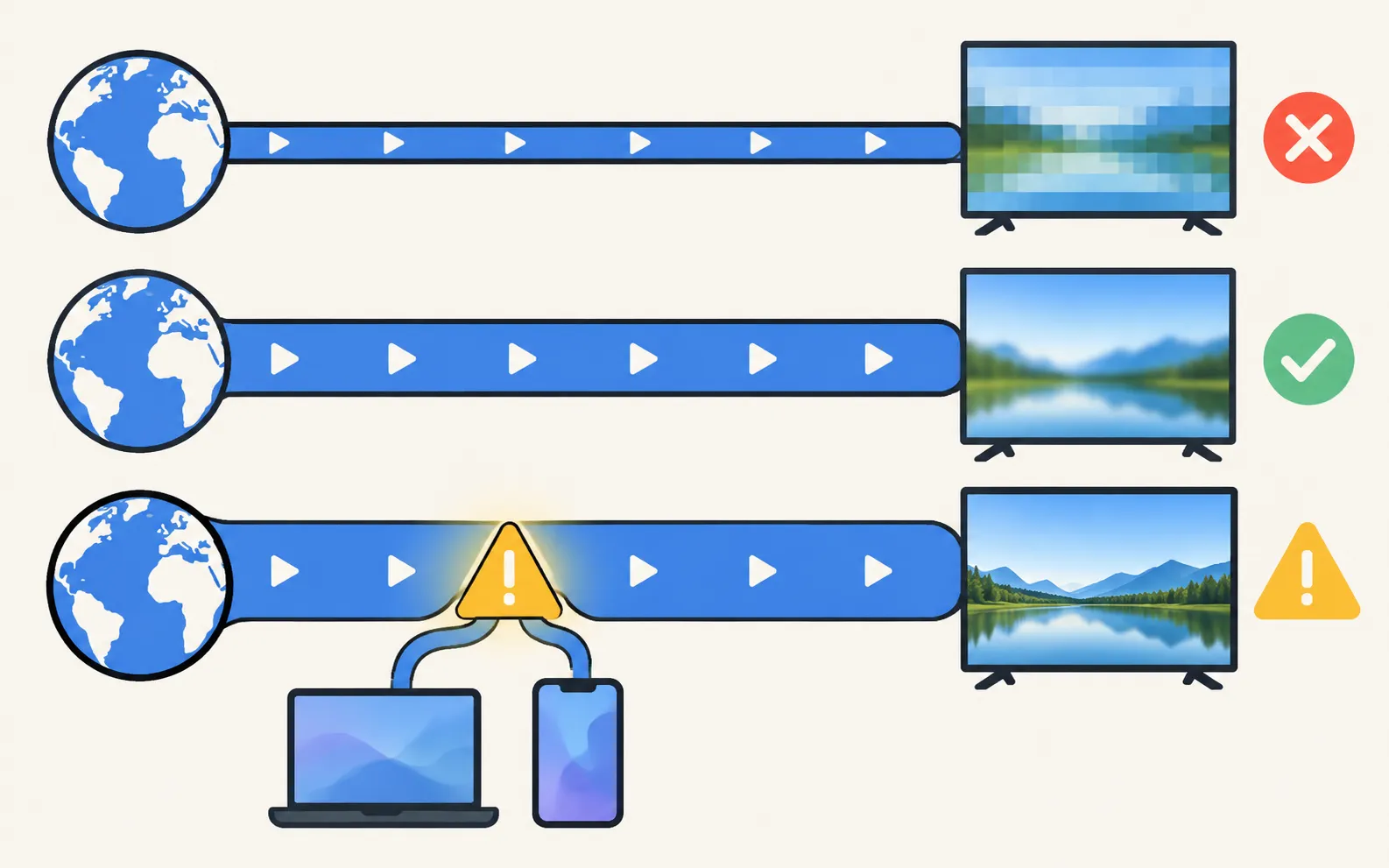
| Content | Samsung UK’s guidance |
|---|---|
| 4K streaming | At least 25 Mbps |
| 8K streaming | At least 50 Mbps, ideally more |
| Other activity at the same time | Requirements increase |
Samsung recommends using an online speed test or a third-party app to check download speed, upload speed and signal strength. Test on a phone standing next to the TV — the speed at the router can be much higher than at the TV.
2. Check the TV’s connection
Open Network Status: . If it reports problems reaching the internet, see connected but no internet; if the connection drops repeatedly, see keeps disconnecting.
To find out whether the TV or the network is the problem, Samsung suggests connecting another device to the same router: if the other device streams fine, focus on the TV.
3. Improve the link
-
Use a cable if you can
Samsung: a wired Ethernet connection can provide more stable speeds than Wi-Fi. -
Pick the right band
5 GHz is normally faster but reaches less far than 2.4 GHz. Test with both. -
Shorten the distance
Move the TV and router closer, remove obstacles, or add a Wi-Fi repeater. -
Ease the router's load
Disconnect devices you don’t need and pause big downloads while streaming. Samsung also mentions prioritising the TV with the router’s Quality of Service (QoS) settings, if available. -
Mind interference
Samsung lists interference from other wireless devices or networks as a common cause.
4. Refresh the TV
-
Restart TV and router
Power both off, wait, and power them back on. -
Reset the network
Samsung: resetting the network and reconnecting can resolve connectivity issues — , then reconnect. -
Update the software
— see software update.
If the whole TV feels slow — menus lag as well as video — see slow or freezing TV.
5. Rule out the app
If one app buffers and others don’t, the connection isn’t the issue. Clear that app’s cache, reinstall it or wait for the service — see apps not working. A VPN on the router can get in the way too: Samsung’s Wi-Fi guide suggests disabling any router VPN or firewall that might block the TV — see VPN on a Samsung TV.
Still buffering on a cable at full speed? Ask your internet provider to check the line, as Samsung suggests when the router shows a connection but service still fails.
Frequently asked questions
How fast should my internet be for a Samsung TV?
Samsung UK recommends at least 25 Mbps for 4K streaming and at least 50 Mbps for 8K, and more if other people are using the connection at the same time. Apps may set their own recommendations.
Is Ethernet better than Wi-Fi?
Samsung says a wired connection can provide more stable speeds than Wi-Fi. If a cable is practical, it's the most reliable fix.
Should I use 2.4 GHz or 5 GHz?
Samsung: 5 GHz is normally faster but has less range than 2.4 GHz. Test both — 5 GHz near the router, 2.4 GHz if the TV is far away or behind walls.
Only YouTube (or one app) buffers. What now?
Then the connection is probably fine. Clear the app's cache or reinstall it — see apps not working.
Sources
- Samsung TV not connecting to WiFi or internet — Samsung UK · Samsung · checked November 11, 2026
- How to fix Wi-Fi connection issues on your Samsung TV — Samsung Gulf · Samsung · checked November 11, 2026
Related guides

Troubleshooting
Wi-Fi keeps disconnecting
Samsung TV dropping Wi-Fi every few minutes or after standby? Improve the signal, fix band steering and address changes, reset the network, or use a cable.

Troubleshooting
Connected but no internet
Samsung TV connected but apps say no internet? Run Network Status, set DNS to 8.8.8.8 in IP Settings, check date and time, restart the router, update the TV.

How-to
Connect to the internet
How to connect a Samsung Smart TV to the internet: Wi-Fi step by step, a wired Ethernet connection, or a phone hotspot — plus how to check the connection works.

Troubleshooting
Apps not working
Samsung TV apps won't open, crash or keep loading? Power-cycle, check the internet, update the TV, reinstall the app, then reset Smart Hub — in Samsung's order.

Troubleshooting
Slow or freezing
Speed up a slow or freezing Samsung TV: cold boot, clear app cache in Device Care, delete unused apps, update the software and reset Smart Hub as a last step.