
Troubleshooting
Samsung TV apps not working or loading: fixes and Smart Hub reset
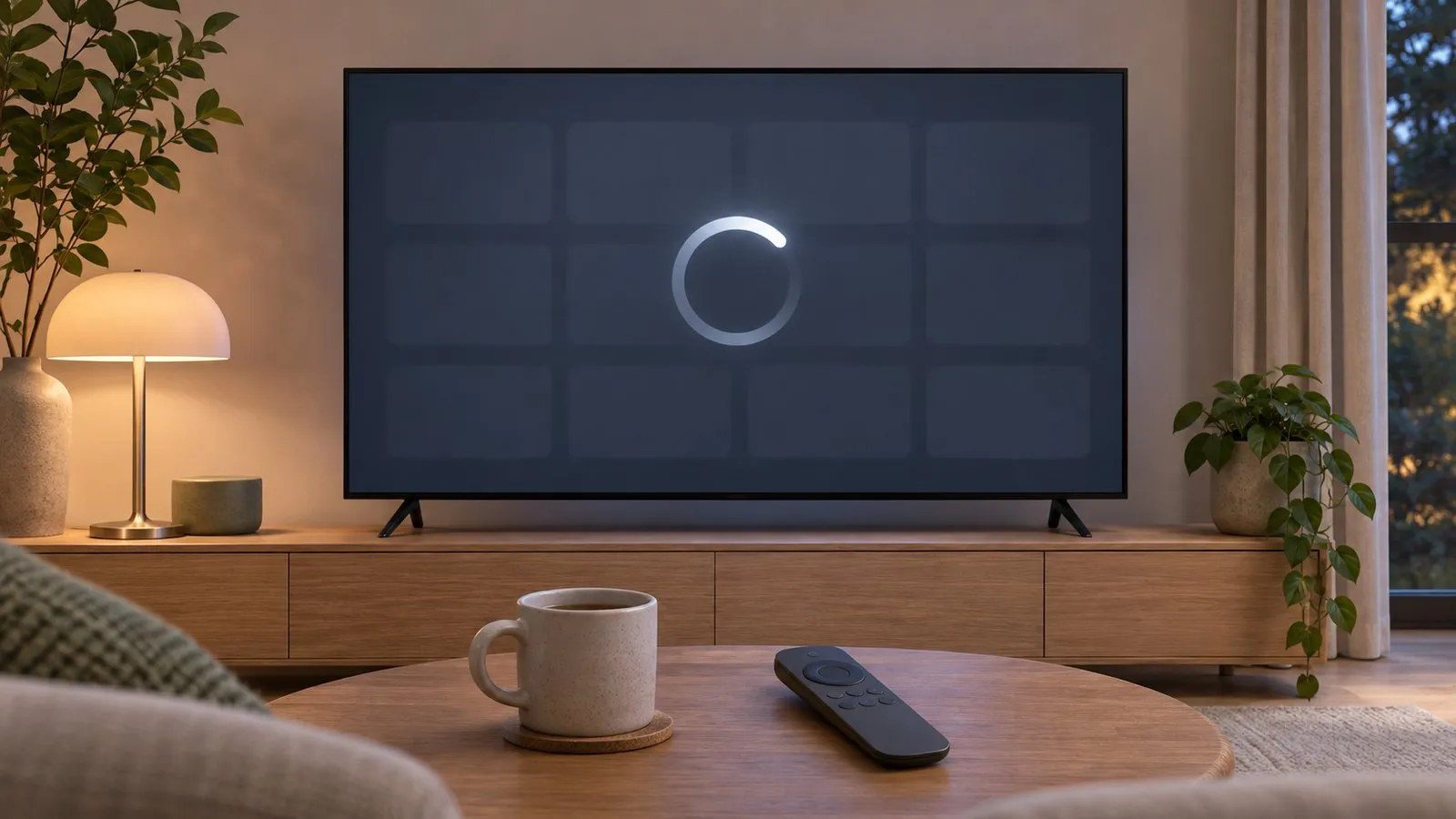
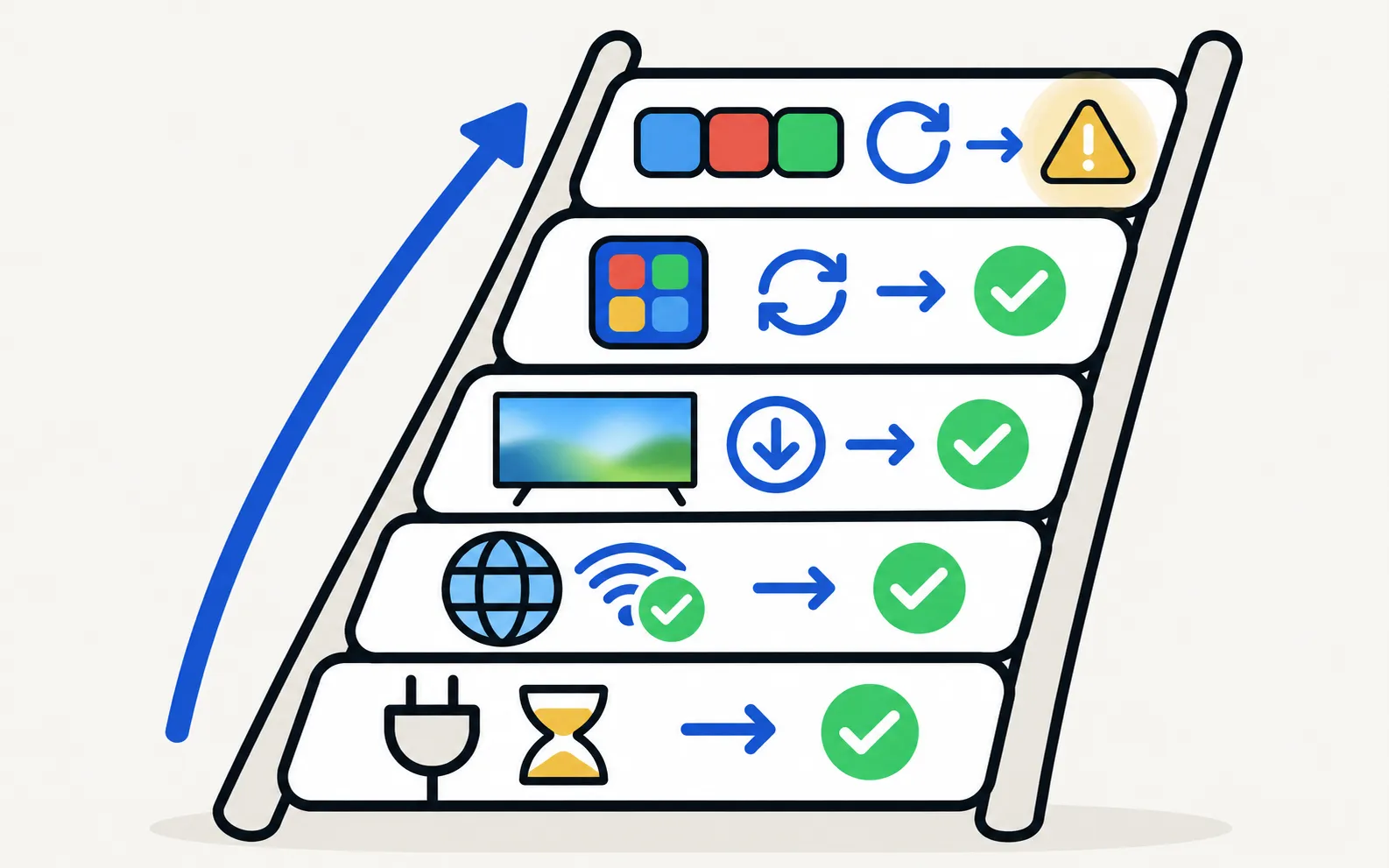
When one app fails, fix the app. When every app fails, fix the internet or the TV's software. Here is the order Samsung recommends.
Quick answer
Unplug the TV for 30 seconds and try again. If every app fails, check the internet (Network Status) and update the TV under Settings, Support, Software Update. If one app fails, delete and reinstall it from Apps, Settings — or choose Reinstall for pre-installed apps. As a last resort, reset Smart Hub under Settings, Support, Self Diagnosis (Device Care on newer menus), Reset Smart Hub; it signs you out of all apps (default PIN 0000).
1. Power-cycle the TV
Samsung’s first step: unplug the TV, wait 30 seconds, plug it back in and try the app again. This clears a stuck app or memory problem that standby doesn’t.
2. Is it every app or just one?
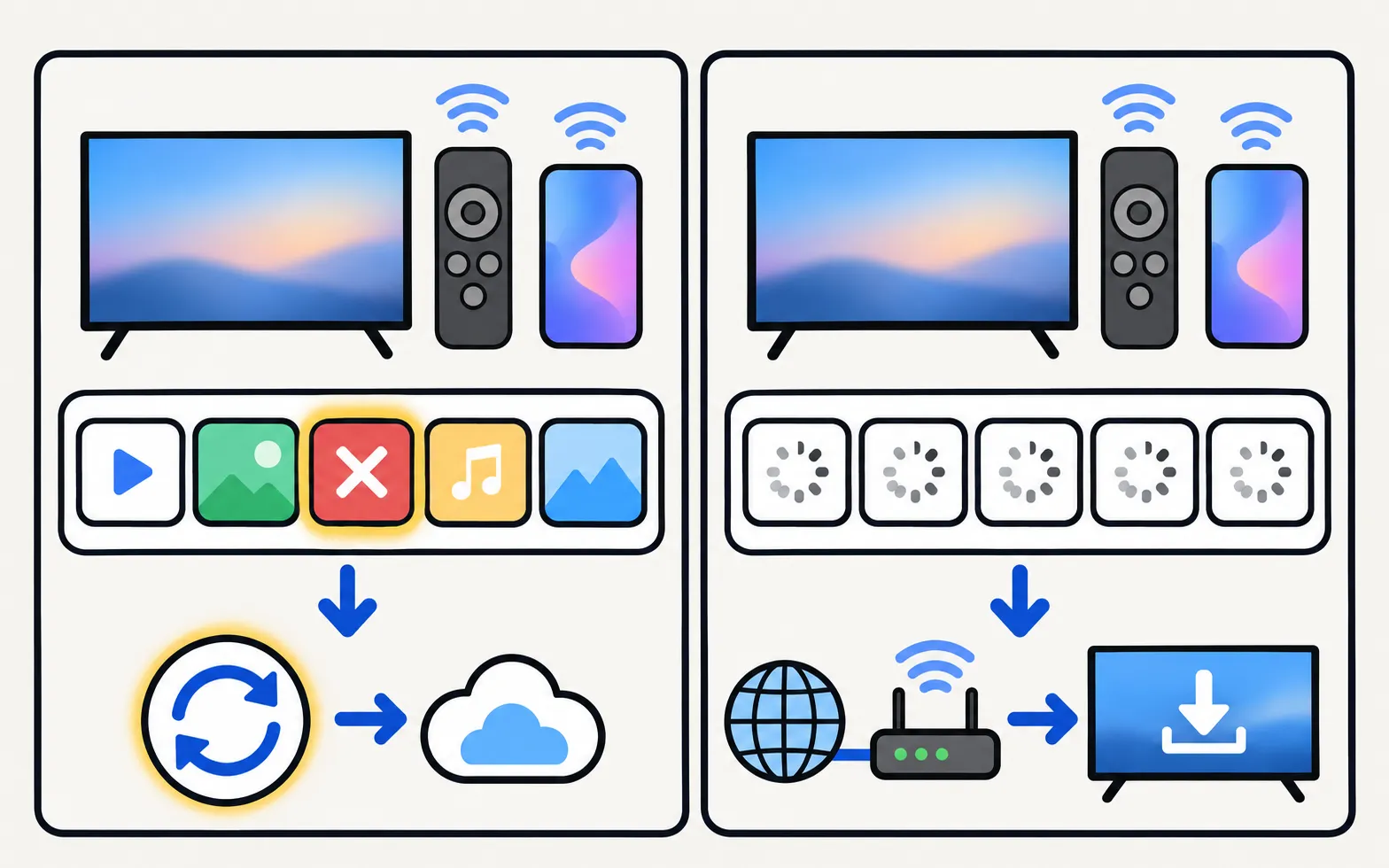
| Symptom | Likely cause | Go to |
|---|---|---|
| Every app fails, or the app store won’t load | Internet or the TV’s software | Steps 3–4 |
| One app fails | That app | Step 5 |
| An app says it’s not supported | The app maker dropped your TV model | Workarounds |
| An app shows a numbered error | Depends on the code | Samsung TV error codes |
3. Check the internet
Run the TV’s network test (; under General on 2017–2021 TVs). If the TV reaches the router but not the internet, see connected but no internet. If it won’t connect at all, see won’t connect to Wi-Fi; if apps fail only now and then because the connection drops, see Wi-Fi keeps disconnecting.
4. Update the TV’s software
App makers update their apps for current TV software; an outdated TV can stop running them. More in update a Samsung TV.
5. Reinstall the app
-
Open the Apps settings
Select Apps, then the settings (gear) icon. -
Delete the app
Select the app and choose Delete. If Delete is greyed out, the app is pre-installed — choose Reinstall instead. -
Install it again
Press Return, select the search icon, type the app’s name and select Install.
Samsung notes that uninstalling signs you out of the app, so have your login details ready. Installing and deleting apps in more detail: install, update and delete apps.
6. Reset Smart Hub (last resort)
Smart Hub is the TV’s app platform. Resetting it clears its settings and data:
On newer menus Self Diagnosis sits inside Device Care. Enter the TV’s PIN — 0000 unless you’ve changed it. Samsung warns that this signs you out of all apps, so have every login available.
If the app no longer supports your TV
App makers end support for older TV software from time to time; the app then disappears from the store or shows a message. Nothing on the TV can bring it back. The practical fix is a streaming stick or box on a free HDMI port — see connect a Fire TV, Roku, Apple TV or Chromecast and app not available on your Samsung TV.
App-specific guides
- YouTube not working
- Netflix not working
- TV slow or freezing in every app: clear cache and free storage
- Installing, finding and organising apps: all Samsung TV app guides
Frequently asked questions
What does Reset Smart Hub delete?
It resets Smart Hub settings, downloaded apps and the accounts stored on the TV, so you'll need to sign in to your apps again. Your picture and sound settings aren't the target, but keep your logins ready.
What's the default PIN for Reset Smart Hub?
Samsung's default TV PIN is 0000 unless you've changed it.
An app says it's no longer supported on my TV. Can I fix that?
No. App makers end support for older TV models over time. A streaming stick or box on a free HDMI port is the usual workaround.
Only YouTube or only Netflix fails. Is there a specific guide?
Yes — both have their own troubleshooting pages with app-specific steps.
Sources
- Samsung UK support: TV apps won't open — Samsung UK · Samsung · checked November 10, 2026
- [2022] How to install apps and manage downloaded apps on your Samsung TV — Samsung UK · Samsung · checked November 11, 2026
- Samsung TV won't connect to Wi-Fi (TSG10002209) — Samsung US · Samsung · checked November 11, 2026
Related guides
How-to
Install and delete apps
How to download apps on a Samsung Smart TV, keep them updated, delete or reinstall them, and what to do when Delete is greyed out — with Samsung's own steps.
Troubleshooting
YouTube not working
YouTube won't open, keeps loading, shows a black screen or won't sign in on a Samsung TV? Restart, check network and date, update, reinstall, reset Smart Hub.
Troubleshooting
Netflix not working
Netflix won't open, shows an error or black screen, or buffers on a Samsung TV? Read the code, restart, update, reinstall Netflix and, last, reset Smart Hub.
Troubleshooting
Connected but no internet
Samsung TV connected but apps say no internet? Run Network Status, set DNS to 8.8.8.8 in IP Settings, check date and time, restart the router, update the TV.

Troubleshooting
Slow or freezing
Speed up a slow or freezing Samsung TV: cold boot, clear app cache in Device Care, delete unused apps, update the software and reset Smart Hub as a last step.

How-to
Software update
Update a Samsung Smart TV: Auto Update, Update Now, or USB with the right file format and folder — plus fixes when the update is greyed out or fails.