
How-to
Art Mode on Samsung The Frame: show your photos and Art Store art
Art Mode is what makes The Frame a frame. Here's how to fill it with your own photos or the Art Store's collection — and keep it looking natural.
Quick answer
Press the power button briefly while watching TV to switch The Frame to Art Mode (a long press turns it fully off). To show your own photos, open SmartThings on your phone, choose the TV, tap Art Mode, then Add Your Photos and Save on The Frame — or use a USB drive under My Collection. Samsung says this needs a Samsung account and internet. The full Art Store catalogue requires a paid subscription.
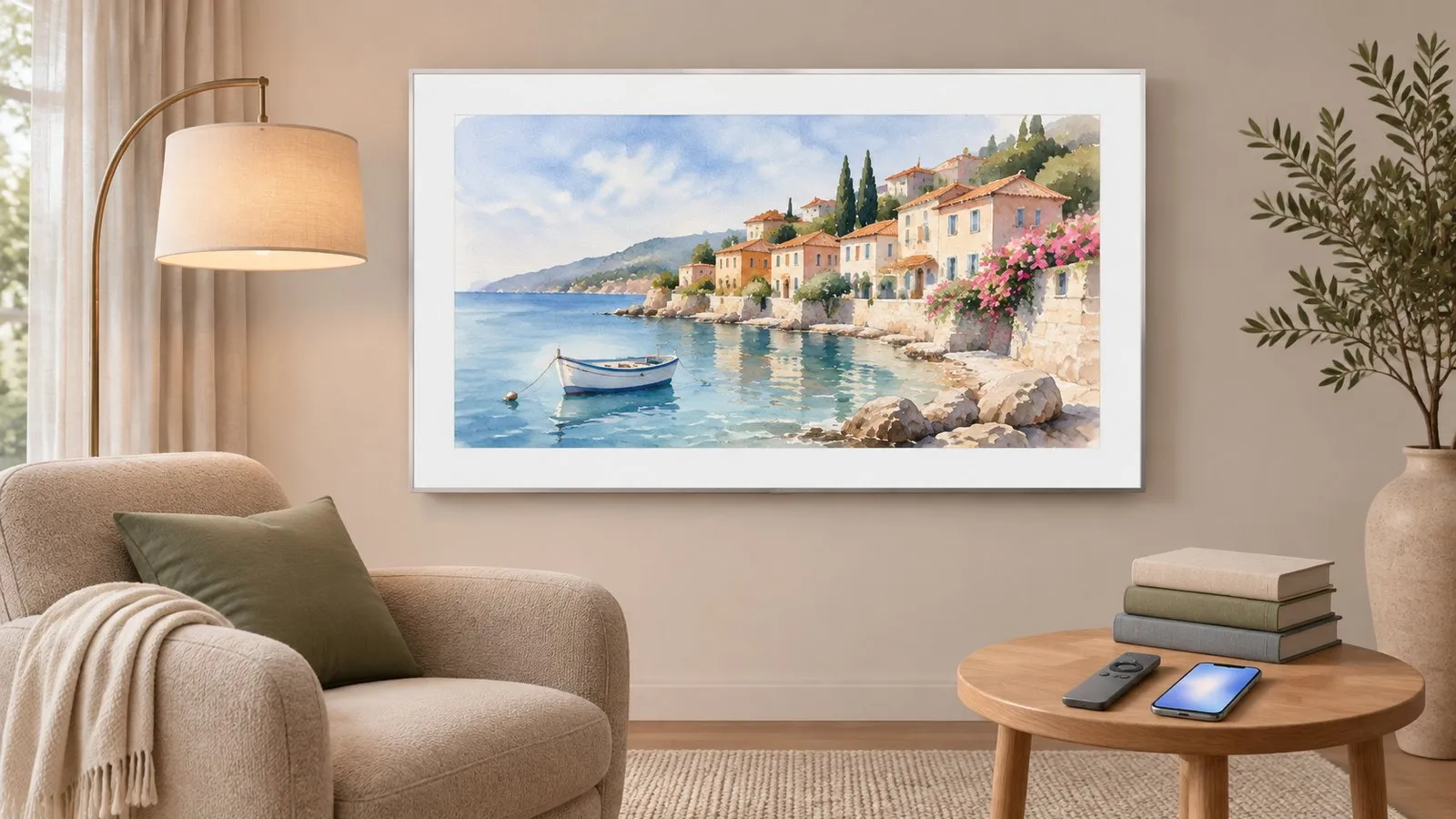
Switch between TV and Art Mode
- Short press of the power button: switches between TV and Art Mode.
- Long press: turns The Frame fully off.
- On Smart Remotes with an Art or Ambient button, Samsung’s manual notes it switches straight to that mode and can turn the TV on in it.
Show your own photos

From your phone (SmartThings)
Samsung’s US guide:
-
Open SmartThings
Devices tab, then your TV. -
Tap Art Mode
Then Add Your Photos. -
Choose photos
Then tap Save on The Frame.
Edit photos (crop, colour) on the phone first — you can’t edit them on The Frame. A Samsung account and internet connection are required.
From USB
Connect a USB drive to the One Connect box, open Art Mode, go to My Collection and select the storage device.
The Art Store
The Samsung Art Store offers a large catalogue of artworks by subscription; select free artworks and your own photos don’t need it. Subscribe or cancel from the Art Store’s membership menu on the TV, or through Samsung’s subscription management. If you’re on a free trial, note its end date.
Make it look like real art
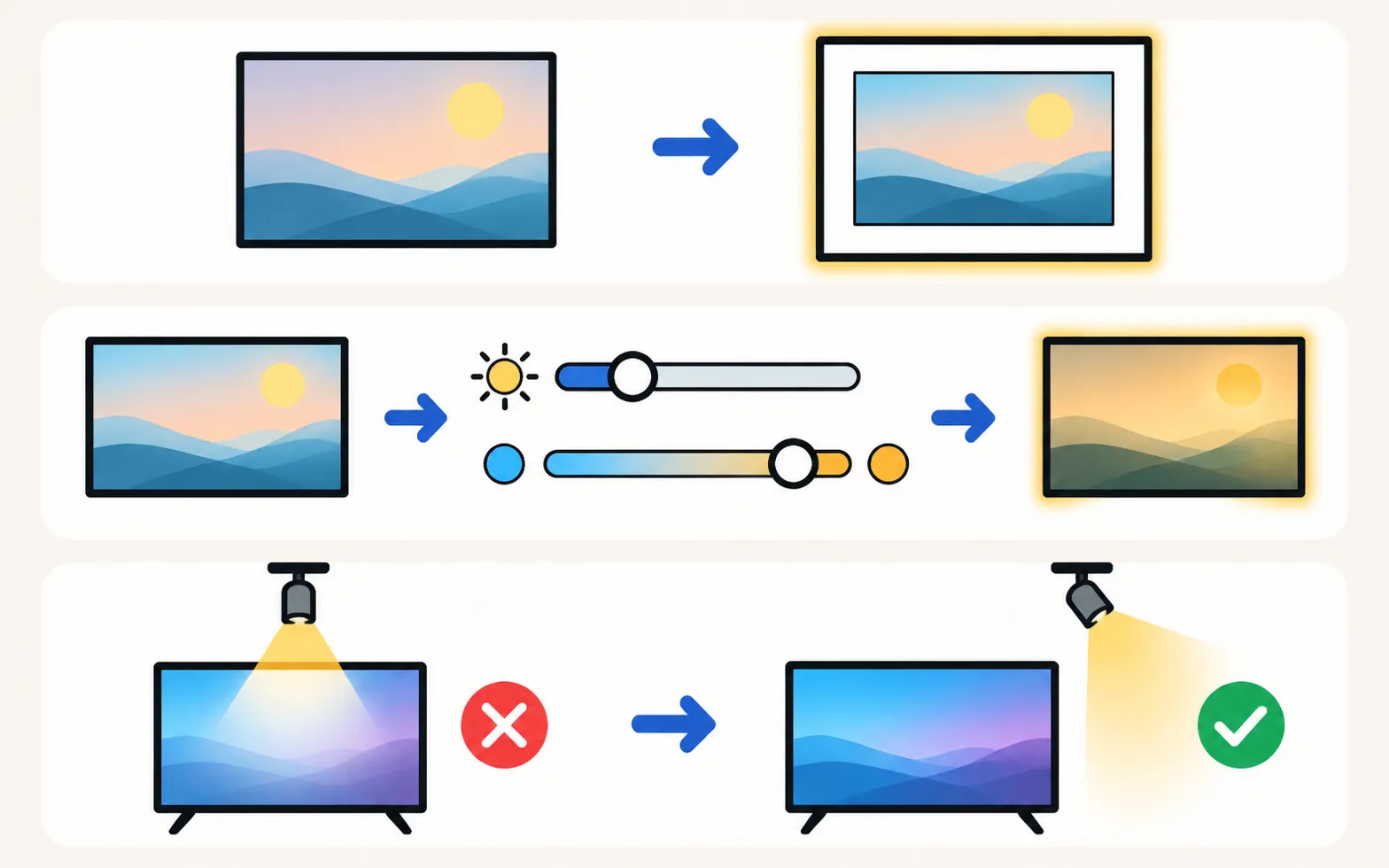
- Mats and frames: choose a digital mat style and colour in the artwork’s options.
- Brightness and colour tone: lower Art Mode brightness and warm the tone for a paper-like look; the brightness sensor can adjust it automatically.
- Matte screen: recent Frames use an anti-reflection matte finish; avoid aiming bright lamps straight at it.
Art Mode settings to know
- Motion sensor / Night mode: decide when the screen sleeps — key if The Frame turns on by itself (The Frame turns on by itself).
- Sleep after: how long Art Mode stays on without motion.
Mounting and the One Connect box: installation and bezels. All Frame guides: The Frame.
Frequently asked questions
Do I need an Art Store subscription?
Not to show your own photos or Samsung's selection of free artworks. The full premium catalogue needs a paid Art Store subscription.
Can I edit photos on The Frame?
Samsung advises editing photos before uploading, because you can't edit them on The Frame itself.
Why does Art Mode turn off when I leave the room?
The Frame's motion and brightness sensors switch the screen off when nobody's there or the room is dark, depending on your settings.
Can I show a slideshow of my own photos?
Samsung's FAQ says 'Display All' for artworks is available only with an Art Store subscription; some owners report slideshow limits for their own photos too. Check the Art Mode options on your TV.
Sources
- Use Art Mode on The Samsung Frame TV (ANS00076727, archived copy of 21 Dec 2025) — Samsung US · Samsung · checked November 12, 2026
- Get artwork for The Samsung Frame TV from the Art Store (ANS00092545, archived copy of 2 Aug 2025) — Samsung US · Samsung · checked November 12, 2026
- Samsung TV user manual: About the Buttons on the Samsung Smart Remote (Q9F manual, via ManualsLib) — Samsung (hosted by ManualsLib) · Reference · checked November 11, 2026
- How to troubleshoot the Samsung TV that keeps turning on by itself (Event Log, power-on reason) — Samsung South Africa · Samsung · checked November 11, 2026
Related guides
Topic
The Frame
Samsung The Frame explained: Art Mode with your photos or the Art Store, wall mounting and bezels, turning on by itself, models by year and Ambient Mode.

Troubleshooting
Frame turns on by itself
The Frame waking up, switching off or leaving Art Mode on its own? Adjust Motion Detector, Night Mode and Sleep After, then check HDMI-CEC and phone wake-ups.
How-to
Install and bezels
Mount The Frame flush on the wall: the slim wall mount, routing the One Connect cable, placing the box, attaching magnetic bezels, plus safety tips.
Explainer
OLED burn-in
Prevent and treat burn-in on a Samsung OLED TV: what Pixel Shift, Adjust Logo Brightness and Pixel Refresh do, where Panel Care is, and when to get service.
Explainer
Samsung account
What a Samsung account does on your TV, which features need one (SmartThings, Bixby, Art Mode uploads, some apps), which don't, and how to sign in or out.