
Troubleshooting
Samsung Frame TV turns on or off by itself: Art Mode sensor fixes
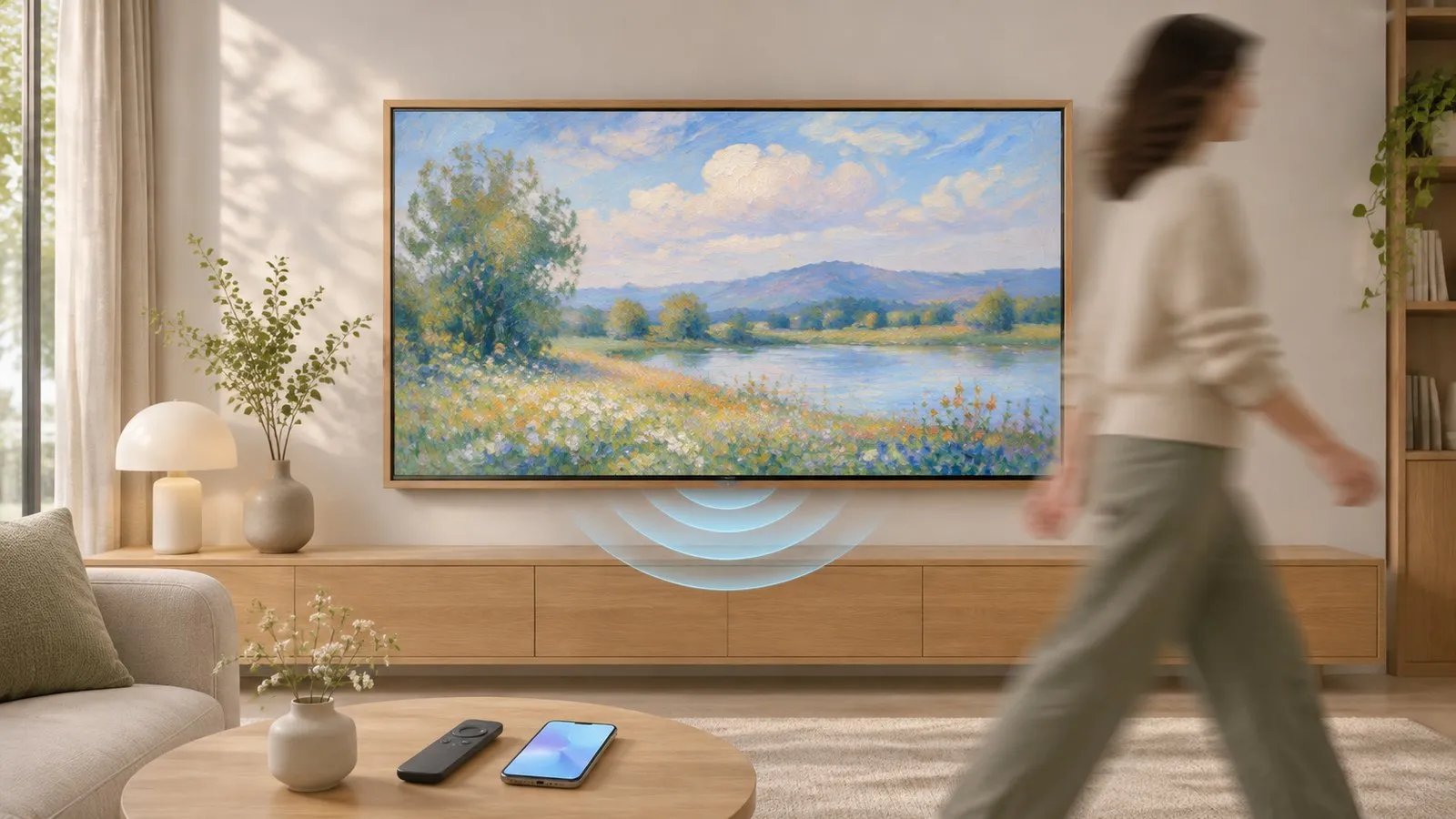
The Frame is designed to switch itself on and off: its motion and light sensors run Art Mode. When that behaviour is unwanted, three settings control it.
Quick answer
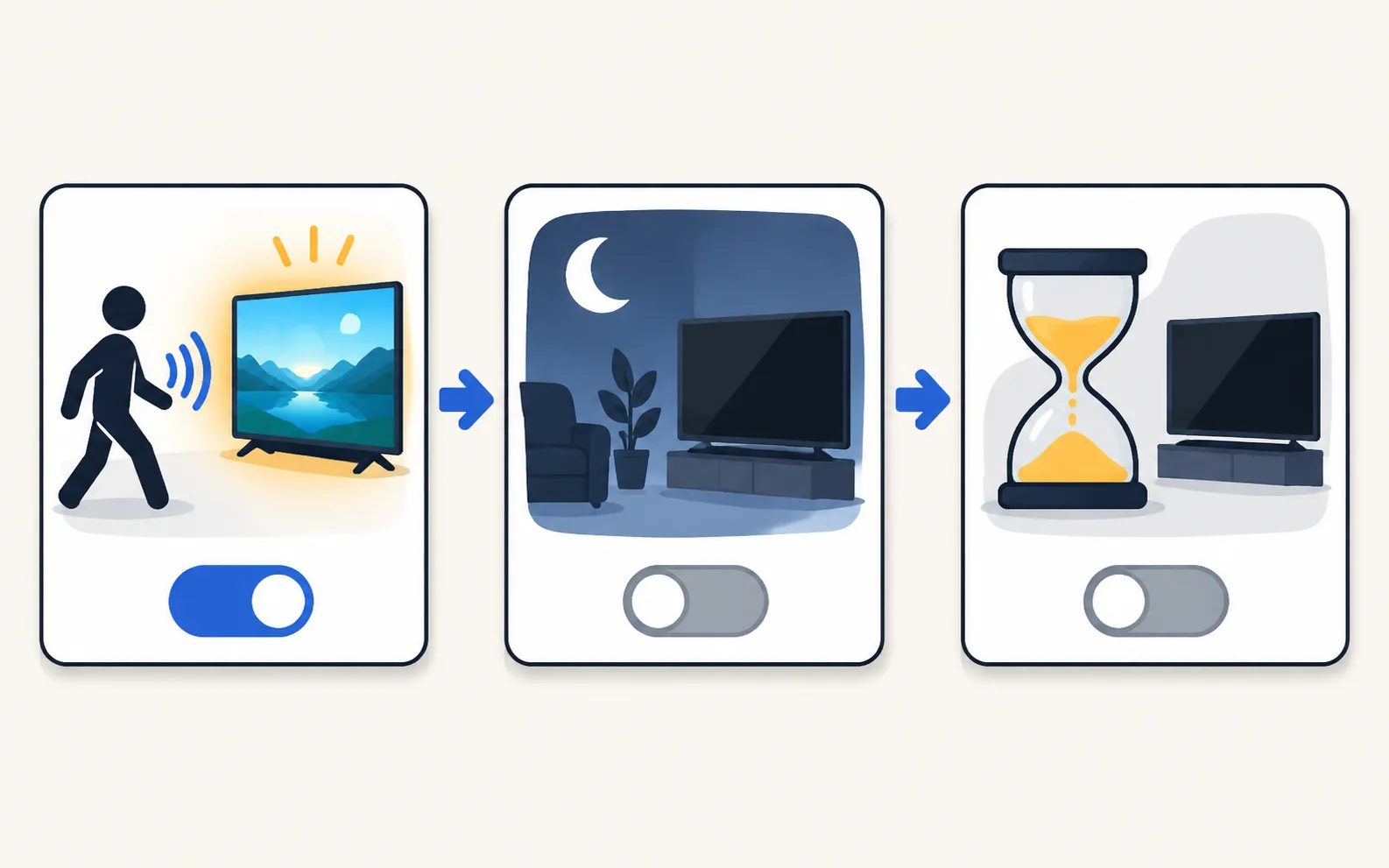
In Art Mode, The Frame's motion sensor turns it on or off when it detects movement, Night Mode turns it off in the dark, and Sleep After turns it off when no motion is seen. To stop automatic switching, press Home, then left, select Art › Art Mode Options and set Sleep After and Night Mode to Off, or lower the Motion Detector sensitivity. These settings are also in SmartThings.
The three Art Mode switches
| Setting | What Samsung says it does | To stop automatic switching |
|---|---|---|
| Motion Detector | Turns The Frame on or off automatically when motion is detected in Art Mode | Lower the sensitivity |
| Night Mode | Turns the TV off automatically when no ambient light is detected | Set to Off |
| Sleep After | Turns the TV off after a set period without detected activity | Set to Off |
Samsung notes the Motion Detector may not be supported on every model or in every region, and asks you not to block the sensor at the front of the TV.
Change the settings on the TV
-
Open Art
Press Home on the remote, then the left directional button, and select Art. -
Open Art Mode Options
Scroll down to Art Mode Options. -
Adjust
Set Sleep After and Night Mode to Off, and lower Motion Detector sensitivity if the TV wakes too easily.
Or in SmartThings: open The Frame, tap the Art Mode button at the top right, then Settings.
It isn’t the sensor? Other wake-up triggers
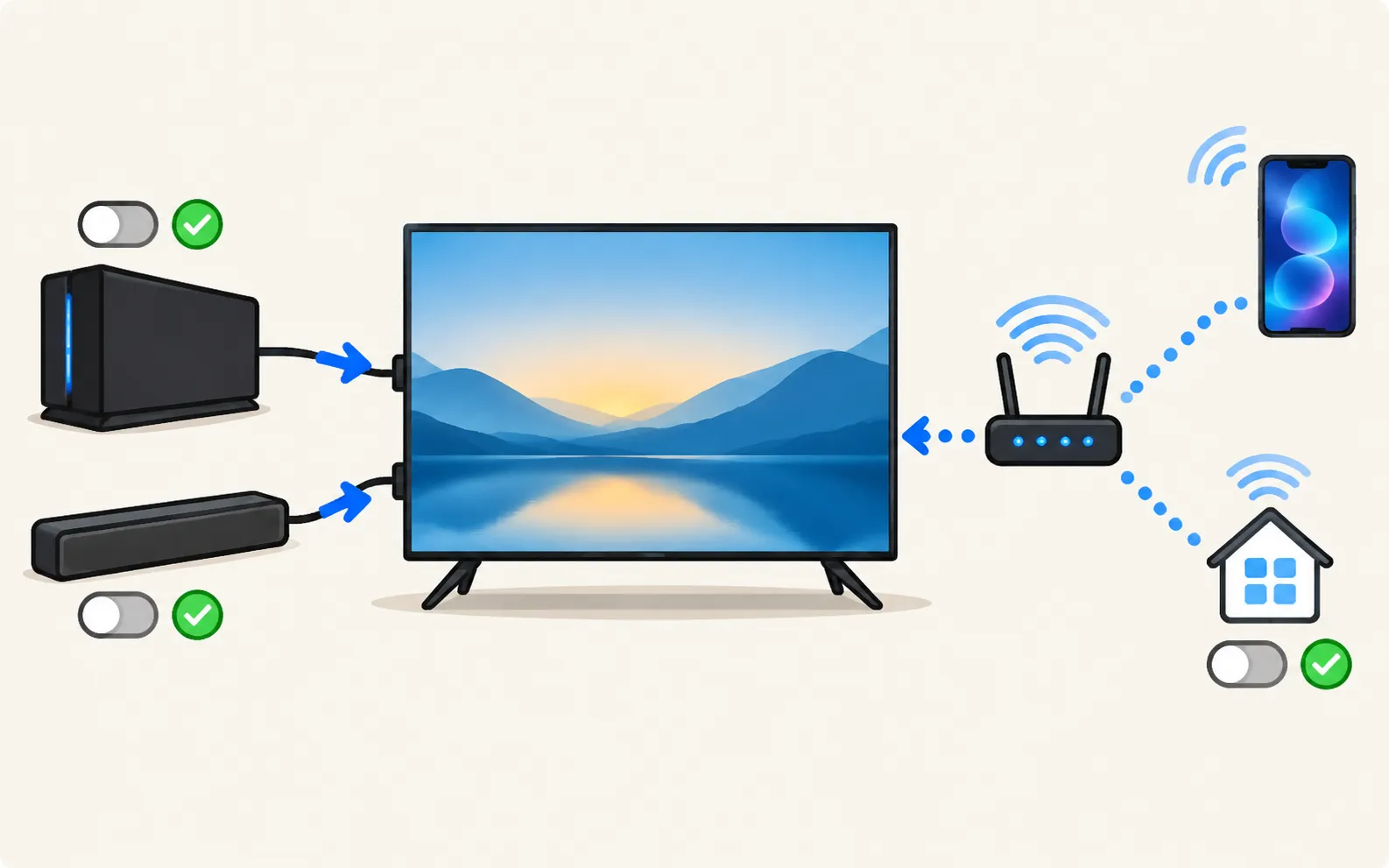
If The Frame comes out of Art Mode or switches on with nobody around:
- HDMI devices wake it through Anynet+ (HDMI-CEC). On 2025–2026 Frames: ; other years in Samsung TV turns on by itself.
- Phones and smart-home routines can wake it over the network — see turn on the TV with your phone.
- Software: install the latest update — software update.
If it switches fully off unexpectedly and the settings above aren’t the cause, see Samsung TV turns off by itself.
Switch it off for real
A short press of the power button toggles between TV and Art Mode. Press and hold power to turn The Frame completely off. More on Art Mode: using Art Mode.
Frequently asked questions
Can I turn Art Mode off completely?
Samsung says Art Mode can't be permanently disabled. To switch The Frame fully off instead of going to Art Mode, press and hold the power button on the remote.
Why does my 32-inch Frame behave differently?
Samsung notes that on the 32-inch Frame only auto off is supported when Night Mode is on.
My Frame wakes when I turn on my console or soundbar.
That's HDMI-CEC (Anynet+), not the Art Mode sensor. Turn it off in External Device Manager if you don't want devices to wake the TV.
Do these settings exist in the SmartThings app?
Yes. Samsung says SmartThings is used with all 2018 and later Frame TVs: open the TV in SmartThings, tap Art Mode, then Settings.
Sources
- [2022] How to troubleshoot when The Frame automatically turns off — Samsung Caribbean · Samsung · checked November 11, 2026
- How to use Art Mode on the Samsung Frame TV — Samsung US · Samsung · checked November 11, 2026
- What is eARC and how to set on Samsung Smart TV (incl. Anynet+ paths 2014–2026) — Samsung Australia · Samsung · checked November 11, 2026
Related guides

How-to
Art Mode
Switch The Frame to Art Mode, show your own photos via SmartThings or USB, use the Samsung Art Store, and adjust brightness, mats and the motion sensor.
Topic
The Frame
Samsung The Frame explained: Art Mode with your photos or the Art Store, wall mounting and bezels, turning on by itself, models by year and Ambient Mode.

Troubleshooting
TV turns on by itself
Samsung TV switching itself on at night or in the morning? Read the Event Log's power-on reason, then turn off Anynet+, Power On with Mobile or the trigger.
Troubleshooting
TV turns off by itself
Samsung TV switching off on its own? Check Auto Power Saving, the sleep timer, Anynet+, devices, the power cable and software, and why it may shut off at start.
How-to
Turn the TV on with your phone
Switch a Samsung TV on from your phone: enable Power On with Mobile (menu paths by year), keep the TV in standby, and fix a TV that won't wake over Wi-Fi.