
Explainer
Samsung account on your TV: do you need one?
You can watch TV, use apps and connect devices without a Samsung account. A few Samsung services need one.
Quick answer
A Samsung account isn't needed to watch TV, use HDMI devices or most streaming apps. Samsung services do use one: SmartThings (phone remote, power-on and smart-home control), Bixby voice, uploading your own photos to The Frame's Art Mode and some store purchases. Signing in links the TV to your Samsung profile; if you prefer not to, skip it and use features that don't need it.
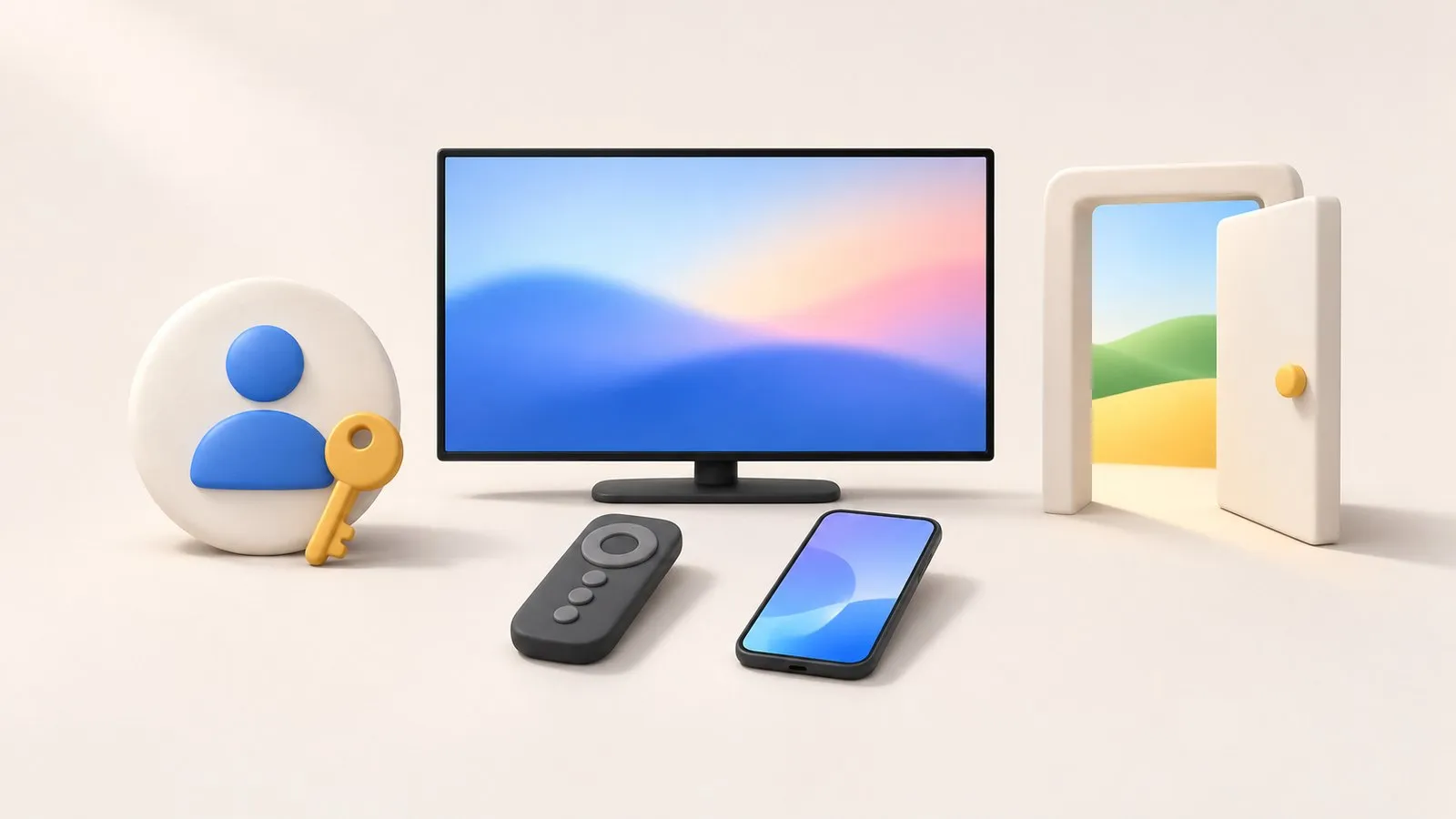
What needs a Samsung account
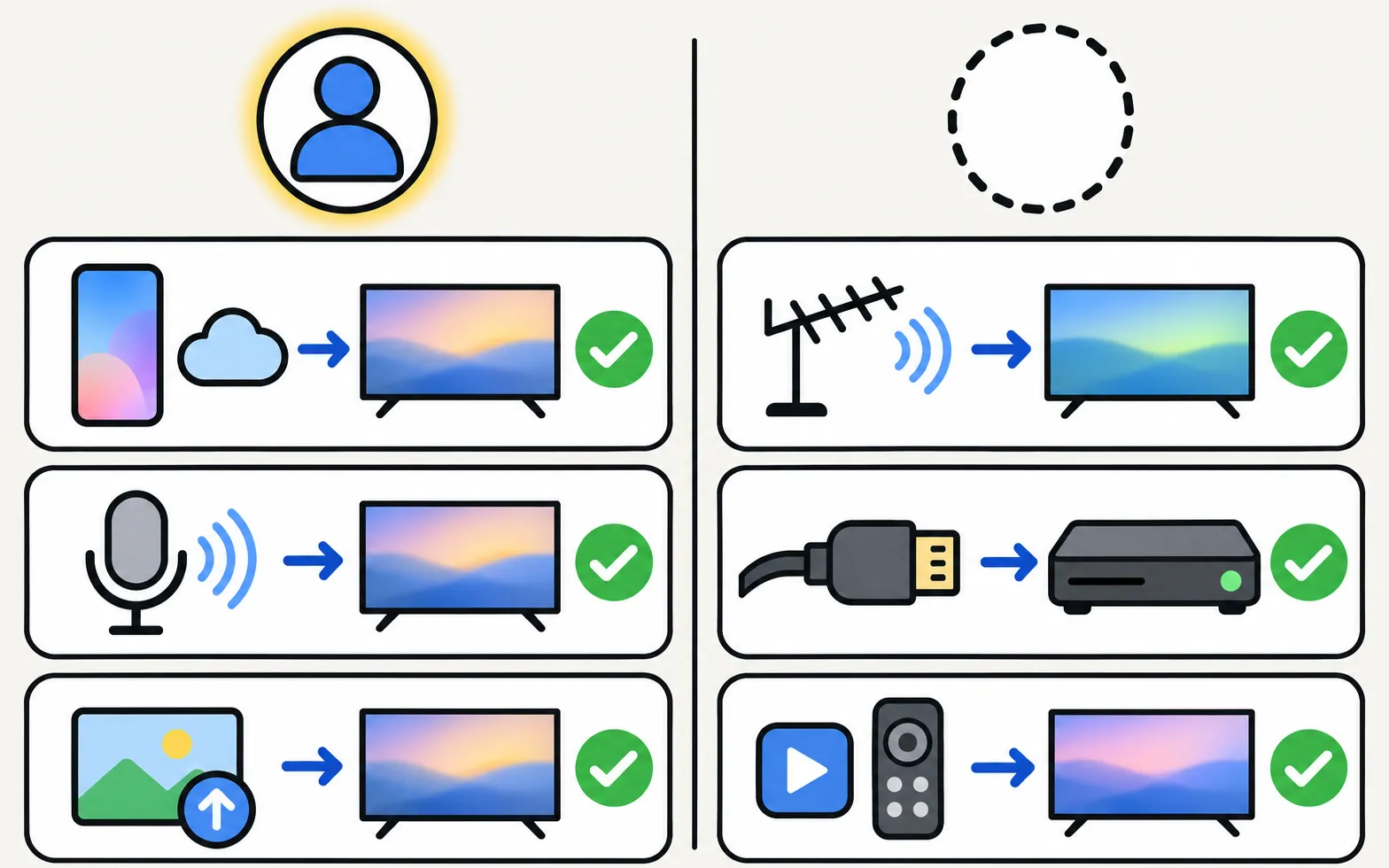
| Feature | Account needed? | Source |
|---|---|---|
| SmartThings (remote, power-on, routines) | Yes | Samsung Canada: sign in before using SmartThings; the TV registers to the account |
| Power-on via SmartThings | Yes — TV and phone on the same account | Samsung Australia |
| Bixby voice | Yes | Samsung’s voice-assistant guides |
| Art Mode: upload your own photos (The Frame) | Yes, plus internet | Samsung US Art Mode guide |
| Watching TV and HDMI devices | No | — |
| Most streaming apps | No Samsung account; the app’s own account | — |
Signing in or out
The account sits in the TV’s system settings (usually under General or General & Privacy, then System Manager or Samsung Account). Signing out disconnects Samsung services such as SmartThings from the TV.
Privacy considerations
A Samsung account links the TV to your profile across Samsung services. Viewing-data and ad settings are separate from the account and can be turned off either way (privacy settings).
A remote without an account
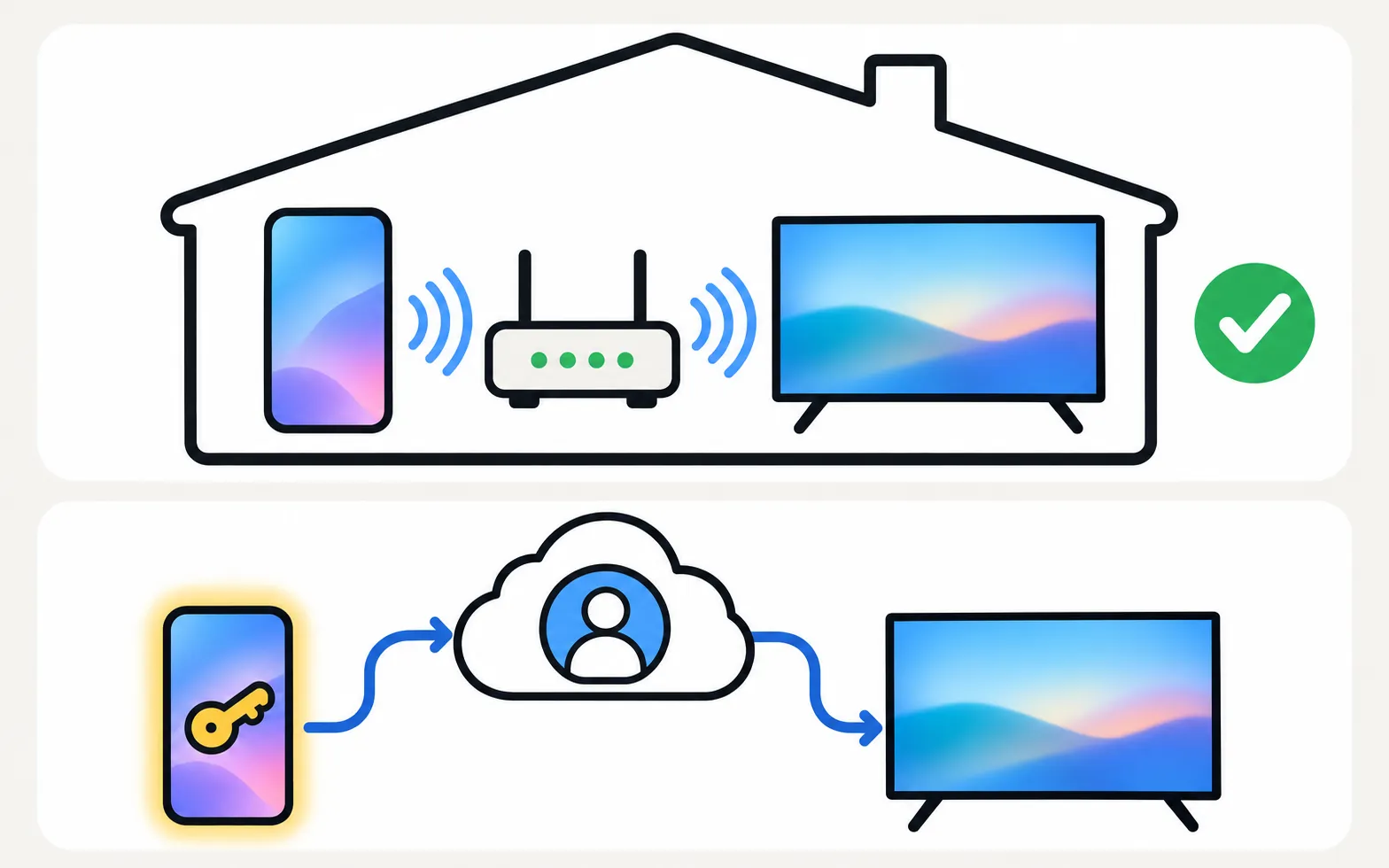
Samsung’s own phone remotes run through SmartThings and a Samsung account. A local remote app is the alternative:
Compare options: Samsung TV remote apps compared.
Frequently asked questions
Can I skip the Samsung account during setup?
Yes, setup lets you skip signing in; you can sign in later from the settings.
Do I need a Samsung account to download apps?
On many TVs you need to accept Smart Hub terms to see the app list, and some downloads ask for an account. Each streaming app also uses its own account.
Is there a phone remote without a Samsung account?
Yes — remote apps that talk to the TV on your home network can work without one.
Sources
- How to use SmartThings on your TV (add a TV to SmartThings) — Samsung Canada · Samsung · checked November 11, 2026
- Samsung Australia support: power on the TV with the SmartThings app (Power On with Mobile) — Samsung Australia · Samsung · checked November 10, 2026
- Use Art Mode on The Samsung Frame TV (ANS00076727, archived copy of 21 Dec 2025) — Samsung US · Samsung · checked November 12, 2026
- Samsung TV Remote product documentation (developer-supplied facts) — Smart App Craft · Developer · checked November 10, 2026
Related guides
How-to
Add a TV to SmartThings
What SmartThings does for a Samsung TV, what you need, how to add the TV automatically or with the PIN, and fixes when SmartThings can't find it.
How-to
Privacy settings and ACR
Turn off ACR (Viewing Information Services), interest-based ads and voice recognition on a Samsung TV — and what the 2026 Texas settlement changed.
How-to
Install and delete apps
How to download apps on a Samsung Smart TV, keep them updated, delete or reinstall them, and what to do when Delete is greyed out — with Samsung's own steps.
Comparison
Remote apps compared
How Samsung TV remote apps for Android differ: SmartThings, Mobile Remote, IR apps and Wi-Fi remotes, compared on ads, accounts, keyboard, power-on and privacy.
Topic
Ads and privacy
Control what your Samsung TV shows and shares: cut home-screen ads, stop TV Plus auto-starting, turn off ACR viewing data and see if you need an account.