
How-to
How to attach the stand or legs to a Samsung TV
Ten minutes and two people. The Quick Setup Guide in the box shows your model's exact stand — the rules below keep the screen safe while you fit it.
Quick answer
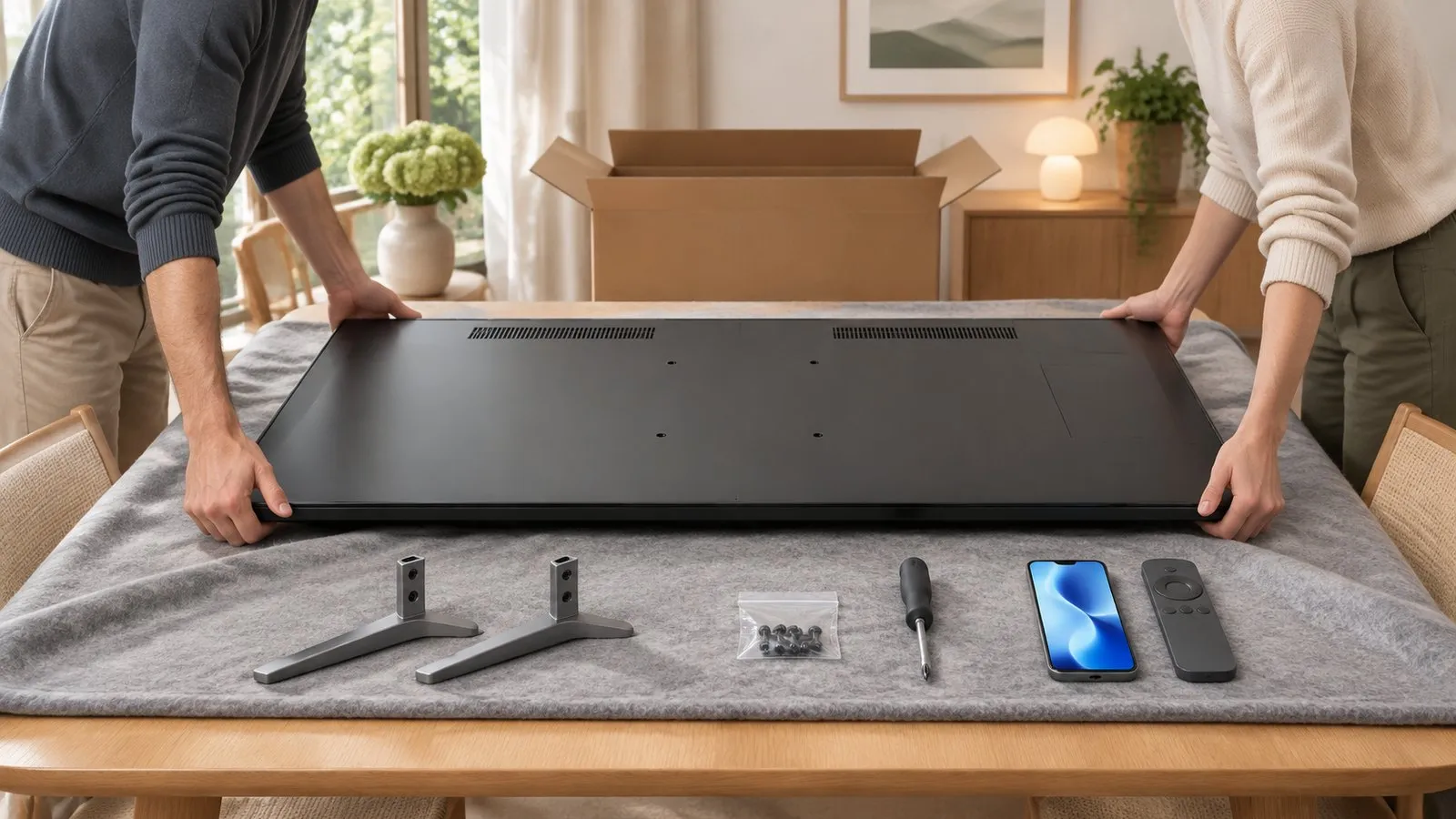
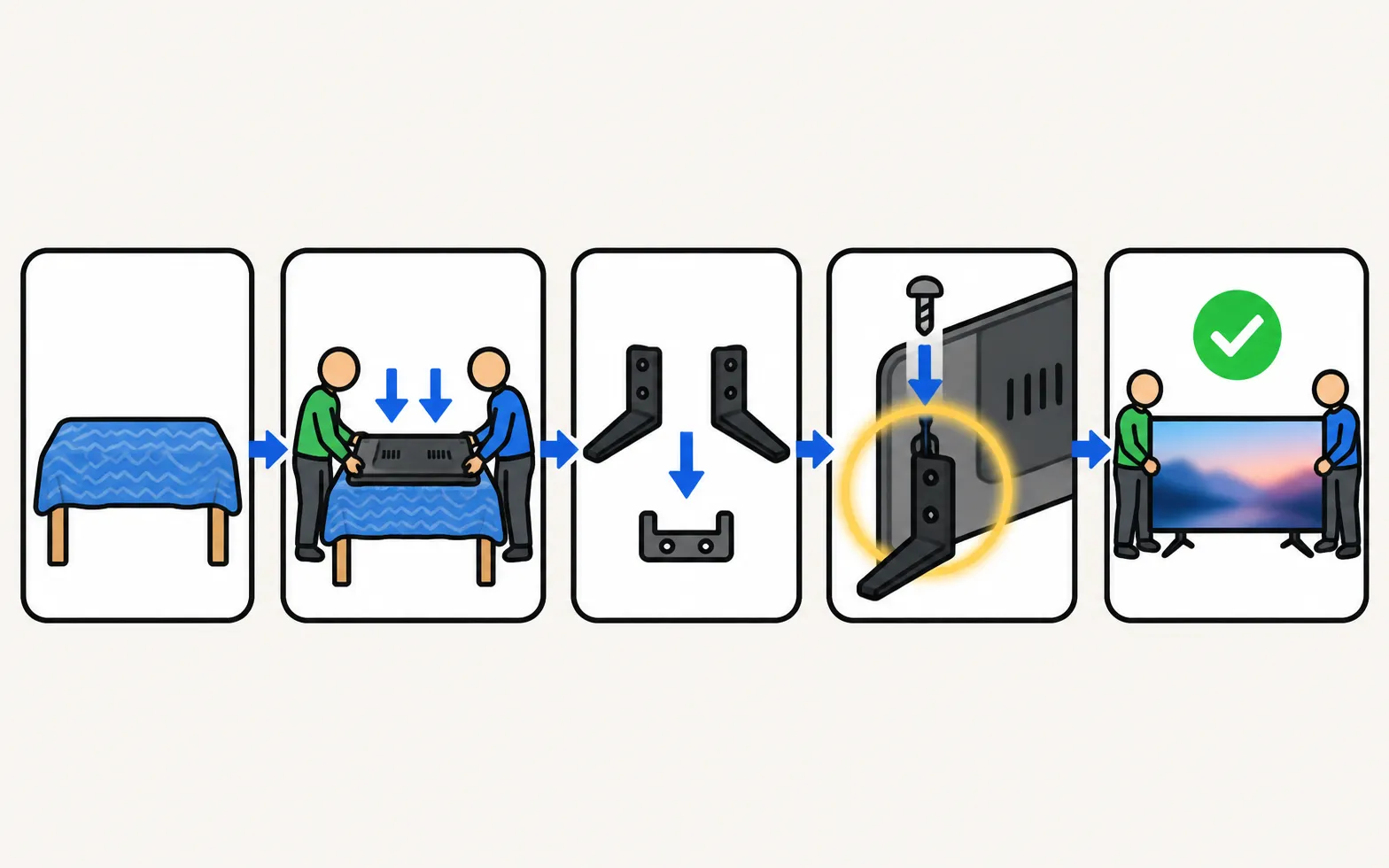
With a helper, lay the screen face down on a large table covered with a soft blanket (Samsung prefers a table to the floor). For 75-inch and larger TVs, leave the screen in the bottom of the box. Assemble the stand first if your Quick Setup Guide says so, then attach it — Samsung notes the screws always go in from the top, not the bottom, and some stands need no screws at all.
Before you start
- A helper. Samsung says to have someone help you take the TV out of the box and lift it.
- A large, flat table — Samsung says a table is preferable to the floor.
- A soft blanket to cover the table and protect the screen.
- The Quick Setup Guide — it’s the first thing you see when you open the box.
Fit the stand
-
Unpack the stand
Remove the stand parts and the top piece of foam. -
Lay the screen face down
Lift it out together and place it face down on the blanket. 75-inch and larger: leave the screen in the bottom of the box instead. -
Assemble the stand
In most cases the stand is assembled first, then attached. Follow the Quick Setup Guide for your model. -
Attach it
Screws always go in from the top, not the bottom. Some stands click in without screws. -
Lift upright
Stand the TV up together and place it on furniture wide and strong enough for its feet.
Feet near the edges?
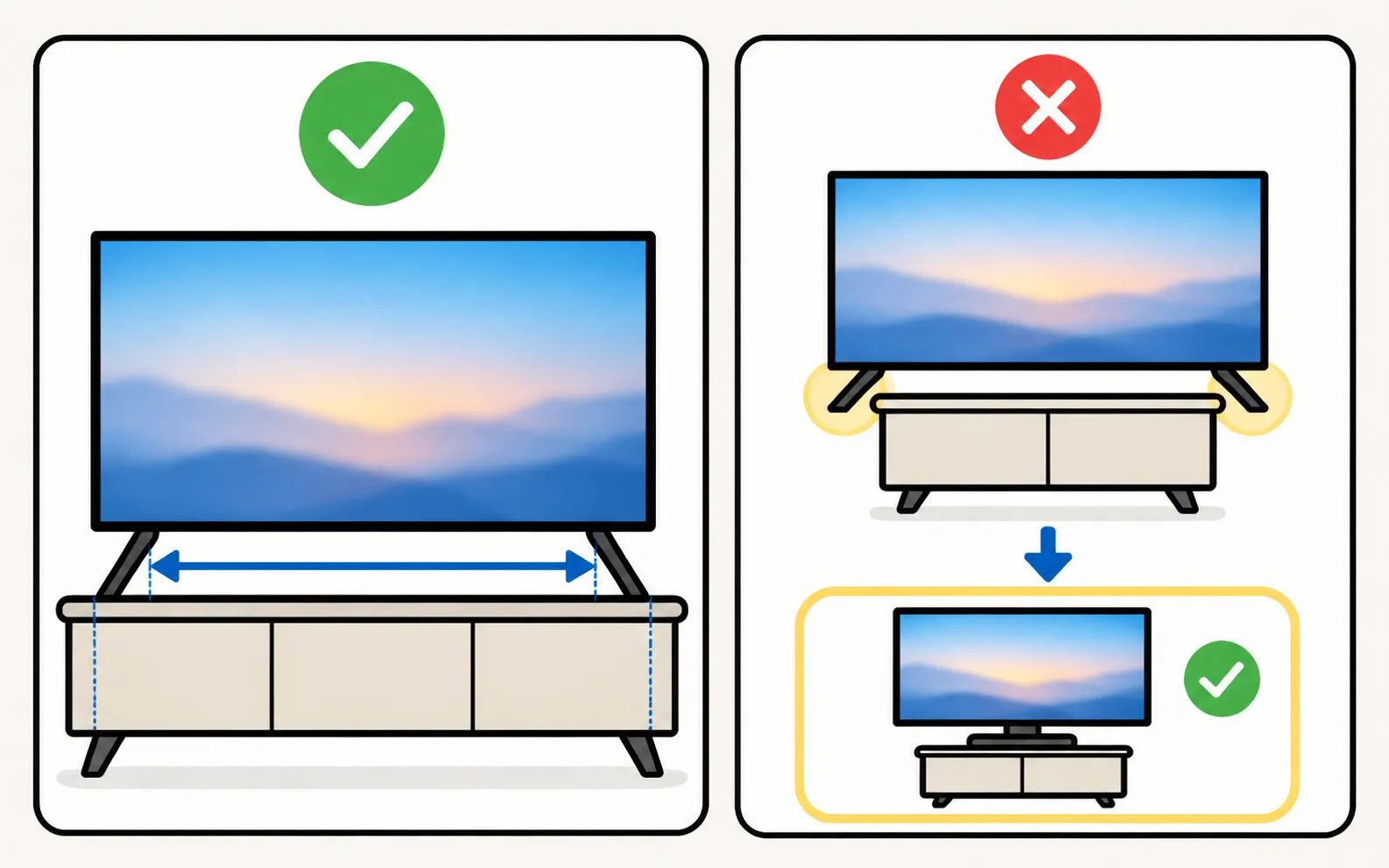
Some Samsung TVs stand on two feet near the edges rather than a centre pedestal, so they need a surface almost as wide as the screen. Check your model’s stand footprint before you buy furniture — see TV sizes and dimensions.
Wall-mounting instead?
You don’t fit the stand — keep it and its screws for later. Samsung UK recommends two people for wall mounting, four for TVs of 82 inches and larger. See wall mounting; The Frame has its own installation guide.
Next: first-time setup.
Frequently asked questions
Which screws do the feet use?
The ones supplied in the box with the stand — your Quick Setup Guide shows which go where. Wall-mount screws are different; see the wall-mount guide.
I lost the stand screws. What now?
Contact Samsung Support or Samsung's parts service with your model code. Use screws of the exact size from the manual; too long a screw can damage the TV.
The stand feels loose. What did I do wrong?
Check that every screw went in from the direction the guide shows — Samsung notes the screws always go in from the top, not the bottom — and that each one is fully tightened.
Can I fit the feet in a narrower position?
Only if your model's Quick Setup Guide or manual shows alternative positions.
Sources
- Set up your Samsung TV — Samsung US · Samsung · checked November 11, 2026
- How to mount your TV on a wall or stand — Samsung UK · Samsung · checked November 11, 2026
Related guides
How-to
Wall mounting
Find the right wall mount for a Samsung TV: the VESA pattern and screw size for your model, Samsung's M4/M6/M8 guidance by screen size, and safety steps first.
How-to
First-time setup
Set up a new Samsung Smart TV: pair the remote, pick language and network, decide on terms and privacy, scan channels or connect a box, then update.
Topic
New TV setup
Set up a new Samsung TV: fit the stand or wall-mount it, run the setup wizard, connect Wi-Fi, scan channels, pick privacy options and add a phone as a remote.
Reference
TV sizes and dimensions
How big is a 55-inch Samsung TV? Samsung's reference width and height for 32–115-inch screens, viewing distances, and where to find your model's exact size.
How-to
Install and bezels
Mount The Frame flush on the wall: the slim wall mount, routing the One Connect cable, placing the box, attaching magnetic bezels, plus safety tips.