
How-to
Samsung TV first-time setup: step-by-step guide
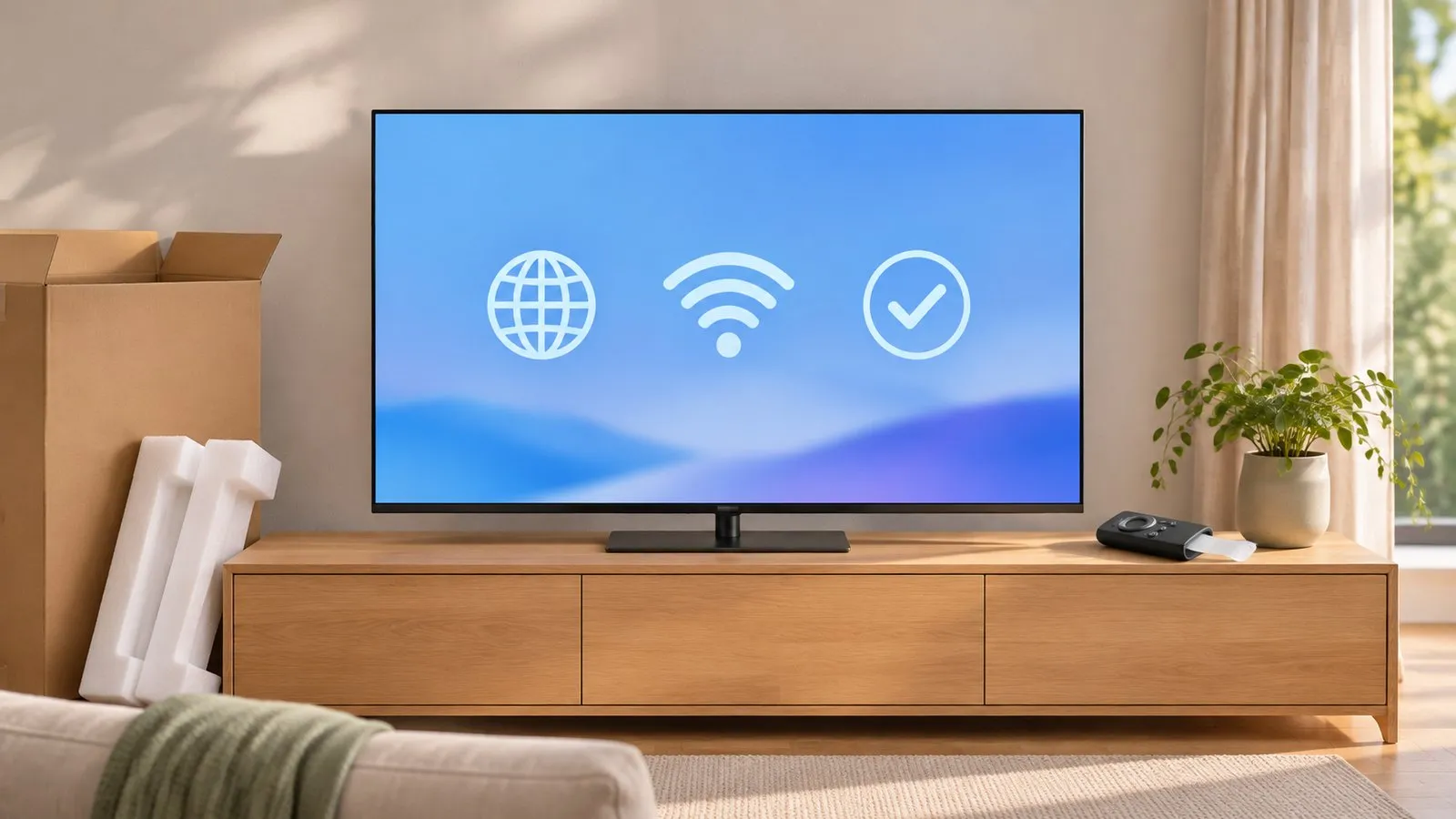
The setup wizard takes ten minutes. A few choices along the way — network, privacy, Samsung account — are worth making deliberately.
Quick answer
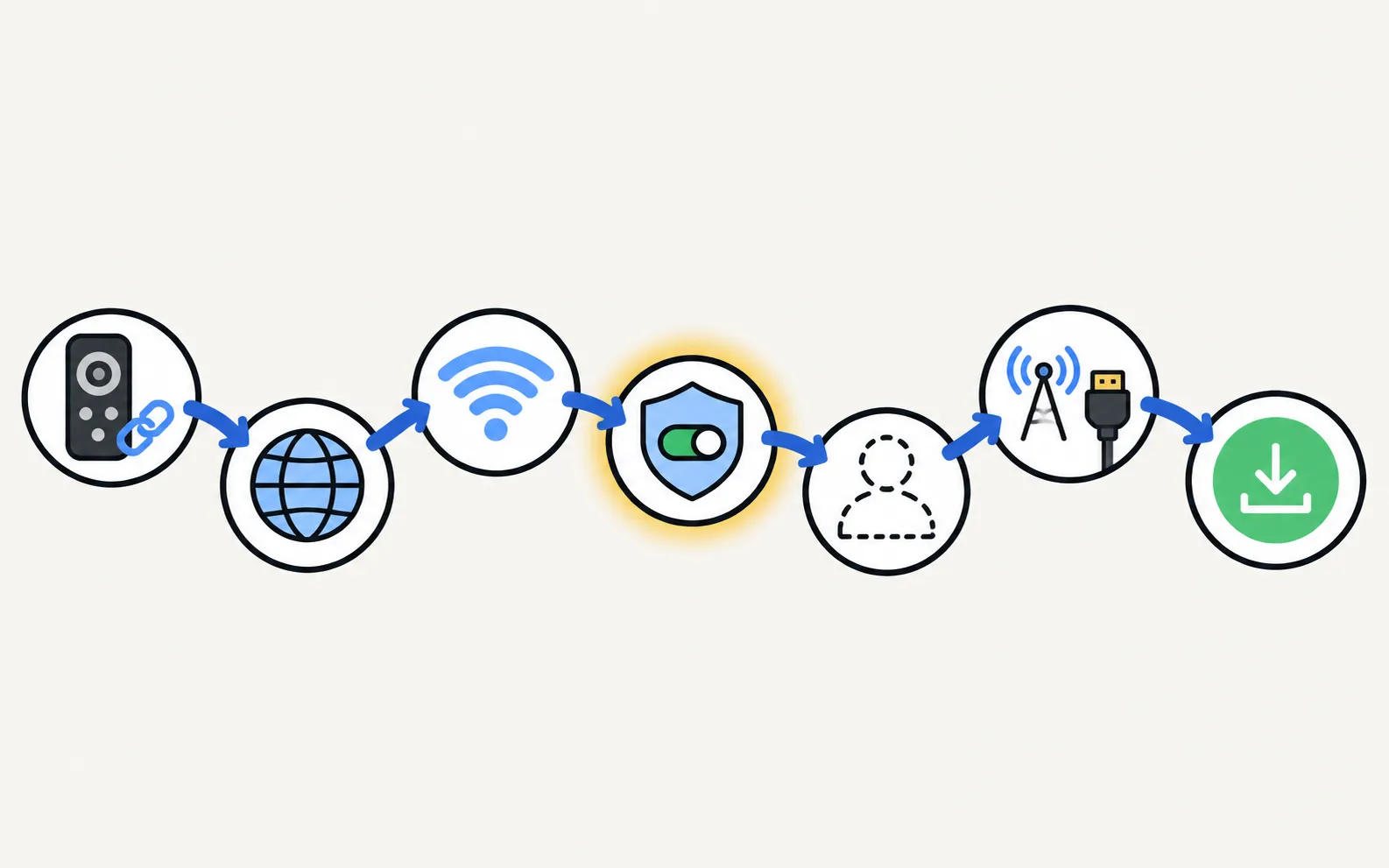
Plug in the TV, insert batteries or charge the remote, and turn it on; the setup wizard asks you to pair the Smart Remote, choose a language, connect to Wi-Fi (or Ethernet), accept or decline terms and privacy options, optionally sign in to a Samsung account, and find channels or connect your devices. Afterwards, update the software, turn on Power On with Mobile if you'll use a phone, and set your picture mode.
Before you start
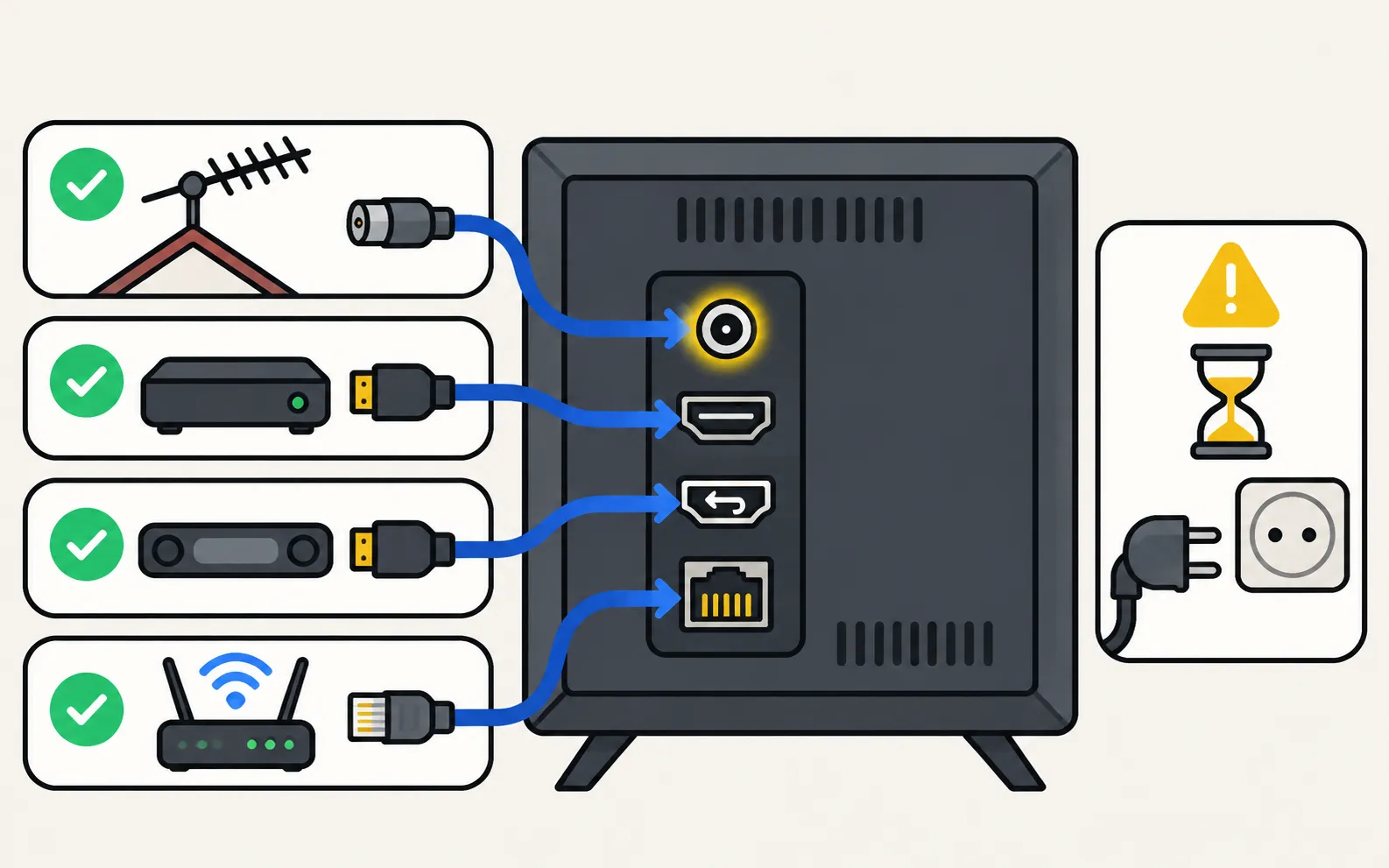
- TV on its stand or wall mount (wall mounting, stand and feet).
- Antenna or set-top box connected; soundbar on the HDMI ARC/eARC port.
- Your Wi-Fi password at hand (a USB keyboard makes typing easier).
The setup wizard
-
Pair the remote
If asked, point the Smart Remote at the TV and hold Return and Play/Pause for 3–5 seconds (pair a Smart Remote). -
Language and region
Choose your language; region settings decide tuners and apps. -
Network
Pick your Wi-Fi network and enter the password, or plug in Ethernet (connect to the internet). -
Terms and privacy
Read the options. Viewing Information Services (ACR) and interest-based ads are optional (privacy settings). -
Samsung account (optional)
Needed for SmartThings and some Samsung services (do you need one?). -
Channels or devices
Scan for antenna channels, or pick your cable/satellite box (channel scan).
Right after setup
- Update the software — Settings, All Settings, Support, Software Update (software update).
- Picture mode — Movie or Filmmaker for accuracy, Standard for bright rooms (best picture settings).
- Game Mode for consoles (Game Mode).
- Power On with Mobile if you’ll turn the TV on from a phone (turn on with your phone).
Set up your phone as a remote now
A new TV is the perfect moment: everything is on the same network and you’re in front of the TV to accept the phone.
-
Same Wi-Fi
Phone and TV must be on the same home network (not a guest network). The phone uses Wi-Fi; the TV can use Wi-Fi or Ethernet. No internet is needed, and mobile data can't be used. -
Open a phone remote app
On Android, a remote app such as Samsung TV Remote; on any phone, SmartThings. -
Allow it on the TV
The TV must be fully on for the first connection. Select Allow on the TV, or type the PIN shown on 2014–2015 TVs.
Frequently asked questions
Can I skip the Samsung account?
Yes. Most features work without it; SmartThings and some Samsung services need it.
What should I choose on the privacy screens?
Only agree to what you want. Viewing Information Services (ACR) and interest-based ads are optional and can be changed later.
My remote doesn't work during setup. What now?
Pair it: hold Return and Play/Pause near the TV for 3–5 seconds. The TV's own control button also navigates the wizard.
Can I set the TV up with my phone?
Phone remote apps need the TV on your network first, so finish the network step with the remote, its control button or a USB keyboard.
Sources
- Pair your Samsung Smart Remote to your Samsung TV — Samsung Canada · Samsung · checked November 11, 2026
- Samsung TV won't connect to Wi-Fi (TSG10002209) — Samsung US · Samsung · checked November 11, 2026
- How to set available channels on your 2025 Samsung Smart TV (Auto Program) — Samsung Malaysia · Samsung · checked November 11, 2026
- Samsung Australia support: power on the TV with the SmartThings app (Power On with Mobile) — Samsung Australia · Samsung · checked November 10, 2026
- Update the software on your Samsung smart TV or monitor (ANS00062224) — Samsung US · Samsung · checked November 11, 2026
- Your Samsung TV is watching you — how to turn off data collection — Tom's Guide · Media · checked November 11, 2026
Related guides
How-to
Wall mounting
Find the right wall mount for a Samsung TV: the VESA pattern and screw size for your model, Samsung's M4/M6/M8 guidance by screen size, and safety steps first.
How-to
Connect to the internet
How to connect a Samsung Smart TV to the internet: Wi-Fi step by step, a wired Ethernet connection, or a phone hotspot — plus how to check the connection works.
How-to
Antenna and channel scan
Connect an antenna or aerial to a Samsung TV and run Auto Program to find free channels: the menu path, antenna vs cable settings and what a new scan replaces.
How-to
Pair a Smart Remote
Pair or re-pair a Samsung Smart Remote or SolarCell remote: hold Return and Play/Pause near the TV. How to reset it first, and what to do when pairing fails.
How-to
Privacy settings and ACR
Turn off ACR (Viewing Information Services), interest-based ads and voice recognition on a Samsung TV — and what the 2026 Texas settlement changed.
How-to
Turn the TV on with your phone
Switch a Samsung TV on from your phone: enable Power On with Mobile (menu paths by year), keep the TV in standby, and fix a TV that won't wake over Wi-Fi.