
How-to
Samsung TV sleep timer, auto power off and screen saver
Three features switch a Samsung TV off or dim it on purpose. Use them deliberately — and turn them off when they surprise you.
Quick answer
Set the sleep timer in Settings, All Settings, System Manager, Time, Sleep Timer (Samsung's path for recent models). Auto Power Saving — which switches the TV off after a period without remote input — is in General & Privacy on recent TVs (older menus call it Auto Power Off). A screen saver may appear after a while on a still image to protect the screen.
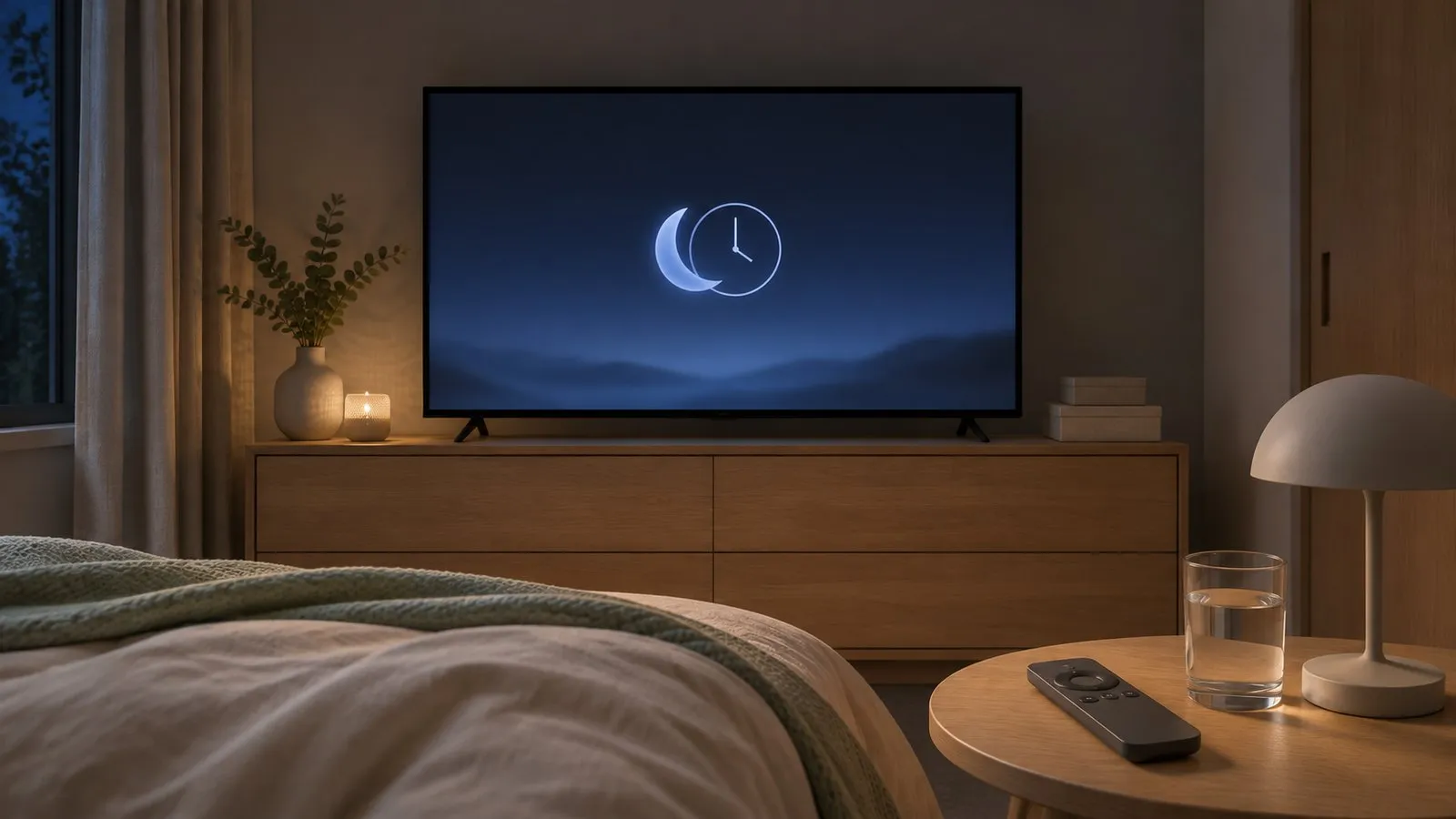
Sleep timer
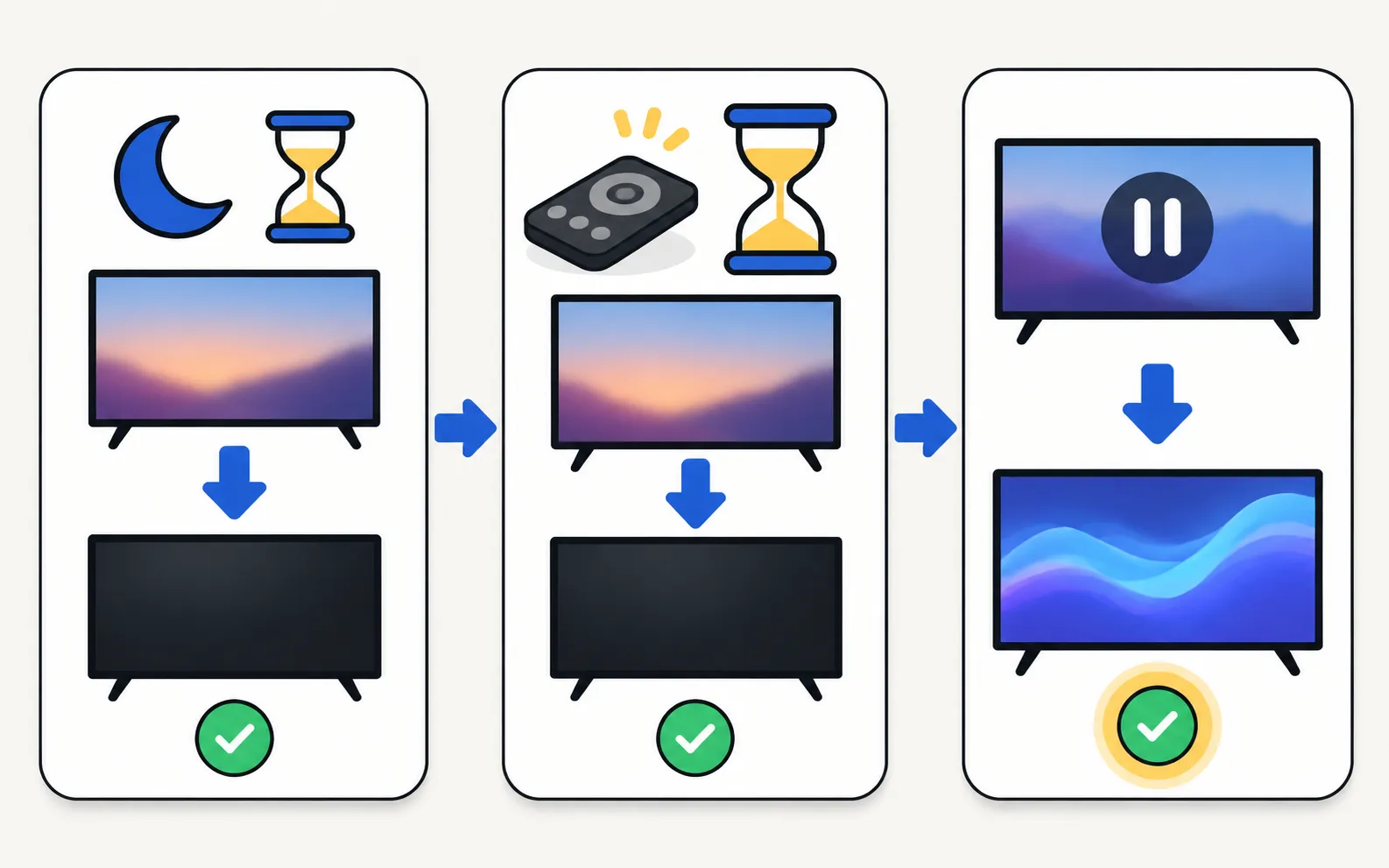
Samsung’s UAE guide gives, for recent models:
Choose a time (for example 30, 60 or 90 minutes) and the TV switches off after it. On older menus, System Manager sits under General.
Auto Power Saving / Auto Power Off
This energy feature switches the TV off after a period without remote input. Samsung’s UAE guide:
Older models call it Auto Power Off (often under General or an Eco Solution submenu). Samsung’s spec sheets list Auto Power Off among the energy features of its TVs. If your TV switches off unexpectedly, this is the first setting to check (turns off by itself).
Screen saver and image protection
On a still image, Samsung TVs can start a screen saver or dim to protect the panel. OLED owners should keep these protections on (OLED burn-in).
Timers for a routine
- Off-timer / on-timer: in the Time menu on many models.
- Smart-home routines: SmartThings, Alexa or Google Home can switch the TV off at a set time (Alexa and Google Home).
Energy use in standby and with these features: Samsung TV power consumption.
Frequently asked questions
Why does my TV turn off after a few hours?
That's Auto Power Saving or Auto Power Off — it switches the TV off when no remote button is pressed for a while. Turn it off, or press a button now and then.
Does the sleep timer reset every night?
On most TVs the sleep timer applies once. For a regular schedule, use an off-timer in the Time menu or a smart-home routine.
Why does a screen saver come on?
When a still image stays on screen for a while (a paused video, a menu), the TV can start a screen saver to protect the panel. It's especially useful on OLED TVs.
Sources
- Samsung UAE support: a TV that keeps powering on and off — Samsung UAE · Samsung · checked November 10, 2026
- 32-inch LED HD T4300 (UN32T4300APXPA) specifications — Samsung Caribbean · Samsung · checked November 11, 2026
- 55-inch Crystal UHD 4K AU7000 (UN55AU7000PXPA) specifications — Samsung Caribbean · Samsung · checked November 11, 2026
Related guides
Troubleshooting
TV turns off by itself
Samsung TV switching off on its own? Check Auto Power Saving, the sleep timer, Anynet+, devices, the power cable and software, and why it may shut off at start.
Reference
Power consumption
How much power a Samsung TV uses: read typical, maximum and standby watts on its spec sheet, see a real example, and save energy with settings by year.

How-to
Language, region and time
Wrong menu language on a Samsung TV? Change it back (paths by year since 2013), even if you can't read the menus, plus audio, subtitle language and the clock.
Explainer
OLED burn-in
Prevent and treat burn-in on a Samsung OLED TV: what Pixel Shift, Adjust Logo Brightness and Pixel Refresh do, where Panel Care is, and when to get service.

Topic
Settings
Find and fix Samsung TV settings: software updates, factory reset, PIN, Voice Guide, subtitles, language, sleep timer, parental controls and menu paths by year.